How to Use Canva for Social Media Banner Designs
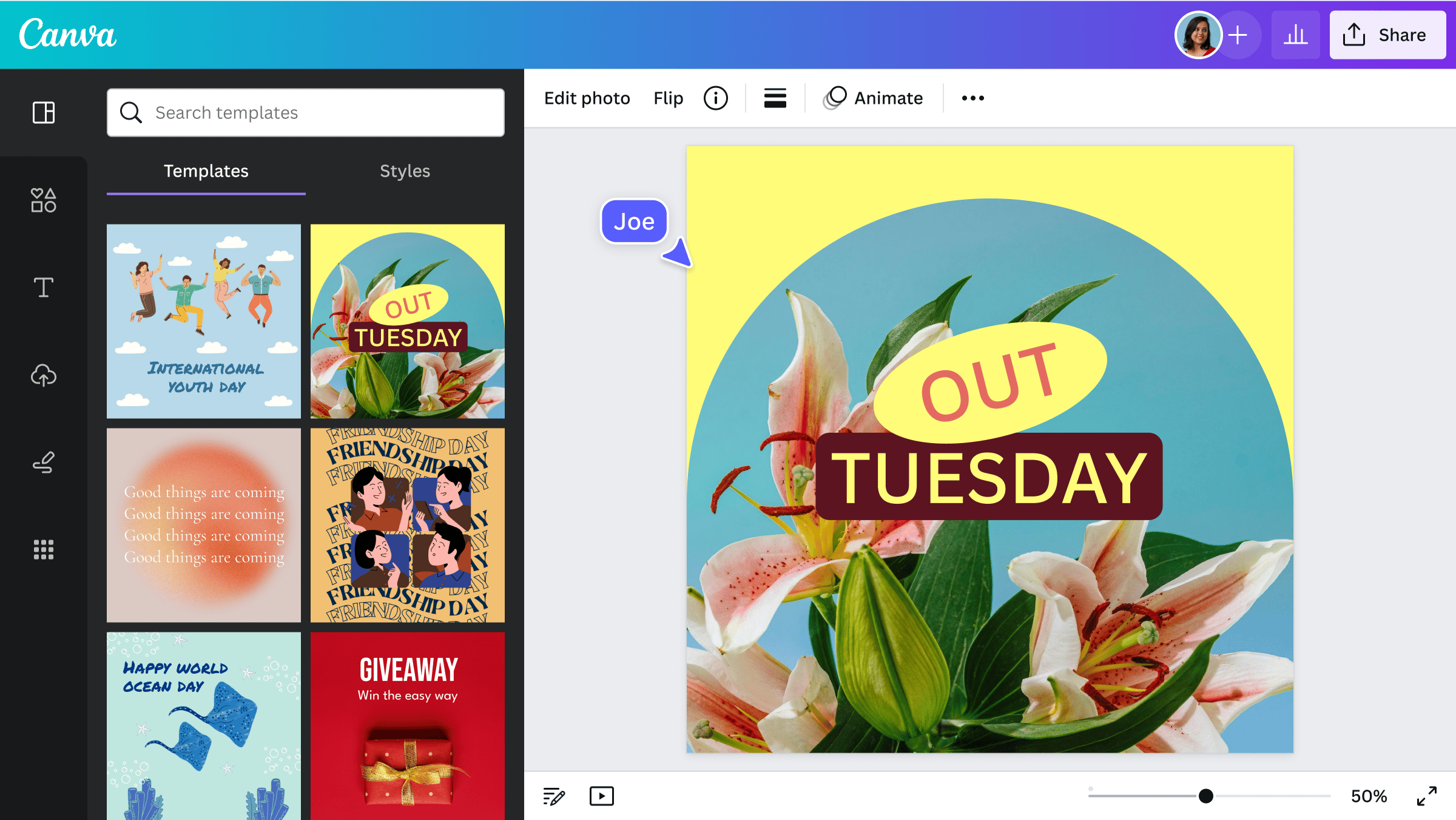
How to Design Stunning Social Media Banners with Canva: A Beginner's Guide
Hey there, fellow social media enthusiasts! Ever scrolled through your feed and stopped dead in your tracks, mesmerized by a banner so captivating it practically screamed, "Click me!"? We've all been there. But what ifyoucould be the one creating those eye-catching masterpieces? The good news is you can! And it doesn't require a degree in graphic design or a bottomless budget. The secret weapon? Canva!
In today's world, a strong social media presence is non-negotiable for businesses, influencers, and even individuals looking to connect with a wider audience. Think of your social media banner as your digital billboard – it’s often the first impression you make. A blurry, generic banner? That's like showing up to a party in sweatpants. A professionally designed, visually appealing banner? Nowthat'smaking an entrance.
But let's be honest, design software can be intimidating. Photoshop? Illustrator? They come with steep learning curves and hefty price tags. This is where Canva swoops in like a superhero, offering a user-friendly, accessible platform for everyone to unleash their inner designer. It’s like having a design team in your pocket, without the hefty salary!
Canva has become a cornerstone for crafting engaging social media visuals. According to recent statistics, platforms like Instagram and Facebook are increasingly visually driven, meaning compelling banners are more crucial than ever. And with Canva’s intuitive interface and vast library of templates, creating professional-looking banners is now within reach for even the most design-challenged among us.
The truth is, mastering Canva for social media banners can dramatically elevate your brand's image and boost engagement. Imagine attracting more followers, driving more traffic to your website, and ultimately, achieving your social media goals, all thanks to a well-designed banner. Sounds pretty good, right?
So, are you ready to ditch the generic banners and create visuals that truly representyouor your brand? This guide will walk you through everything you need to know about using Canva to create stunning social media banners, step-by-step. Consider this your personal Canva crash course. Stick around, and let’s transform your social media presence from "meh" to "magnificent!" We're about to unlock the secrets to crafting banners that not only look great but also drive results. Let's dive in!
Unleashing Your Creativity: How to Use Canva for Social Media Banner Designs
Okay, friends, let's get into the nitty-gritty of using Canva for social media banner design. We’re going to break down the process into easy-to-follow steps, so you can confidently create visuals that make your social media profile shine. Think of this as your friendly guide to navigating the Canva landscape. Let's get started!
Setting Up Your Canva Account
This might seem obvious, but it's the foundation! Head over to Canva.com and sign up for a free account. The free version offers atonof features and templates, perfect for beginners. You can always upgrade to Canva Pro later for even more bells and whistles.
Why it matters: A free account gets you started! You can explore the platform, experiment with different designs, and get a feel for what Canva offers without spending a dime. Pro tip: Use your Google or Facebook account to sign up for a faster and easier process. Less time on setup, more time designing!
Choosing the Right Template
This is where the magic begins! Canva offers a vast library of templates specifically designed for different social media platforms, from Facebook and Twitter to Linked In and You Tube. Selecting the right template is crucial for ensuring your banner looks its best.
Finding the perfect fit: In the Canva search bar, type in the social media platform you're designing for (e.g., "Facebook cover," "Twitter header," "You Tube channel art"). Canva will then display a range of templates tailored to the correct dimensions. Considering your brand: Choose a template that aligns with your brand's aesthetic. Think about your brand colors, fonts, and overall style. Do you want something modern and minimalist, or something more playful and vibrant? Custom dimensions are your friend:If you can't find a template that perfectly suits your needs, you can always create a custom design with specific dimensions. Simply click the "Create a design" button and enter the width and height in pixels. This is super useful for platforms with slightly unusual banner sizes.
Customizing Your Template: Make it Your Own!
Once you've chosen a template, it's time to unleash your creativity and customize it to your liking. This is where you inject your personality and brand identity into the design.
Text is key: Edit the existing text to reflect your message. Choose fonts that are easy to read and consistent with your brand. Consider using different font sizes and styles to create visual hierarchy and emphasize important information. Image power: Replace the default images with your own photos or illustrations. High-quality visuals are essential for creating a professional-looking banner. Canva also offers a vast library of stock photos and illustrations, but be mindful of licensing restrictions. Color palette perfection: Customize the colors to match your brand. Canva allows you to easily change the colors of different elements in the template, ensuring a cohesive and visually appealing design. Element galore: Add elements like shapes, icons, and illustrations to enhance your banner. Canva has a massive library of elements to choose from, but don't overdo it! Simplicity is often key. Background beauty:Change the background color or add a background image to create visual interest. Consider using a textured background or a subtle pattern to add depth to your design.
Mastering Canva's Design Tools: Unleash the Power Within
Canva boasts a user-friendly interface, but understanding its design tools can elevate your banner design game. Let's explore some essential features: Text tools: Experiment with different fonts, sizes, colors, and styles. Use text effects like shadows, outlines, and curves to make your text stand out. Image editing: Adjust the brightness, contrast, and saturation of your images. Use filters to create a consistent look and feel. Canva also offers basic image editing tools like cropping and resizing. Element manipulation: Rotate, resize, and position elements with precision. Use guides and grids to ensure your design is aligned and balanced. Color picker: Use the color picker to select specific colors from your brand's palette or find complementary colors. Transparency tool:Adjust the transparency of elements to create subtle effects and add depth to your design.
Optimizing Your Banner for Different Platforms
Remember, social media platforms have different banner dimensions and display requirements. It's crucial to optimize your banner for each platform to ensure it looks its best.
Dimension check: Always double-check the recommended banner dimensions for each platform before you start designing. Mobile optimization: Consider how your banner will look on mobile devices. Ensure that important text and images are visible and legible on smaller screens. Safe zones: Be aware of "safe zones" on different platforms, where profile pictures or other elements might overlap your banner. Avoid placing critical information in these areas. Testing is key: Preview your banner on different devices and platforms to ensure it looks great everywhere.
Adding Animation: Bringing Your Banner to Life
Want to make your banner even more engaging? Consider adding animation! Canva offers a range of animation options, from subtle movements to more dynamic effects.
Subtle is key: Avoid overly flashy animations that can distract from your message. Opt for subtle movements that draw the eye and add a touch of visual interest. Keep it consistent: Use animations that align with your brand's style and personality. GIF or video? Canva allows you to download your animated banner as a GIF or a video file. Choose the format that's best suited for the platform you're using. Test, test, test! Always test your animated banner on different devices and platforms to ensure it plays smoothly and looks as intended.
Staying on Trend: Keeping Your Designs Fresh
Social media trends are constantly evolving, so it's important to keep your banner designs fresh and relevant.
Follow design blogs and influencers: Stay up-to-date on the latest design trends and techniques. Experiment with new styles: Don't be afraid to try new things and push your creative boundaries. Analyze your performance: Track the performance of your banners and identify what works and what doesn't. Seasonal updates: Update your banners seasonally to reflect holidays, events, and changing trends.
Examples of Successful Social Media Banners
Let’s look at some examples of social media banners that knock it out of the park and see what makes them work.
Consistency is Key: Brands with a cohesive visual identity often use banners that directly reflect their website or other marketing materials. This helps reinforce brand recognition. Highlighting Value Propositions: Successful banners clearly communicate what the brand offers. This could be a tagline, a special offer, or simply a visually appealing representation of their product or service. Leveraging High-Quality Imagery: Stunning photography or well-crafted illustrations can instantly grab attention and convey a sense of quality. Strategic Use of Color: Colors evoke emotions and can influence buying decisions. Successful banners use color strategically to attract the target audience and create the desired mood. Clear Call to Action:Some of the most effective banners include a clear call to action, such as "Shop Now," "Learn More," or "Sign Up." This encourages viewers to take the next step.
By analyzing these examples, you can identify design elements that resonate with your own brand and target audience.
Wrapping Up: Your Path to Canva Banner Mastery
Alright, we’ve reached the end of our Canva journey! We've covered everything from setting up your account to mastering the design tools and staying on trend. Now you are ready to use Canva for social media banner designs. You’ve unlocked the power to create visuals that not only look amazing but also drive results.
To recap, remember the importance of: Choosing the right template: Tailor it to your platform and brand. Customizing your design: Inject your personality and make it unique. Optimizing for different platforms: Ensure it looks great everywhere. Staying on trend: Keep your designs fresh and relevant.
Now it's time to put your newfound knowledge into action. Don't be afraid to experiment, play around with different designs, and see what works best foryou. The more you practice, the better you'll become.
Your call to action: Head over to Canva right now and create your first social media banner. Don't overthink it – just start designing!
The world of social media is waiting for your creative touch. Go out there and make some visual magic! Now, what awesome banner are you going to create today? Let your creativity flow!

Post a Comment for "How to Use Canva for Social Media Banner Designs"
Post a Comment