How to Use Canva for Designing YouTube Thumbnails
Master You Tube Thumbnails: A Canva Design Guide
Craft captivating You Tube thumbnails with Canva! Learnhow to use Canva for designing You Tube thumbnailsthat boost views, attract subscribers, and elevate your channel's brand – all without needing professional design skills.
Hey there, content creators! Ever feel like your You Tube videos are getting lost in the endless scroll? You've poured your heart and soul into creating amazing content, but the views just aren't rolling in. The secret weapon you might be missing? Killer You Tube thumbnails! Think of them as tiny billboards for your videos, shouting, "Click me! Youneedto watch this!" A bland, generic thumbnail is like wearing sweatpants to a red carpet event – it just doesn’t cut it.
The good news is, you don't need to be a Photoshop wizard or hire a graphic designer to create eye-catching thumbnails. Canva, my friends, is here to save the day! It’s the drag-and-drop design tool that's ridiculously easy to use, even if your artistic talent peaks at drawing stick figures.
Now, maybe you've dabbled in Canva before, created a social media post or two. But did you know it’s apowerhousewhen it comes to You Tube thumbnails? We're not just talking about slapping some text on a blurry screenshot here. We're talking about crafting visually compelling thumbnails that scream professionalism and intrigue.
Think of some of your favorite You Tubers. What do their thumbnails have in common? They're usually bright, engaging, and give you a sneak peek into what the video is all about. They tell a story in a tiny, clickable package. And guess what? You can achieve that same level of thumbnail magic, even if you're just starting out.
Imagine finally seeing your click-through rate skyrocket, your videos getting more views, and your channel growing faster than ever before. Sounds good, right?
So, buckle up, because we're about to dive into the wonderful world ofusing Canva for designing You Tube thumbnails that will transform your channel from virtually unknown to virtually irresistible! Ready to unlock the secrets to thumbnail success? Let’s get started.
How to Use Canva for Designing You Tube Thumbnails: Getting Started
Creating Your Canva Account
Okay, first things first: if you don't already have a Canva account, head over to Canva.com and sign up. The basic version is completely free, and it offersplentyof features for creating stunning You Tube thumbnails. Think of it as dipping your toes into the design pool before diving in headfirst. While Canva Pro unlocks even more templates, graphics, and fonts, you can definitely create amazing thumbnails with the free version. It's like having a fully stocked kitchen, even if you don't have all the fancy gadgets!
Creating an account is super easy – you can sign up with your Google account, Facebook, or even just your email address. It’s literally aone-minuteprocess. Once you're in, you'll be greeted with a dashboard full of design possibilities. Don’t be intimidated! We're going to focus specifically on You Tube thumbnails, so things will feel much more manageable.
The key is to just start exploring. Click around, experiment with different features, and don’t be afraid to make mistakes. That’s how you learn! And remember, even the most experienced designers started somewhere. Your first few thumbnails might not be masterpieces, and that's totally okay. With practice and the tips we’re about to share, you'll be creating pro-level thumbnails in no time.
Think of it like learning to ride a bike. You might wobble and fall a few times, but eventually, you'll be cruising along with confidence. The same goes for Canva. The more you use it, the more comfortable you'll become, and the better your thumbnails will look. So, sign up, log in, and let’s get this thumbnail party started!
Navigating the Canva Interface
Alright, you're logged into Canva and staring at the dashboard. Now what? Don't worry, it’s not as overwhelming as it looks. The Canva interface is actually pretty intuitive. Think of it as the friendly neighbor of design software.
The first thing you'll want to do is search for "You Tube Thumbnail." Canva has a dedicated template size specifically for You Tube thumbnails (1280 x 720 pixels), so you don't have to worry about getting the dimensions wrong. It's like having a cheat sheet right in front of you! Just type it into the search bar at the top of the page, and Canva will magically whisk you away to a world of thumbnail templates.
On the left-hand side of the screen, you'll see a panel with various options: Templates,Elements, Uploads,Text, Background, and more. These are your design building blocks.
Templates: This is where the magic happens. Canva offersthousandsof pre-designed thumbnail templates that you can customize to fit your video's theme and style. It's like having a shortcut to a professional-looking thumbnail! Elements: Need a cool graphic, icon, or shape? The Elements tab has got you covered. You can find everything from arrows and speech bubbles to illustrations and photos. It's like a digital treasure chest! Uploads: This is where you can upload your own images, like screenshots from your videos or personal branding elements. It's like bringing your own ingredients to the design party! Obviously, you'll need text on your thumbnail to tell viewers what your video is about. The Text tab lets you add headings, subheadings, and body text with a variety of fonts and styles. It's like choosing the perfect voice for your thumbnail! Background: Want to add a solid color, gradient, or textured background to your thumbnail? The Background tab is your go-to. It’s like setting the stage for your design masterpiece!
Take some time to explore each of these tabs and see what they have to offer. The more familiar you are with the Canva interface, the faster and easier it will be to create amazing You Tube thumbnails. Remember, practice makes perfect!
Key Elements of Effective You Tube Thumbnails: Design Principles
Choosing the Right Template
One of the biggest time-savers in Canva is the use of templates.Don'treinvent the wheel! Canva has a massive library of You Tube thumbnail templates, covering just about every niche imaginable. From gaming and beauty to cooking and travel, you're sure to find a template that fits your video's theme.
When choosing a template, think about your target audience and the overall style of your channel. Do you want something bright and playful, or something sleek and professional? Consider the colors, fonts, and layout of the template and whether they align with your brand.
It’s important to not just pick the first template that catches your eye. Scroll through the options and see what resonates with you.Pay attentionto how the template uses images, text, and colors to create a visually appealing design.
Once you've found a template you like, you can customize it to make it your own. Change the colors, fonts, images, and text to match your video's content and your channel's branding. Remember, the goal is to create a thumbnail that is both eye-catching and informative.
Pro tip: Don't be afraid to experiment with different templates. You can always duplicate your design and try out different options. It’s like trying on different outfits until you find the perfect fit.
Selecting Eye-Catching Images
Images are acriticalcomponent of effective You Tube thumbnails. They're the first thing viewers see, so they need to be attention-grabbing and relevant to your video's content.
Ideally, you should use high-quality images that are clear, crisp, and well-lit. Avoid blurry or pixelated images, as they can make your thumbnail look unprofessional. If you're using photos of yourself, make sure they're flattering and expressive. Think about capturing a key moment from your video or striking a pose that conveys the emotion or message you're trying to communicate.
Canva offers a library of stock photos that you can use, but it's often best to use your own images, especially if you're a personality-driven channel. Screenshots from your videos can also work well, but make sure they're not too cluttered or confusing.
When selecting images, consider the overall composition of your thumbnail. Make sure the image is well-balanced and doesn't distract from the text or other elements. You can use Canva's editing tools to adjust the brightness, contrast, and saturation of your images to make them pop.
Remember, the goal is to create an image that instantly grabs viewers' attention and makes them want to click on your video. A captivating image is like the first sentence of a good book – it hooks you in and makes you want to read more.
Choosing the Right Font and Text
Text is anotheressentialelement of a great You Tube thumbnail. It should be clear, concise, and easy to read, even at a small size. Choose a font that is legible and matches the overall style of your channel. Avoid overly decorative or script fonts, as they can be difficult to read.
Use alimitednumber of words in your thumbnail. You want to give viewers a quick snapshot of what your video is about, not write a novel. Focus on the key keywords or phrases that will grab their attention. Think of it as creating a headline that screams, "Watch me!"
Make sure your text is large enough to be seen clearly on all devices, from smartphones to laptops. You can use Canva's text editing tools to adjust the size, color, and font of your text. Consider adding a background or outline to your text to make it stand out from the image.
When choosing text colors, think about contrast. Use colors that are easy to read against the background image. A dark text on a light background or a light text on a dark background usually works well.
Pro tip: Use different font styles to create visual hierarchy. For example, you can use a bold font for the main headline and a smaller, less prominent font for the subtitle. This will help guide viewers' eyes and make your thumbnail more engaging.
Advanced Canva Techniques for You Tube Thumbnails: Level Up
Using Canva's Photo Editing Tools
Canva is more than just a drag-and-drop design tool; it also offers arangeof photo editing features that can help you take your thumbnails to the next level. You can adjust the brightness, contrast, saturation, and blur of your images to create the perfect look and feel.
Canva also has a variety of filters that you can apply to your images. These filters can help you create a consistent style across your thumbnails and make your channel look more professional. Think of it as adding a signature touch to your thumbnails.
One of the most useful photo editing tools in Canva is the background remover. This tool allows you to remove the background from your images with just a few clicks. This is great for creating thumbnails with a clean, modern look. You can also use the background remover to isolate specific elements from your images and use them as design elements in your thumbnails.
Experiment with Canva's photo editing tools and see what you can create. You might be surprised at how much you can improve your thumbnails with just a few simple adjustments.
Adding Effects and Animations
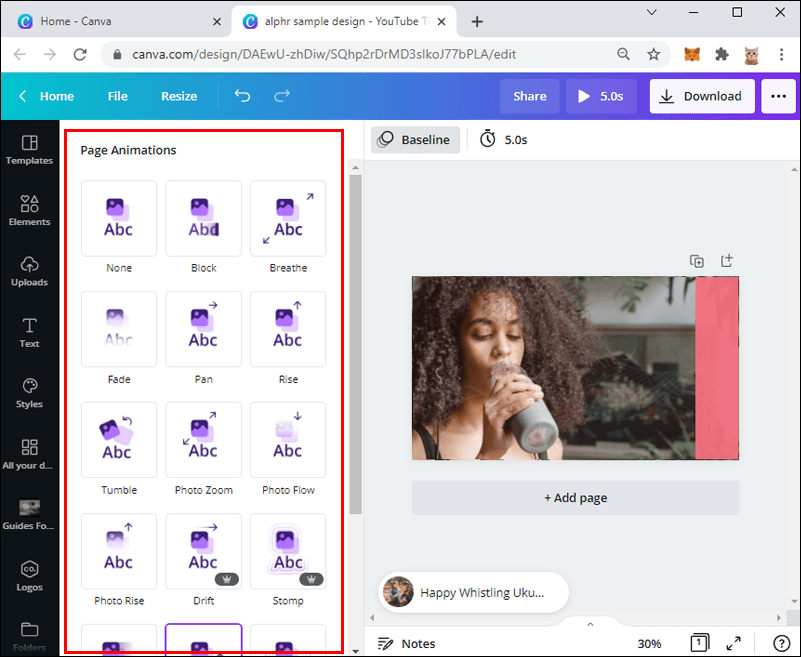
Want to make your thumbnails evenmoreeye-catching? Consider adding effects and animations. Canva offers a variety of effects, such as shadows, glows, and outlines, that can add depth and dimension to your thumbnails. You can also add animations, such as subtle movements or transitions, to grab viewers' attention as they scroll through the You Tube feed.
However, use effects and animations sparingly. Too many effects can make your thumbnail look cluttered and overwhelming. The goal is to enhance your thumbnail, not distract from it. Think of it as adding a sprinkle of spice to a dish – just enough to enhance the flavor, but not so much that it overpowers the other ingredients.
When using animations, make sure they're not too distracting or annoying. A subtle pulse or zoom effect can be effective, but avoid anything that flashes or moves too quickly. Remember, the goal is to get viewers to click on your video, not give them a headache!
Incorporating Branding Elements
Your You Tube thumbnails should be consistent with your channel's branding. This means using the same colors, fonts, and logo in all of your thumbnails. This will help viewers recognize your videos in the You Tube feed and build brand awareness.
Create a set of brand guidelines that outlines your channel's color palette, fonts, and logo usage. This will help you stay consistent with your branding and make it easier to create professional-looking thumbnails. Think of it as creating a visual identity for your channel.
You can upload your logo and other branding elements to Canva and use them in your thumbnails. Consider adding a subtle watermark to your thumbnails to prevent others from stealing your designs.
Consistency is key when it comes to branding. The more consistent your thumbnails are, the more likely viewers are to recognize your videos and click on them.
Best Practices for You Tube Thumbnail Design: Tips and Tricks
Optimize for Mobile Viewing
Most You Tube viewers watch videos on their mobile devices, so it'scrucialto optimize your thumbnails for mobile viewing. This means making sure your text is large enough to read on a small screen and that your images are clear and easy to see.
Test your thumbnails on a mobile device to see how they look. You can also use Canva's mobile app to create and edit your thumbnails directly on your phone or tablet.
Avoid using too much text in your thumbnails, as it can be difficult to read on a small screen. Focus on the key keywords or phrases that will grab viewers' attention.
Make sure your thumbnails are visually appealing and easy to understand, even at a small size. Think of it as designing a miniature billboard that can be seen clearly from a distance.
A/B Test Your Thumbnails
One of the best ways to improve your You Tube thumbnails is to A/B test them. This means creating two different versions of your thumbnail and seeing which one performs better.
You can use You Tube Analytics to track the click-through rate (CTR) of your thumbnails. The CTR is the percentage of viewers who click on your video after seeing your thumbnail. A higher CTR means your thumbnail is more effective at attracting viewers.
Experiment with different images, text, colors, and layouts to see what works best for your audience. Don't be afraid to try new things and push the boundaries.
A/B testing is an ongoing process. You should continuously test your thumbnails and make adjustments as needed. Think of it as refining your recipe until you find the perfect combination of ingredients.
Analyze Successful Thumbnails in Your Niche
Pay attention to the thumbnails that are being used by other successful You Tubers in your niche. What are they doing well? What can you learn from them?
Don't copy their thumbnails exactly, but use them as inspiration for your own designs. Look at the colors, fonts, images, and layouts they're using and see how you can incorporate similar elements into your thumbnails.
Analyze the thumbnails that are getting the most views and engagement in your niche. What makes them so effective? What are they doing differently than other thumbnails?
Learning from successful You Tubers is a great way to improve your own thumbnail design skills. Think of it as learning from the masters.
Conclusion: Creating Compelling Thumbnails with Canva
In conclusion, masteringhow to use Canva for designing You Tube thumbnailsis a game-changer for any content creator. It's the secret sauce that can transform your videos from being overlooked to irresistibly clickable. Throughout this guide, we've explored the key elements of effective thumbnails, from choosing the right templates and images to crafting compelling text and incorporating your branding. You now know the essentials for creating thumbnails that not only grab attention but also accurately represent your content.
Now it’syourturn to put these insights into action! Open up Canva, experiment with different designs, and don't be afraid to get creative. Remember, the best way to learn is by doing, so dive in and start creating thumbnails that reflect your unique style and content.
To truly elevate your You Tube game, challenge yourself to A/B test your thumbnails. Continuously refine your designs based on performance data and stay adaptable to the ever-evolving trends of You Tube.
Ready to create thumbnails that skyrocket your click-through rate and grow your You Tube channel? It's time to transform your video presentation and boost your reach. Let Canva be your design playground and watch your audience connect with your work like never before. Are you ready to become a You Tube thumbnail pro?

Post a Comment for "How to Use Canva for Designing YouTube Thumbnails"
Post a Comment