How to Use Canva for Designing YouTube Channel Art
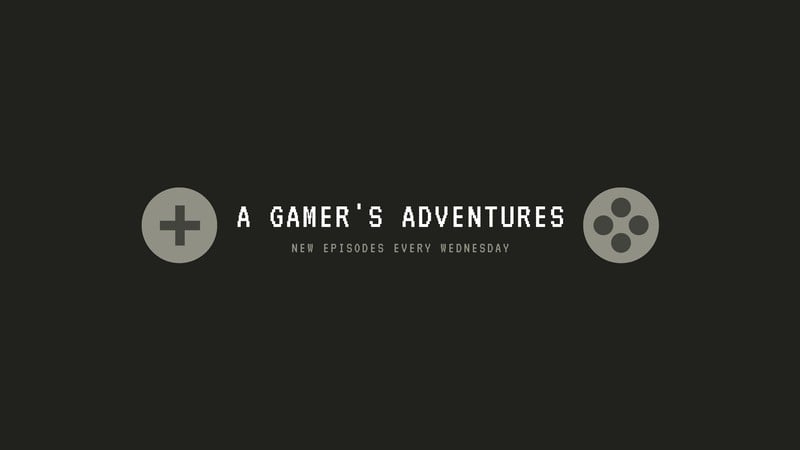
How to Use Canva to Create Stunning You Tube Channel Art
Designing eye-catching You Tube channel art doesn’t have to be a daunting task; with Canva, even design newbies can create professional-looking banners that attract viewers and boost their brand.
Hello Future You Tube Superstar!
Let’s be honest, friends. You've poured your heart and soul into creating killer content for your You Tube channel. You’ve painstakingly edited your videos, crafted catchy titles, and even perfected that charming on-screen persona. But are peopleactuallyclicking? Are they subscribing? Maybe, justmaybe, the answer lies in that often-overlooked space at the top of your channel: your channel art.
Think of your You Tube channel art as the storefront of your digital business. It’s the first impression you make. It’s the virtual equivalent of dressing to impress. A blurry, outdated, or just plainbadbanner screams "amateur hour" and can drive potential subscribers away faster than you can say "like and subscribe!"
We've all seen those channels. The ones with stretched-out logos, illegible text, and colors that clash so violently, it's like a disco ball exploded. Don’t let that beyou.
But here's the good news: you don't need to be a graphic design whiz to create stunning You Tube channel art that reflects your brand and attracts viewers. Enter Canva, your new best friend in the world of online design. Canva is a user-friendly, drag-and-drop platform that makes creating professional-quality graphics accessible to everyone, regardless of their design experience (or lack thereof).
Imagine a world where you can whip up a gorgeous banner in minutes, without spending a fortune on expensive software or hiring a professional designer. Imagine a banner that perfectly captures the essence of your channel, showcases your personality, and makes people instantly want to click that subscribe button. That world is within your reach, and Canva is the key.
This article is your ultimate guide to using Canva to create You Tube channel art thatpops. We'll walk you through everything from understanding You Tube's banner size requirements to choosing the right fonts and colors, all while keeping it fun, engaging, and (most importantly)easy.
Stick with us, and you’ll learn how to:
Navigate Canva's interface like a pro.
Master the art of choosing the perfect template.
Customize your design with your own brand elements.
Optimize your banner for different devices (because let's face it, everyone's watching You Tube on something different these days).
Avoid common design mistakes that can make your channel look unprofessional.
So, are you ready to ditch the amateur hour look and transform your You Tube channel into a subscriber magnet? Let's dive in!
Understanding You Tube Channel Art Dimensions
The first, and perhaps most crucial, step in creating effective You Tube channel art is understanding the required dimensions. You Tube displays channel art differently depending on the device used to view it – desktop, mobile, or TV. This means your design needs to be flexible and optimized for various screen sizes. Failing to do so can result in cropped images, distorted text, and an overall unprofessional look. You Tube's guidelines for channel art dimensions are2560 x 1440 pixels. This large size ensures that the banner looks crisp and clear on high-resolution displays like TVs. However, the "safe area," which is the area that willalwaysbe visible regardless of the device, is much smaller: 1546 x 423 pixels. This safe area is where you should place your most important information, such as your channel name, logo, and tagline.
Why is this safe area so important? Because if you put crucial elements outside of it, they might get cut off on smaller screens. Imagine having a fantastic logo, but only half of it is visible on mobile devices. Not exactly the impression you want to make, right? When designing in Canva, it's a good practice to enable the "Show margin" option. This helps you visualize the safe area and ensure that all vital elements are within those boundaries. Remember,clarityis key. A well-designed banner communicates your channel's purpose instantly, even on a small screen. So, while the overall dimensions are important for TV displays, the safe area is your priority when creating a design that looks great across all devices. Think of it as designing for the smallest screen first and then scaling up. This approach will ensure that your channel art is always on point, no matter how your viewers are tuning in.
How to Find You Tube Banner Templates on Canva
Once you understand the importance of dimensions, the next step is to find theperfect You Tube banner template on Canva. Luckily, Canva has a vast library of pre-designed templates that can save you time and effort. Instead of starting from scratch, you can choose a template that aligns with your channel's theme and aesthetic, and then customize it to your liking. To find these templates, simply log in to your Canva account and type "You Tube channel art" or "You Tube banner" into the search bar. This will bring up a wide array of options, ranging from minimalist designs to bold and colorful layouts.
The key here is tobrowseextensively. Don't settle for the first template you see. Scroll through the options, filter by style or theme if needed, and pay attention to the overall feel of each template. Does it resonate with your channel's content? Does it reflect your brand's personality? Consider your target audience as well. What kind of designs would appeal to them?
Once you've found a few templates that catch your eye, take a closer look. Pay attention to the layout, the fonts, the colors, and the images used. Do these elements work together harmoniously? Are they visually appealing? Don't be afraid to click on a template and start experimenting. Canva allows you to easily customize any template, so you can always change the fonts, colors, and images to better suit your needs. And remember, the best template is the one that saves you time andinspiresyou to create something amazing. Think of it like picking the right ingredient for a recipe – the better the ingredient, the tastier the dish! So, take your time, explore the options, and find a template that you can transform into your own unique masterpiece.
Customizing Your Canva You Tube Banner
Now for thefunpart:customizing your chosen template! This is where you get to inject your personality and brand identity into your You Tube channel art. Canva makes it incredibly easy to modify every aspect of your design, from the fonts and colors to the images and graphics. Let's break down the key elements you'll want to customize.
First,*fonts. Choose fonts that are readable and reflect your channel's tone. Are you going for a playful and approachable vibe? Consider using a friendly sans-serif font. Do you want to convey professionalism and authority? Opt for a classic serif font. Canva offers a wide range of fonts, so experiment and find the ones that best suit your brand. Remember to use font pairings wisely, typically no more than two fonts should be combined; a font for the heading and a font for the body text.
Next,*colors. Colors play a huge role in conveying emotions and creating brand recognition. Use your brand colors consistently in your channel art to reinforce your identity. Canva's color palette tool allows you to easily select and apply colors to different elements of your design. If you don't have established brand colors, consider using a color palette generator to find complementary colors that work well together.
Then,*images and graphics. Replace the stock images in the template with your own high-quality photos or illustrations. If you don't have your own images, Canva offers a vast library of stock photos and graphics that you can use for free or for a small fee. Consider adding your channel logo or a photo of yourself to make your banner more personal.
Finally,text and tagline. Clearly communicate your channel's purpose and value proposition in your banner. Use concise and compelling text to tell viewers what they can expect from your content. Include a tagline that summarizes your channel's mission or unique selling proposition. Remember,clarityis key!
When customizing your banner, always keep your target audience in mind. What kind of designs would appeal to them? What kind of message do you want to convey? By carefully considering these factors, you can create channel art that not only looks great but also attracts viewers and boosts your brand. Think of it like tailoring a suit – it needs to fit you perfectly and make you look your best!
Optimizing Your Design for Different Devices
As previously mentioned, You Tube channel art is displayed differently across various devices. To ensure your banner looks great on desktops, mobile phones, and TVs, it's crucial to optimize your design accordingly. This means paying close attention to the "safe area" and making sure that all important elements are visible on all screen sizes. Canva provides tools to help you visualize how your banner will look on different devices.
When designing in Canva, enable the "Show margin" option. This will display a rectangular box within your design, representing the safe area. Make sure that your channel name, logo, tagline, and any other crucial information are placed within this box. This will guarantee that these elements are always visible, even on small screens.
Consider thelayout of your banner. Avoid placing important elements near the edges of the design, as they may be cropped on certain devices. Instead, keep everything centered and within the safe area. Usewhite spaceeffectively to create a clean and uncluttered design. A well-designed banner should be easy to read and understand at a glance, even on a small screen.
Test your banner on different devices. Once you've finished designing your banner, download it and view it on your phone, tablet, and computer. This will give you a realistic idea of how it will look to your viewers. If you notice any issues, such as cropped images or distorted text, go back to Canva and make the necessary adjustments. Remember,attention to detailis key. A well-optimized banner shows that you care about the viewer experience and that you're committed to creating high-quality content. Think of it like proofreading an important document – you want to catch any errors before it's too late! So, take the time to optimize your design for different devices, and you'll be rewarded with a channel art that looks professional and appealing to everyone.
Avoiding Common Design Mistakes
Even with Canva's user-friendly interface, it's easy to make common design mistakes that can detract from the overall look and feel of your You Tube channel art. Here are some pitfalls to avoid:Cluttered designs: Too many elements, fonts, and colors can create a visually overwhelming and confusing banner. Keep it simple and focused. Low-resolution images: Blurry or pixelated images can make your channel look unprofessional. Use high-quality images that are properly sized and optimized. Illegible fonts: Choose fonts that are easy to read, even on small screens. Avoid using overly decorative or script fonts for important text. Poor color choices: Colors that clash or are difficult to read can make your banner unappealing. Use a color palette generator to find complementary colors. Ignoring the safe area: Placing important elements outside of the safe area can result in cropped images and distorted text on certain devices. Inconsistent branding: Your channel art should align with your overall brand identity. Use consistent fonts, colors, and imagery across all of your content. Lack of a clear message: Your banner should clearly communicate your channel's purpose and value proposition. Tell viewers what they can expect from your content. Not updating your banner: Outdated or irrelevant channel art can make your channel look neglected. Keep your banner fresh and updated to reflect your current content and brand.
By avoiding these common design mistakes, you can create You Tube channel art that looks professional, appealing, and effective. Remember, your banner is the first impression you make on potential subscribers, so make it count!Pay attention to detailand strive for clarity, consistency, and visual appeal. A well-designed banner can help you attract viewers, boost your brand, and ultimately grow your You Tube channel.
Step-by-Step Guide: Creating You Tube Channel Art in Canva
Alright, friends, let's put all this knowledge into action with a step-by-step guide to creating killer You Tube channel art in Canva:
1.Log in to Canva: Head over to Canva.com and log in to your account (or create one if you haven't already).
2.Search for You Tube Channel Art: Type "You Tube channel art" into the search bar and hit enter.
3.Browse Templates: Scroll through the available templates and find one that you like. Consider the overall style, colors, and layout.
4.Customize Your Template: Click on the template you've chosen to open it in the Canva editor. Now it's time to get creative!
Replace Images: Upload your own photos or choose from Canva's vast library of stock photos.
Change Fonts: Select the text boxes and choose new fonts from the dropdown menu. Experiment with different font pairings.
Adjust Colors: Click on the color swatches to change the colors of various elements. Use your brand colors or create a new color palette.
Add Add your channel name, tagline, and any other relevant information.
Incorporate Graphics: Add icons, illustrations, or other graphics to enhance your design.
5.Optimize for Different Devices: Enable the "Show margin" option to visualize the safe area. Make sure that all important elements are within this area.
6.Download Your Design: Once you're happy with your design, click the "Download" button in the top right corner. Choose the "PNG" file format for the best quality.
7.Upload to You Tube: Go to your You Tube channel and click "Customize channel." Hover over your existing banner and click the "Edit" icon. Upload your new Canva design.
8.Adjust the Crop (If Necessary): You Tube may ask you to adjust the crop of your banner. Make sure that all important elements are visible.
9.Save Your Changes: Click "Done" and then "Publish" to save your changes.
And that's it! You've successfully created stunning You Tube channel art using Canva. Now, go forth andattractthose viewers! Remember, consistency is key, update your channel art regularly to keep things fresh and aligned with your current content.
Final Thoughts: Level Up Your You Tube Channel Art Today
Creating compelling You Tube channel art doesn't have to be a design nightmare. With Canva's intuitive interface and vast library of templates, anyone can design professional-looking banners that attract viewers and boost their brand. Throughout this article, a comprehensive step-by-step guide onHow to Use Canva for Designing You Tube Channel Art has been explored. The importance of understanding You Tube's dimension requirements to choosing the right templates to optimizing the designs and avoiding common design mistakes has been highlighted.
The journey doesn't end here!Experimentwith different designs, fonts, colors, and images to find what works best for your channel. Don't be afraid to get creative and let your personality shine through. Remember, your channel art is a reflection of your brand, so make sure it accurately represents your content and appeals to your target audience.
Now, it's time to take action. Open Canva, pick a template, and start designing your dream You Tube channel art today.What are you waiting for?

Post a Comment for "How to Use Canva for Designing YouTube Channel Art"
Post a Comment