Step-by-Step Guide to Editing Videos with iMovie
Unlock Your Inner Spielberg: Mastering i Movie Video Editing
Hey there, fellow video enthusiast! Ever scroll through social media and think, "Wow, I wish I could make videos that look that good?" Or maybe you've got tons of amazing footage just sitting on your phone, gathering digital dust, because the thought of editing it feels overwhelming. Well, my friend, you're in the right place! We’re about to demystify video editing and show you how i Movie can be your secret weapon for creating stunning videos, even if you think you have zero tech skills. Forget those complicated editing software programs that require a Ph D to operate. i Movie is like the friendly neighbor of video editing – approachable, intuitive, and surprisingly powerful. Think of it as the digital equivalent of finger painting, but instead of ending up with a mess on your hands, you end up with a video masterpiece ready to wow your friends, family, or even the entire internet. We’re talking about turning those shaky vacation clips into a cinematic travelogue, transforming your pet's antics into a viral sensation, or finally putting together that professional-looking presentation you've been putting off. And the best part? You can do it all without spending a dime, because i Movie comes free with your Mac or i OS device. So, ditch the excuses, grab your footage, and let’s dive into the wonderful world of i Movie! Ready to transform your raw clips into captivating stories? Keep reading – because we're about to reveal all the secrets!
Step-by-Step Guide to Editing Videos with i Movie
Alright, let's get down to business! We're going to walk through the i Movie editing process, from importing your clips to exporting your finished masterpiece. Think of this as your i Movie survival guide, packed with tips and tricks to help you navigate the software like a pro. Get ready to unleash your inner director!
• Launching i Movie and Starting a New Project
First things first, find the i Movie icon on your Mac (it looks like a purple star with a camera in the middle) and click on it to launch the application. Once i Movie is open, you'll see a welcome screen. Look for the "New Project" button, which is usually quite prominent. Click on it, and you'll be presented with two options: "Movie" and Trailer.For most of our editing needs, we'll be selecting Movie.Trailers are fun for quick, pre-designed projects, but "Movie" gives you full creative control. Once you've selected "Movie," you're ready to import your footage.
• Importing Your Footage
Now for the fun part: bringing in your raw video clips! This is where your creative vision starts to take shape. In i Movie, look for the "Import Media" button. It's usually located in the top left corner of the window, and it might have a little camera icon on it. Click on that button, and a window will pop up, allowing you to navigate to the location of your video files. You can import video from various sources, including your computer's hard drive, an external hard drive, an SD card from your camera, or even directly from your i Phone or i Pad (if they're connected to your Mac). Simply select the video files you want to import and click the "Import Selected" button. You can also import entire folders of video clips if you have them organized that way. A cool tip: i Movie automatically analyzes your footage during import, which can take a few minutes depending on the size and number of clips. This analysis helps i Movie identify scenes, people, and even potential problems with your footage, making the editing process smoother later on.
• Understanding the i Movie Interface
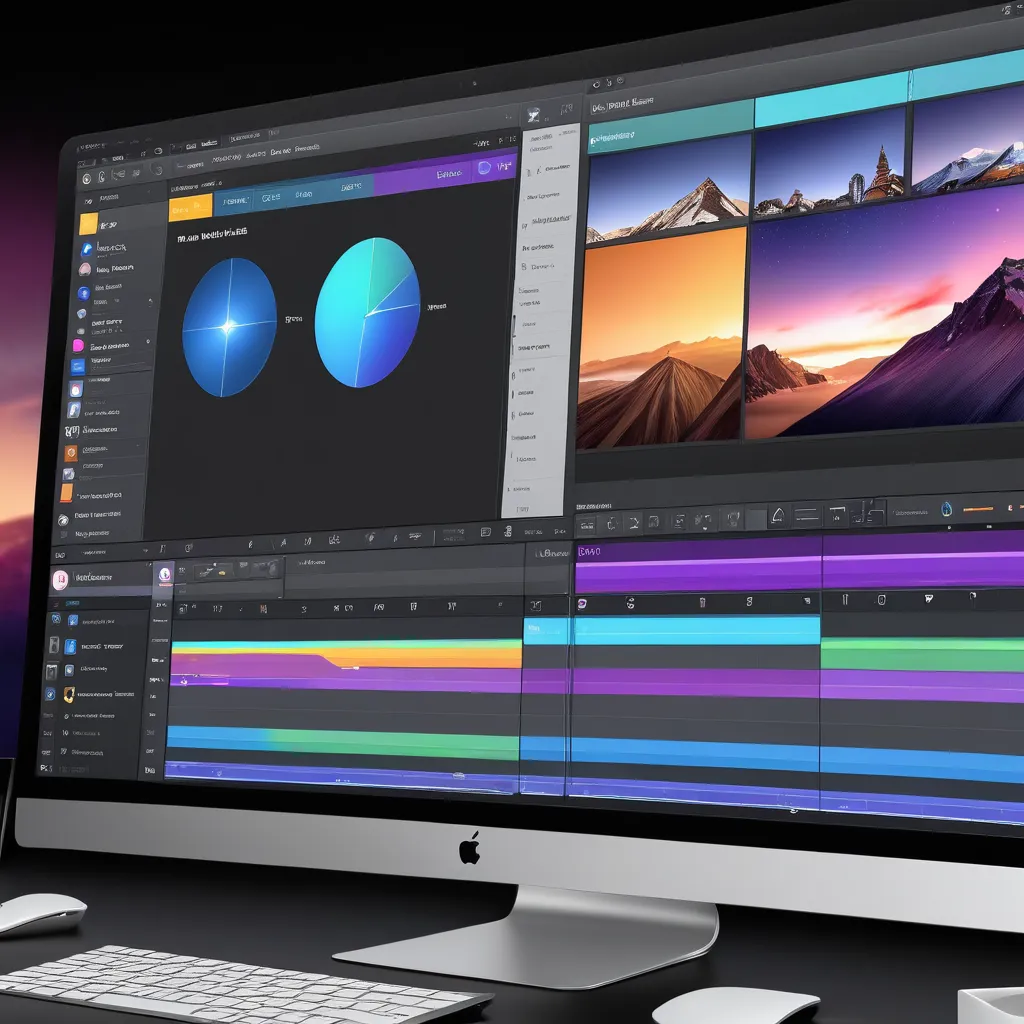
Before we start chopping and changing our footage, let's familiarize ourselves with the i Movie interface. Think of it as the cockpit of your video editing spaceship. The interface is divided into three main sections: the Media Browser, the Viewer, and the Timeline. The Media Browser is where all your imported clips live. It's like your digital film library. You can browse through your clips, preview them, and select the ones you want to use in your project. The Viewer is where you watch your video as you edit it. It's like your monitor on a film set. You can play, pause, rewind, and fast-forward your video to see how your edits are coming together. And finally, the Timeline is where you actually assemble your video. It's like your editing table where you cut, arrange, and add effects to your clips. The Timeline is a horizontal representation of your video, with each clip represented by a rectangular block. You can drag and drop clips into the Timeline, trim their length, and rearrange their order.
• Trimming and Arranging Your Clips
This is where the magic happens! Trimming and arranging your clips is the foundation of video editing. It's all about selecting the best parts of your footage and putting them together in a way that tells a compelling story. To trim a clip, simply drag the edges of the clip in the Timeline. The yellow handles indicate the portion of the clip that will be included in your final video. You can also use the "Blade" tool (look for the scissor icon) to cut a clip into two separate pieces. This is useful if you want to remove a section from the middle of a clip. To rearrange your clips, simply drag and drop them in the Timeline. You can easily change the order of your clips to create different effects or tell a different story. Remember, don't be afraid to experiment! The best way to learn video editing is to play around with different techniques and see what works best for you. A helpful tip: Use the spacebar to play and pause your video while you're editing. This allows you to quickly review your edits and make sure they're exactly how you want them.
• Adding Transitions
Transitions are the glue that holds your video together. They smooth out the cuts between clips and create a more seamless viewing experience. i Movie comes with a variety of transitions to choose from, including fades, dissolves, wipes, and more. To add a transition, simply drag and drop it from the Transitions browser (usually located in the top left corner of the window) onto the cut point between two clips in the Timeline. You can adjust the duration of the transition by dragging the edges of the transition clip. Experiment with different transitions to see which ones work best for your video. A simple fade or dissolve is often the best choice for most situations, but don't be afraid to get creative with more elaborate transitions if they fit the style of your video. Pro tip: Don't overuse transitions! Too many transitions can be distracting and take away from the story you're trying to tell. Use them sparingly and strategically to enhance your video, not overwhelm it.
• Adding Titles and Text
Titles and text are essential for providing context and information in your video. They can be used to introduce your video, identify speakers, add captions, or simply add visual interest. i Movie comes with a variety of title styles to choose from, ranging from simple text overlays to elaborate animated titles. To add a title, simply drag and drop it from the Titles browser onto the Timeline. You can then customize the text, font, size, color, and position of the title to match the style of your video. You can also add background colors or images to your titles. A great idea is to use titles to create a professional intro or outro for your videos. This can help you brand your content and make it more memorable. A useful hint: Keep your titles short and sweet! Long, complicated titles can be difficult to read and distract from your video. Focus on conveying your message clearly and concisely.
• Adding Audio and Music
Audio is just as important as video in creating a compelling viewing experience. i Movie allows you to add music, sound effects, and voiceovers to your videos. You can import audio files from your computer, or you can use the built-in i Movie sound effects library. To add audio, simply drag and drop the audio file from the Media Browser onto the Timeline. You can then adjust the volume, trim the length, and add audio effects to your audio clip. To record a voiceover, click on the microphone icon in the Timeline and start speaking. You can use voiceovers to narrate your video, add commentary, or provide instructions. A smart practice is to use music to set the mood of your video. Upbeat music can create a sense of excitement, while mellow music can create a sense of calm. And always make sure your audio levels are balanced! You don't want the music to drown out the dialogue or vice versa. A clever trick: Use background music to create a consistent soundscape throughout your video. This can help tie your video together and make it more polished.
• Adding Filters and Effects
Filters and effects can add a touch of visual flair to your videos. i Movie comes with a variety of filters to choose from, ranging from subtle color corrections to dramatic visual effects. To add a filter, simply select the clip you want to apply the filter to and then click on the "Color Correction" button in the Viewer. You can then choose from a variety of filters, such as "Black & White," "Sepia," or Vintage.You can also adjust the intensity of the filter to fine-tune the effect. In addition to filters, i Movie also allows you to add special effects, such as slow motion, fast motion, and Ken Burns effects (which create a zooming and panning effect on still images). A neat trick is to use filters sparingly! Too many filters can make your video look unnatural and over-processed. Focus on using filters to enhance the look of your video, not to distract from it. Another great idea is to use slow motion to emphasize important moments in your video. This can create a dramatic effect and draw the viewer's attention to key details.
• Exporting Your Video
Congratulations, you've finished editing your video! Now it's time to export it so you can share it with the world. To export your video, click on the "Share" button in the top right corner of the i Movie window. You'll be presented with a variety of options, including exporting your video to your computer, sharing it on social media, or sending it to your email. If you're exporting your video to your computer, you can choose the resolution, quality, and file format of your video. For most purposes, a resolution of 1080p and a quality setting of "High" will be sufficient. The file format should be set to "MP4," which is the most widely compatible video format. Once you've selected your export settings, click on the "Next" button and choose a location to save your video. The export process can take a few minutes, depending on the length and complexity of your video. A recommendation: Create different versions of your video for different platforms. For example, you might want to create a shorter version for Instagram and a longer version for You Tube. Also be sure to check your video after exporting to make sure everything looks and sounds the way you want it to!
Frequently Asked Questions About i Movie Editing
Let's address some common questions that often pop up during the i Movie editing process. We've got you covered!
• Question: "How do I stabilize shaky footage in i Movie?"
Answer: "i Movie has a built-in stabilization feature that can help reduce camera shake. Select the shaky clip in the Timeline, then click on the 'Stabilization' button in the Viewer. i Movie will analyze the clip and automatically reduce the shake. You can adjust the amount of stabilization by dragging the slider."
• Question: "Can I add multiple audio tracks in i Movie?"
Answer: "Yes, you can add multiple audio tracks in i Movie. Simply drag and drop additional audio files onto the Timeline. i Movie will automatically create new audio tracks for each file. You can then adjust the volume and position of each audio track independently."
• Question: "How do I create a picture-in-picture effect in i Movie?"
Answer: "To create a picture-in-picture effect, drag the clip you want to use as the picture-in-picture onto the Timeline above the main clip. Then, select the picture-in-picture clip and click on the 'Video Overlay Settings' button in the Viewer. Choose 'Picture in Picture' from the dropdown menu, and adjust the size and position of the picture-in-picture clip."
• Question: "What are some good resources for learning more about i Movie editing?"
Answer: "Apple's website has a comprehensive i Movie user guide. You can also find tons of helpful tutorials on You Tube. Search for 'i Movie tutorial' to find videos that cover everything from basic editing techniques to advanced effects."
We've covered a lot of ground, friends! You've learned how to launch i Movie, import footage, navigate the interface, trim clips, add transitions, titles, audio, filters, and export your finished video. You're now equipped to take your raw footage and transform it into captivating stories. Remember, the key to mastering i Movie is practice. So, don't be afraid to experiment, try new things, and have fun with the process! Your creativity is the only limit. Now, it's time to put your newfound knowledge into action. Grab your footage, fire up i Movie, and start creating! What kind of amazing videos will you create? Go out there and show the world your talent!

Post a Comment for "Step-by-Step Guide to Editing Videos with iMovie"
Post a Comment