Step-by-Step Guide to Editing Videos with iMovie
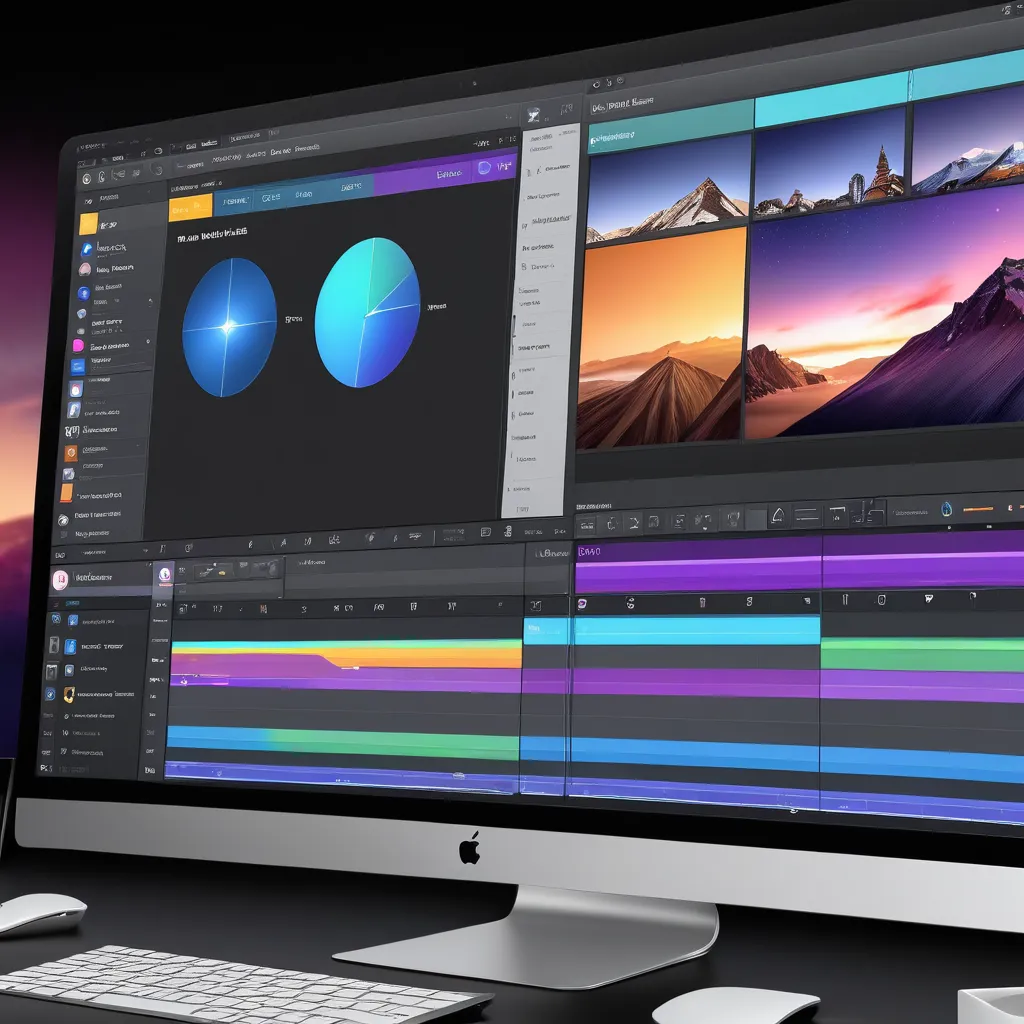
Unlock Your Inner Spielberg: Mastering Video Editing with i Movie
Hey there, fellow creators!
Ever watched a movie and thought, "I could do that!"? Or maybe you've got a ton of amazing video clips just sitting on your phone, begging to be turned into something spectacular? Well, good news! You absolutely can. And you don't need a Hollywood budget or a fancy editing suite to do it. In fact, if you've got an i Phone, i Pad, or Mac, you already have a powerful video editing tool right at your fingertips: i Movie.
Now, I know what you might be thinking. "Video editing? That sounds complicated!" Trust me, I get it. I used to feel the same way. I remember the first time I opened i Movie. It looked like the control panel of a spaceship. Buttons everywhere! Timeline this, transitions that… my brain nearly exploded. I closed it faster than you can say "cut!"
But here's the thing: beneath all those seemingly daunting features lies a surprisingly intuitive and user-friendly program. i Movie is designed for everyone, from complete beginners to seasoned pros. It's like the Swiss Army knife of video editing – packed with tools, but easy enough for anyone to use.
Think of all the possibilities! You could finally create that killer travel vlog you've been dreaming about. Or maybe put together a heartwarming montage of family memories for your next get-together. Perhaps you're a budding entrepreneur looking to create eye-catching promotional videos for your business. Whatever your vision, i Movie can help you bring it to life.
But here's the real kicker: in today's digital age, video content is king. According to recent studies, videos generate 1200% more shares on social media than text and images combined. That's not a typo! And 85% of internet users watch online video content every month. If you want to get your message out there, connect with your audience, or simply preserve your precious memories, video is the way to go.
And i Movie makes it easier than ever. Forget spending hundreds (or even thousands) of dollars on expensive editing software. Forget wrestling with complicated interfaces and confusing tutorials. i Movie is free, accessible, and packed with features that will make you feel like a pro in no time. Seriously, my grandma uses it to make videos of her cats! And she's not exactly a tech wizard.
But where do you start? How do you navigate the i Movie interface? How do you trim clips, add music, and create those cool transitions you see in professional videos? That's where this guide comes in. We're going to break down the entire process, step by step, so you can go from i Movie newbie to video editing master in no time. We'll cover everything from importing your footage to exporting your finished masterpiece. And we'll do it all in plain English, with plenty of tips and tricks along the way.
So, are you ready to unlock your inner Spielberg and start creating amazing videos with i Movie? Great! Let's dive in and discover how you can transform your raw footage into captivating stories that will wow your friends, family, and the world! But first, let's answer a burning question: why should you even bother with i Movie in the first place?
Why i Movie? The Power of Simplicity
Okay, so there are a ton of video editing apps out there, right? From the super complex (and super expensive) Adobe Premiere Pro to a whole host of free and paid options, the choices can be overwhelming. So why should you choose i Movie?
The answer is simple: simplicity and accessibility. i Movie strikes the perfect balance between powerful features and user-friendly design. It's got everything you need to create professional-looking videos, without the steep learning curve that comes with more advanced software.
Think of it this way: i Movie is like a well-equipped kitchen. It has all the essential tools you need to whip up a delicious meal, but it's not so cluttered and complicated that you feel intimidated. You can easily find what you need, experiment with different techniques, and create something amazing without feeling overwhelmed.
Here's what makes i Movie stand out:
•It's Free (If You Have an Apple Device):Let's be honest, who doesn't love free? If you own an i Phone, i Pad, or Mac, i Movie is already installed on your device or available for free download from the App Store. That's a huge advantage over other editing software that can cost hundreds of dollars a year.
•User-Friendly Interface:i Movie's interface is clean, intuitive, and easy to navigate. Even if you've never edited a video before, you'll be able to figure out the basics in minutes. The drag-and-drop functionality makes it easy to arrange your clips, add transitions, and insert titles.
•Powerful Features:Don't let the simplicity fool you. i Movie is packed with powerful features that allow you to create professional-looking videos. You can trim and arrange clips, add music and sound effects, create transitions and titles, adjust the color and audio, and even add special effects like slow motion and fast motion.
•Seamless Integration with Apple Ecosystem:If you're an Apple user, you'll appreciate how seamlessly i Movie integrates with other Apple products and services. You can easily import footage from your i Phone, i Pad, or i Cloud Photo Library. And you can share your finished videos directly to You Tube, Facebook, Vimeo, and other social media platforms.
•Beginner-Friendly Templates and Themes:Feeling a little intimidated? i Movie offers a variety of pre-designed templates and themes that can help you get started. These templates provide a basic structure for your video, including titles, transitions, and music. All you have to do is add your own footage and customize the details.
But enough about why i Movie is great. Let's get down to the nitty-gritty and learn how to use it!
Your Step-by-Step Guide to i Movie Mastery
Alright, friends, grab your favorite beverage, settle in, and let's get ready to transform you into an i Movie pro! We're going to walk through each step of the video editing process, from importing your footage to exporting your final masterpiece. Don't worry, we'll keep it simple and straightforward, with plenty of tips and tricks along the way.
•Step 1:Launching i Movie and Creating a New Project:
First things first, let's launch i Movie. On your i Phone or i Pad, simply tap the i Movie icon. On your Mac, you can find it in the Applications folder. Once i Movie is open, you'll see a screen with a few options. To start a new project, tap the "+" button (on i OS) or click "Create New" (on mac OS) and then select Movie.This will open a blank timeline where you can start building your video.
•Step 2:Importing Your Footage:
Now it's time to bring in your raw footage. On your i Phone or i Pad, tap the "+" button in the timeline and select Media.This will give you access to your Photos library. On your Mac, you can drag and drop files directly into the timeline, or click the "Import Media" button. Select the video clips and photos you want to include in your project. Remember, you can always add more later!
•Step 3:Trimming and Arranging Your Clips:
This is where the magic happens! Now you can start trimming and arranging your clips to create the story you want to tell. To trim a clip, simply tap or click on it in the timeline and drag the yellow handles at either end to shorten or lengthen it. You can also split a clip into two by positioning the playhead where you want to split it and then selecting "Split" from the editing menu. To rearrange your clips, simply drag and drop them into the desired order. Don't be afraid to experiment! This is where you'll start to shape your video and create the flow you're looking for. A helpful tip: less is often more. Cut out any unnecessary footage to keep your audience engaged.
•Step 4:Adding Transitions:
Transitions are the visual effects that connect your clips and create a smooth flow between scenes. i Movie offers a variety of transitions to choose from, including fades, dissolves, wipes, and more. To add a transition, simply drag and drop it between two clips in the timeline. You can customize the duration of the transition by dragging the edges of the transition icon. Experiment with different transitions to find the ones that best suit your style. A subtle dissolve is often a safe bet, but don't be afraid to get creative!
•Step 5:Adding Titles and
Titles and text can add context, humor, and visual appeal to your video. i Movie offers a variety of pre-designed title templates that you can customize with your own text. To add a title, simply drag and drop it onto the timeline above a clip or between two clips. You can then edit the text, font, size, color, and position of the title to your liking. Consider adding opening titles to introduce your video, lower thirds to identify people or places, and end credits to thank your viewers.
•Step 6:Adding Music and Sound Effects:
Music and sound effects can dramatically enhance the emotional impact of your video. i Movie comes with a library of royalty-free music and sound effects that you can use in your projects. To add music, simply drag and drop an audio file onto the timeline below your video clips. You can adjust the volume of the music and sound effects to create the perfect balance. Consider using music to set the mood, add energy, or emphasize key moments in your video. Be mindful of copyright restrictions when using music in your videos.
•Step 7:Adjusting Audio Levels:
Proper audio levels are crucial for a professional-sounding video. Make sure the audio in your clips is clear and audible, and that the music and sound effects don't overpower the dialogue. i Movie allows you to adjust the audio levels of individual clips, as well as the overall volume of the project. To adjust the audio levels, simply select a clip in the timeline and use the audio controls to raise or lower the volume. You can also use the audio ducking feature to automatically lower the volume of the music when someone is speaking.
•Step 8:Adding Filters and Effects:
Filters and effects can add a unique visual style to your video. i Movie offers a variety of filters that you can apply to your clips to change the color, contrast, and overall look. You can also add special effects like slow motion, fast motion, and green screen. To add a filter or effect, simply select a clip in the timeline and choose from the available options. Be careful not to overdo it with the filters and effects. A subtle touch can enhance your video, but too much can be distracting.
•Step 9:Reviewing and Refining Your Video:
Once you've finished editing your video, it's time to review it and make any necessary refinements. Watch your video from beginning to end, paying attention to the pacing, flow, and overall impact. Make sure the transitions are smooth, the titles are clear, and the audio levels are balanced. Don't be afraid to make changes! This is your chance to polish your video and make it the best it can be.
•Step 10:Exporting Your Video:
Congratulations! You've created an amazing video with i Movie! Now it's time to export it so you can share it with the world. On your i Phone or i Pad, tap the "Share" button and choose from the available options, such as saving it to your Photos library, sharing it to social media, or sending it via email. On your Mac, click the "Share" button in the toolbar and choose from the available options. You can customize the resolution, quality, and file size of your exported video. Choose the settings that best suit your needs. Remember, higher resolution and quality will result in a larger file size.
And there you have it! You've successfully edited a video with i Movie! Now go forth and create amazing videos that will inspire, entertain, and connect with your audience.
Pro Tips for i Movie Ninjas
Okay, you've mastered the basics. Now it's time to take your i Movie skills to the next level. Here are a few pro tips that will help you create truly professional-looking videos:
•Use Keyboard Shortcuts:Learn the keyboard shortcuts for common tasks like trimming, splitting, and adding transitions. This will save you time and make your editing workflow much faster.
•Stabilize Shaky Footage:i Movie has a built-in stabilization feature that can help smooth out shaky footage. This is especially useful if you're shooting handheld or using a drone.
•Correct Color:Use i Movie's color correction tools to adjust the brightness, contrast, and saturation of your clips. This can help you create a consistent look and feel throughout your video.
•Use the Ken Burns Effect:The Ken Burns effect is a slow zoom and pan effect that can add visual interest to still images. i Movie makes it easy to apply the Ken Burns effect to your photos.
•Experiment with Green Screen:i Movie's green screen feature allows you to replace the background of your video with a different image or video. This can be used to create a variety of cool effects.
•Tell a Story:The best videos are the ones that tell a compelling story. Think about the message you want to convey and use your video to tell that story in a clear and engaging way.
Common i Movie Questions Answered
Still got some questions? Don't worry, we've got you covered. Here are some frequently asked questions about i Movie:
Question 1: How do I add music from Spotify to i Movie?Answer: Unfortunately, you can't directly import music from Spotify into i Movie due to copyright restrictions. However, you can purchase the music from i Tunes or use royalty-free music from other sources.
Question 2: How do I remove the black bars (letterboxing) from my video?Answer: This usually happens when your video has a different aspect ratio than your i Movie project. To fix this, go to the "Crop" tool and select "Fit" or adjust the cropping manually.
Question 3: How do I speed up or slow down a clip in i Movie?Answer: Select the clip in the timeline, then click on the "Speed" icon (it looks like a speedometer). You can then choose to speed up or slow down the clip.
Question 4: How do I export my i Movie project for You Tube?Answer: When exporting your video, choose the "You Tube" option. This will optimize the video for You Tube's specifications, ensuring the best possible quality.
Wrapping Up: Unleash Your Creativity!
Wow, we've covered a lot! From launching i Movie to adding transitions and exporting your final masterpiece, you're now equipped with the knowledge and skills to create amazing videos with i Movie. You’ve learned how simple and powerful i Movie can be, transforming everyday moments into captivating stories.
Remember, the key to mastering i Movie is practice and experimentation. Don't be afraid to try new things, explore different features, and develop your own unique style. The more you use i Movie, the more comfortable and confident you'll become. Now that you know how to trim clips, add music, insert titles, and spice things up with effects, your raw footage will never be the same.
Ready to take your video editing skills to the next level? Now is the perfect time to start your next project. Whether it's a travel vlog, a family montage, or a promotional video for your business, i Movie has everything you need to bring your vision to life. So, pick up your phone, grab your camera, and start shooting! The world is waiting to see what you create.
Remember that sharing is caring! Share your creations with friends, family, and the world! Post them on social media, upload them to You Tube, or simply share them with loved ones. Your videos have the power to inspire, entertain, and connect with others. And who knows, you might even become the next viral sensation!
So, what are you waiting for? Open up i Movie and start creating! Your inner filmmaker is calling!
What amazing video will you create first?

Post a Comment for "Step-by-Step Guide to Editing Videos with iMovie"
Post a Comment