How to Use Adobe Premiere Pro for Video Editing
Unleash Your Inner Spielberg: A Beginner's Guide to Adobe Premiere Pro Video Editing
__ Want to learnvideo editingwith Adobe Premiere Pro? This beginner-friendly guide breaks down the essentials, from importing footage to exporting your masterpiece. Master Premiere Protoday!
Okay, friends, let’s talkvideo editing. Ever watch a movie or a You Tube video and think, "I could do that!"? Maybe you've got some amazing vacation footage gathering digital dust, or perhaps you're dreaming of becoming the next viral sensation. The good news is, with Adobe Premiere Pro, that dream is closer than you think.
But here's the thing: Premiere Pro can beintimidating. It's a powerful piece of software, packed with features that seem designed to baffle newcomers. All those panels, buttons, and timelines? It can feel like trying to pilot a spaceship when all you wanted to do was drive a car.
Think of it this way: you’ve got all these raw ingredients (your video clips, audio, and graphics) and you want to create a culinary masterpiece. Premiere Pro is the chef's knife, the oven, the mixer – all the tools you need. But just owning the tools doesn’t make you a chef. You need a recipe. And that's what this guide is: your beginner's recipe forvideo editingsuccess with Premiere Pro.
You see, the problem isn’t just the software itself, it’s knowing where tostart. Many tutorials throw you into the deep end, assuming you already know the basics. They use jargon you've never heard, skip over crucial steps, and leave you feeling more confused than when you started. That's no fun for anyone.
So, what’s the solution? A friendly, step-by-step guide that explains everything in plain English (or whatever your native language may be!). A guide that doesn't assume you're avideo editingguru, a guide that starts from the very beginning and walks you through the entire process.
We’re going to demystify Premiere Pro. We'll break down the complex features into manageable steps. We’ll use real-world examples, and we'll even throw in a few jokes (because who says learning can't be fun?).
Forget those boring, technical manuals. This isvideo editingfor the rest of us. We're going to transform you from a Premiere Pro newbie into a confidentvideo editor. You'll be creating stunning videos that you're proud to share with the world, all thanks to your newfound Premiere Pro skills.
Ready to ditch the overwhelm and unlock yourvideo editingpotential? Keep reading, because the Premiere Proadventure is about to begin! We promise, by the end of this guide, you’ll be saying, “Premiere Pro? I got this!”
Mastering the Basics: How to Use Adobe Premiere Pro for Video Editing
Getting Started: Setting Up Your Project
Before you even think about cutting and splicing, you need to create a project. Think of a Premiere Pro project as the central hub for all yourvideo editingactivities. It's where all your footage, audio, and graphics will live.
Launching Premiere Pro: Open Premiere Pro and you'll be greeted with the welcome screen. From here, you can either open an existing project or create a new one. We're going for new, so click on "New Project." Naming Your Project: Give your project a descriptive name that reflects its content. For example, if you'reeditinga travel vlog of your trip to Italy, name it something like "Italy Vlog_2024." Choosing a Location: Select a folder on your computer where you want to save your project file. It's generally a good idea to create a dedicated folder for each project to keep things organized. Scratch Disks: This is where Premiere Pro stores temporary files, like rendered previews and auto-saved versions of your project. By default, Premiere Pro stores these files in the same location as your project file. However, for optimal performance, especially if you’reeditinglarge or complex projects, consider setting your scratch disks to a separate, fast hard drive. This can significantly speed up rendering and playback.
The project setup is the foundation upon which your entirevideo editingworkflow is built. By taking the time to properly configure your project from the start, you'll avoid potential headaches and ensure a smoother, more efficienteditingexperience.
Importing Your Footage: Bringing Your Video to Life
Once your project is set up, it's time to import your raw footage. This is where your video clips, audio files, and graphics become accessible within Premiere Pro.
The Import Panel: The Project panel is your go-to for managing all your assets. To import footage, you can either drag and drop files directly into the Project panel, or you can use the "File > Import" command from the main menu. Organizing Your Footage: Premiere Pro allows you to create bins (folders) within the Project panel to organize your footage. This is especially useful for larger projects with lots of files. Create bins for different types of footage (e.g., "Interviews," "B-Roll," "Music"). Understanding Different File Formats:Premiere Pro supports a wide range ofvideoand audio file formats. Commonvideoformats include MP4, MOV, AVI, and MTS. Common audio formats include MP3, WAV, and AAC. While Premiere Pro is generally good at handling various formats, sometimes you might encounter compatibility issues. In such cases, you might need to transcode your footage to a more compatible format using avideoconverter.
Importing your footage is a critical step in thevideo editingprocess. By understanding the import panel, organizing your assets, and being aware of different file formats, you'll ensure that your footage is readily available and well-organized within Premiere Pro, making theeditingprocess much smoother.
Navigating the Interface: Understanding the Premiere Pro Landscape
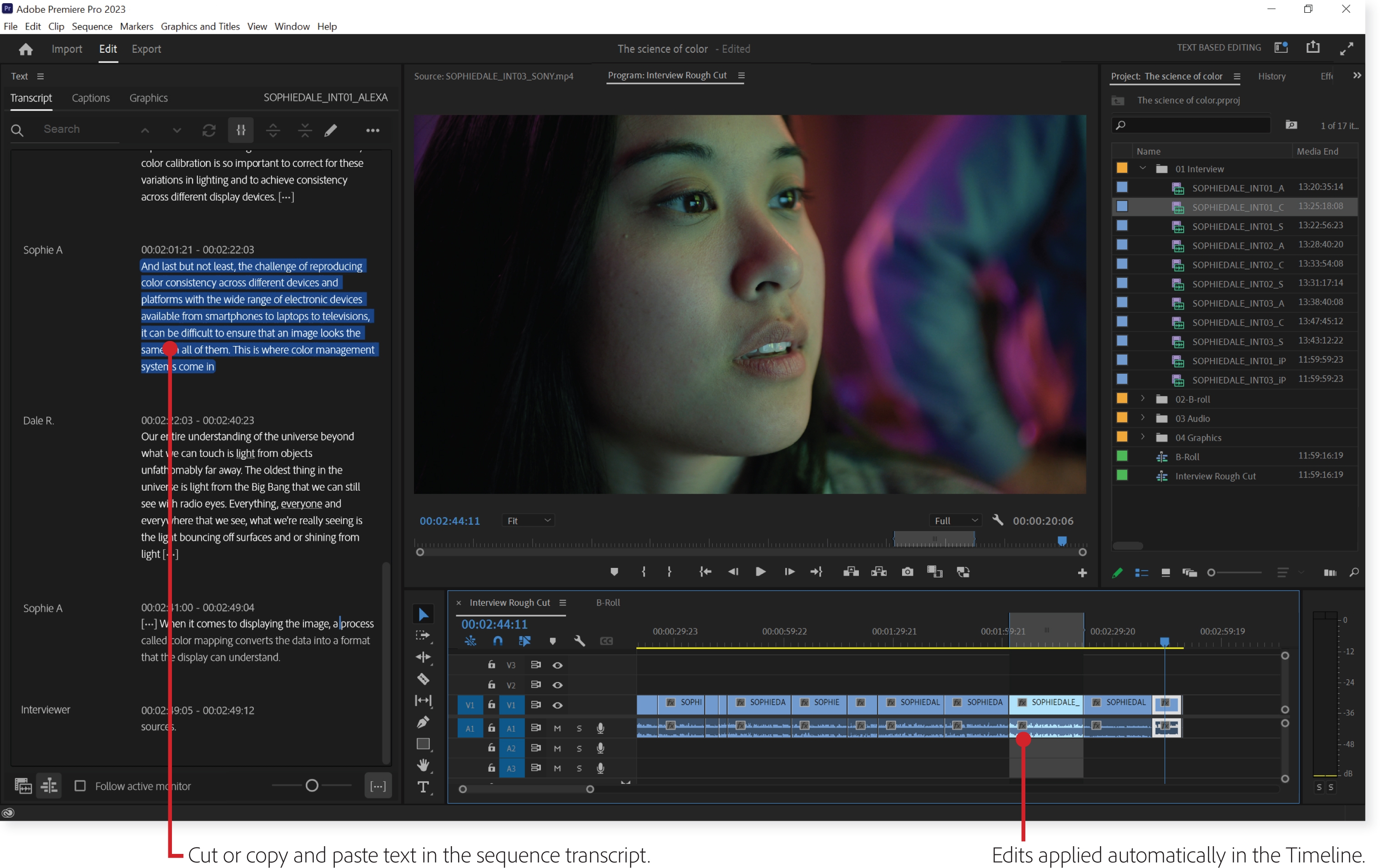
Premiere Pro's interface can seem daunting at first, but once you understand the purpose of each panel, it becomes much more manageable. Think of it as learning the layout of a new city: once you know the main streets and landmarks, you can navigate it with ease.
The Source Monitor: This is where you preview your raw footage before adding it to your timeline. You can set in and out points to select only the portions of the clip you want to use. The Timeline: This is the heart of yourvideo editingworkflow. It's where you arrange and manipulate yourvideoand audio clips. The timeline consists of multiple tracks, allowing you to layervideo, audio, and graphics. The Program Monitor: This is where you preview youreditedvideo. It shows you exactly what your final product will look like. The Effects Controls Panel: This panel allows you to adjust various properties of your clips, such as position, scale, rotation, opacity, and audio levels. It's also where you apply and customizevideoeffects and transitions. The Tools Panel: This panel contains a variety of tools for selecting, cutting, trimming, and manipulating clips in your timeline. Key tools include the Selection Tool (for selecting clips), the Razor Tool (for cutting clips), and the Ripple Edit Tool (for trimming clips while maintaining the overall duration of your timeline).
Familiarizing yourself with the Premiere Pro interface is essential for efficientvideo editing. By understanding the purpose of each panel and tool, you'll be able to navigate the software with confidence and focus on the creative aspects ofvideo editing.
Basic Editing Techniques: Cutting, Trimming, and Arranging
Now for the fun part: editing! This is where you start shaping your raw footage into a compelling story.Video editingis essentially the art of selecting the best parts of your footage, arranging them in the right order, and removing anything that's unnecessary.
Cutting Clips: The Razor Tool is your best friend for cutting clips. Simply select the Razor Tool from the Tools panel and click on the timeline at the points where you want to make a cut. This will split the clip into two separate clips. Trimming Clips: Trimming involves adjusting the start and end points of a clip. You can trim clips directly in the timeline by clicking and dragging the edges of the clip. Alternatively, you can use the Ripple Edit Tool to trim clips while automatically adjusting the positions of the subsequent clips in the timeline. Arranging Clips:Once you've cut and trimmed your clips, you can arrange them in the timeline to create the desired sequence. Simply click and drag the clips to move them around. You can also drag clips from the Project panel directly onto the timeline.
These are the fundamental building blocks ofvideo editing. By mastering these basic techniques, you'll be able to create compelling stories and engagingvideocontent. Remember, practice makes perfect!
Adding Transitions: Smoothing the Flow
Transitions are visual effects that smooth the transition between two clips. They can add a touch of professionalism and visual interest to yourvideo.
Types of Transitions: Premiere Pro offers a wide variety of transitions, including dissolves, wipes, pushes, and fades. Dissolves are the most common type of transition, gradually blending one clip into the next. Wipes involve one clip sliding or wiping across the screen to reveal the next clip. Applying Transitions: To apply a transition, go to the Effects panel and find the "Video Transitions" folder. Drag and drop the desired transition onto the cut point between two clips in the timeline. Customizing Transitions:Once you've applied a transition, you can customize its duration and other properties in the Effects Controls panel. For example, you can adjust the duration of a dissolve to make it faster or slower. You can also change the direction of a wipe.
Transitions are a subtle but powerful tool for enhancing yourvideo editing. By using them judiciously, you can create a smoother, more engaging viewing experience. But be careful not to overuse transitions, as they can become distracting.
Working with Audio: Sound is Half the Battle
Videois only half the story; audio is equally important. Good audio can make avideogreat, while bad audio can ruin even the bestvideo. Premiere Pro offers a range of tools foreditingand enhancing your audio.
Importing Audio: You can import audio files into Premiere Pro just like you importvideofiles. Simply drag and drop audio files into the Project panel or use the "File > Import" command. Adjusting Audio Levels: The Audio Mixer panel allows you to adjust the volume levels of individual tracks in your timeline. This is essential for ensuring that your audio is balanced and clear. Adding Music and Sound Effects: Music and sound effects can add depth and emotion to yourvideo. Premiere Pro includes a library of royalty-free music and sound effects, or you can import your own. Using the Audio Track Mixer: With the Audio Track Mixer, you can adjust the audio levels of entire tracks. This allows you to raise or lower the volume of all the audio clips on a single track.
Mastering audioeditingis crucial for creating professional-quality videos. By understanding how to adjust audio levels, add music and sound effects, and use audio effects, you'll be able to create a captivating and immersive viewing experience.
Adding Titles and Graphics: Visual Polish
Titles and graphics can add a professional touch to your videos and help you communicate information to your viewers.
Creating Titles: Premiere Pro includes a built-in titling tool that allows you to create custom titles. You can choose from a variety of fonts, styles, and animations. Importing Graphics: You can import graphics files, such as logos and lower thirds, into Premiere Pro. Common graphic file formats include PNG, JPEG, and PSD. Using Motion Graphics Templates: Premiere Pro also supports motion graphics templates, which are pre-designed animations that you can customize with your own text and images. These templates can save you a lot of time and effort. Adjusting Graphics Properties: Once you’ve added a graphic to your timeline, you can adjust its position, scale, rotation, and opacity in the Effects Controls panel.
Adding titles and graphics is a great way to enhance the visual appeal of your videos and communicate information effectively. By using the Premiere Pro titling tool, importing graphics, and using motion graphics templates, you can create professional-looking videos with ease.
Applying Effects: Adding Visual Flair
Premiere Pro offers a vast library ofvideoeffects that can transform the look and feel of your videos. From color correction to visual enhancements, effects can add a lot of visual flair to your projects.
Exploring Effects: The Effects panel contains a wide range ofvideoeffects, organized into categories such as Blur & Sharpen, Color Correction, Distort, and Stylize. Applying Effects: To apply an effect, simply drag and drop it onto a clip in your timeline. Customizing Effects: Once you've applied an effect, you can customize its properties in the Effects Controls panel. Each effect has its own unique set of parameters that you can adjust to achieve the desired look. Using Adjustment Layers: Adjustment layers allow you to apply effects to multiple clips at once. Simply create an adjustment layer in your timeline and place it above the clips you want to affect. Any effects applied to the adjustment layer will be applied to all the clips below it.
Experimenting with effects is a great way to discover new and creative ways to enhance your videos. By using effects judiciously, you can create a unique and visually appealing style for your videos.
Color Correction and Grading: Setting the Mood
Color correction and grading are essential for achieving a consistent and visually appealing look for your videos. Color correction involves fixing any color problems in your footage, such as incorrect white balance or exposure. Color grading, on the other hand, involves creatively manipulating the colors in your footage to create a specific mood or style.
Using Lumetri Color Panel: Premiere Pro's Lumetri Color panel provides a comprehensive set of tools for color correction and grading. The Lumetri Color panel is organized into several sections, including Basic Correction, Creative, Curves, Color Wheels & Match, and Vignette. Adjusting Exposure and Contrast: The Basic Correction section of the Lumetri Color panel allows you to adjust the exposure, contrast, highlights, shadows, whites, and blacks in your footage. These adjustments are the foundation of color correction. Adjusting White Balance: The White Balance controls in the Basic Correction section allow you to correct any color casts in your footage. Using Color Wheels: The Color Wheels & Match section allows you to adjust the colors in the shadows, midtones, and highlights of your footage. This is a powerful tool for color grading. Using Curves:The Curves section allows you to make precise adjustments to the colors and tones in your footage. This is a more advanced tool for color correction and grading.
Color correction and grading can significantly enhance the visual impact of your videos. By mastering these techniques, you can create a consistent and visually appealing look for your videos.
Exporting Your Video: Sharing Your Masterpiece
Finally, after all theediting, tweaking, and polishing, it's time to export your finished video. This is the process of converting your Premiere Pro project into a video file that you can share with the world.
Choosing Export Settings: When you export your video, you'll need to choose the appropriate export settings. These settings determine thevideoand audio quality, file size, and format of your exported video. Understanding Presets: Premiere Pro offers a variety of export presets that are optimized for different platforms and devices. For example, there are presets for You Tube, Vimeo, Facebook, and mobile devices. Customizing Export Settings: You can also customize the export settings to fine-tune the quality and file size of your video. Key settings include thevideocodec, frame rate, resolution, and bit rate. Choosing the Right Format:The most commonvideoformats are MP4, MOV, and AVI. MP4 is generally the best choice for onlinevideo, as it offers a good balance of quality and file size.
Exporting your video is the final step in thevideo editingprocess. By understanding the different export settings and choosing the right format, you can ensure that your video looks its best when you share it with the world.
From Beginner to Pro: Taking Your Adobe Premiere Pro Skills to the Next Level
Congratulations, friends! You've made it through the basics of Adobe Premiere Pro. You now possess a solid foundation for unleashing yourvideo editingcreativity.
Premiere Procan be daunting at first, but mastering the fundamentals is key to unlocking its full potential. You've learned how to set up projects, import footage, navigate the interface, perform basiceditingtasks, add transitions, work with audio, create titles and graphics, apply effects, color correct, and export your finished videos.
The journey doesn't end here. The world ofvideo editingis constantly evolving, with new techniques and technologies emerging all the time. To truly become a Premiere Pro master, it's essential to continue learning and experimenting.
So, what's next? Practice, Practice, Practice: The best way to improve yourvideo editingskills is to practice regularly. Start with small projects and gradually work your way up to more complex ones. Don't be afraid to experiment and try new things. Explore Advanced Techniques: Once you're comfortable with the basics, start exploring more advanced techniques, such asvideostabilization, motion tracking, and advanced color grading. Learn from Others: Watch tutorials, read articles, and follow othervideo editorsonline. There are countless resources available to help you improve your skills. Join a Community: Connect with othervideo editorsonline or in person. Share your work, ask for feedback, and learn from each other. Stay Up-to-Date: Keep up with the latest trends and technologies in thevideo editingindustry. Premiere Pro is constantly being updated with new features and improvements.
Your Call to Action
Take what you’ve learned here and put it into practice. Starteditinga short video today, even if it’s just a simple montage of your favorite photos. Don’t be afraid to make mistakes; that’s how you learn.
And remember, the most important thing is to have fun.Video editingshould be a creative and enjoyable process. So, let your imagination run wild and see what you can create!
Now, go out there and create something amazing!Premiere Prois a powerful tool, and you now have the knowledge to wield it effectively. What stories will you tell?

Post a Comment for "How to Use Adobe Premiere Pro for Video Editing"
Post a Comment