Beginner’s Guide to Managing Remote Teams with Trello
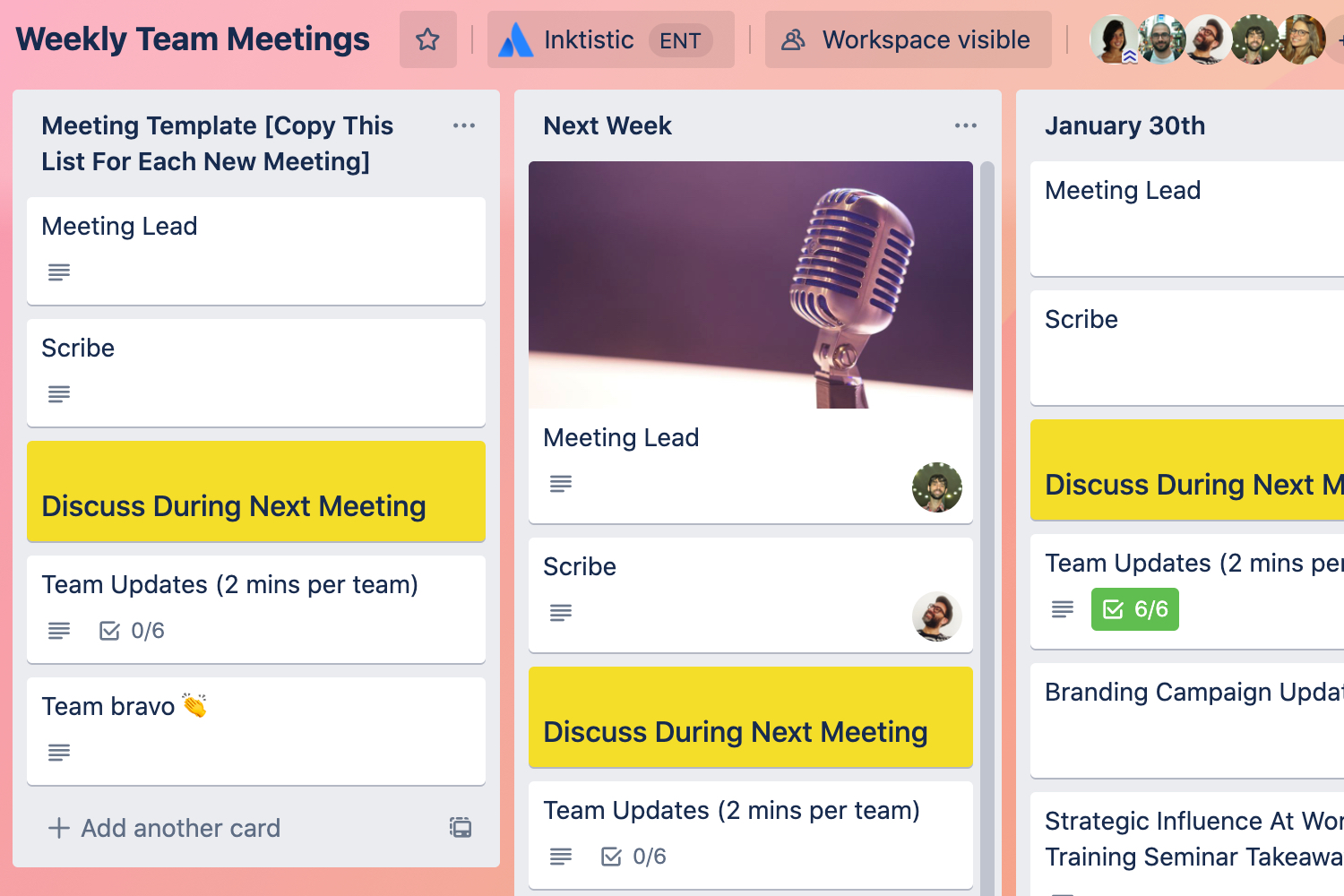
Unlock Remote Team Success: Your Trello Management Blueprint.
Hey friends! Ever feel like herding cats is easier than managing a remote team? You're not alone! In today's world, remote work is booming. But let's be honest, it comes with its own set of challenges. Keeping everyone on the same page, tracking progress, and ensuring clear communication can feel like navigating a minefield. Imagine trying to coordinate a surprise birthday party across three time zones with only carrier pigeons. Sounds chaotic, right?
We've all been there. That moment when you realize crucial information is buried in an email thread nobody saw, or when you're not quite sure who's doing what. It's enough to make you want to throw your laptop out the window! But before you reach for the nearest blunt object, take a deep breath. There's a better way.
That better way is Trello. Yes, that visually appealing, drag-and-drop tool you might have heard of. But Trello isn't just for personal to-do lists anymore. It's a powerful project management platform that can transform the way you manage your remote team, turning chaos into collaboration. Think of it as your virtual office, where everyone knows what they're doing, how far along they are, and what needs to be done next.
According to recent data, companies using project management tools like Trello experience a 25% increase in team efficiency. That's right, 25%! And it's not just about productivity. Trello also improves communication, reduces stress, and fosters a stronger sense of teamwork, even when everyone's miles apart. Isn't that what we all want?
So, are you ready to ditch the endless email chains, the confusing spreadsheets, and the general sense of remote work mayhem? Want to discover how Trello can help you create a streamlined, efficient, and happy remote team? Then stick around! We're about to dive into a beginner's guide to managing remote teams with Trello, and trust me, it's going to be a game-changer.
Beginner’s Guide to Managing Remote Teams with Trello
Managing a remote team effectively requires the right tools and strategies. Trello, with its intuitive interface and flexible features, is an excellent choice for keeping everyone aligned and productive. This guide will walk you through the essentials of using Trello to manage your remote team like a pro.
Setting Up Your Trello Workspace
Before diving into specific tasks, let's get your Trello workspace organized. This initial setup is crucial for ensuring long-term efficiency and clarity for your team.
• Create a Board for Each Project or Team
Think of a Trello board as a virtual project room. For each major project or team within your organization, create a dedicated board. For instance, you might have a "Marketing Campaigns" board, a "Software Development" board, or a "Content Creation" board. This segmentation keeps things tidy and prevents information overload.
For example, let's say you're managing a marketing team working on a new product launch. You'd create a "New Product Launch" board. This board will contain all the tasks, deadlines, and resources related to that specific launch. It's your central hub for everything related to that project.
• Designate Lists to Represent Workflow Stages
Lists are the vertical columns within your Trello board that represent the different stages of a project's workflow. Common list names include "To Do," "In Progress," "In Review," and Completed.However, feel free to customize these to match your team's specific processes.
For our "New Product Launch" board, you might have lists such as "Brainstorming," "Content Creation," "Design," "Development," "Testing," and Launch.This visual representation allows everyone to see the current status of each task and how it's progressing through the workflow.
• Invite Your Team Members
Now that your board is set up, it's time to invite your team members. Simply click the "Invite" button in the upper right corner of the board and enter their email addresses. You can also control their permissions (e.g., administrator, normal member) to ensure appropriate access levels.
Make sure everyone on your team has access to the relevant boards. Clear communication about who is responsible for what is essential in a remote setting. A welcome message or brief onboarding session can help team members understand how to use Trello effectively.
Utilizing Cards for Task Management
Cards are the heart of Trello. They represent individual tasks or items within a project. Mastering the use of cards is key to successful remote team management.
• Create Detailed Cards for Each Task
Each card should represent a specific task with a clear description, due date, and assigned team member. The more detailed the card, the less room there is for confusion. Include all necessary information, such as links to relevant documents, specific instructions, and any other helpful details.
For example, instead of simply creating a card labeled "Write Blog Post," you might create a card labeled "Write Blog Post: '5 Tips for Remote Team Collaboration'." In the card description, you could include the target audience, keywords to use, and a link to a style guide. Assign the card to the writer responsible and set a due date.
• Assign Team Members to Cards
Assigning team members to cards ensures accountability and clarity. Simply click on the card and select the relevant team member from the "Members" section. This way, everyone knows who is responsible for each task.
Trello's notification system will then alert the assigned member of their new task. Regular check-ins and reminders can also be set up to keep tasks on track.
• Add Due Dates and Reminders
Setting due dates is crucial for keeping projects on schedule. Use the "Due Date" feature within each card to specify when the task needs to be completed. You can also set reminders to ensure that team members don't forget about upcoming deadlines.
Trello integrates with calendar apps like Google Calendar, allowing team members to see their Trello due dates alongside their other appointments. This helps with time management and prevents tasks from falling through the cracks.
• Use Labels to Categorize and Prioritize Tasks
Labels are a great way to categorize and prioritize tasks. You can use labels to indicate the type of task (e.g., "Design," "Development," "Writing"), the priority level (e.g., "High," "Medium," "Low"), or any other relevant category.
For example, you might use a green label for "High Priority" tasks and a yellow label for "Medium Priority" tasks. This visual cue helps team members quickly identify which tasks need their immediate attention.
• Utilize Checklists for Subtasks
Many tasks involve multiple subtasks. Instead of creating separate cards for each subtask, use the "Checklist" feature within the card. This allows you to break down complex tasks into smaller, more manageable steps.
For our "Write Blog Post" card, you might create a checklist with subtasks such as "Research Keywords," "Create Outline," "Write First Draft," "Edit and Proofread," and Publish.As each subtask is completed, the team member can check it off, providing a clear visual representation of progress.
• Attach Relevant Files and Documents
Keeping all relevant files and documents within the Trello card streamlines workflows and prevents team members from wasting time searching for information. Use the "Attachment" feature to upload files directly from your computer or link to files stored in cloud services like Google Drive or Dropbox.
For our "Write Blog Post" card, you might attach a style guide, a keyword research document, and a competitor analysis report. This ensures that the writer has all the necessary resources at their fingertips.
• Use Comments for Communication and Updates
The "Comments" section within each card is the perfect place for team members to communicate and provide updates on their progress. Use comments to ask questions, share feedback, and keep everyone informed.
Encourage team members to use the @ symbol to tag specific individuals in their comments, ensuring that they receive a notification. This prevents important information from getting lost in the shuffle.
Advanced Trello Features for Remote Teams
Once you've mastered the basics, you can take your Trello game to the next level with these advanced features.
• Power-Ups: Enhance Functionality with Integrations
Trello Power-Ups are integrations with other tools and services that can significantly enhance its functionality. There are Power-Ups for everything from project management and time tracking to communication and automation.
Some popular Power-Ups for remote teams include:
• Slack: Receive Trello notifications directly in your Slack channels.
• Google Drive: Attach and preview files from Google Drive within Trello cards.
• Zoom: Schedule and join Zoom meetings directly from Trello cards.
• Clockify: Track time spent on tasks and projects.
Experiment with different Power-Ups to find the ones that best suit your team's needs.
• Automation: Streamline Repetitive Tasks
Trello's automation features, powered by Butler, can help you streamline repetitive tasks and save time. You can create rules that automatically perform certain actions based on specific triggers.
For example, you can create a rule that automatically moves a card to the "Completed" list when the due date passes, or that automatically assigns a label to a card when it's moved to a specific list.
Automation can significantly reduce the amount of manual work required to manage your Trello boards, freeing up your team to focus on more important tasks.
• Views: Visualize Your Data in Different Ways
Trello offers different views that allow you to visualize your data in various ways, such as Timeline, Calendar, Dashboard, and Map. These views can provide valuable insights into your projects and help you identify potential bottlenecks.
The Timeline view is particularly useful for visualizing project timelines and dependencies. The Calendar view allows you to see all of your due dates in a calendar format. The Dashboard view provides an overview of key metrics, such as the number of tasks completed and the time spent on each task.
Best Practices for Remote Team Management with Trello
Here are some best practices to ensure that you get the most out of Trello for managing your remote team.
• Establish Clear Communication Guidelines
Clear communication is essential for successful remote team management. Establish clear guidelines for how team members should communicate within Trello, including when to use comments, how to tag individuals, and how to provide updates.
Encourage team members to be proactive in their communication and to ask questions whenever they are unsure about something. Regular check-ins and team meetings can also help to foster open communication and collaboration.
• Define Clear Roles and Responsibilities
Make sure that everyone on your team understands their roles and responsibilities. Clearly define who is responsible for each task and who has the authority to make decisions. This will prevent confusion and ensure that everyone is working towards the same goals.
Use Trello to document these roles and responsibilities, so that everyone has easy access to this information.
• Encourage Collaboration and Feedback
Remote teams can sometimes feel isolated, so it's important to encourage collaboration and feedback. Use Trello to facilitate discussions, share ideas, and provide constructive criticism.
Create a culture of open communication and encourage team members to support each other. Regular team-building activities can also help to strengthen relationships and foster a sense of community.
• Regularly Review and Update Your Boards
Your Trello boards should be living documents that are regularly reviewed and updated. As projects evolve and priorities change, make sure that your boards reflect these changes.
Regularly clean up your boards by archiving completed tasks and removing any unnecessary information. This will keep your boards organized and easy to navigate.
• Provide Training and Support
Make sure that everyone on your team knows how to use Trello effectively. Provide training and support to help them get started and to answer any questions they may have.
Create a Trello onboarding guide or video tutorial that explains the basics of using Trello. Offer ongoing support and encouragement to help team members master the platform.
Questions and Answers
Here are some frequently asked questions about managing remote teams with Trello:
Q: Is Trello suitable for large remote teams?
A: Yes, Trello can be effectively used for large remote teams. By organizing boards by team or project, you can maintain clarity. Utilizing labels, checklists, and Power-Ups, you can further streamline workflows and communication, regardless of team size.
Q: How can I ensure my remote team stays engaged with Trello?
A: Engagement can be boosted through regular use, integrating Trello with other tools your team uses daily (like Slack), and ensuring everyone understands the benefits. Also, regularly solicit feedback on how Trello is working for them and adjust as necessary.
Q: What if my team members have different levels of technical skills?
A: Provide comprehensive training resources, from video tutorials to one-on-one sessions. Encourage experienced members to mentor those less familiar. Focus on the core functionalities first and gradually introduce more advanced features as comfort levels increase.
Q: How do I handle time zone differences when managing tasks in Trello?
A: Always specify deadlines with a clear time zone. Encourage team members to set their Trello profiles to their local time zones. Use Power-Ups that support time zone conversions if needed to avoid confusion.
Congratulations, friends! You've just navigated the essential steps to becoming a Trello pro for remote team management. We covered everything from setting up your workspace and mastering cards to leveraging advanced features and adhering to best practices.
By now, you should have a clear understanding of how Trello can transform the way you manage your remote team, turning potential chaos into organized collaboration. Remember, the key is to start with a solid foundation, tailor your boards to your team's specific needs, and continuously adapt as your team and projects evolve.
Now it's time to take action! Start by creating a Trello board for your next project or team. Experiment with different features, invite your team members, and see how Trello can help you streamline your workflows and improve communication. Don't be afraid to try new things and find what works best for your team.
Are you ready to unlock your remote team's full potential with Trello? Go forth and conquer!

Post a Comment for "Beginner’s Guide to Managing Remote Teams with Trello"
Post a Comment