How to Use Adobe Lightroom Presets to Enhance Photos
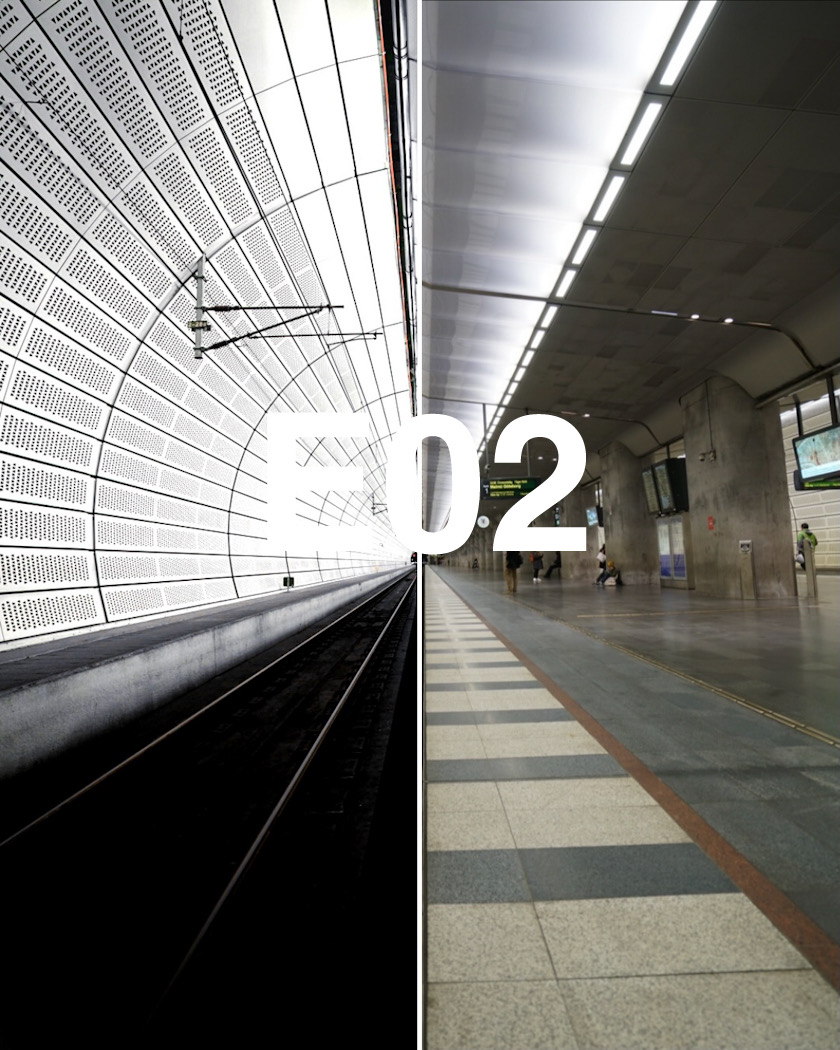
Unlock Stunning Photos: Mastering Lightroom Presets.
Hey there, photo enthusiasts! Ever scroll through Instagram and wonder how some people achieve those consistently gorgeous, magazine-worthy photos? Is it some kind of magical filter only available to the elite? Or maybe they spend hours meticulously tweaking every single setting in Lightroom? Well, I've got good news for you: it's probably neither! The secret weapon in their arsenal? Lightroom presets. And no, you don't need a Ph D in photography to use them.
Think of presets like pre-made recipes for your photos. Imagine you're cooking dinner. You could start from scratch, measuring out every spice and ingredient, or you could grab a pre-mixed spice blend that's already perfectly balanced. Presets are the spice blend of the photo editing world! They allow you to apply a specific look and feel to your photos with just a single click, saving you tons of time and effort. They’re like having a professional photo editor tucked away inside your computer, ready to transform your images in seconds.
Now, I know what you might be thinking: "Presets? Sounds complicated. I'm not a professional photographer!" Trust me, friend, I get it. The world of photo editing can seem overwhelming at first. All those sliders, curves, and histograms... it's enough to make your head spin! But that's precisely why presets are so fantastic. They’re a shortcut to stunning results, even if you’re a complete beginner. Plus, the best part? They're completely customizable! You can use them as a starting point and then tweak them to your heart's content to perfectly match your own personal style.
Let's be honest, we all take tons of photos these days, right? Our phones are basically portable cameras, capturing every brunch, sunset, and adorable pet moment. But how many of those photos actually see the light of day (pun intended!)? Probably not as many as we'd like. Why? Because they often need a little…something. A little pop of color, a little more contrast, a little touch of magic. And that's where Lightroom presets come to the rescue. They can transform your photos from "meh" to "wow" with minimal effort.
But here's the thing: simply downloading a bunch of random presets isn't going to automatically turn you into a photography superstar. You need to know how to use them effectively, how to choose the right presets for your photos, and how to customize them to create your own unique style. Think of it like learning a new language. You can memorize a bunch of phrases, but you won't truly be fluent until you understand the grammar and can create your own sentences. In the same way, understanding how presets work will empower you to create truly stunning photos that reflect your personal vision.
So, are you ready to ditch the dull and embrace the dazzling? Are you ready to unlock the full potential of your photos and finally achieve that Instagram-worthy aesthetic you've been dreaming of? Great! Because in this guide, we're going to dive deep into the world of Lightroom presets and show you exactly how to use them to enhance your photos like a pro. Get ready to transform your photography game, one click at a time! Now, let's unravel the mystery, shall we?
How to Use Adobe Lightroom Presets to Enhance Photos
So, you’ve decided to give Lightroom presets a try? Excellent choice, friend! Prepare to be amazed at how quickly and easily you can transform your photos. But before we dive into the nitty-gritty, let’s address a common misconception: presets arenota magic bullet. They're not going to fix a poorly composed or badly lit photo. Think of them as the finishing touch, the cherry on top, the final polish that takes a good photo and makes it great. The better your original photo, the more impactful the preset will be.
Now, let's get down to business. Here's a step-by-step guide to using Lightroom presets effectively:
- Import Your Photos into Lightroom: Obviously, the first step is to get your photos into Lightroom. If you're using Lightroom Classic, simply click the "Import" button in the lower-left corner and select the photos you want to edit. If you're using Lightroom CC (the cloud-based version), you can drag and drop your photos directly into the app. Pro tip: organize your photos into folders beforehand! It will save you a lot of headaches later on.
- Install Your Presets: This is where the fun begins! The installation process varies slightly depending on whether you're using Lightroom Classic or Lightroom CC.
- Lightroom Classic: Go to the Develop module. In the left panel, find the "Presets" panel. Click the "+" icon and select "Import Presets." Navigate to the folder where you saved your presets, select them, and click Import.Voila! Your presets will now appear in the "Presets" panel.
- Lightroom CC: In the Edit panel, click the "Presets" button at the bottom. Then, click the three dots in the upper-right corner and select "Import Presets." Choose your preset files and click Import.Easy peasy!
- Choose the Right Preset: This is where your artistic eye comes into play. Browse through your newly installed presets and try them out on your photo. The key is to find a preset that complements your photo's existing characteristics. For example, if you have a photo of a lush green landscape, a preset that enhances greens and blues might be a good choice. Conversely, if you have a portrait taken in warm light, a preset that adds a touch of warmth and smoothness could be ideal. Don’t be afraid to experiment! Just because a preset looks amazing on one photo doesn't mean it will look good on every photo.
- Adjust the Intensity: Many presets come with an "Amount" slider that allows you to adjust the intensity of the effect. This is a crucial tool for fine-tuning the preset to your liking. If the preset is too strong, simply reduce the "Amount" slider until you achieve the desired look. Conversely, if the preset is too subtle, you can increase the "Amount" slider.
- Customize the Preset (If Needed): Remember what I said about presets being customizable? This is where you can really make them your own! Once you've applied a preset, don't be afraid to tweak the individual settings to further enhance your photo. Here are some of the most common settings you might want to adjust:
- Exposure: Adjust the overall brightness of the photo.
- Contrast: Adjust the difference between the light and dark areas of the photo.
- Highlights: Adjust the brightness of the brightest areas of the photo.
- Shadows: Adjust the brightness of the darkest areas of the photo.
- Whites: Adjust the brightness of the whitest areas of the photo.
- Blacks: Adjust the darkness of the blackest areas of the photo.
- Temperature: Adjust the warmth or coolness of the photo.
- Tint: Adjust the green or magenta tones in the photo.
- Clarity: Adds definition and sharpness to the photo. Be careful not to overdo it!
- Vibrance: Adds saturation to the less saturated colors in the photo.
- Saturation: Adjusts the overall intensity of the colors in the photo.
- Save Your Customized Preset (Optional): If you've created a custom preset that you absolutely love, you can save it for future use! Simply click the "+" icon in the "Presets" panel and select "Create Preset." Give your preset a name and choose which settings you want to include. Now you can apply your signature look to all your photos with just one click!
- Practice, Practice, Practice: Like any skill, mastering the art of using Lightroom presets takes time and practice. Don't be discouraged if your first few attempts aren't perfect. The more you experiment with different presets and settings, the better you'll become at finding the perfect look for your photos.
Choosing the Right Presets: A Guide
With so many presets available, how do you choose the right ones for your photos? Here are a few tips to help you narrow down your options:
- Consider Your Style: What kind of aesthetic are you drawn to? Do you prefer bright and airy photos, or moody and dramatic ones? Look for presets that align with your personal style. For example, if you love vintage-inspired photos, look for presets that emulate the look of film photography. Or, if you're a fan of vibrant landscapes, seek out presets that enhance colors and contrast.
- Think About the Subject: The type of photo you're editing will also influence your choice of preset. A preset that looks great on a landscape photo might not be suitable for a portrait, and vice versa. Look for presets that are specifically designed for the type of photography you do most often.
- Read Reviews and See Examples: Before you purchase a preset pack, take the time to read reviews and see examples of how the presets look on different types of photos. Most preset creators will provide before-and-after examples to showcase the effects of their presets. This will give you a better idea of whether the presets are a good fit for your style and photography.
- Don't Be Afraid to Experiment: The best way to find the right presets is to simply try them out and see what works! Download some free presets and experiment with them on your photos. You might be surprised at what you discover.
Common Mistakes to Avoid
Using Lightroom presets is generally straightforward, but there are a few common mistakes that you should avoid:
- Over-Editing: It's easy to get carried away with presets and end up with photos that look overly processed. Remember, the goal is to enhance your photos, not to completely transform them. Use presets sparingly and avoid pushing the settings too far. A subtle adjustment is often more effective than a dramatic one.
- Using the Same Preset on Every Photo: Just because a preset looks good on one photo doesn't mean it will look good on every photo. Each photo is unique, and it requires its own unique editing approach. Don't fall into the trap of using the same preset on all your photos without making any adjustments.
- Ignoring the Basics of Photography: Presets can enhance a good photo, but they can't fix a bad one. Make sure you're focusing on the fundamentals of photography, such as composition, lighting, and focus. A well-composed photo with good lighting will always look better than a poorly composed photo that's been heavily edited.
- Not Backing Up Your Presets: This is a crucial step that many people overlook. Once you've invested time and effort into creating your own custom presets, make sure you back them up! You can save them to an external hard drive or upload them to a cloud storage service. This will ensure that you don't lose your precious presets if something happens to your computer.
Beyond the Basics: Advanced Tips and Tricks
Ready to take your Lightroom preset game to the next level? Here are some advanced tips and tricks to help you master the art of photo editing:
- Stacking Presets: Did you know that you can stack multiple presets on top of each other? This can be a great way to create unique and complex looks. Start by applying a base preset, and then add another preset on top to refine the colors, tones, or details. Just be careful not to overdo it! Stacking too many presets can result in a muddy or unnatural look.
- Using Adjustment Brushes: Adjustment brushes allow you to make localized adjustments to specific areas of your photo. This can be incredibly useful for fine-tuning the preset's effects. For example, you can use an adjustment brush to brighten the subject's face, darken the sky, or add detail to a specific object in the photo.
- Creating Your Own Presets: Once you've gained some experience with using presets, you might want to try creating your own! This is a great way to develop your own signature style and create presets that are perfectly tailored to your photography. Experiment with different settings and find combinations that you love. Then, save your settings as a preset for future use.
- Batch Editing: If you have a large batch of photos that you want to edit with the same preset, you can use Lightroom's batch editing feature to save time. Simply select all the photos you want to edit, apply the preset to one photo, and then synchronize the settings to the other photos. You can then make minor adjustments to each photo as needed.
Frequently Asked Questions
Let's tackle some frequently asked questions about Lightroom presets to clear up any remaining doubts.
Question 1: Are Lightroom presets compatible with all versions of Lightroom?
Answer: Generally, yes, but with caveats. Presets created for newer versions of Lightroom (Classic and CC) might not be fully compatible with older versions. Always check the preset's compatibility details before downloading or purchasing. Most creators specify which Lightroom versions their presets are designed for.
Question 2: Where can I find good quality Lightroom presets?
Answer: There are tons of places! You can find free and paid presets on websites like Adobe Exchange, Etsy, Creative Market, and individual photographer's websites. Look for reputable creators with good reviews and before-and-after examples that match your style. Don't be afraid to start with free options to get a feel for what works best for you.
Question 3: How do I uninstall a Lightroom preset that I don't like?
Answer: In Lightroom Classic, simply right-click on the preset in the Presets panel and select Delete.In Lightroom CC, click the three dots next to the preset name and choose Delete.Easy peasy! Just make sure you're deleting the correct preset before you hit that button.
Question 4: Can I use Lightroom presets on my phone?
Answer: Absolutely! Lightroom Mobile (the phone app) supports presets. You can import presets created for the desktop version, or you can find presets specifically designed for mobile editing. This allows you to achieve a consistent look across all your photos, whether you're editing on your computer or on the go.
Alright friends, we've reached the end of our Lightroom preset journey. Let's recap what we've learned, shall we?
We started by understanding what Lightroom presets are: pre-made recipes that can transform your photos with a single click. We then walked through the step-by-step process of installing, choosing, and customizing presets. We discussed how to find the right presets for your style and how to avoid common mistakes. And finally, we explored some advanced tips and tricks to help you take your photo editing skills to the next level.
The power to create stunning photos is now in your hands! Remember, presets are tools, not magic wands. The best results come from understanding your photos, experimenting with different presets, and fine-tuning them to achieve your desired look. Now that you're armed with this knowledge, it's time to put it into practice!
So, here's your call to action: open up Lightroom, import some photos, and start experimenting with presets. Don't be afraid to try new things, make mistakes, and learn from them. The more you practice, the better you'll become at using presets to enhance your photos and create your own unique style.
The world of photo editing can seem daunting, but I promise you, it's also incredibly rewarding. There's nothing quite like the feeling of taking a raw, unedited photo and transforming it into a work of art. So go out there, capture some amazing moments, and let your creativity shine! The only limit is your imagination. What are you waiting for? Go make some magic!

Post a Comment for "How to Use Adobe Lightroom Presets to Enhance Photos"
Post a Comment