Step-by-Step Guide to Using Google Search Console
Unlock Your Website's Potential: A Complete Guide to Google Search Console
Hey there, website owners and digital marketers! Ever feel like your website is shouting into the void, unheard and unseen by the vast expanse of the internet? Or maybe you're seeing some traffic but have no clue where it's coming from or why some pages are thriving while others are gathering dust? It's like throwing a party and not knowing if anyone actually showed up, or worse, if they did, what they thought of the snacks!
Well, fret no more! Google Search Console is your secret weapon, your all-seeing eye into the performance of your website in Google's search results. Think of it as your website's health check-up, providing insights into everything from technical issues hindering your visibility to the keywords people are using to find you. It's like having a direct line to Google, allowing you to understand how they see your site and what you can do to improve its standing. And the best part? It's absolutely free! Imagine getting a comprehensive analysis of your business's performance and potential without spending a dime – that's Google Search Console for you.
Let's be honest, navigating the world of SEO and website analytics can feel like trying to assemble IKEA furniture without the instructions. Confusing metrics, cryptic error messages, and the constant feeling that you're missing something vital can leave you feeling overwhelmed and frustrated. You've probably heard whispers about "keywords," "sitemaps," and "crawl errors," but figuring out how they all fit together can feel like solving a Rubik's Cube blindfolded. Maybe you've even dabbled in Search Console before but found yourself lost in the sea of data, unsure of where to focus your efforts.
But what if I told you that mastering Google Search Console doesn't have to be a daunting task? What if you could unlock its full potential and use it to drive more traffic, improve your search rankings, and ultimately grow your business? We're not talking about overnight magic here. It takes consistent effort, but the rewards are more than worth it. Think of it as planting a garden. You need to prepare the soil (optimize your site), sow the seeds (submit your sitemap), water regularly (monitor performance), and weed out the unwanted elements (fix errors). With a little patience and the right guidance, you'll be reaping a bountiful harvest of organic traffic in no time.
This guide is your comprehensive roadmap to mastering Google Search Console. We'll break down each section, explain the key metrics, and provide actionable tips to help you optimize your website for search success. Whether you're a seasoned SEO pro or a complete beginner, you'll find valuable insights and practical strategies to take your website to the next level. So, buckle up, grab a cup of coffee, and let's dive in! Are you ready to transform your website from a hidden gem into a search engine superstar? Let's find out how!
Alright, friends, let's get into the nitty-gritty of Google Search Console and how you can use it to boost your website's visibility. Think of this as your personal treasure map to SEO gold. Let's start digging!
Getting Started: Setting Up Google Search Console
Before we can analyze anything, we need to get your website connected to Google Search Console. Don't worry, it's easier than you think!
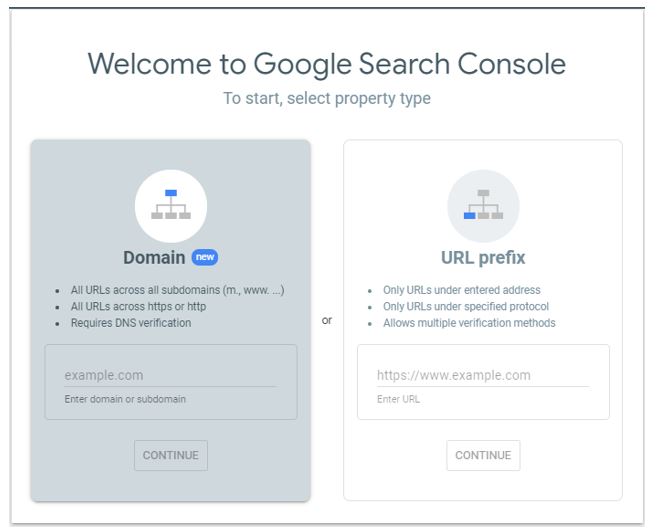
• Claim Your Website: Head over to Google Search Console and sign in with your Google account (the same one you use for Gmail or Google Analytics). You'll be prompted to add a property. Choose between a "Domain" property (which covers all subdomains and protocols) or a "URL prefix" property (which covers a specific URL, like https://www.example.com). The domain property is generally recommended as it offers more comprehensive data coverage.
• Verify Your Ownership: Google needs to make sure you actually own the website you're trying to connect. There are several ways to verify:
• HTML File Upload: Download a specific HTML file that Google provides and upload it to the root directory of your website.
• HTML Tag: Add a meta tag to the
section of your website's homepage.• Google Analytics: If you already have Google Analytics installed on your site, you can use it for verification (super convenient!).
• Google Tag Manager: Similarly, if you use Google Tag Manager, you can verify through that.
• DNS Record: Add a TXT record to your domain's DNS settings. This method is a bit more technical but often preferred for Domain properties.
Pick the verification method that's easiest for you. Once verified, Google will start collecting data about your website.
The Performance Report: Unveiling Your Website's Search Performance
This is where the magic happens! The Performance report gives you a bird's-eye view of how your website is performing in Google Search. It's like looking at the scoreboard for your website in the game of SEO.
• Track Key Metrics:
• Clicks: The number of times someone clicked on your website link in Google Search results. This shows how many people are visiting your site from Google.
• Impressions: The number of times your website appeared in Google Search results. Even if someone didn't click on your link, an impression means your site was visible.
• CTR (Click-Through Rate): The percentage of impressions that resulted in a click (Clicks / Impressions). A higher CTR means your listings are more appealing to searchers.
• Average Position: The average ranking of your website's pages for the queries that triggered them to appear in Google Search. Aim to improve your average position over time.
• Filter and Analyze: Use the filters to slice and dice the data.
• Date Range: Compare performance over different time periods (e.g., last month vs. the previous month).
• Queries: See the exact keywords people are searching for that lead them to your website. This is invaluable for keyword research and content optimization.
• Pages: Identify your best-performing pages and those that need improvement.
• Countries: See where your traffic is coming from geographically.
• Devices: Understand how your site performs on different devices (desktop, mobile, tablet).
Example: Let's say you notice a particular page has a high number of impressions but a low CTR. This suggests that while your page is showing up in search results, it's not compelling enough for people to click on. You might need to improve the page title and meta description to make it more attractive.
The URL Inspection Tool: Your Page-Level Debugger
Need to troubleshoot a specific page? The URL Inspection tool is your go-to resource. It's like having a magnifying glass to examine individual pages and see how Google views them. This is helpful when you’ve updated content and want Google to take note.
• Check Indexing Status: See if Google has indexed a specific URL. If a page isn't indexed, it won't appear in search results.
• Request Indexing: If a page isn't indexed (or if you've made significant changes), you can request Google to crawl and index it.
• Identify Issues: The tool will highlight any issues that might be preventing Google from properly crawling or indexing the page, such as:
• Mobile Usability Issues: Problems that make the page difficult to use on mobile devices.
• Structured Data Errors: Issues with your structured data markup (more on this later).
• Page Loading Issues: Errors that prevent the page from loading correctly.
Example: You've just published a new blog post and want to make sure Google knows about it. Use the URL Inspection tool to request indexing and ensure it gets added to Google's index quickly.
Sitemaps: Guiding Google Through Your Website
A sitemap is essentially a roadmap of your website that you submit to Google. It helps Google discover and crawl all the important pages on your site, especially if your site has a complex structure or many orphaned pages (pages that aren't linked to from other pages). Think of it as giving Google a VIP tour of your website, highlighting all the key attractions.
• Create a Sitemap: Most content management systems (CMS) like Word Press have plugins that can automatically generate a sitemap for you. The sitemap is typically an XML file.
• Submit Your Sitemap: In Google Search Console, go to the "Sitemaps" section and submit the URL of your sitemap file.
By submitting a sitemap, you're giving Google a helpful nudge to crawl and index your entire website efficiently.
Coverage Report: Uncovering Crawl Errors and Indexing Issues
The Coverage report provides a detailed overview of which pages on your site have been indexed by Google and identifies any issues that might be preventing pages from being indexed. It's like a detective investigating why certain pages are missing from Google's records.
• Identify Errors: The report highlights errors that prevent Google from indexing pages, such as:
• 404 Errors (Not Found): Pages that no longer exist.
• Server Errors: Problems with your web server that prevent Google from accessing your site.
• Redirect Errors: Issues with redirects that prevent Google from reaching the final destination page.
• Submitted URL Blocked by Robots.txt: Pages that are intentionally blocked from being crawled by your robots.txt file.
• Warnings: The report also flags warnings, such as:
• Indexed, Though Blocked by Robots.txt: Pages that Google has indexed despite being blocked by robots.txt (this is usually not ideal).
• Duplicate Pages Without Canonical Tag: Pages with duplicate content that don't have a canonical tag to tell Google which version is the preferred one.
Fixing these errors and warnings is crucial for ensuring that all your important pages are indexed and can appear in search results. Think of it as cleaning up your website's act so Google sees it in the best possible light.
Mobile Usability: Ensuring a Mobile-Friendly Experience
In today's mobile-first world, having a website that's optimized for mobile devices is absolutely essential. Google Search Console has a dedicated Mobile Usability report that helps you identify any mobile-friendliness issues on your site. It's like ensuring your website has a comfortable and welcoming environment for mobile visitors.
• Identify Issues: The report flags issues that make your website difficult to use on mobile devices, such as:
• Text Too Small to Read: Text that's too small and requires users to zoom in to read it.
• Touch Elements Too Close: Buttons and links that are too close together, making them difficult to tap accurately.
• Mobile Viewport Not Set: The mobile viewport is not configured correctly, causing the page to render improperly on mobile devices.
• Content Wider Than Screen: Content that extends beyond the screen width, requiring users to scroll horizontally.
Addressing these mobile usability issues will improve the user experience for mobile visitors and can also boost your search rankings, as Google prioritizes mobile-friendly websites.
Core Web Vitals: Measuring User Experience
Core Web Vitals are a set of metrics that Google uses to measure the user experience of your website. They focus on three key aspects: loading speed, interactivity, and visual stability. They're like the key ingredients for a delicious website experience.
• LCP (Largest Contentful Paint): Measures how long it takes for the largest content element on a page to become visible. Aim for an LCP of 2.5 seconds or less.
• FID (First Input Delay): Measures the time it takes for a page to respond to the first user interaction (e.g., clicking a button). Aim for an FID of 100 milliseconds or less.
• CLS (Cumulative Layout Shift): Measures the amount of unexpected layout shifts that occur on a page. Aim for a CLS of 0.1 or less.
Google Search Console's Core Web Vitals report shows you how your website is performing on these metrics and identifies any pages that need improvement. Optimizing your Core Web Vitals can significantly improve the user experience and boost your search rankings.
Links Report: Understanding Your Website's Link Profile
Links are a crucial factor in SEO. The Links report in Google Search Console provides valuable insights into your website's link profile, both internal and external. It's like understanding who's vouching for your website and how your pages are connected.
• External Links: See which websites are linking to your site. This helps you identify potential link-building opportunities and monitor your link profile for any spammy or low-quality links.
• Internal Links: See how your pages are linked to each other. Internal linking helps Google understand the structure of your website and can improve the ranking of individual pages.
Analyzing your link profile can help you identify areas for improvement, such as building more high-quality backlinks and optimizing your internal linking structure.
Structured Data: Helping Google Understand Your Content
Structured data (also known as schema markup) is a way to provide Google with more information about the content on your pages. It's like adding labels to your content to help Google understand what it's about.
• Types of Structured Data: There are various types of structured data you can use, depending on the type of content you have:
• Article: For news articles and blog posts.
• Product: For product pages.
• Recipe: For recipes.
• Event: For events.
• FAQ: For frequently asked questions.
• Benefits of Structured Data: Using structured data can:
• Improve your search rankings.
• Make your search results more visually appealing (e.g., with rich snippets).
• Help Google understand your content better.
Google Search Console's "Enhancements" section allows you to monitor your structured data implementation and identify any errors.
Security Issues: Keeping Your Website Safe
Security is paramount. Google Search Console will alert you to any security issues detected on your website, such as malware infections or hacking attempts. It's like having a security guard watching over your website, ready to alert you to any potential threats.
If Google detects a security issue, it's crucial to address it immediately to protect your website and its visitors.
Manual Actions: Addressing Penalties
In rare cases, Google may issue a manual action against your website if it violates Google's Webmaster Guidelines. This means that your website may be penalized in search results. It's like getting a speeding ticket from Google.
Google Search Console's "Manual Actions" section will inform you if your website has received a manual action and provide instructions on how to resolve the issue. Addressing manual actions is crucial for restoring your website's search rankings.
Settings: Managing Your Search Console Account
The "Settings" section allows you to manage your Google Search Console account, including:
• Verification Details: Verify your ownership of the website.
• Users and Permissions: Add or remove users and manage their permissions.
• Change of Address: Inform Google if you've moved your website to a new domain.
• Crawl Rate: Adjust the rate at which Google crawls your website (usually not necessary).
• Association: Link Google Analytics with Google Search Console.
So, friends, that's a whirlwind tour of Google Search Console! It's a powerful tool that can give you invaluable insights into your website's performance and help you improve your search rankings. Don't be afraid to dive in and explore! Remember, the more you use it, the more you'll learn.
Let's tackle some common questions about Google Search Console!
Q: Is Google Search Console really free?
A: Absolutely! It's one of Google's free tools offered to help website owners monitor and improve their site's search presence. There are no hidden fees or subscriptions.
Q: How long does it take for Google Search Console to start showing data?
A: After verification, data usually starts appearing within a few days. However, it may take a couple of weeks to gather a comprehensive view of your website's performance.
Q: Can I connect multiple websites to a single Google Search Console account?
A: Yes, you can! You can add and manage multiple properties (websites) under one Google account, making it easy to keep track of all your sites.
Q: What if I get a "Coverage" error in Google Search Console?
A: Don't panic! Coverage errors indicate issues preventing Google from properly indexing your pages. Investigate the specific error (e.g., 404 error, server error) and take steps to resolve it. The URL Inspection tool is your friend here!
Wow, that was a deep dive, wasn't it? We've covered everything from setting up Google Search Console to understanding its various reports and tools. Think of this as your comprehensive survival guide to navigating the world of SEO and website analytics. The key takeaway is that Google Search Console isn't just a tool; it's your direct line to understanding how Google perceives your website and what you can do to improve its visibility. It’s more important than ever to understand your website's performance and adapt to the ever-changing landscape of search engine optimization. Now's the time to make sure your SEO is in line with current trends and requirements.
Now that you’re equipped with this knowledge, it’s time to put it into action! Log in to Google Search Console (or create an account if you haven't already) and start exploring your website's data. Begin by examining your Performance report to identify high-potential keywords and pages. Then, use the URL Inspection tool to troubleshoot any indexing issues. And don't forget to submit your sitemap to ensure Google can crawl your entire website efficiently. Consistent monitoring and proactive optimization are the keys to unlocking your website's full potential. So, start tweaking your website for better search visibility and improve your SEO!
The journey of SEO is an ongoing process, but with Google Search Console by your side, you have the tools you need to succeed. Embrace the data, experiment with different strategies, and never stop learning. Every website has the potential to shine in search results. If you start today, you’ll be on your way to more organic traffic, higher rankings, and greater success in the online world. Go forth and conquer the search engines! Are you ready to transform your website from a hidden gem into a search engine superstar? You got this!

Post a Comment for "Step-by-Step Guide to Using Google Search Console"
Post a Comment