Step-by-Step Guide to Setting Up Google Analytics Goals
Unlock Your Website's Potential: A Foolproof Guide to Google Analytics Goals
Hey there, fellow website enthusiasts! Ever feel like you're throwing spaghetti at the wall when it comes to your website strategy? You're churning out content, tweaking designs, and running ads, but are youreallyseeing the results you want? Are people actually doing what youwantthem to do on your site, like signing up for your newsletter, buying your amazing product, or downloading that super-useful ebook you spent weeks creating?
Let's be honest, running a website without goals is like driving a car without a destination. You might be moving, but you're not necessarily going anywhere productive. You're just burning fuel (and money!) without a clear purpose. And in today's hyper-competitive online landscape, that's a recipe for getting left behind.
Think about it. You’ve probably spent countless hours crafting the perfect landing page, optimizing your SEO, and engaging with your audience on social media. But how do youreallyknow if all that hard work is paying off? Are visitors actually converting into leads? Are they spending enough time on your site to absorb your message? Are they navigating the way youintendthem to?
Imagine you're a baker, and your website is your bakery. You're baking all sorts of delicious treats (your content), decorating them beautifully (your design), and inviting people in (your marketing). But without tracking which pastries are selling, which ones are just sitting on the shelf, and which ones are getting rave reviews, you're just blindly baking away. You need to know what's working and what's not, so you can adjust your recipes and focus on the treats that your customers are actually craving.
That's where Google Analytics goals come in. They're your secret ingredient to website success. They allow you to define specific actions that you want your visitors to take and then track how effectively your website is achieving those objectives. Think of them as digital milestones that guide your visitors towards the desired outcome and provide you with valuable data to optimize your website's performance. It's not about vanity metrics like page views; it's about understandingintentandconversion.
We all know that Google Analytics can feel intimidating. With all the dashboards, reports, and metrics, it's easy to get lost in the data. But setting up goals doesn't have to be a daunting task. In fact, with a little guidance, it's surprisingly straightforward. And the payoff? Huge! You'll gain a crystal-clear understanding of your website's performance, identify areas for improvement, and ultimately, achieve your business objectives.
Here's a scenario: you're running an e-commerce store selling handmade jewelry. You spend a fortune on Google Ads driving traffic to your product pages. But are people actually buying anything? Without Google Analytics goals, you're just guessing. With goals, you can track every purchase, see which products are most popular, and identify bottlenecks in your checkout process. This allows you to optimize your ads, improve your product descriptions, and streamline your checkout flow, ultimately boosting your sales and maximizing your return on investment.
Or maybe you're a blogger trying to build an email list. You've created a killer lead magnet, but are people actually signing up? By setting up a goal to track newsletter subscriptions, you can see which traffic sources are driving the most sign-ups, which landing pages are most effective, and which calls to action are most compelling. This allows you to focus your efforts on the strategies that are working and ditch the ones that aren't.
So, are you ready to transform your website from a guessing game into a data-driven success story? Are you ready to unlock the power of Google Analytics goals and start achieving your business objectives? Then buckle up, my friends, because we're about to embark on a journey that will revolutionize the way you understand and optimize your website. Let's dive in and discover how to set up Google Analytics goals, step by glorious step. You might be surprised at how simple (and powerful!) it actually is!
Step-by-Step Guide to Setting Up Google Analytics Goals
Okay, friends, let's get down to the nitty-gritty! We're going to walk through setting up Google Analytics goals. Don't worry, it's not as scary as it sounds. Think of it like setting up a simple online scavenger hunt for your website visitors, and you're tracking how well they find the "treasure" (your desired actions).
• Log into your Google Analytics account: First, make sure you're logged into your Google Analytics account associated with the website you want to track. You can access it by going to analytics.google.com. If you have multiple accounts, ensure you select the correct one. This sounds basic, but it’s a common slip-up!
• Navigate to the Admin section: Once you're in, look for the "Admin" gear icon at the bottom left-hand corner of the screen. Click on it. This will take you to the administration settings where you can manage various aspects of your Google Analytics account, including goals.
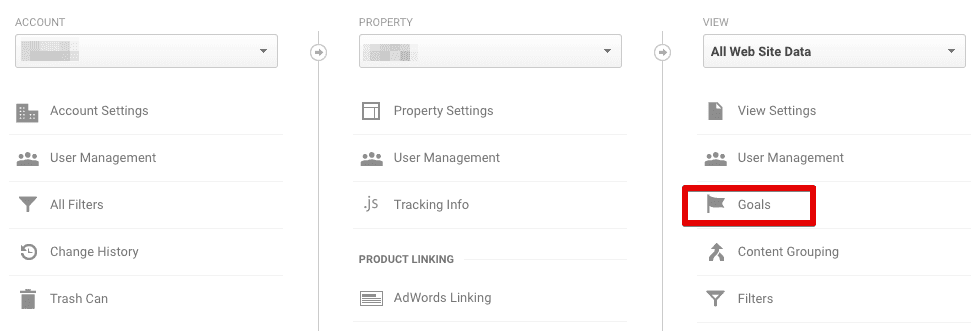
• Select the correct Account, Property, and View: In the Admin section, you'll see three columns: Account, Property, and View. Make sure you have selected the correct account, property (your website), and view (usually "All Website Data"). Views are crucial because they allow you to filter data and set up specific tracking configurations. Always double-check this!
• Go to "Goals": In the "View" column, you'll find a section called Goals.Click on it. This is where you'll create and manage your goals. If you haven't set up any goals before, this page will likely be empty. Time to change that!
• Create a New Goal: Now, you should see a big red button that says "+ New Goal" (or "+ New Goal Template"). Click it. This will open the goal setup page, where you can define the parameters of your goal.
• Choose a Goal Template or Create a Custom Goal: Google Analytics offers pre-defined goal templates for common objectives like "Make a Payment," "Submit Contact Info," or "Play a Video." These templates can be a great starting point, especially if you're new to goal setting. However, if you have a more specific or unique objective, you can choose Custom.• Define Goal Setup (if choosing Custom): If you selected "Custom," you'll need to define the goal setup. This involves giving your goal a name, choosing a goal type, and providing specific details about the goal.
• Goal Name: Give your goal a descriptive name that you'll easily recognize later. For example, "Newsletter Sign-Up," "Product Purchase," or "Contact Form Submission."
• Goal Type: Choose the appropriate goal type based on the action you want to track. Google Analytics offers four main goal types:
• Destination: This is triggered when a user reaches a specific page on your website, like a thank-you page after a purchase or a confirmation page after submitting a form. This is the most commonly used goal type.
• Duration: This is triggered when a user spends a certain amount of time on your website. This is useful for measuring engagement and identifying valuable content.
• Pages/Screens per session: This is triggered when a user views a specific number of pages or screens during a single session. This is also useful for measuring engagement and identifying popular content.
• Event: This is triggered when a user performs a specific action, like clicking a button, playing a video, or downloading a file. This is the most flexible goal type and can be used to track a wide range of user interactions.
• Configure Goal Details: This is where you'll provide the specific details for your chosen goal type. The configuration options will vary depending on the goal type you selected. Let's look at some examples:
• Destination Goal:
• Destination: Enter the URL of the destination page. You can choose from different match types, such as "Equals to," "Begins with," or "Regular expression." The "Equals to" option is the most precise and should be used when you want to track an exact URL. "Begins with" is useful for tracking a section of your website, and "Regular expression" allows for more complex pattern matching.
• Funnel (Optional): If you want to track the steps that users take to reach the destination page, you can define a funnel. This allows you to see where users are dropping off in the conversion process. For example, if you're tracking a purchase, you might define a funnel with steps like "Product Page," "Shopping Cart," and Checkout.• Goal Value (Optional): You can assign a monetary value to your goal. This is useful for calculating the return on investment of your marketing campaigns. For example, if each newsletter subscriber is worth $10 to your business, you can enter $10 as the goal value.
• Duration Goal:
• Hours, Minutes, Seconds: Enter the amount of time that users must spend on your website to trigger the goal.
• Pages/Screens per session Goal:
• Number of pages/screens: Enter the number of pages or screens that users must view to trigger the goal.
• Event Goal:
• Category: Enter the event category.
• Action: Enter the event action.
• Label (Optional): Enter the event label.
• Value (Optional): Enter the event value.
To set up an Event Goal, you'll first need to implement event tracking on your website. This involves adding code to your website that sends data to Google Analytics whenever a user performs a specific action. This can be done using Google Tag Manager, which simplifies the process of adding and managing tracking code on your website. If this sounds daunting, don't worry, there are plenty of tutorials and resources available online to help you get started.
• Verify Your Goal: Before saving your goal, you can use the "Verify" option to see how it would have performed based on past data. This can help you ensure that your goal is configured correctly and that it's tracking the data you expect it to track. This step is often overlooked, but it can save you a lot of headaches down the road!
• Save Your Goal: Once you're satisfied with the configuration, click the "Save" button. Your goal is now active and will start tracking data immediately.
Friends, that's it! You've successfully set up a Google Analytics goal. Now, you can start tracking your website's performance and making data-driven decisions to improve your results. Remember to regularly review your goals and make adjustments as needed. As your business evolves, your goals should evolve as well.
Pro Tip: Don't go overboard with the number of goals you set up. Focus on the most important actions that you want your visitors to take. Having too many goals can make it difficult to analyze your data and identify meaningful trends. Start with a few key goals and then add more as needed.
So, there you have it. Setting up Google Analytics goals isn't rocket science. With a little patience and attention to detail, you can unlock a wealth of valuable insights that will help you optimize your website and achieve your business objectives. Now go forth and conquer the world of website analytics!
Google Analytics Goals: FAQs
Alright, friends, let's tackle some common questions about Google Analytics goals. I know you're itching to become goal-setting gurus, so let's clear up any lingering doubts.
• Q: How many goals should I set up in Google Analytics?
A: There isn't a magic number, but a good starting point is focusing on 3-5 key goals that align with your primary business objectives. Think about what actions are most crucial for your website's success, such as lead generation, sales, or engagement. Avoid setting up too many goals, as it can become overwhelming to analyze the data. Prioritize quality over quantity and focus on the goals that will provide the most valuable insights.
• Q: Can I track goals retroactively?
A: Unfortunately, no. Google Analytics only starts tracking goal data from the moment you create the goal. So, it's crucial to set up your goals as early as possible to start collecting valuable data. If you're unsure about which goals to set up, start with a few basic ones and then add more as you gain a better understanding of your website's performance. Don't delay, set them up today!
• Q: What's the difference between a goal and an event in Google Analytics?
A: Goals are broader objectives that you want your website visitors to achieve, such as completing a purchase or signing up for a newsletter. Events, on the other hand, are specific actions that users take on your website, such as clicking a button, playing a video, or downloading a file. Events can be used to trigger goals, but they can also be tracked independently to gain insights into user behavior. Think of events as the building blocks of goals.
• Q: I'm using Google Tag Manager. How does that affect goal setup?
A: Google Tag Manager (GTM) simplifies the process of implementing event tracking, which is essential for setting up event-based goals. Instead of adding code directly to your website, you can use GTM to manage your tracking tags and send data to Google Analytics. This makes it easier to track a wide range of user interactions and create more sophisticated goals. If you're using GTM, make sure you configure your tags correctly to send the right data to Google Analytics. GTM is your friend, embrace it!
Conclusion
We've journeyed together through the landscape of Google Analytics goals. You've learned that setting up goals is not just a technical task, but a strategic imperative for understanding your website's performance and achieving your business objectives. It's about transforming raw data into actionable insights, turning website visits into meaningful conversions, and ultimately, driving success.
Remember, Google Analytics goals are your compass in the vast ocean of website data. They guide you towards the actions that matter most, allowing you to optimize your content, improve your user experience, and maximize your return on investment. Without goals, you're simply drifting aimlessly, hoping for the best. With goals, you're in control, navigating your website towards a clear and defined destination.
We started by understanding the importance of setting goals, highlighting how it's like driving a car without a destination – inefficient and unproductive. We then dove into a step-by-step guide, walking you through the process of creating and configuring goals in Google Analytics. We covered different goal types, such as Destination, Duration, Pages/Screens per session, and Event, and explained how to configure them based on your specific objectives. We also addressed common questions and clarified the difference between goals and events.
Now, it's time to put your newfound knowledge into action. I challenge you to log into your Google Analytics account right now and set up at least one goal. It could be something as simple as tracking newsletter sign-ups or thank you page visits. The important thing is to start tracking something, anything, and begin the process of data-driven decision-making.
Don't be afraid to experiment and iterate. Analytics is a continuous process of learning and optimization. As you collect more data, you'll gain a better understanding of your website's performance and identify new opportunities for improvement. Regularly review your goals, adjust your strategies, and never stop learning.
And remember, you're not alone on this journey. There are countless resources available online to help you master Google Analytics and achieve your business goals. Don't hesitate to seek out tutorials, read blog posts, and connect with other website enthusiasts. The more you learn, the more effective you'll become.
One of the most crucial things is to ensure you are setting up the right goals in alignment with your business. Every goal has to be measurable, achievable, and also it needs to be time-bound. In addition to this, you must always take into account the different stages that a user may be going through within your website from discovery to purchase and how they have been interacting with your website pages, your landing pages, product pages, and finally the checkout page. Another vital thing is always to monitor the different conversion rates for all these pages, as this will enable you to see the number of conversions and transactions that have occurred within each page, allowing you to check and make important optimizations.
Lastly, I would like to remind you that it's extremely important to ensure that you are setting up your goals properly. If you are not, your data will be compromised. Take the time to understand each goal to make sure the right destination pages and actions are being recorded to collect valuable data for analysis. You also want to ensure that you understand your ideal target audience so that you can ensure that your content is aligned with the goals that have been created.
You will need to ensure you are setting up a proper naming structure as the goals within Google Analytics will help in understanding different metrics and conversions that your business has been able to achieve. You should clearly name each one of the goals as this makes your workflow more efficient in reporting these metrics in the future.
The following are the benefits of setting up goals:
• It will enable you to track all of the progress towards the set objectives.
• You can get information for sales and leads.
• There is an improved understanding for user behavior.
• It will enable you to make informed decisions.
Always ensure that you are reviewing and refining your goals to make sure that they are accurately showing the needs that have been set by your business, and this will ensure that you are effectively achieving your target audience.
Take Action Now: Set up your first Google Analytics goal today! Don't wait any longer to unlock the power of data-driven decision-making. Head over to your Google Analytics account and start tracking the actions that matter most to your business.
Remember, every journey begins with a single step. Your first goal is just the beginning of a path towards website success. Embrace the challenge, stay curious, and never stop optimizing. You've got this!
What goal will you set up first? Let me know in the comments below!

Post a Comment for "Step-by-Step Guide to Setting Up Google Analytics Goals"
Post a Comment