How to Use Google Docs for Collaborative Projects
Unlock Teamwork: Mastering Google Docs for Seamless Collaboration
Hey there, friends! Ever find yourself drowning in a sea of email attachments, each supposedly the "final" version of a document, only to discover thatanotherrevision has surfaced? Or maybe you've spent hours meticulously crafting a presentation, only to realize that your teammate's been working on a completely different, incompatible version? We've all been there, right? It's the kind of headache that makes you question the very fabric of teamwork.
In today's fast-paced world, collaboration is key. Whether you're working on a school project, a business proposal, or even planning a surprise party (shhh!), being able to seamlessly work together is essential. And that, my friends, is where Google Docs shines. It's not just a word processor; it's a collaborative powerhouse, a digital playground where teamwork thrives. Think of it as the digital equivalent of sitting around a table with your friends, brainstorming ideas and building something amazing together… without the risk of anyone accidentally spilling coffee on the important notes.
But let's be honest, simplyknowingthat Google Docs exists isn't enough. You need to know how to wield its power effectively, how to unlock its hidden potential, and how to transform it from a simple document editor into a dynamic collaboration hub. That's what we're here for! We're going to dive deep into the world of Google Docs collaboration, exploring its features, uncovering its secrets, and arming you with the knowledge you need to conquer any collaborative project that comes your way.
So, buckle up, grab your favorite beverage (coffee strongly recommended!), and get ready to transform your teamwork experience. Are you ready to discover the secrets to seamless collaboration with Google Docs?
How to Use Google Docs for Collaborative Projects
Google Docs is a game-changer for collaborative projects. It transforms the often-chaotic process of teamwork into a streamlined, efficient, and even enjoyable experience. But to truly harness its power, you need to go beyond the basics. Let's explore how to use Google Docs to its fullest potential for seamless collaboration.
Getting Started: The Foundation of Collaboration
Before you can conquer the collaborative world, you need to lay the groundwork. These initial steps ensure everyone's on the same page (literally!).
• Create a New Document or Upload an Existing One: Start fresh or bring your existing work into the Google Docs ecosystem. This is where your collaboration journey begins. To create a new document, simply go to Google Drive and click "New," then select "Google Docs." If you already have a document, you can easily upload it by clicking "File," then "Open," and selecting the file from your computer. Make sure everyone involved has access to a Google account. It sounds obvious, but it's a crucial first step!
• Set the Sharing Permissions: Control who can access and edit your document. Click the "Share" button in the top right corner. Choose between "Restricted" (only people you add can open with the link), "Anyone with the link" (anyone with the link can view, comment, or edit depending on the permission you grant), and "Organization Name" (if you are using Google Workspace, this will allow people in your organization to access the document). Grant appropriate access levels (Viewer, Commenter, Editor) based on each collaborator's role. Think carefully about this! Giving everyone editing access might seem efficient, but it can quickly lead to chaos if not managed properly. Maybe some people only need to view and comment, while others are responsible for making actual changes.
• Communicate Clearly: Outline expectations and responsibilities upfront. Establish clear guidelines for editing, commenting, and version control. Before you even start working in the document, have a quick chat (or email exchange) with your collaborators to define roles and responsibilities. Who's responsible for what sections? What's the deadline for the first draft? Establishing these ground rules from the get-go can save you a lot of headaches down the line.
Mastering the Art of Real-Time Collaboration
This is where the magic happens! Google Docs allows multiple users to work on the same document simultaneously, making collaboration a truly real-time experience.
• Simultaneous Editing: See changes as they happen, fostering immediate feedback and dynamic contributions. One of the biggest advantages of Google Docs is the ability to see your collaborators' edits in real-time. You can literally watch them typing and making changes as you're working on your own sections. This allows for immediate feedback and a more dynamic and collaborative writing process. Plus, it's kind of cool to see multiple cursors dancing around the document!
• Color-Coded Cursors: Identify who is working on which section. Each collaborator's cursor is assigned a unique color, making it easy to track contributions. This feature is especially helpful when working on large documents with multiple collaborators. You can quickly see who's working on what, which can prevent accidental conflicts and ensure that everyone's contributing effectively.
• Suggested Edits: Propose changes without directly altering the original text. These suggestions can be accepted or rejected by the document owner or other editors. This is a fantastic feature for providing feedback without potentially messing up someone else's work. When you make a suggested edit, the original text remains intact, and your proposed change appears as a suggestion that the document owner or other editors can either accept or reject. This allows for a more controlled and collaborative editing process.
Communication is Key: Leveraging Comments and Chat
Effective communication is the lifeblood of any successful collaborative project. Google Docs provides several built-in communication tools to keep everyone on the same page.
• Commenting for Feedback and Discussions: Highlight text and add comments to provide specific feedback, ask questions, or initiate discussions. This is one of the most essential collaborative features of Google Docs. You can highlight any text in the document and add a comment directly to it. This allows you to provide specific feedback, ask clarifying questions, or initiate discussions related to a particular section of the document.
• @Mentions for Direct Notifications: Tag collaborators in comments to notify them directly and ensure they see your feedback or questions. To mention someone, simply type "@" followed by their name or email address. They'll receive an email notification, ensuring they don't miss your comment. This is a great way to grab someone's attention and ensure they respond to your feedback or questions in a timely manner.
• Resolve Comments to Mark Completion: Once a comment has been addressed, resolve it to keep the document clean and organized. This helps to avoid clutter and ensures that everyone knows which issues have been resolved and which still need attention. To resolve a comment, simply click the "Resolve" button on the comment thread.
• In-Document Chat for Quick Exchanges: Use the built-in chat feature for real-time conversations about the document. This is a handy feature for quick clarifications or brainstorming sessions. The chat window appears on the right side of the screen and allows you to have real-time conversations with your collaborators without leaving the document.
Version Control: Tracking Changes and Reverting to Previous States
Mistakes happen. That's why version control is crucial for collaborative projects. Google Docs automatically saves every version of your document, allowing you to track changes and revert to previous states if needed.
• View Revision History: Access a complete history of changes made to the document, including who made them and when. To access the revision history, click "File," then "Version History," and select "See version history." This will open a panel on the right side of the screen that shows a list of all the versions of the document.
• Name Versions for Easy Identification: Give meaningful names to important versions of your document to easily identify them later. For example, you could name a version "First Draft," "Final Draft," or "Approved by Client." This makes it much easier to find specific versions of the document in the revision history. To name a version, click the three dots next to the version in the revision history panel and select "Name this version."
• Restore Previous Versions: Revert to an earlier version of the document if necessary. If you make a mistake or want to undo some changes, you can easily restore a previous version of the document. To do this, simply select the version you want to restore in the revision history panel and click "Restore this version."
Advanced Tips for Google Docs Collaboration
Ready to take your Google Docs collaboration skills to the next level? Here are some advanced tips and tricks to help you streamline your workflow and maximize your productivity.
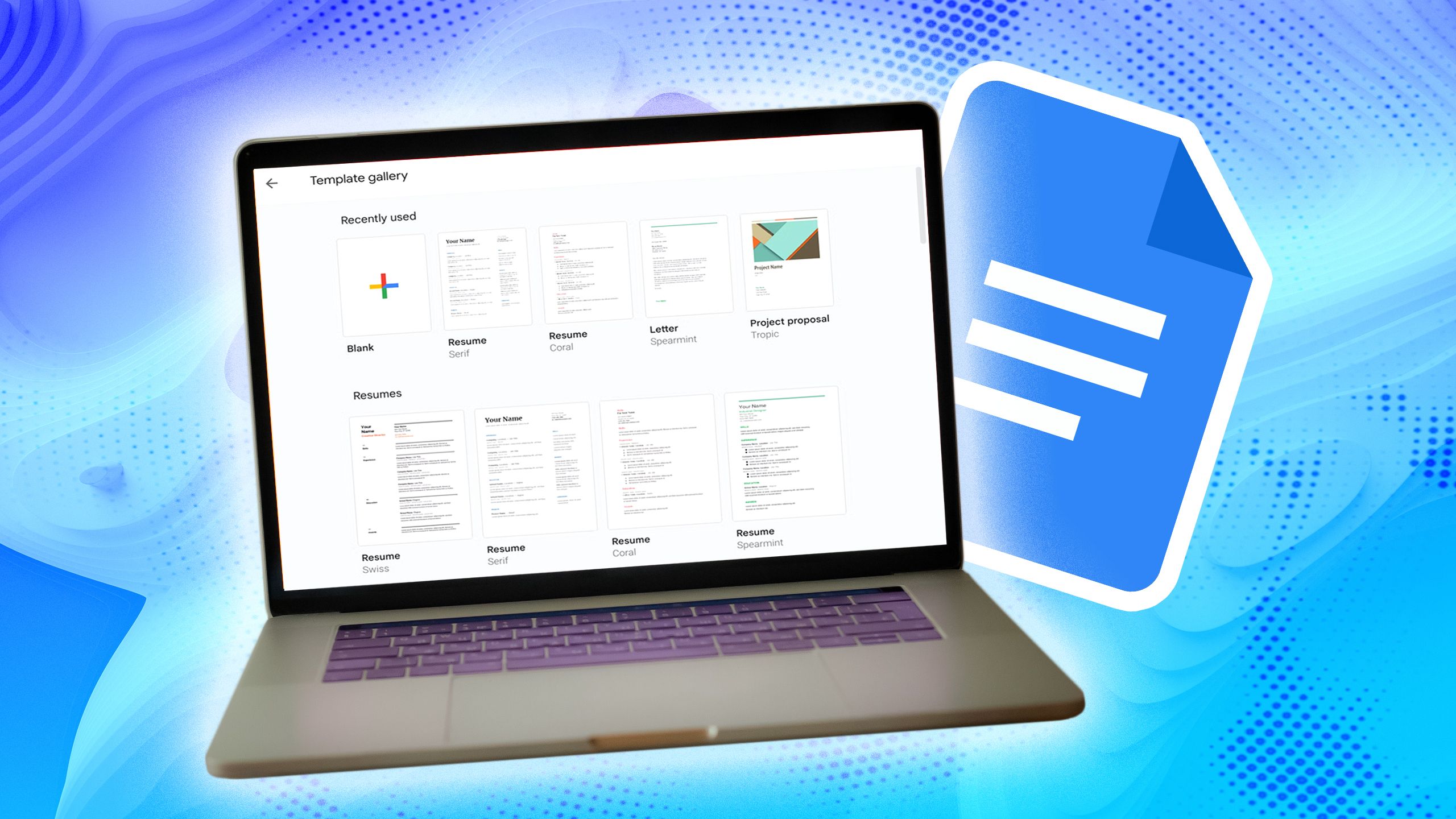
• Use Templates for Consistency: Leverage pre-designed templates for common document types like reports, proposals, and presentations. Google Docs offers a wide variety of templates that you can use to create professional-looking documents quickly and easily. These templates can help you maintain consistency in your documents and save you time and effort. To access the templates, click "File," then "New," and select "From template gallery."
• Explore Add-ons to Enhance Functionality: Extend Google Docs' capabilities with add-ons for grammar checking, citation management, and more. There are countless add-ons available for Google Docs that can enhance its functionality and make your work even easier. For example, you can use add-ons to check your grammar, manage citations, create diagrams, and more. To explore add-ons, click "Add-ons," then "Get add-ons."
• Work Offline with the Google Docs Offline Extension: Access and edit your documents even without an internet connection. This is a lifesaver when you're traveling or working in an area with unreliable internet access. To enable offline access, you need to install the Google Docs Offline extension in your Chrome browser. Once you've installed the extension, you can access and edit your documents even when you're offline.
• Utilize Keyboard Shortcuts for Efficiency: Learn common keyboard shortcuts to speed up your workflow. Mastering keyboard shortcuts can significantly improve your productivity in Google Docs. For example, you can use Ctrl+B to bold text, Ctrl+I to italicize text, and Ctrl+U to underline text. You can find a complete list of keyboard shortcuts by clicking "Help," then "Keyboard shortcuts."
By mastering these techniques, you can transform Google Docs from a simple word processor into a powerful collaboration tool that empowers your team to achieve its goals.
Frequently Asked Questions (FAQs)
Let's address some common questions about using Google Docs for collaborative projects.
• Question: How do I prevent someone from accidentally deleting important information in a shared Google Doc?
• Answer: The best approach is to carefully manage sharing permissions. Give editing access only to those who truly need it. For others, grant "Commenter" or "Viewer" access. You can also use "Suggesting" mode, which allows collaborators to propose edits without directly altering the original text. And remember, Google Docs' version history allows you to revert to previous versions if necessary.
• Question: Can I track who made specific changes in a Google Doc?
• Answer: Absolutely! Google Docs' version history is your friend. Click "File," then "Version history," and select "See version history." This will show you a detailed timeline of all changes made to the document, including who made them and when. You can even compare different versions side-by-side to see exactly what was changed.
• Question: How can I easily share a Google Doc with a large group of people without having to add each person individually?
• Answer: The easiest way is to use the "Anyone with the link" sharing option. Click the "Share" button, then change the permission settings to "Anyone with the link." You can then choose whether people with the link can view, comment, or edit the document. Be mindful of security implications when using this option, especially if the document contains sensitive information.
• Question: Is it possible to work on a Google Doc collaboratively in real-time with someone who doesn't have a Google account?
• Answer: Unfortunately, no. To collaborate on a Google Doc, all participants need a Google account. However, creating a Google account is free and easy, so it shouldn't be a major barrier to entry.
We hope these FAQs have addressed some of your burning questions about using Google Docs for collaboration.
So, there you have it, friends! A comprehensive guide to mastering Google Docs for collaborative projects. We've covered everything from the basics of sharing and editing to advanced tips for version control and communication. We've explored the power of real-time collaboration, the importance of clear communication, and the peace of mind that comes with robust version control.
Now it's your turn to put this knowledge into practice. Take these newfound skills and apply them to your next collaborative project. Experiment with different features, explore add-ons, and find what works best for you and your team. Remember, the key to successful collaboration is clear communication, mutual respect, and a willingness to embrace the power of technology.
Ready to transform your teamwork? Start using Google Docs for your next collaborative project and experience the difference! Share this article with your friends and colleagues to spread the word about the power of Google Docs collaboration. What are some of your favorite Google Docs collaboration tips and tricks? Let us know in the comments below!

Post a Comment for "How to Use Google Docs for Collaborative Projects"
Post a Comment