How to Use Google Keep for Note Taking
Unlock Your Productivity: A Comprehensive Guide on How to Use Google Keep for Note Taking
Ever feel like your brain is a browser with too many tabs open? Ideas, to-do lists, random thoughts – they're all floating around, threatening to crash your system. Trying to remember that brilliant idea you had while waiting in line at the coffee shop? Good luck with that! Or maybe you're juggling multiple projects, and your notes are scattered across different notebooks, sticky notes, and random scraps of paper. Sound familiar? Then let's face it, the struggle is real, especially whenimportantdetails slip through the cracks. The good news is that staying organized doesn’t have to feel like climbing Mount Everest. What if there was a simple, intuitive, andfreetool that could help you capture, organize, and access all your notes, ideas, and reminders?
Enter Google Keep, your digital Swiss Army knife for note taking. It's more than just a place to jot things down; it’s a powerful system that can streamline your workflow, boost your productivity, and even spark your creativity. From simple lists to complex projects, Google Keep can handle it all. And the best part? It's seamlessly integrated with the Google ecosystem, meaning your notes are always synced across all your devices – phone, tablet, computer, you name it. No more frantically searching for that one crucial note!
In this article, we’ll dive deep into how to use Google Keep for note taking, transforming you from a scattered note-taker to a master of organization. We’ll cover everything from the basics – creating and formatting notes – to more advanced features like using labels, reminders, and even sharing your notes with collaborators. So, ditch the chaos and get ready to unlock your productivity potential! Are you ready to tame those mental browser tabs and turn your scattered thoughts into a well-organized symphony of ideas? Let's begin!
Mastering the Basics: Creating and Formatting Notes in Google Keep
Let's start with the fundamentals. How do you actuallyuse Google Keep to, well, keep things? Don't worry, it's incredibly straightforward. Think of it like the digital equivalent of a notepad and pen, but with superpowers. This section explores Google Keep's fundamental features: how to create notes, use checklists, and apply basic formatting to enhance readability and organization.
Creating Your First Note
Creating a note in Google Keep is as simple as clicking (or tapping) in the "Take a note..." box. This magical box is usually front and center when you open the app on your computer or phone. Seriously, that's it! Start typing your thoughts, ideas, to-do lists, or random musings. Google Keep saves automatically as you type, so you don't have to worry about losing your work. This is a huge time saver, especially when inspiration strikes and you're furiously typing away.
Imagine you're at a brainstorming session and a brilliant idea pops into your head. Instead of scrambling for a pen and paper (which are probably buried at the bottom of your bag anyway), you can whip out your phone, open Google Keep, and instantly jot it down. No more lost ideas!
Making Checklists for Maximum Productivity
Want to make a shopping list? Track your project progress? Create a step-by-step guide? Checklists are your best friend. In Google Keep, simply click the three vertical dots at the bottom of your note and select "Show checkboxes." Now, each line you type will automatically become a checkbox. As you complete tasks, you can check them off, giving you a satisfying sense of accomplishment.
Think of the possibilities! You can create a packing list for your next vacation, a grocery list for your weekly shopping trip, or a checklist of tasks for a complex project. And the best part? When you check off an item, it gets neatly crossed out, so you can easily see what you've accomplished and what still needs to be done. It's like a visual representation of your progress, which can be incredibly motivating.
Formatting Notes for Clarity and Emphasis
While Google Keep doesn't offer the extensive formatting options of a word processor, it does provide a few basic tools to help you organize and emphasize your notes. You can usebold, _italics_, andunderlineto highlight important information. Just select the text you want to format and use the formatting options that appear.
Imagine you're taking notes during a meeting. You can useboldto highlight key decisions, _italics_ to emphasize important points, andunderlineto identify action items. This makes it much easier to scan your notes later and quickly find the information you need. While it may not be a full-fledged word processor, it offers just enough formatting to enhance clarity and readability.
Organizing Your Digital Life: Labels, Colors, and Reminders
Now that you know how to create and format notes, let's move on to organizing them. After all, what good are all those notes if you can't find them when you need them? Think of labels as your digital filing cabinet, colors as visual cues, and reminders as your personal assistant. This section explores how to organize notes effectively in Google Keep using labels, colors, and reminders.
Using Labels to Categorize Your Notes
Labels are like tags that you can attach to your notes to categorize them by topic, project, or any other criteria you choose. For instance, you can create labels like "Work," "Personal," "Groceries," "Ideas," or Travel.This way, when you need to find all your notes related to a specific topic, you can simply click on the corresponding label, andvoilà, all the relevant notes will appear.
Creating labels is easy. Just click on the three vertical dots at the bottom of your note and select "Add label." You can either choose from existing labels or create a new one. Once you've created your labels, you can quickly assign them to your notes by simply clicking on the label name. Trust us; effective labeling is key to mastering Google Keep's organizational powers.
Color-Coding Your Notes for Visual Appeal
Sometimes, a little visual cue can go a long way. Color-coding your notes can help you quickly identify different types of information at a glance. For example, you could use green for positive affirmations, red for urgent tasks, blue for meeting notes, and yellow for ideas. Think of it as adding a splash of personality to your notes while making them more easily scannable.
To change the color of a note, simply click on the paint palette icon at the bottom of the note and choose your desired color. This is a simple yet effective way to improve your note-taking system and make it more visually appealing. Just remember to be consistent with your color-coding scheme to avoid confusion.
Setting Reminders to Stay on Track
Life gets busy, and it's easy to forget important tasks or appointments. Fortunately, Google Keep has a built-in reminder feature that can help you stay on track. You can set reminders for specific times and dates, or even based on your location. For instance, you could set a reminder to pick up groceries when you're near the supermarket or to call your mom when you get home from work.
To set a reminder, click on the bell icon at the bottom of the note and choose your desired date, time, and location. Google Keep will then send you a notification at the specified time or when you arrive at the specified location. This is a fantastic way to ensure that you never miss an important deadline or appointment.
Unleashing the Power User Within: Advanced Google Keep Features
Now that you're a Google Keep pro, let's explore some of the more advanced features that can take your note-taking game to the next level. We're talking about things like sharing notes with others, using the OCR (Optical Character Recognition) feature, and even creating audio notes. This section explores advanced functionalities of Google Keep, including sharing notes, extracting text from images, and utilizing audio recording.
Sharing Notes for Seamless Collaboration
Collaboration is key in many aspects of life, whether it's working on a team project, planning a trip with friends, or coordinating tasks with family members. Google Keep makes it easy to share your notes with others, allowing them to view, edit, and contribute to your ideas. This can be incredibly useful for brainstorming sessions, project management, or simply sharing information.
To share a note, click on the collaborator icon (a person icon with a plus sign) at the bottom of the note and enter the email addresses of the people you want to share it with. You can choose whether to give them editing access or simply allow them to view the note. Once you've shared a note, all collaborators will be able to see the changes in real-time.
Extracting Text from Images with OCR
Ever taken a picture of a whiteboard full of notes or a document you wanted to digitize? Google Keep's OCR feature allows you to extract text from images, making it easy to copy and paste information into your notes. This can save you a ton of time and effort, especially when dealing with handwritten notes or documents.
To use the OCR feature, simply upload an image to Google Keep and click on the three vertical dots at the bottom of the note. Select "Grab image text," and Google Keep will automatically extract the text from the image. You can then copy and paste the text into your note or any other document. This feature is a real game-changer for anyone who regularly deals with images containing text.
Recording Audio Notes for On-the-Go Ideas
Sometimes, typing just isn't practical. Maybe you're driving, exercising, or simply don't have your hands free. That's where audio notes come in handy. Google Keep allows you to record audio notes, which can be incredibly useful for capturing ideas, reminders, or even quick voice memos.
To record an audio note, simply click on the microphone icon in the "Take a note..." box. Google Keep will start recording immediately. Once you're finished, click the stop button, and your audio note will be saved as a note. You can then listen to your audio note at any time or even transcribe it to text using Google Keep's built-in transcription feature.
Tips and Tricks: Maximizing Your Google Keep Experience
By now, you're well on your way to becoming a Google Keep master. But before we wrap things up, let's share a few extra tips and tricks that can help you maximize your Google Keep experience. These are the little things that can make abigdifference in your productivity and organization. This section explores a variety of tips and tricks to help users optimize their Google Keep usage for enhanced productivity and organization.
Using Google Keep as a Brainstorming Tool
Google Keep is an excellent tool for brainstorming. Its simple interface and flexible features make it easy to capture ideas, organize thoughts, and collaborate with others. Create a new note for your brainstorming session and start jotting down ideas as they come to you. Use bullet points to keep your ideas organized and add labels to categorize them by topic. You can also use colors to visually distinguish different types of ideas.
Share your note with your team members and encourage them to add their own ideas. Google Keep's real-time collaboration feature makes it easy to brainstorm together, even when you're not in the same room. Use the checklist feature to prioritize ideas and assign tasks to team members. With Google Keep, brainstorming becomes a fun and productive activity.
Integrating Google Keep with Other Google Apps
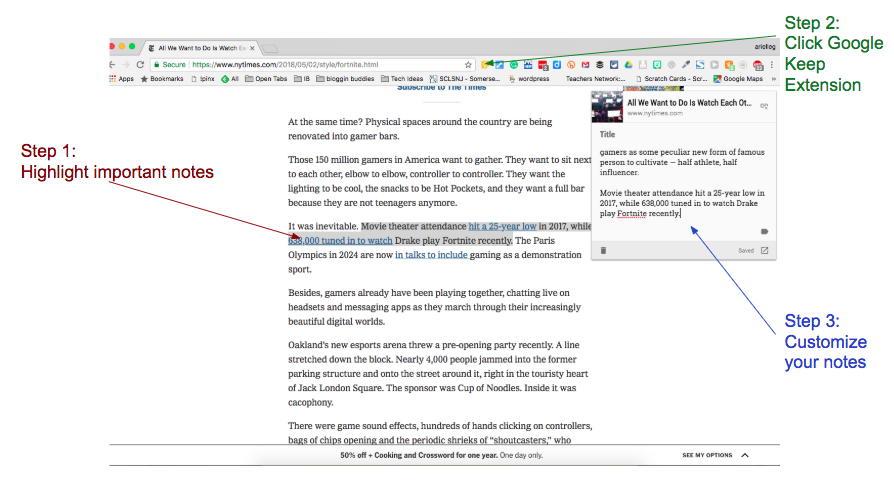
One of the best things about Google Keep is its seamless integration with other Google apps, such as Google Docs, Google Calendar, and Gmail. This integration allows you to easily transfer information between different apps, streamlining your workflow and saving you time.
For example, you can copy and paste notes from Google Keep into Google Docs to create a more detailed document. You can also create Google Calendar events directly from your notes. And you can even send notes to Gmail as email messages. This seamless integration makes Google Keep an essential part of the Google ecosystem.
Customizing Your Google Keep Settings
Google Keep offers a variety of settings that you can customize to suit your individual needs and preferences. You can change the default view, customize the appearance, and even enable or disable certain features.
To access the settings, click on the gear icon in the top right corner of the screen. From there, you can customize various aspects of your Google Keep experience, such as the default note color, the reminder settings, and the keyboard shortcuts. Experiment with different settings to find what works best for you.
Google Keep for Note Taking: Your Path to Peak Productivity
Congratulations, friends! You've reached the end of this comprehensive guide on how to use Google Keep for note taking! Now you're equipped with the knowledge and skills to transform your scattered thoughts into a well-organized system. This journey is not merely about organizing notes but about optimizing workflows, enhancing collaborative potential, and elevating overall productivity.
From mastering the basics of creating and formatting notes to unleashing the power of advanced features like sharing, OCR, and audio recording, you've learned how to harness the full potential of Google Keep. You've also discovered valuable tips and tricks to maximize your experience and integrate Google Keep with other Google apps.
The core takeaway is simple: Google Keep is more than just a note-taking app; it's a powerful tool that can help you streamline your workflow, boost your productivity, and even spark your creativity. By using Google Keep effectively, you can tame those mental browser tabs, organize your digital life, and achieve your goals.
Now, let's put your newfound knowledge into practice. Take a few minutes to create a new note in Google Keep and experiment with the features you've learned. Set up labels, color-code your notes, and set reminders. Share a note with a friend or colleague and collaborate on a project together. And most importantly, start using Google Keep regularly to capture your ideas, organize your thoughts, and stay on track.
Are you ready to ditch the chaos and embrace the power of Google Keep? Are you ready to unlock your productivity potential and achieve your goals? It is the time to get started and see the impact it can have in your life. Remember, the journey to peak productivity begins with a single note. What will you capture today?

Post a Comment for "How to Use Google Keep for Note Taking"
Post a Comment