How to Use Trello for Agile Project Management
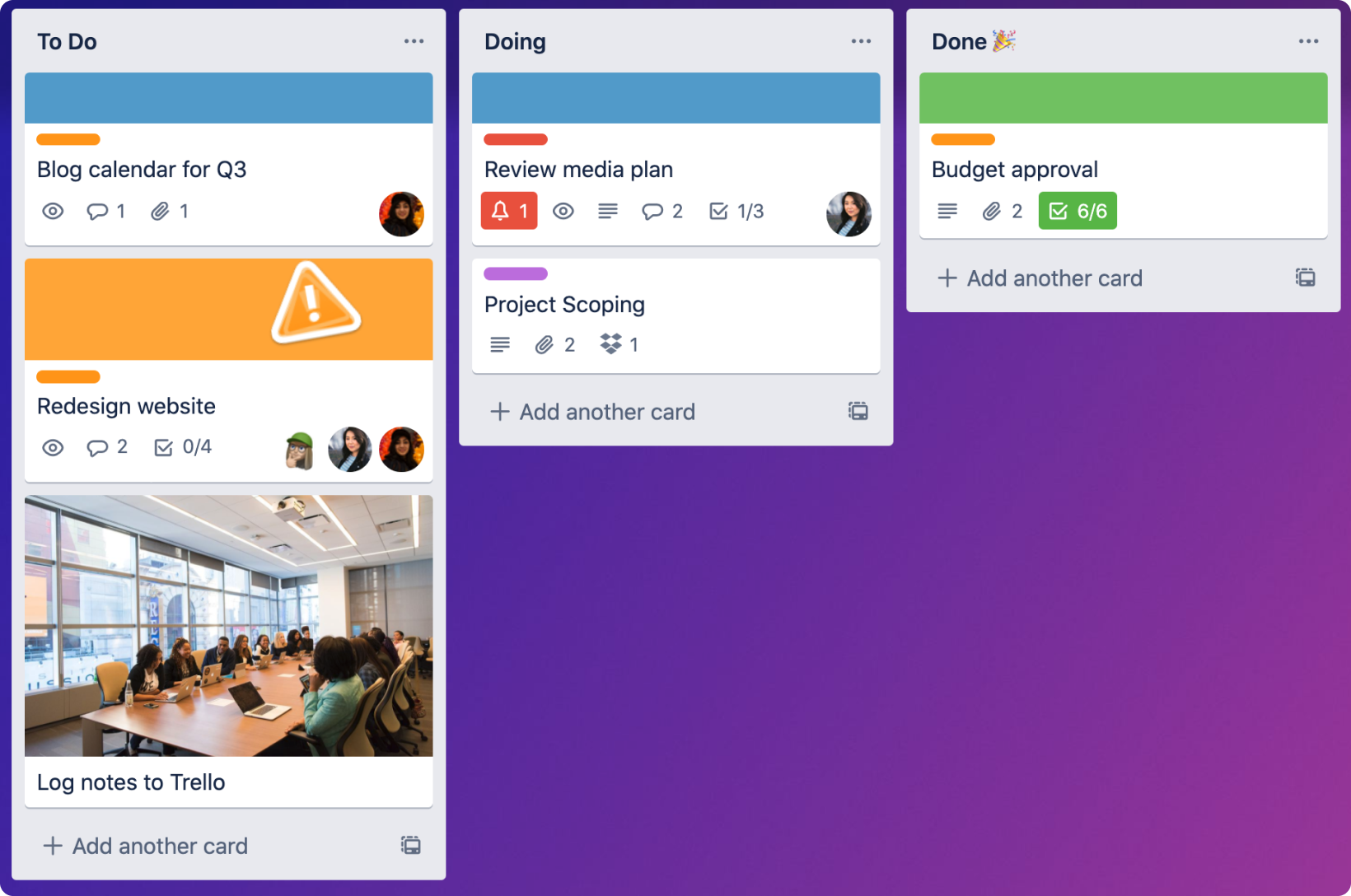
Unlock Agile Success: A Practical Guide to Trello for Project Management.
Hey there, fellow project enthusiasts! Ever feel like you're juggling a dozen flaming torches while riding a unicycle uphill? Project management can often feel that way, right? We've all been there: deadlines looming, tasks overlapping, and communication scattered across a million different email threads. It's enough to make you want to throw your hands up and binge-watch cat videos all day (guilty!).
But what if I told you there's a better way? A way to wrangle those chaotic projects, tame the task jungle, and finally bring some Zen-like calm to your work life? Enter Trello, the visual project management tool that's become a favorite among agile teams worldwide. Think of it as your digital whiteboard, but with superpowers. Instead of sticky notes that fall off and disappear into the abyss, you get digital cards that you can drag, drop, and customize to your heart's content.
Now, you might be thinking, "Agile? Trello? Sounds like a bunch of jargon!" And you're not entirely wrong. Agile methodologies can seem intimidating at first, with their sprints, stand-ups, and retrospectives. But at its core, Agile is all about breaking down big projects into smaller, manageable chunks, adapting to change, and delivering value incrementally. And Trello is the perfect tool to bring that philosophy to life.
Imagine this: You're planning a website redesign. Instead of a massive, overwhelming project, you break it down into smaller tasks like "Design Homepage," "Develop Navigation," and "Write Blog Content." Each of these becomes a Trello card, which you can then assign to team members, set deadlines, and track progress. As tasks move from "To Do" to "In Progress" to "Done," you get a clear visual overview of where everything stands. No more wondering who's working on what or whether that crucial task is still stuck in limbo.
But Trello is more than just a digital to-do list. It's a collaborative workspace where your team can communicate, share files, and provide feedback in real-time. You can attach documents, add checklists, and even integrate with other tools like Slack and Google Drive. It's like having your entire project management ecosystem in one central hub.
Now, I know what you're thinking: "This sounds great, but how do I actually use Trello for Agile project management?" That's the million-dollar question, isn't it? Don't worry, my friends, because we're about to dive deep into the wonderful world of Trello and unlock its Agile potential. We'll explore everything from setting up your boards and lists to mastering advanced features like power-ups and automations. By the end of this guide, you'll be a Trello Jedi, wielding the power of visual project management to conquer any challenge that comes your way. So, grab your lightsaber (or, you know, your mouse) and let's get started!
Harnessing Trello for Agile Project Management: A Comprehensive Guide
Ready to transform your project management game with Trello and Agile? Let’s get started!
Setting Up Your Agile Trello Board
First, create a Trello board specifically for your Agile project. Think of it as your central command center. A well-structured board is the foundation for successful Agile project management in Trello.
• Define Your Workflow: Your workflow is the series of steps a task goes through from start to finish. Common Agile workflows include columns like "Backlog," "To Do," "In Progress," "Review," and Done.Customize these to fit your team's specific process. For example, a software development team might add a "Testing" column, while a marketing team might have a "Drafting" and "Approval" stage.
• Create Your Lists: These lists represent the stages of your workflow. Click "Add a list" to create your columns. Drag and drop lists to reorder them as needed. Consider color-coding lists for visual clarity – for instance, using green for "Done" and red for Blocked.• Name Your Lists Clearly: Use clear, concise names that everyone on the team understands. Avoid ambiguity. Instead of "Working On," use "In Progress." Instead of "Next Up," use "To Do." The goal is to eliminate any confusion about where tasks should reside.
Crafting Effective Agile Trello Cards
Cards are your individual tasks or user stories. Each card should represent a specific, actionable item. Good cards are the lifeblood of an effective Trello board. They contain all the information needed to complete a task.
• Clear and Concise Titles: A good card title is specific and action-oriented. Instead of "Blog Post," use "Write blog post about Trello for Agile." Instead of "Website Update," use "Update website homepage with new branding."
• Detailed Descriptions: The description field is where you provide all the necessary details for the task. Include acceptance criteria, links to relevant documents, and any other information that will help the assignee complete the task. For example, if the card is "Design a new logo," the description might include the target audience, brand guidelines, and examples of logos you like.
• Assign Members: Assign the card to the person responsible for completing the task. This ensures accountability and prevents tasks from falling through the cracks. Click the "Members" button on the card and select the appropriate team member.
• Set Due Dates: Add a due date to each card to help keep the project on track. Trello will automatically send reminders as the due date approaches. Click the "Due Date" button on the card and select the date and time.
• Use Labels: Labels are a powerful way to categorize and prioritize cards. Use them to indicate the type of task (e.g., "Bug," "Feature," "Content"), the priority (e.g., "High," "Medium," "Low"), or the sprint in which the task should be completed. Click the "Labels" button on the card and select the desired labels.
• Add Checklists: Break down larger tasks into smaller subtasks using checklists. This makes it easier to track progress and ensures that nothing is overlooked. Click the "Checklist" button on the card and add your subtasks.
• Attach Files: Attach relevant files to the card, such as documents, images, or videos. This keeps all the information related to the task in one place and makes it easy for team members to access it. Click the "Attachment" button on the card and select the file you want to upload.
Implementing Agile Practices with Trello
Trello is a fantastic tool, but it's only as effective as the Agile practices you implement. Combine the power of Trello with Agile principles for optimal results.
• Sprint Planning: Use Trello to plan your sprints. At the beginning of each sprint, move cards from the "Backlog" to the "To Do" column. These cards represent the tasks the team will commit to completing during the sprint. During sprint planning, discuss each card in detail, estimate the effort required, and assign it to a team member.
• Daily Stand-ups: Use Trello during your daily stand-up meetings to track progress and identify roadblocks. Each team member can quickly review the cards they are working on and update their status. This ensures that everyone is on the same page and that any issues are addressed promptly. Focus on what was accomplished yesterday, what will be worked on today, and any impediments encountered.
• Sprint Reviews: At the end of each sprint, use Trello to review the work that was completed. Move all completed cards to the "Done" column. Demonstrate the completed features to stakeholders and gather feedback. This ensures that the team is delivering value and meeting the needs of the customer.
• Retrospectives: Use Trello to facilitate sprint retrospectives. Create a new list for "Retro" and add cards for things that went well, things that could be improved, and action items. Discuss these cards as a team and identify ways to improve the process in future sprints. This fosters continuous improvement and helps the team learn from their experiences.
• Kanban Boards: Trello is naturally suited for Kanban. Limit work in progress (WIP) by setting a limit on the number of cards that can be in each column. This helps the team focus on completing tasks before starting new ones. Kanban boards are excellent for visualizing workflow, identifying bottlenecks, and improving efficiency.
Trello Power-Ups for Agile Enhancement
Power-Ups are integrations that add extra functionality to Trello. They can significantly enhance your Agile workflow. Trello's Power-Ups transform your board into a supercharged Agile machine.
• Custom Fields: Add custom fields to your cards to track additional information, such as story points, effort estimates, or risk levels. This allows you to tailor Trello to your specific needs and track the metrics that are most important to your team.
• Gantt Charts: Visualize your project timeline with a Gantt chart Power-Up. This provides a clear overview of the project schedule and dependencies. Gantt charts are especially useful for projects with complex timelines and multiple dependencies.
• Slack Integration: Connect Trello to Slack to receive notifications about card updates and comments. This keeps the team informed and facilitates communication. You can also create new cards and update existing ones directly from Slack.
• Google Drive Integration: Attach files from Google Drive directly to Trello cards. This makes it easy to share documents and collaborate on files.
• Voting: Use the Voting Power-Up to allow team members to vote on cards. This is useful for prioritizing features or resolving disagreements. Voting helps to ensure that the team is working on the most important tasks.
Advanced Trello Tips for Agile Teams
Take your Trello game to the next level with these advanced tips and tricks. Master these tips and watch your team's productivity soar.
• Automation: Use Trello's built-in automation features to automate repetitive tasks. For example, you can automatically move cards to the "Done" column when all checklist items are completed, or automatically assign cards to a specific team member when they are created. Automation saves time and reduces the risk of errors.
• Templates: Create Trello board templates for common projects or processes. This saves time and ensures consistency across projects. Templates can be customized to fit the specific needs of each project.
• Keyboard Shortcuts: Learn Trello's keyboard shortcuts to speed up your workflow. For example, press "Q" to assign a card to yourself, "D" to set a due date, or "L" to add a label. Keyboard shortcuts can significantly improve your efficiency.
• Mobile App: Use the Trello mobile app to stay connected and manage your projects on the go. The mobile app allows you to create new cards, update existing ones, and communicate with your team from anywhere.
By following these steps, you can effectively use Trello for Agile project management. Remember to adapt the process to fit your team's specific needs and continuously improve your workflow.
Trello for Agile FAQs
Here are some frequently asked questions about using Trello for Agile project management.
• Question: Can Trello really handle large, complex projects?
• Answer: Absolutely! While Trello's visual nature might make it seem simplistic, its power lies in its flexibility. Break down large projects into smaller, manageable cards, utilize labels and checklists for granular tracking, and leverage Power-Ups for added functionality like Gantt charts and custom fields. Don't underestimate the power of a well-organized Trello board.
• Question: How do I prevent my Trello board from becoming cluttered and overwhelming?
• Answer: Good question! The key is to maintain a clean and organized board. Regularly archive completed cards, use labels to categorize tasks, and create separate boards for different projects or teams. Consider using the "Card Aging" Power-Up to visually identify cards that have been stagnant for too long. Most importantly, establish clear guidelines for card naming and description conventions.
• Question: What if my team is new to Agile? Is Trello still a good option?
• Answer: Yes, Trello is an excellent choice for teams new to Agile! Its intuitive interface and visual nature make it easy to understand and adopt. Start with a basic Kanban board with simple "To Do," "In Progress," and "Done" columns. As your team becomes more familiar with Agile principles, you can gradually introduce more advanced features and Power-Ups. Trello's adaptability allows it to grow with your team's Agile maturity.
• Question: How can I use Trello to improve communication within my team?
• Answer: Trello is a fantastic communication tool! Encourage team members to use the comment section on cards to ask questions, provide updates, and share feedback. Integrate Trello with Slack or other communication platforms to receive real-time notifications about card updates. Hold daily stand-up meetings using the Trello board as a visual aid to track progress and identify roadblocks. And most importantly, foster a culture of open and transparent communication within your team.
Conclusion: Your Agile Journey with Trello
So, there you have it, friends! A comprehensive guide to using Trello for Agile project management. We've covered everything from setting up your boards and crafting effective cards to implementing Agile practices and leveraging Power-Ups. We’ve navigated the core principles of agile methodologies and seen how Trello seamlessly integrates to bring clarity, structure, and enhanced collaboration to your projects. We've also addressed common questions and concerns, empowering you with the knowledge to overcome any challenges that may arise.
Remember, the key to success is to adapt Trello to your team's specific needs and continuously improve your workflow. Experiment with different features, try out new Power-Ups, and don't be afraid to iterate on your process. Agile is all about continuous improvement, and Trello is the perfect tool to help you on that journey.
Now it's your turn to take action! I challenge you to create your first Agile Trello board today. Start small, experiment with different features, and see how Trello can transform your project management game. Share your experiences with your team, gather feedback, and continuously refine your process. You’ll be amazed at the increased productivity, transparency, and overall team satisfaction that Trello can bring.
Are you ready to unlock your Agile potential and conquer your project management challenges with Trello? What are you waiting for? Let's get started! What exciting project will you tackle first?

Post a Comment for "How to Use Trello for Agile Project Management"
Post a Comment