How to Use Google Keep for Note Taking
Unlock Your Productivity Potential: Mastering Google Keep for Effortless Note-Taking
Hey there, note-taking enthusiasts! Ever feel like your thoughts are a whirlwind, and your ideas are just slipping through your fingers? You're not alone! In today's fast-paced world, capturing information quickly and efficiently is more crucial than ever. We've all been there, scribbling on random scraps of paper, only to lose them moments later. Or maybe you've tried juggling multiple note-taking apps, each with its own quirks and limitations.
Let's be honest, the struggle is real! Remembering important details, keeping track of tasks, and organizing brilliant ideas can feel like a Herculean effort. But what if I told you there's a simple, yet powerful tool that can transform your note-taking game? A tool that's probably already sitting right under your nose: Google Keep. It's like that trusty old friend who's always there to lend a hand, but in digital form.
Google Keep is more than just a place to jot down random thoughts. It's a versatile digital notebook that can help you organize your life, boost your productivity, and unleash your creative potential. Think of it as your personal command center for all things notes, lists, and reminders. And the best part? It's incredibly easy to use, seamlessly integrated with your Google account, and completely free!
But wait, there's more! Google Keep isn't just about typing notes. You can record voice memos, snap photos, create checklists, and even collaborate with others on shared projects. It's like having a Swiss Army knife for your brain, ready to tackle any note-taking challenge that comes your way. We have to figure out what kind of note-taker you are and find out how to maximize this free tool.
So, are you ready to ditch the chaos and embrace the calm? Intrigued to discover how Google Keep can revolutionize the way you capture, organize, and utilize information? Then buckle up, my friends, because we're about to dive deep into the world of Google Keep and unlock its hidden potential. Get ready to say goodbye to scattered notes and hello to a more organized, productive, and stress-free you!
Today, we're going to unlock everything Google Keep has to offer.
Unleashing the Power of Google Keep: A Deep Dive into Efficient Note-Taking
Let's get started, shall we? Here's how to make Google Keep your new best friend:
• Getting Started: Creating Your First Note
First thing's first, you need to access Google Keep! You can do this in a few ways. If you're already logged into your Google account, just head over to keep.google.com in your web browser. Or, if you're on your phone or tablet, download the Google Keep app from the App Store (for i OS devices) or the Google Play Store (for Android devices). I find the phone app the most useful.
Once you're in, you'll see a clean and simple interface. To create your first note, simply click or tap the "Take a note..." field. A blank note will appear, ready for your brilliant thoughts. Start typing away! You can add a title to your note by clicking or tapping the "Title" field at the top. Trust me, adding titles is super helpful for staying organized, especially when you start accumulating a ton of notes.
This is pretty straightforward, but knowing you can do this on all your devices allows for easy usage.
• Organizing Your Notes with Labels and Colors
Now that you're a note-taking pro, let's talk organization. Imagine throwing all your clothes into one big pile – finding anything would be a nightmare, right? Same goes for your notes! Google Keep offers powerful organization features to keep your notes tidy and easily accessible. The two main tools are labels and colors.
Labels are like virtual folders for your notes. To add a label, open a note and click or tap the three dots menu (usually located in the bottom right corner). Select "Add label" and either choose an existing label or create a new one. For example, you might have labels for "Work," "Personal," "Ideas," "Recipes," etc. You can add multiple labels to a single note, allowing you to categorize it in different ways. I use labels for all my work projects.
Colors, on the other hand, provide a visual way to categorize your notes. To change the color of a note, open it and click or tap the paint palette icon (usually located in the bottom right corner). Choose a color that resonates with you or that represents a specific category. For instance, you might use blue for "Work," green for "Personal," and yellow for Ideas.This helps you quickly scan your notes and find what you're looking for at a glance. My colors match up with my labels so I know what I'm looking at immediately.
• Mastering Checklists for Ultimate Productivity
Who doesn't love a good checklist? There's something incredibly satisfying about ticking off items as you complete them. Google Keep excels at checklists, making it a perfect tool for managing tasks, creating shopping lists, or planning projects.
To create a checklist, start a new note and click or tap the three dots menu. Select "Show checkboxes." Now, each line you type will automatically become a checklist item. As you complete each item, simply click or tap the checkbox to mark it as done. Completed items will be visually distinguished, usually with a strikethrough, giving you a clear overview of your progress. My everyday to do list is a check list so that I can track my progress.
You can even drag and drop checklist items to rearrange their order, allowing you to prioritize tasks or organize your list as needed. Plus, you can easily add new items to your checklist at any time. Google Keep checklists are incredibly flexible and customizable, making them a powerful tool for boosting your productivity.
• Setting Reminders: Never Forget a Thing
We've all been there: you make a mental note to do something, but then completely forget about it. Google Keep's reminder feature can save you from those embarrassing moments. You can set reminders for specific times or locations, ensuring you never miss an important deadline or appointment.
To set a reminder, open a note and click or tap the bell icon (usually located in the bottom left corner). You can choose a preset time (like "Later today" or "Tomorrow") or set a custom date and time. You can also set location-based reminders, which will trigger when you arrive at or leave a specific location. For example, you could set a reminder to "Buy milk" when you arrive at the grocery store. The location based reminders are really useful because I never remember things outside of my checklist.
Google Keep will send you a notification when the reminder is triggered, ensuring you never forget a thing. You can even snooze reminders to postpone them for a later time. This feature is a lifesaver for staying on top of your schedule and commitments.
• Collaborating with Others: Sharing is Caring
Google Keep isn't just for solo note-takers. It's also a fantastic tool for collaboration. You can easily share your notes with others, allowing them to view, edit, and contribute to your ideas. This is perfect for team projects, brainstorming sessions, or simply sharing information with friends and family.
To share a note, open it and click or tap the collaborator icon (usually located in the bottom right corner). Enter the email addresses of the people you want to share the note with. You can choose whether they have permission to edit the note or just view it. Once you've shared the note, everyone will be able to see and contribute to it in real-time. The shared Grocery list I use with my husband is indispensable.
This feature is incredibly useful for collaborative projects, as it allows everyone to stay on the same page and contribute their ideas in a central location. It's also great for sharing information with friends and family, such as travel itineraries or shopping lists.
• Voice Notes: Capture Your Thoughts on the Go
Sometimes, typing just isn't an option. Maybe you're driving, cooking, or simply don't have your hands free. That's where Google Keep's voice note feature comes in handy. You can record voice memos directly into your notes, allowing you to capture your thoughts and ideas on the go.
To record a voice note, start a new note and click or tap the microphone icon. Speak clearly into your device's microphone. Once you're finished, click or tap the stop button. Google Keep will automatically transcribe your voice note into text, making it easy to review and edit. The transcription isn't always perfect, but it's usually good enough to get the gist of what you said.
This feature is incredibly useful for capturing fleeting thoughts, recording meeting minutes, or dictating ideas when you're on the move. It's a great way to stay productive, even when you're not able to type.
• Images and Drawings: Adding Visual Flair to Your Notes
Sometimes, words just aren't enough. Google Keep allows you to add images and drawings to your notes, adding visual flair and making them more engaging. This is perfect for capturing inspiration, creating mood boards, or simply adding a personal touch to your notes.
To add an image, open a note and click or tap the image icon. You can choose to upload an image from your device or take a new photo with your camera. Once you've added the image, you can resize it and position it within your note.
To add a drawing, open a note and click or tap the drawing icon. This will open a drawing canvas where you can sketch, doodle, or write with your finger or a stylus. You can choose from a variety of colors and brush sizes. The drawing feature is great for jotting down quick diagrams, sketching ideas, or simply doodling to relieve stress. I use this when I'm brainstorming ideas for art projects.
• Search and Find: Locating Your Notes with Ease
As you accumulate more and more notes, finding specific information can become a challenge. Fortunately, Google Keep offers powerful search features to help you locate your notes quickly and easily.
You can search for notes by keywords, labels, colors, or even by the content of images. Simply type your search term into the search bar at the top of the screen. Google Keep will display all notes that match your search criteria. The search function is pretty fast, so you can find what you need in seconds.
You can also use advanced search operators to refine your search results. For example, you can use the "label:" operator to search for notes with a specific label, or the "color:" operator to search for notes with a specific color. These advanced search operators can save you a lot of time and effort when you're trying to find a specific note.
• Google Keep as a Web Clipper: Save Articles and Web Pages
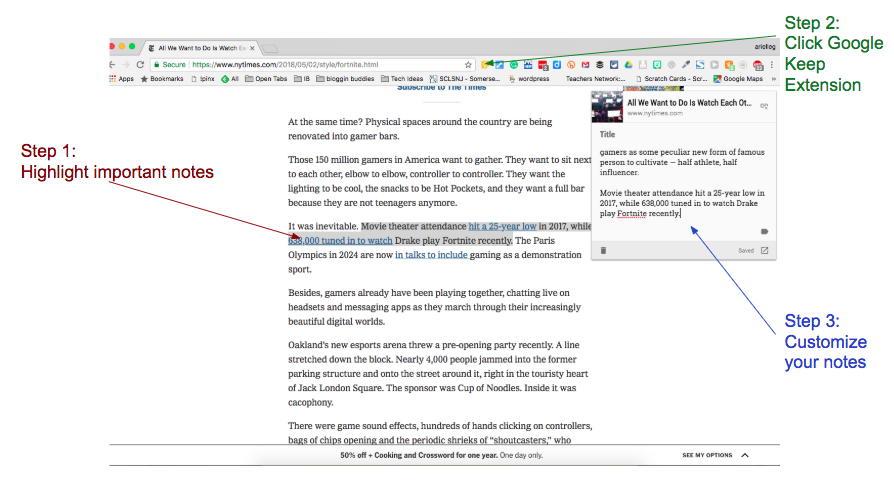
Did you know Google Keep can act as a web clipper? This is one of my favorite features because it lets you save interesting articles, recipes, or web pages directly to your Keep notes. It's a great way to collect research, save inspiration, or simply keep track of interesting content you find online.
To use Google Keep as a web clipper, you'll need to install the Google Keep Chrome extension (if you're using Chrome as your browser). Once the extension is installed, you'll see a Google Keep icon in your browser's toolbar. When you're on a web page you want to save, simply click the Google Keep icon. A note will be created with a link to the web page, along with any text you've highlighted. I save so many recipes I find online.
You can also add labels and notes to the web clip, making it easy to organize and categorize your saved content. This feature is a game-changer for anyone who spends a lot of time researching or browsing the web.
• Archiving Notes: Keeping Your Keep Clean
Over time, you might accumulate notes that you no longer need to see on a regular basis, but you don't want to delete them entirely. That's where Google Keep's archive feature comes in handy. Archiving a note removes it from your main note list, but keeps it safely stored in your archive.
To archive a note, open it and click or tap the archive icon (usually located in the bottom right corner). The note will disappear from your main note list and be moved to the archive. You can access your archive by clicking or tapping the menu icon (usually located in the top left corner) and selecting Archive.
Archiving notes is a great way to keep your main note list clean and organized, while still preserving important information. You can easily unarchive a note at any time by opening it from the archive and clicking or tapping the unarchive icon.
Frequently Asked Questions About Google Keep
Let's tackle some common questions about Google Keep.
• Question: Is Google Keep really free?
Answer: Yes, Google Keep is completely free to use! There are no hidden fees or subscriptions. It's part of the Google ecosystem and is available to anyone with a Google account. This makes it an incredibly accessible and cost-effective note-taking solution.
• Question: Can I use Google Keep offline?
Answer: Yes, Google Keep offers offline access! When you're offline, you can still view, edit, and create notes. Any changes you make will be synced to your Google account when you reconnect to the internet. This is incredibly useful for situations where you don't have a reliable internet connection.
• Question: How secure is Google Keep?
Answer: Google Keep is as secure as your Google account. Google employs robust security measures to protect your data, including encryption and two-factor authentication. However, it's always a good idea to use a strong password and enable two-factor authentication for your Google account to maximize your security.
• Question: Can I export my notes from Google Keep?
Answer: Yes, you can export your notes from Google Keep! You can export individual notes as Google Docs or copy and paste the content into other applications. However, there isn't a built-in feature to export all your notes at once in a single file. This is a common request from users, so Google may add this feature in the future.
Take Control of Your Notes Today!
So, there you have it, friends! A comprehensive guide to mastering Google Keep for effortless note-taking. We've covered everything from creating your first note to using advanced features like checklists, reminders, and collaboration. You've learned how to organize your notes with labels and colors, capture your thoughts on the go with voice notes, and add visual flair with images and drawings. You now have the knowledge to use Google Keep effectively in many situations!
Now it's your turn to put these tips into practice and experience the transformative power of Google Keep for yourself. Start by creating a few notes and experimenting with the different features. Don't be afraid to get creative and find what works best for you. The more you use Google Keep, the more you'll discover its versatility and potential.
Ready to ditch the chaos and embrace the calm? Take action today and make Google Keep your go-to note-taking tool. Download the app, explore the features, and start organizing your thoughts, tasks, and ideas. You'll be amazed at how much more productive and organized you can become. You will be amazed at how this free tool helps you organize your work and personal life.
So, what are you waiting for? Go forth and conquer your note-taking challenges with Google Keep! What awesome things are you planning to use Google Keep for?

Post a Comment for "How to Use Google Keep for Note Taking"
Post a Comment