How to Use Canva for Designing Business Cards
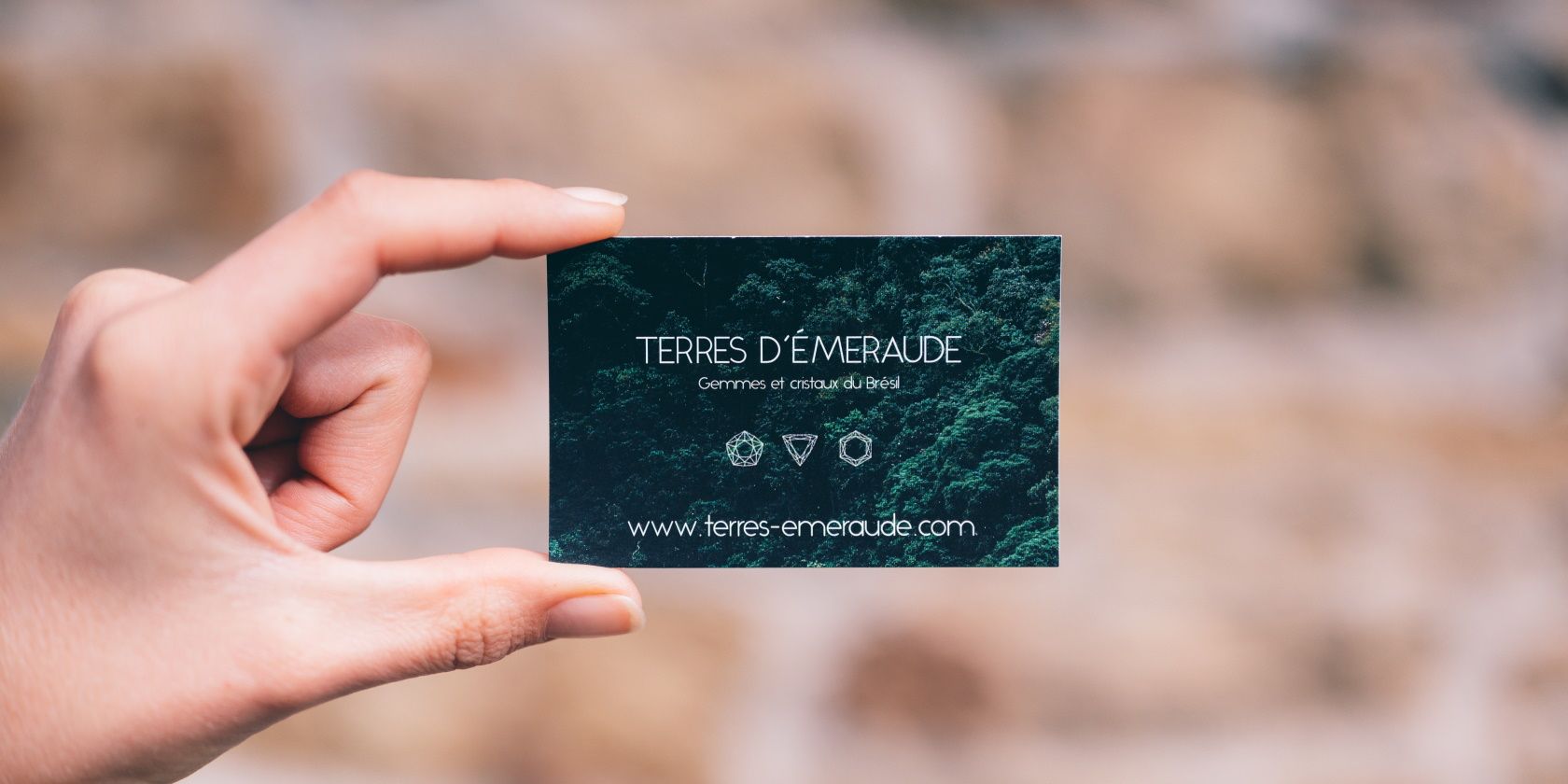
Canva Business Card Brilliance: Design Your Way to Success
Hey there, future business moguls and creative entrepreneurs! Let’s talk business cards. Seriously, in a world drowning in digital noise, that little rectangle of paper is still your secret handshake, your tangible “remember me,” and your first impression rolled into one. But let’s be honest, staring at a blank business card template can feel as inspiring as watching paint dry. You want something snazzy, something that screams "professional" (but also whispers "fun"), and something that doesn't look like it was designed by your slightly-too-enthusiastic nephew on MS Paint. So, what's a time-strapped, design-challenged entrepreneur to do? Enter Canva! Forget expensive graphic designers and complicated software. Canva is your design best friend, the one who makes you look good even when you're rocking sweatpants and haven't slept in three days. We are going to go deep into how to use Canva for designing business cards that truly pop. Prepare to transform from a business card zero to a design hero. Ready to unlock the secrets to creating business cards that make you unforgettable? Let's dive in!
Unlocking Your Business Card Potential with Canva
Okay, friends, let's get real. Your business card isn't just a piece of paper with your contact info. It's a mini-billboard for your brand, a conversation starter, and sometimes, the only thing people remember about you after a crowded networking event. We're going to explore how to leverage Canva, that user-friendly design platform we all know and love, to craft business cards that are not just visually appealing but also strategically aligned with your brand identity. Let’s make this easy and fun!
Why Canva? Because You're Busy (and Brilliant!)
Let’s face it: You’re not just a business owner; you’re a juggler of a million tasks. You're the CEO, the marketing guru, the sales team, and probably the office coffee maker operator, too. You don’t have time to become a Photoshop wizard overnight. That's where Canva shines. It's intuitive, it's packed with pre-designed templates, and it doesn't require a Ph.D. in graphic design to use.
With Canva, you can:
-
Say Goodbye to Design Overwhelm: Choose from thousands of professionally designed templates that you can customize to your heart's content. Filter by industry, style, or even color scheme. No more blank-canvas anxiety!
-
Embrace Your Inner Artist (Even If You Think You Don't Have One): Drag-and-drop functionality makes it super easy to add your logo, change fonts, and play with colors. Experiment without the fear of messing things up – it’s all reversible!
-
Stay on Brand, Beautifully: Upload your brand colors, logos, and fonts to Canva, and keep everything consistent across all your designs. Because branding matters, friends, it really does.
-
Collaborate Like a Boss: Share your designs with your team or a trusted advisor and get feedback in real time. Teamwork makes the dream work, especially when it comes to nailing your brand image.
-
Print Like a Pro (or Download and DIY): Order your business cards directly through Canva Print, or download your design and take it to your favorite local printer. Options are good!
Step-by-Step Guide: Creating Your Killer Business Card in Canva
Alright, let's get down to brass tacks. Here’s your step-by-step guide to designing a business card in Canva that will make people say, "Wow, I need one of those!"
-
Fire Up Canva and Search for "Business Card": Easy peasy. Just type "business card" into the search bar, and Canva will shower you with templates.
-
Pick Your Perfect Template (or Start from Scratch): Browse through the templates until you find one that speaks to your soul (or, you know, at least aligns with your brand). If you're feeling adventurous, you can start with a blank canvas and build your design from the ground up.
-
Customize Everything (and We Mean Everything): This is where the fun begins. Click on any element in the template to change it. You can:
-
Swap out the colors: Choose from Canva’s vast color palette or enter your brand's hex codes for a perfect match.
-
Change the fonts: Experiment with different fonts to find one that reflects your brand's personality. Canva has tons of options, from classic serifs to modern sans-serifs.
-
Add your logo and images: Upload your logo and any other relevant images to Canva and drag them onto your design.
-
Adjust the layout: Move elements around, resize them, and experiment with different arrangements until you’re happy with the overall look.
-
Add your information: This is kind of important. Make sure your name, title, contact information, and website are all clearly visible and easy to read.
-
-
Don't Forget the Back (Seriously!): A blank back is a wasted opportunity. Use the back of your card to add your logo, a QR code, a tagline, or a call to action. Get creative!
-
Proofread, Proofread, Proofread: Nothing says "unprofessional" like a typo on your business card. Double-check everything before you finalize your design. And then have someone else check it, too.
-
Download and Print (or Order Through Canva): Once you're happy with your design, you can download it as a high-resolution PDF and take it to your local printer, or you can order prints directly through Canva Print. They offer a variety of paper stocks and finishes to choose from.
Pro Tips for Business Card Design Domination
Okay, so you know the basics. Now, let's take your business card design skills to the next level with these pro tips:
-
Less is More: Don't cram too much information onto your card. Keep it clean, simple, and easy to read. White space is your friend.
-
Think About Your Target Audience: Who are you trying to reach with your business card? Tailor your design to appeal to them.
-
Consider Your Industry: A business card for a law firm will look very different from a business card for a yoga studio. Choose a design that's appropriate for your industry.
-
Use High-Quality Images: Blurry or pixelated images will make your business card look cheap and unprofessional. Use high-resolution images that are clear and crisp.
-
Choose the Right Paper Stock: The paper stock you choose can have a big impact on the overall look and feel of your business card. Consider a thicker paper stock for a more premium feel.
-
Think Outside the Rectangle: Who says business cards have to be rectangular? Get creative with your shape and size. Just make sure it still fits in a standard business card holder.
-
Add a Call to Action: What do you want people to do after they receive your business card? Visit your website? Follow you on social media? Add a clear call to action to encourage them to take the next step.
-
QR Codes are Your Secret Weapon: A QR code can link directly to your website, your Linked In profile, or even a special offer. It's a great way to add extra value to your business card.
Real-World Examples: Business Cards That Sizzle
Want some inspiration? Let's take a look at some real-world examples of business cards that are doing it right:
-
The Minimalist Marvel: A clean, white card with a simple logo and contact information. This design is perfect for businesses that want to project a sense of sophistication and elegance.
-
The Bold and Bright Card: A colorful card with a striking design. This design is perfect for businesses that want to stand out from the crowd and make a statement.
-
The Cleverly Creative Card: A unique card with a memorable design. This design is perfect for businesses that want to show off their creativity and personality.
-
The Eco-Friendly Card: A card printed on recycled paper with a sustainable design. This design is perfect for businesses that want to show their commitment to the environment.
Staying Ahead of the Curve: Business Card Trends to Watch
The world of business card design is constantly evolving. Here are some trends to keep an eye on:
-
Sustainability: Eco-friendly materials and designs are becoming increasingly popular.
-
Minimalism: Clean, simple designs are always in style.
-
Bold Colors: Don't be afraid to experiment with bright and vibrant colors.
-
Interactive Elements: QR codes and other interactive elements are a great way to engage your audience.
-
Textured Finishes: Add a tactile element to your card with a textured finish.
From Novice to Ninja: Level Up Your Canva Skills
Canva is more than just a business card maker. It's a powerful design tool that can help you create everything from social media graphics to presentations. Here are some tips for mastering Canva:
-
Explore Canva's Design School: Canva offers a wealth of free tutorials and courses that can help you learn the ins and outs of the platform.
-
Follow Canva on Social Media: Get inspiration and tips from Canva's social media channels.
-
Experiment and Play: The best way to learn Canva is to just start using it. Don't be afraid to experiment with different features and designs.
Troubleshooting Common Canva Business Card Woes
Even with a user-friendly platform like Canva, you might run into a few snags. Here’s how to troubleshoot common issues:
-
My Logo Looks Blurry: Make sure you’re uploading a high-resolution version of your logo. Vector files (like .svg or .eps) are ideal.
-
My Colors Don’t Look Right When Printed: Colors can sometimes appear different on screen than they do in print. Use Canva's color palettes and consider ordering a proof print to check the colors before printing a large batch.
-
My Text is Too Small: Ensure your text is legible, even on a small business card. Use a font size that’s easy to read and leave enough white space around the text.
Legal Eagles: Copyright Considerations for Your Canva Designs
Let's talk about the not-so-glamorous but super important topic of copyright. When using Canva, you need to be aware of the licensing terms for the elements you're using. Here's the gist:
-
Canva’s Free Elements: Canva offers a library of free elements (photos, illustrations, fonts, etc.) that you can use in your designs. However, make sure you understand the licensing terms for these elements. Some free elements may have restrictions on commercial use.
-
Canva Pro Elements: Canva Pro subscribers have access to a larger library of premium elements that are licensed for commercial use.
-
Your Own Elements: If you're using your own logo, photos, or illustrations, you're responsible for ensuring that you have the rights to use them.
Beyond the Basics: Advanced Canva Business Card Techniques
Ready to push the boundaries of business card design? Here are some advanced techniques to try:
-
Die-Cutting: Create a unique shape for your business card using die-cutting. Canva doesn't offer die-cutting directly, but you can design your card with the die-cut shape in mind and then take it to a professional printer.
-
Foil Stamping: Add a touch of luxury to your business card with foil stamping. This involves applying a metallic foil to certain areas of the card, such as your logo or your name.
-
Letterpress: Create a classic and elegant look with letterpress printing. This involves pressing the design into the paper, creating a raised or recessed effect.
The Future of Business Cards: Staying Relevant in a Digital World
Even in our increasingly digital world, business cards still hold value. However, they need to evolve to stay relevant. Here are some ways to keep your business cards modern and engaging:
-
Embrace Digital Integration: Use QR codes to link to your online profiles, website, or digital business card.
-
Offer a Digital Business Card: Complement your physical card with a digital version that you can easily share via email or text message.
-
Focus on Experience: Make your business card a memorable experience. Use unique materials, finishes, or interactive elements to create a lasting impression.
Frequently Asked Questions About Canva Business Card Design
Here are some common questions people have about designing business cards in Canva:
-
Can I use Canva for free to design business cards?
Absolutely! Canva offers a free plan that includes thousands of templates, graphics, and fonts that you can use to design your business cards. However, some premium elements are only available to Canva Pro subscribers.
-
What size should my business card be?
The standard business card size is 3.5 x 2 inches (85 x 55 mm). However, you can choose a different size if you prefer.
-
What resolution should my business card design be?
For best results, your business card design should be at least 300 dpi (dots per inch). This will ensure that your cards look crisp and clear when printed.
-
Can I upload my own fonts to Canva?
Yes, Canva Pro subscribers can upload their own fonts to Canva. This is a great way to ensure that your business cards are consistent with your brand identity.
And there you have it, folks! A deep dive into the wonderful world of Canva business card design. We started by acknowledging the importance of a well-designed business card in today's digital age, then we walked through the step-by-step process of creating your own stunning cards using Canva, from choosing a template to customizing every detail. We even covered advanced techniques, copyright considerations, and future trends to keep you ahead of the curve. Now it's your turn to unleash your inner designer and create business cards that truly represent your brand and make a lasting impression. So, head over to Canva, explore the possibilities, and start designing your way to success. Go create something amazing! What unique element will you add to your business card to make it unforgettable?

Post a Comment for "How to Use Canva for Designing Business Cards"
Post a Comment