Step-by-Step Guide to Creating Facebook Pixel Events
Unlock Your Facebook Ad Potential: A Step-by-Step Guide to Mastering Facebook Pixel Events
Hey there, fellow marketers and digital adventurers! Ever feel like your Facebook ads are shouting into the void, hoping someone, anyone, will hear? Like you're throwing money at the screen and praying for a return that seems more like a myth than reality? We've all been there, staring blankly at campaign reports, wondering where our budget vanished and why those conversions are playing hard to get.
Imagine this: you're hosting a killer party (your website), you've got all the right snacks (products), the music's pumping (engaging content), but nobody's actually RSVP'ing or, worse, they show up, grab a chip, and vanish into the night without saying hello (bounce!). Frustrating, right? That's precisely what it feels like when your Facebook Pixel isn't tracking the right events. You're missing out on valuable data that can tell you who's interested in what, what's working, and what's a total flop.
Think of the Facebook Pixel as your super-smart, always-on event planner. It silently observes everything that happens on your website, noting who's browsing, who's adding items to their cart, and, most importantly, who's actually converting. But the real magic happens when you start defining specific "events" – those key actions you want to track, like signing up for a newsletter, completing a purchase, or even just viewing a specific product page. Without properly configured events, you're essentially flying blind, making decisions based on gut feeling instead of hard data. It’s like trying to bake a cake without a recipe – you might get lucky, but chances are it'll be a disaster!
And let's be honest, Facebook's advertising platform can feel like navigating a labyrinth. There are so many options, settings, and metrics that it's easy to get lost in the weeds. But fear not, because today, we're demystifying the Facebook Pixel and giving you a step-by-step guide to creating custom events that will transform your advertising game. We’re not just talking about the basics here. We're diving deep, providing you with insights and strategies that will help you not only track the right actions but also optimize your campaigns for maximum impact. We will help you target the right audience, and create lookalike audiences based on real conversions, not just wishful thinking.
So, buckle up, grab your favorite beverage, and get ready to unlock the true potential of your Facebook ads. Ready to finally understand what makes your audience tick and turn those clicks into customers? Let’s get started!
Understanding the Facebook Pixel and Its Importance
Before we get our hands dirty and start creating events, let’s take a quick moment to truly understand the Facebook Pixel and why it’s so darn crucial for successful advertising. Think of the Pixel as a tiny, invisible spy planted on your website, diligently gathering data about your visitors' behavior. This data isn't just raw numbers; it's gold. It's the key to unlocking a deeper understanding of your audience and crafting highly targeted, effective ad campaigns.
• What Exactly is the Facebook Pixel?
The Facebook Pixel is a snippet of code that you place on your website. This code allows Facebook to track visitors' actions on your site, such as page views, button clicks, form submissions, and purchases. It acts as a bridge between your website and Facebook, allowing you to measure the effectiveness of your ads, build targeted audiences, and optimize your campaigns for conversions. Essentially, it allows you to "see" what your potential customers are doing on your website after they click on your ad. It is a little like having an insider, always on the lookout!
• Why is the Facebook Pixel So Important?
Oh, where do we even begin? The importance of the Facebook Pixel cannot be overstated. Without it, you're essentially shooting in the dark with your advertising efforts. Here’s why it’s a game-changer:
• Accurate Conversion Tracking: The Pixel allows you to track exactly how many people are converting from your Facebook ads, whether it's making a purchase, signing up for a newsletter, or filling out a lead form. This data is essential for measuring the ROI of your campaigns and identifying areas for improvement.
• Targeted Audience Creation: By tracking website visitors, the Pixel allows you to create highly targeted audiences for your ads. You can target people who have visited specific pages on your website, added items to their cart, or even abandoned their checkout process. This level of granularity ensures that your ads are seen by the people who are most likely to be interested in your products or services.
• Lookalike Audiences: One of the most powerful features of the Pixel is its ability to create "lookalike" audiences. This means you can find new people who are similar to your existing customers or website visitors. Facebook analyzes the characteristics of your existing audience and identifies other users who share similar interests, demographics, and behaviors. This is an incredibly effective way to expand your reach and find new potential customers who are likely to convert.
• Ad Optimization: The Pixel provides valuable data that Facebook uses to optimize your ad campaigns in real-time. Facebook's algorithms learn from the data collected by the Pixel and adjust your bids, targeting, and ad creative to maximize your conversion rate. This means that your ads become more effective over time, leading to higher ROI and lower costs.
• The Downside of Not Using a Facebook Pixel
Ignoring the Facebook Pixel is like driving a car with your eyes closed – dangerous and likely to lead to a crash. Without the Pixel, you're missing out on crucial data that can make or break your advertising efforts. You won't be able to accurately track conversions, target the right audience, or optimize your campaigns for maximum impact. You will be guessing and wasting money and energy. So, before you throw another dollar at a Facebook ad, make sure your Pixel is properly installed and configured. Your wallet (and your sanity) will thank you.
Setting Up Your Facebook Pixel: A Quick Recap
Before diving into the nitty-gritty of creating events, let's ensure you have a Facebook Pixel installed on your website. If you've already done this, feel free to skip ahead. If not, here's a quick and easy guide:
• Go to Facebook Events Manager: In your Facebook Business Manager, navigate to the Events Manager. You can find this in the menu by clicking on "All Tools" then selecting "Events Manager" under the "Measure & Report" section.
• Create a New Pixel: If you don't already have a Pixel, you'll be prompted to create one. Click on the "Connect Data Sources" button and select Web.Follow the on-screen instructions to name your Pixel and enter your website URL.
• Install the Pixel Code: Facebook will provide you with a base code snippet that needs to be added to the header of your website. There are several ways to do this:
• Manual Installation: You can manually copy and paste the code into the <head> section of every page on your website. This is the most technical option and requires some familiarity with HTML.
• Partner Integration: If you're using a popular website platform like Shopify, Word Press, or Wix, Facebook offers easy integrations that allow you to install the Pixel with just a few clicks. Simply select your platform from the list and follow the instructions.
• Tag Manager: You can use a tag management system like Google Tag Manager to install the Pixel. This is a more advanced option, but it allows you to manage all of your website tracking codes in one place.
• Verify Your Pixel Installation: Once you've installed the Pixel code, use the Facebook Pixel Helper Chrome extension to verify that it's working correctly. This extension will show you whether the Pixel is firing on your website and whether any events are being tracked.
Step-by-Step Guide to Creating Facebook Pixel Events
Alright, now for the main event! Let's dive into creating those all-important Facebook Pixel events. There are a few different ways to create events, each with its own pros and cons. We'll cover the most common methods, so you can choose the one that best suits your needs and technical expertise.
• Using Standard Events
Facebook offers a set of pre-defined "standard events" that cover common actions like page views, add to carts, purchases, and lead submissions. Using standard events is the easiest way to get started with event tracking, as you don't need to write any custom code.
• Navigate to Events Manager: Go back to the Events Manager in your Facebook Business Manager.
• Select Your Pixel: Choose the Pixel you want to work with.
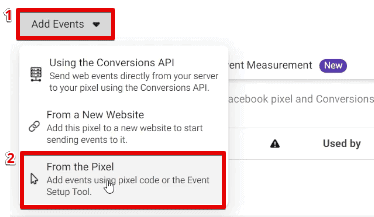
• Click "Add Events": Click on the "Add Events" button and select "From the Pixel."
• Use Facebook's Event Setup Tool: This tool allows you to visually select buttons or URLs on your website to track as events. Simply enter your website URL, and the tool will load your site in a preview window.
• Track Buttons: Click on the "Track New Button" button and select the button you want to track (e.g., "Add to Cart," "Sign Up," "Purchase"). Choose the appropriate standard event from the dropdown menu (e.g., "Add To Cart," "Lead," "Purchase").
• Track URLs: You can also track specific URLs as events. For example, you might want to track the "View Content" event on a product page or the "Thank You" event on a confirmation page.
• Confirm and Save: Once you've selected the button or URL and chosen the appropriate event, click "Confirm" to save your changes.
• Using Custom Events
Standard events are great for tracking common actions, but sometimes you need to track something more specific. That's where custom events come in. Custom events allow you to define your own event names and parameters, giving you complete control over what you track.
• Install the Base Code: Make sure you've already installed the Facebook Pixel base code on your website.
• Add the Custom Event Code: Add the following code snippet to your website's code, wherever you want the event to be tracked:
fbq('track Custom', 'Your Custom Event Name', {
custom_parameter: 'Parameter Value'
});
• Replace "Your Custom Event Name" with the name you want to give your custom event (e.g., "Download Ebook," "View Pricing Page").
• Replace "custom_parameter" and "Parameter Value" with any additional information you want to track with the event. For example, you might want to track the name of the ebook that was downloaded or the price range that was viewed.
• Implement the Code: Implement the custom event code on the specific pages or actions you want to track. For example, you might add the "Download Ebook" event to the page that users are redirected to after downloading an ebook.
• Test Your Event: Use the Facebook Pixel Helper Chrome extension to verify that your custom event is firing correctly.
• Using the Conversions API
The Conversions API (CAPI) is a more advanced way to send event data to Facebook. Unlike the Pixel, which relies on browser-based tracking, the CAPI allows you to send data directly from your server to Facebook. This is more reliable and accurate, as it's not affected by browser ad blockers or privacy settings.
• Set Up the Conversions API: Setting up the Conversions API requires some technical expertise, as you'll need to modify your server-side code. Facebook provides detailed documentation and code examples to help you get started.
• Choose Your Integration Method: You can integrate the Conversions API using a variety of methods, including direct API integration, partner integrations, and tag management systems.
• Map Your Events: Map your website events to the corresponding Facebook events. This ensures that the data you send to Facebook is properly categorized and processed.
• Implement the Code: Implement the Conversions API code on your server to send event data to Facebook in real-time.
• Test Your Integration: Use Facebook's Test Events tool to verify that your Conversions API integration is working correctly.
• Best Practices for Creating Facebook Pixel Events
Now that you know how to create Facebook Pixel events, let's talk about some best practices to ensure you're getting the most out of your tracking efforts:
• Plan Your Events Carefully: Before you start creating events, take some time to plan out what you want to track. Identify the key actions that users take on your website that are most important to your business goals.
• Use Descriptive Event Names: Choose event names that are clear and descriptive, so you can easily understand what each event represents.
• Pass Relevant Parameters: Include relevant parameters with your events to provide additional context. For example, you might want to track the value of a purchase or the category of a product that was viewed.
• Test Your Events Thoroughly: Always test your events thoroughly to ensure they're firing correctly and that the data is being sent to Facebook accurately.
• Monitor Your Events Regularly: Keep an eye on your event data to identify trends and insights. This will help you optimize your campaigns and improve your overall marketing performance.
Advanced Strategies for Facebook Pixel Events
Once you've mastered the basics of creating Facebook Pixel events, it's time to take your tracking to the next level. Here are some advanced strategies that can help you unlock even more value from your data:
• Value-Based Lookalike Audiences
Regular lookalike audiences are based on the characteristics of your existing customers. Value-based lookalike audiences take this a step further by also considering the value of each customer. This means that Facebook will prioritize finding new people who are similar to your highest-value customers, leading to even better results.
• Track Purchase Value: Make sure you're tracking the value of each purchase using the "Purchase" standard event.
• Create a Value-Based Lookalike Audience: When creating a lookalike audience in Facebook Ads Manager, select the "Value" option.
• Custom Conversions
Custom conversions allow you to define your own conversion events based on specific URLs or event parameters. This is useful for tracking actions that aren't covered by standard events or custom events.
• Create a Custom Conversion: In Facebook Ads Manager, navigate to the "Custom Conversions" section and click "Create Custom Conversion."
• Define Your Rule: Define your custom conversion rule based on a URL or event parameter. For example, you might create a custom conversion for people who visit a specific landing page or who trigger a custom event with a specific parameter value.
• Dynamic Product Ads
Dynamic Product Ads (DPAs) allow you to automatically show relevant products to people who have previously viewed them on your website. This is a highly effective way to re-engage potential customers and drive sales.
• Create a Product Catalog: Create a product catalog in Facebook Commerce Manager that contains all of your product information.
• Set Up Dynamic Product Ads: Create a DPA campaign in Facebook Ads Manager and link it to your product catalog.
• Use Pixel Events to Target Your Ads: Use Pixel events like "View Content," "Add To Cart," and "Purchase" to target your DPAs to people who have previously interacted with your products on your website.
• Offline Conversions
If you track sales or leads offline, you can import this data into Facebook to improve your targeting and measurement.
• Prepare Your Data: Prepare a CSV file containing your offline conversion data, including customer information and conversion details.
• Import Your Data: In Facebook Events Manager, navigate to the "Offline Events" section and click "Upload Offline Events."
• Map Your Data: Map the columns in your CSV file to the corresponding Facebook fields.
• Match Your Data: Facebook will attempt to match your offline conversion data to Facebook users based on their email addresses, phone numbers, and other information.
Troubleshooting Common Facebook Pixel Issues
Even with the best planning and execution, you might encounter some issues with your Facebook Pixel. Here are some common problems and how to fix them:
• Pixel Not Firing
If the Pixel isn't firing on your website, it means that the code isn't properly installed or that there's an issue with your website's code.
• Check Your Installation: Double-check that the Pixel code is correctly installed in the <head> section of every page on your website.
• Use the Facebook Pixel Helper: Use the Facebook Pixel Helper Chrome extension to identify any errors or warnings.
• Clear Your Cache: Clear your browser's cache and cookies to ensure that you're not seeing an old version of your website.
• Events Not Tracking Correctly
If your events aren't tracking correctly, it could be due to a number of factors, such as incorrect event names, missing parameters, or issues with your website's code.
• Verify Your Event Names: Double-check that your event names are spelled correctly and that they match the event names in your Facebook Ads Manager.
• Check Your Parameters: Ensure that you're passing the correct parameters with your events and that the values are in the correct format.
• Test Your Events: Use the Facebook Pixel Helper Chrome extension to verify that your events are firing correctly and that the data is being sent to Facebook accurately.
• Data Discrepancies
If you're seeing discrepancies between your Facebook Pixel data and your website analytics data, it could be due to differences in tracking methods, attribution models, or data processing delays.
• Understand Attribution: Be aware of Facebook's attribution model and how it differs from other analytics platforms.
• Account for Data Processing Delays: Keep in mind that it can take some time for Facebook to process your Pixel data.
• Use Consistent Tracking Methods: Use consistent tracking methods across all of your platforms to minimize discrepancies.
Frequently Asked Questions (FAQs)
• Q: How do I know if my Facebook Pixel is working correctly?
A: The easiest way to check if your Facebook Pixel is working is by using the Facebook Pixel Helper Chrome extension. This tool will tell you if the Pixel is installed correctly, if it's firing on the page you're viewing, and if any events are being tracked.
• Q: What's the difference between standard events and custom events?
A: Standard events are pre-defined events that Facebook provides, such as "View Content," "Add To Cart," and Purchase.Custom events are events that you define yourself, allowing you to track specific actions that aren't covered by standard events.
• Q: Do I need to use the Conversions API?
A: While the Facebook Pixel is a great tool for tracking website activity, the Conversions API is more reliable and accurate. This is because it sends data directly from your server to Facebook, rather than relying on browser-based tracking. It is unaffected by the modern browser settings and ad blockers, and has proven to be an efficient way to send data to Facebook in real time.
• Q: How often should I check my Facebook Pixel data?
A: You should check your Facebook Pixel data regularly, at least once a week, to ensure that everything is tracking correctly and to identify any trends or insights that can help you optimize your campaigns.
Congratulations, friends! You've reached the end of this comprehensive guide to creating Facebook Pixel events. We covered everything from understanding the importance of the Pixel to setting up custom events and implementing advanced strategies. Remember, mastering the Facebook Pixel is an ongoing process. It requires continuous learning, testing, and optimization.
Now that you have the knowledge and tools, it's time to put them into action. Start by implementing the steps outlined in this guide and tracking the key actions on your website. Monitor your data regularly and use it to optimize your campaigns for maximum impact.
Your Call to Action: Take 15 minutes right now to install the Facebook Pixel Helper Chrome extension and verify that your Pixel is firing correctly. Then, identify one key event that you want to track and create a custom event for it. Don't wait – start today to unlock the true potential of your Facebook ads!
Go forth and conquer the world of Facebook advertising! Every click, every conversion, every piece of data is a stepping stone to success. Are you ready to take your advertising to the next level?

Post a Comment for "Step-by-Step Guide to Creating Facebook Pixel Events"
Post a Comment