How to Use Adobe Premiere Pro for Video Editing
Premiere Pro Power: A Beginner's Guide to Editing Like a Pro
Hey there, fellow video enthusiasts! Ever find yourself staring at a mountain of raw footage, dreaming of transforming it into a cinematic masterpiece? Or maybe you're just trying to piece together a killer vlog, but the editing process feels like wrestling an octopus? We've all been there. Video editing can seem daunting, especially when you're faced with software that looks like it belongs on a spaceship. But fear not, because today, we're diving headfirst into the world of Adobe Premiere Pro, and I'm here to tell you it's not as scary as it looks. Think of me as your friendly neighborhood guide, here to demystify the process and equip you with the basics you need to start creating awesome videos.
Why Premiere Pro, you ask? Well, for starters, it's the industry standard. From Hollywood blockbusters to You Tube sensations, Premiere Pro is the go-to choice for professionals and hobbyists alike. It's powerful, versatile, and packed with features that can take your videos from amateur hour to professional quality. But let's be real, that power comes with a learning curve. Opening Premiere Pro for the first time can feel like stepping into the cockpit of a Boeing 747 – lots of buttons, switches, and dials, and absolutely no idea where to start.
Imagine this: you've just filmed the perfect scene, the lighting is on point, the sound is crystal clear, and your performance is Oscar-worthy (or at least, pretty good). You import the footage into Premiere Pro, and… panic sets in. The timeline looks like a chaotic mess, the tools are all foreign, and you're pretty sure you just accidentally deleted everything. Sound familiar? Don't worry; it happens to the best of us. This guide is designed to help you navigate those initial hurdles and build a solid foundation in Premiere Pro editing. We'll break down the interface, walk through the essential tools, and show you how to perform basic edits that will dramatically improve your videos.
We’re going to take a look at all the most important features, but we're going to focus on thewhyand thehow, not just thewhat. We’ll cover importing footage, mastering the timeline, adding transitions and effects, color correcting, and exporting your finished project. We’ll also look at common mistakes and how to avoid them, along with some nifty tips and tricks to speed up your workflow. Think of this as your Premiere Pro survival guide – the essential knowledge you need to not only survive the editing process but thrive in it.
But here's the real question: Are you ready to unlock the power of Premiere Pro and transform your raw footage into captivating stories? Let’s get started and turn that video vision into reality. It's time to turn that pile of clips into a masterpiece!
Getting Started with Premiere Pro: Your Journey Begins
Okay, friends, let's roll up our sleeves and dive into the exciting world of Premiere Pro! This software might seem intimidating at first, but trust me, with a little guidance, you'll be editing like a pro in no time. Think of it as learning a new language; it takes practice, but once you get the hang of it, you'll be amazed at what you can create.
-
Setting Up Your Project: The Foundation of Your Edit
First things first, let's create a project. This is where all your footage, audio, and project settings will live. Think of it like the container for all your creative ingredients. When you open Premiere Pro, you'll see the welcome screen. Click on "New Project." Give your project a descriptive name (like "My Awesome Vlog" or "Family Vacation") and choose a location to save it. Consider creating a dedicated folder for each project to keep things organized. The key here is organization. A well-organized project saves you tons of time down the road.
Now, here's where things get a bit technical, but don't worry, we'll keep it simple. You'll see options for video settings. Generally, you'll want to match your project settings to the footage you're working with. If you shot in 1080p at 30 frames per second (fps), set your project to match. If you're unsure, you can usually just use the default settings and Premiere Pro will adjust automatically when you import your first clip. Premiere Pro is fairly good with dealing with different resolutions and frame rates these days.
-
Importing Your Footage: Gathering Your Ingredients
Now that you have a project, it's time to bring in your raw materials – your footage! There are a few ways to do this. The easiest is to simply drag and drop your video files from your computer into the Project panel in Premiere Pro (usually located in the bottom left). Alternatively, you can go to File > Import and select your files. Pro tip: create separate folders within your project for different types of media (e.g., "Video," "Audio," "Images"). This will keep your project panel clean and manageable, especially for larger projects. Organization is your best friend in video editing!
Don’t just dump everything in. It’s tempting to just throw all your files in one big pile, but trust me, you’ll regret it later. Imagine trying to find a specific spice in a kitchen drawer overflowing with everything else. Same principle applies here. A little planning goes a long way.
-
Understanding the Interface: Your Command Center
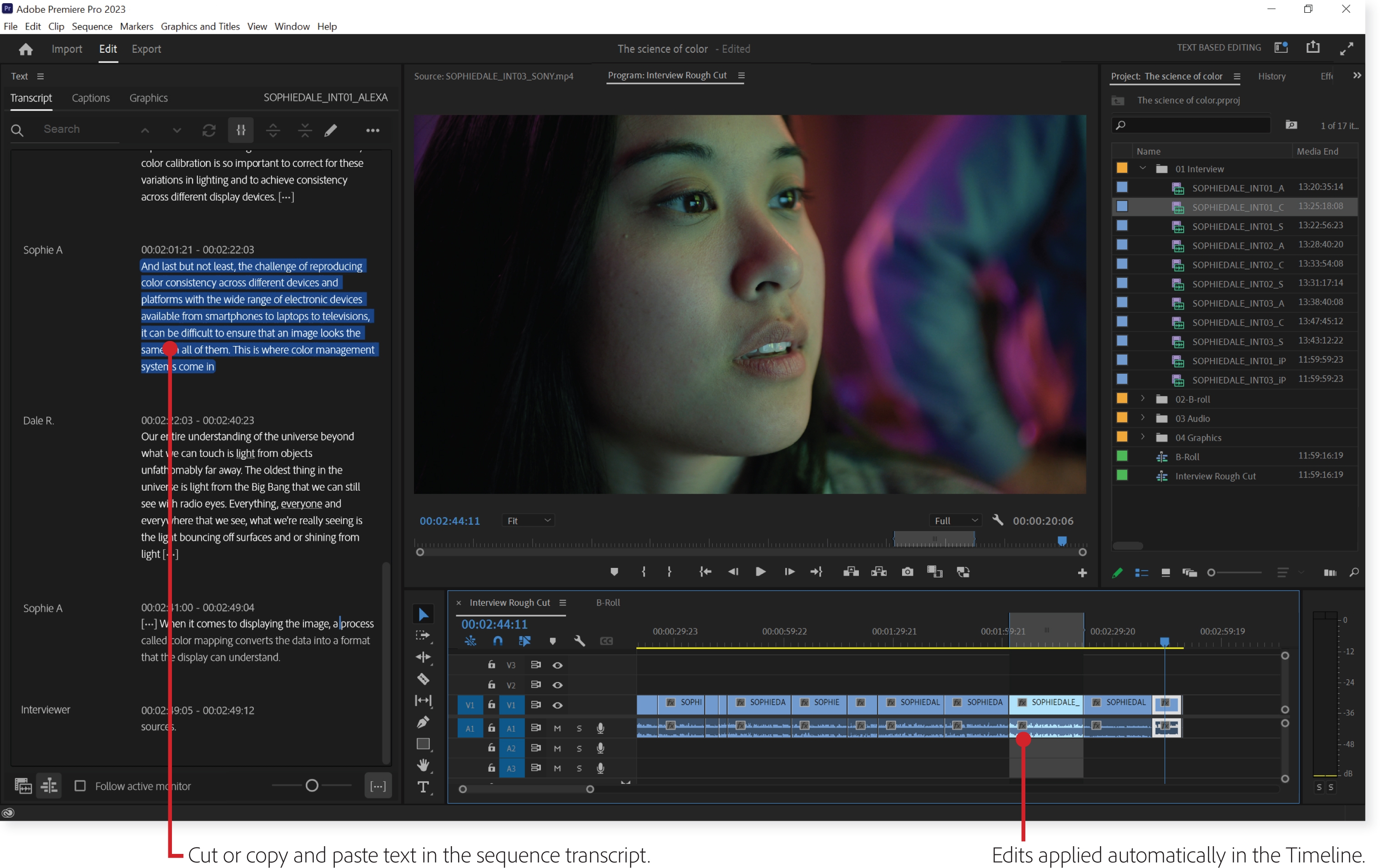
Alright, let’s take a tour of the Premiere Pro cockpit. The interface can seem overwhelming at first, but once you understand the key panels, you'll feel much more comfortable. Here are the main areas you need to know:
- Project Panel: This is where all your imported footage, audio, graphics, and other assets live. It's your library of ingredients.
- Source Monitor: This is where you preview your individual clips before adding them to the timeline. Think of it as your audition room.
- Timeline: This is where you assemble your video sequence, cut and arrange clips, add transitions and effects, and create your final product. It's the main stage where the magic happens.
- Program Monitor: This is where you see the output of your timeline – the final video as it will appear. It's your viewing window.
- Tools Panel: This is where you find the tools you'll use to edit your footage, like the Selection tool, Razor tool, and Hand tool.
Don't worry about memorizing everything right away. Just focus on getting familiar with the location of these key panels. As you use Premiere Pro more, their functions will become second nature.
-
Mastering the Timeline: The Art of Storytelling
The timeline is where you'll spend most of your time in Premiere Pro. It's where you assemble your clips, trim them, and create the flow of your video. Think of it like a digital storyboard.
To add a clip to the timeline, simply drag it from the Project panel or the Source Monitor down to the timeline. You'll see separate tracks for video (V1, V2, etc.) and audio (A1, A2, etc.). You can stack multiple video clips on top of each other to create overlays and composites. Same goes for audio – you can layer music, sound effects, and dialogue.
One of the most important tools in the timeline is the Razor tool (shortcut: C). This tool allows you to cut clips into smaller segments. Use it to trim unwanted footage, create jump cuts, and rearrange your clips. Practice using the Razor tool to get comfortable with making precise cuts. Another handy tool is the Selection tool (shortcut: V), which allows you to select and move clips around on the timeline. Get comfortable with using these two tools in tandem – you’ll be using them constantly.
Pro tip: Use keyboard shortcuts! Learning keyboard shortcuts will dramatically speed up your editing workflow. Some essential shortcuts include: "C" for Razor tool, "V" for Selection tool, "Ctrl+Z" (or "Cmd+Z" on Mac) to undo, and "Ctrl+S" (or "Cmd+S") to save your project. Save frequently! You don't want to lose your work due to a crash.
-
Adding Transitions: Smooth as Butter
Transitions are the visual effects you use to smoothly connect two clips together. They can add polish and professionalism to your videos. Premiere Pro comes with a variety of built-in transitions, including fades, dissolves, wipes, and more.
To add a transition, go to the Effects panel (Window > Effects) and browse the Video Transitions folder. Drag your desired transition onto the cut point between two clips on the timeline. Adjust the duration of the transition by dragging the edges of the transition effect. Be subtle! Overusing transitions can make your video look amateurish. Use them sparingly and choose transitions that complement your video's style.
-
Basic Color Correction: Making Your Video Pop
Color correction is the process of adjusting the colors in your video to create a consistent and visually appealing look. Even if you shot your footage with perfect lighting, color correction can still enhance the overall quality of your video.
In Premiere Pro, you can access the color correction tools in the Lumetri Color panel (Window > Lumetri Color). This panel allows you to adjust various parameters like exposure, contrast, highlights, shadows, whites, blacks, and saturation. Start with the Basic Correction section and make small adjustments to each parameter until you achieve the desired look. A little goes a long way. Avoid over-correcting your footage, as it can make it look unnatural.
Consistency is key. Aim to create a consistent look across all your clips in the video. Use the Copy and Paste Attributes feature (right-click on a clip > Copy > right-click on another clip > Paste Attributes) to apply the same color correction settings to multiple clips.
-
Adding Text and Graphics: Enhancing Your Visuals
Text and graphics can add context, information, and visual interest to your videos. Premiere Pro offers a variety of tools for creating and customizing text and graphics.
To add text, use the Type tool (shortcut: T) and click on the Program Monitor to create a text box. Type your text and then use the Essential Graphics panel (Window > Essential Graphics) to adjust the font, size, color, position, and other properties of the text. Use text sparingly and make sure it's easy to read. Choose fonts and colors that complement your video's style.
Premiere Pro also allows you to import graphics from other programs like Adobe Photoshop and Illustrator. Simply import your graphic files into the Project panel and then drag them onto the timeline. You can then resize and position the graphics as needed. Use graphics to add logos, lower thirds, and other visual elements to your videos.
-
Working with Audio: Sound is Half the Battle
Audio is just as important as video. In fact, many would argue it’smoreimportant. Bad audio can ruin an otherwise great video. Premiere Pro offers a range of tools for cleaning up and enhancing your audio.
Use the Audio Gain feature (right-click on a clip > Audio Gain) to adjust the volume of your audio clips. Be careful not to clip your audio (i.e., make it too loud), as this can cause distortion. Use the Audio Track Mixer panel (Window > Audio Track Mixer) to adjust the volume of individual audio tracks and add effects like reverb and compression. Music can make or break a video. Choose music that complements your video's style and doesn't overpower the dialogue.
-
Exporting Your Video: Sharing Your Masterpiece
Once you're finished editing your video, it's time to export it. This is the process of converting your Premiere Pro project into a video file that can be shared online or played on other devices.
Go to File > Export > Media. In the Export Settings window, you'll see a variety of options for format, codec, resolution, and frame rate. For online videos, H.264 is a good choice for the format, as it's widely supported and offers a good balance between quality and file size. Match your resolution and frame rate to your source footage. Lowering the resolution and frame rate will reduce the file size, but it will also reduce the quality of your video. Choose a bitrate that's appropriate for your video's content and resolution. A higher bitrate will result in a higher quality video, but it will also increase the file size. Click the Export button to start the exporting process. Be patient! Exporting can take a while, especially for longer videos.
Premiere Pro FAQs
Alright, let’s tackle some common questions that pop up when learning Premiere Pro.
-
Q: What are the best computer specs for running Premiere Pro smoothly?
A: Premiere Pro is a resource-intensive program, so you'll want a computer with a decent processor (Intel Core i7 or AMD Ryzen 7 or better), plenty of RAM (16GB minimum, 32GB recommended), a dedicated graphics card (NVIDIA Ge Force or AMD Radeon with at least 4GB of VRAM), and a fast storage drive (SSD) for your project files and media. A larger monitor can also make editing more comfortable.
-
Q: How can I stabilize shaky footage in Premiere Pro?
A: Premiere Pro has a built-in Warp Stabilizer effect that can help smooth out shaky footage. Apply the Warp Stabilizer effect to your clip and let it analyze the footage. Adjust the settings (like smoothness and crop) to fine-tune the stabilization. Be aware that Warp Stabilizer can sometimes introduce unwanted artifacts or distortion, so use it sparingly.
-
Q: Where can I find free music and sound effects for my videos?
A: There are many websites that offer royalty-free music and sound effects, such as You Tube Audio Library, Epidemic Sound, and Artlist. Be sure to check the licensing terms before using any music or sound effects in your videos to ensure that you're complying with the copyright laws.
-
Q: How do I create a split-screen effect in Premiere Pro?
A: To create a split-screen effect, place the two clips you want to use on separate video tracks on the timeline. Use the Scale and Position parameters in the Effect Controls panel to resize and reposition the clips so that they fit side-by-side or in any other desired arrangement. You can also add a border between the clips for a more defined look.
Okay, folks, we've reached the end of our beginner's guide to Adobe Premiere Pro! We've covered a lot of ground, from setting up your project to exporting your finished video. Remember, the key to mastering Premiere Pro is practice, practice, practice. Don't be afraid to experiment, make mistakes, and learn from them. The more you use the software, the more comfortable and confident you'll become.
We started with the basics: creating a project, importing footage, understanding the interface, and mastering the timeline. We then moved on to more advanced techniques like adding transitions, color correcting, working with text and graphics, and enhancing your audio. Finally, we covered the essential step of exporting your video for sharing with the world.
But now, it's your turn to take the reins! Fire up Premiere Pro, load up some footage, and start experimenting. Try creating a simple video – a short vlog, a montage of vacation clips, or even just a quick edit of your pet doing something adorable. The possibilities are endless! The most important thing is to have fun and let your creativity flow.
So, my challenge to you is this: take what you've learned in this guide and create something awesome. Whether it's a polished professional video or just a fun personal project, I want to see what you can do. Share your creations online and tag me (if you can find me!) – I'd love to check them out.
Now go forth and create! What will you create today?

Post a Comment for "How to Use Adobe Premiere Pro for Video Editing"
Post a Comment