How to Use Google Calendar to Organize Your Day
Unlock Your Day: How to Master Google Calendar for Peak Productivity.
Hey there, fellow time-juggling enthusiast! Ever feel like you're playing a never-ending game of Whac-A-Mole with your to-do list? One minute you're crushing deadlines, the next you're knee-deep in forgotten appointments and last-minute scrambles. We've all been there. Life's a whirlwind, especially in today's fast-paced world, and it's easy to feel like you're constantly chasing your own tail. You've got work deadlines looming, family commitments piling up, social events vying for your attention, and, let's be honest, that ever-growing list of personal goals that seem to get further and further away. Remember that promise you made to yourself to finally learn to play the ukulele? Or maybe it was to start that side hustle you've been dreaming about? Yeah, those things. They often get lost in the shuffle, don't they?
The struggle is real, my friend. But what if I told you there's a secret weapon, a digital ally that can help you tame the chaos and transform your days from frantic fire drills into smooth, orchestrated symphonies? I’m talking about Google Calendar. Now, I know what you might be thinking: "Google Calendar? Seriously? I already use it to schedule meetings, and it's still a mess!" But trust me, you're only scratching the surface of what this powerful tool can do. Think of Google Calendar not just as a place to jot down appointments, but as your personal command center, your strategic headquarters for conquering your day. It's like having a highly organized, incredibly efficient personal assistant, only without the hefty salary and the awkward small talk.
We’re not just talking about basic scheduling here. We’re diving deep into the art of time blocking, the magic of recurring events, the power of color-coding, and the zen of setting reminders that actually work. We'll explore how to integrate Google Calendar with your other favorite apps, automate tasks, and even use it to build better habits. Because let's face it, organizing your day isn't just about getting more done; it's about creating space for the things that truly matter. It's about finding time for your passions, nurturing your relationships, and taking care of your well-being. It's about designing a life that feels fulfilling, not just busy.
So, are you ready to ditch the daily overwhelm and unlock the true potential of Google Calendar? Are you ready to transform your schedule from a source of stress into a source of strength? Stick with me, and I'll show you how to turn Google Calendar into your ultimate productivity powerhouse. Get ready to reclaim your time, conquer your goals, and finally find a little bit of peace in the midst of the madness. But before we dive in, let me ask you this: what’s the one thing you’re constantly forgetting to do? Let’s see if we can fix that together!
Mastering Google Calendar: Your Guide to a Productive Day
Okay, friends, let's get down to business. We're going to break down how to truly harness the power of Google Calendar and turn it into your ultimate productivity companion. Forget those generic tips you’ve seen elsewhere; we're going for actionable strategies and real-world examples to make a tangible difference in your daily life. Are you ready to become a Google Calendar ninja?
• Crafting the Ultimate Calendar Foundation: Understanding the Basics
Before we start, let's ensure we're all on the same page. Google Calendar isn’t just about adding events; it’s about creating a system. Think of it as building a house. You need a strong foundation before you can start decorating. Start by exploring the settings. Get comfortable with changing the view (daily, weekly, monthly, etc.), setting your time zone correctly (this is crucial!), and customizing notifications. A little upfront investment here will pay dividends later. For example, if you work best in the mornings, adjust your calendar settings to highlight those hours in a different color. This subtle visual cue can help you prioritize your most important tasks when your energy levels are highest.
• Time Blocking: The Secret Weapon of Productivity
Time blocking is the scheduling technique that involves allocating specific time slots for specific tasks. It might sound rigid, but it's incredibly liberating. Instead of just adding "Work on Project X" to your to-do list, you'd block out, say, 2 hours on Tuesday morning solely for that project. This prevents task-switching (a notorious productivity killer) and ensures that important tasks actually get done.
Here's how to implement it:
• Analyze Your Day: Start by tracking your activities for a few days to see where your time actually goes. You might be surprised!
• Prioritize ruthlessly: Identify your most important tasks (MITs) for the day. These are the 2-3 things that absolutely must get done.
• Allocate Blocks: Schedule specific time blocks for your MITs. Be realistic about how long each task will take. Don't forget to factor in breaks!
• Protect Your Blocks: Treat your time blocks like unbreakable appointments. Resist the urge to multitask or get sidetracked.
Let's say you're a freelance writer. Instead of just saying "write articles," you could block out 9:00 AM - 11:00 AM for "Article Draft 1" and 2:00 PM - 4:00 PM for "Article Editing."
• The Power of Recurring Events: Automate Your Routine
Recurring events are your best friend when it comes to automating repetitive tasks. Instead of manually adding "Gym" every Monday, Wednesday, and Friday, simply create a recurring event that automatically populates your calendar. This applies to everything from weekly team meetings to monthly bill payments to even "Date Night" with your significant other.
Pro Tip: Use recurring events for self-care too! Schedule in "Read for 30 minutes" or "Meditate for 15 minutes" to prioritize your well-being. I have a recurring event for "Water Plants" so they don't become another victim of my busy schedule.
• Color-Coding: Visual Harmony for Your Schedule
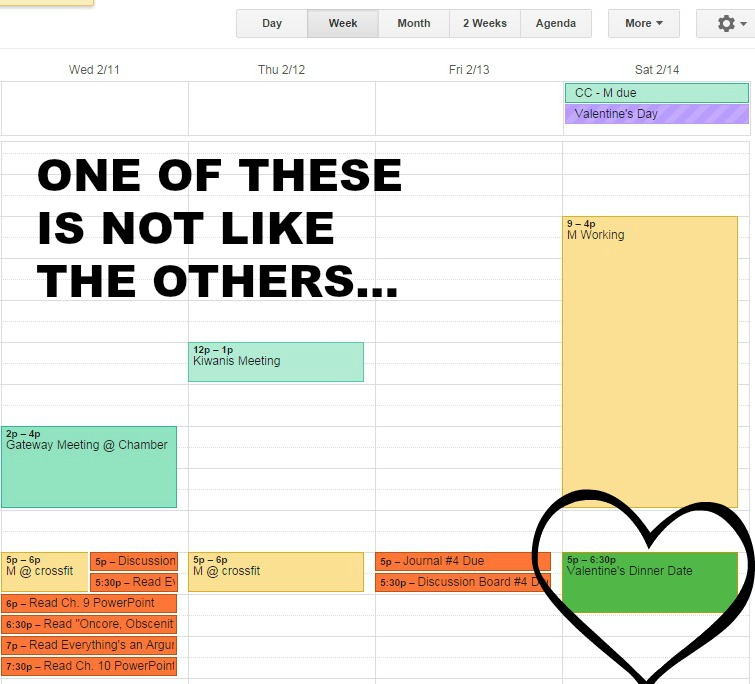
Color-coding isn’t just for aesthetics; it’s a powerful organizational tool. Assign different colors to different types of activities. For example:
• Work: Blue
• Personal: Green
• Family: Orange
• Health/Fitness: Red
This visual system allows you to quickly scan your calendar and see how balanced your schedule is. Are you spending too much time on work and neglecting your personal life? The colors will tell you. I know a consultant who uses specific shades of blue to represent different clients, instantly knowing where their focus should be at a given moment.
• Reminders that Actually Work: Mastering Notifications
Notifications are a double-edged sword. Too many, and you'll become desensitized and ignore them altogether. Too few, and you'll miss important appointments. The key is to find the right balance.
• Prioritize Important Events: Set multiple reminders for critical appointments. A week before, a day before, and an hour before can be a good strategy.
• Customize Notifications: Adjust the timing and type of notifications (pop-up, email, etc.) based on the event's importance.
• Use Location-Based Reminders: Google Calendar can send you reminders when you arrive at or leave a specific location. This is perfect for things like "Pick up dry cleaning" or "Buy milk" when you're near the store. I set a location reminder for when I leave the office to remember to take out the trash – small victories, right?
• Integrating Google Calendar with Other Apps: The Productivity Ecosystem
Google Calendar plays well with others. One of its greatest strengths is its ability to integrate with other apps and services.
• Gmail: Automatically add events from your Gmail inbox to your calendar. This is especially useful for travel reservations, event tickets, and meeting confirmations.
• Trello/Asana: Connect your project management tools to see your tasks and deadlines directly in your calendar.
• Zoom/Google Meet: Seamlessly schedule and join video conferences directly from your calendar.
• IFTTT/Zapier: Use these automation platforms to connect Google Calendar with hundreds of other apps. For example, you could automatically create a calendar event whenever you publish a new blog post.
The goal is to create a seamless productivity ecosystem where all your tools work together harmoniously.
• Habit Building with Google Calendar: Designing Your Ideal Routine
Google Calendar isn’t just for appointments; it can also be used to build better habits. Schedule specific time blocks for your desired habits, just like you would for any other appointment.
• Consistency is Key: Start with small, achievable habits. Don't try to overhaul your entire life overnight.
• Make it Specific: Instead of "Exercise," schedule "30-minute jog in the park."
• Track Your Progress: Use the calendar to track your consistency. Seeing a string of completed habit blocks can be incredibly motivating.
I know someone who used Google Calendar to successfully establish a daily meditation practice. They started with just 5 minutes a day and gradually increased the duration over time.
• Review and Refine: Continuous Improvement
Organizing your day with Google Calendar isn’t a one-time fix; it's an ongoing process of review and refinement. Regularly assess your schedule and make adjustments as needed.
• Weekly Review: Take some time each week to review your calendar and see what worked and what didn't. Are you consistently missing deadlines? Are you feeling overwhelmed? Adjust your time blocks accordingly.
• Be Flexible: Life happens. Don't be afraid to reschedule or re-prioritize tasks when unexpected events arise.
• Experiment: Try different techniques and see what works best for you. There's no one-size-fits-all approach to time management.
Remember, the goal is to create a system that supports your goals and helps you live a more fulfilling life. Don't be afraid to tweak and experiment until you find what works best for you. Good luck, friends! Now go conquer your day!
Frequently Asked Questions
Let's tackle some common questions about using Google Calendar for optimal organization.
• Question: How do I share my Google Calendar with others without giving them complete access?
Answer: Great question! Google Calendar allows you to share your calendar with different levels of access. You can choose to let others see only your free/busy time, see all event details, or even give them permission to make changes. To do this, go to your calendar settings, select the calendar you want to share, and then choose "Share with specific people." You can then customize the permissions for each person you add.
• Question: Can I use Google Calendar offline?
Answer: Yes! Google Calendar offers offline access, but you need to enable it first. In your calendar settings, look for the "Offline" option and turn it on. This will allow you to view and edit your calendar even when you don't have an internet connection. Changes will be synced when you're back online.
• Question: How do I create multiple calendars in Google Calendar?
Answer: Creating multiple calendars is a great way to organize different aspects of your life. To do this, click on the "+" button next to "Other calendars" in the left sidebar and select "Create new calendar." You can then name your calendar (e.g., "Work," "Personal," "Family") and customize its settings, including the color.
• Question: How can I set up different time zones in Google Calendar?
Answer: Google Calendar makes it easy to manage events in different time zones. When creating or editing an event, you can specify the time zone for that particular event. This is especially useful if you're scheduling meetings with people in different locations or traveling frequently. To change your primary time zone, go to your calendar settings and select the correct time zone from the drop-down menu.
Alright, friends, we've reached the end of our Google Calendar journey. We've explored the fundamentals, delved into advanced techniques, and answered some common questions. But remember, the real magic happens when you put these principles into practice.
To recap, we learned how to build a solid calendar foundation, master the art of time blocking, automate our routines with recurring events, create visual harmony with color-coding, and craft reminders that actually work. We also explored the power of integrating Google Calendar with other apps and using it to build better habits. And, of course, we emphasized the importance of continuous review and refinement to ensure that our calendar remains a valuable tool for achieving our goals.
But now it's your turn. Don't just read about it; do it! Take the first step today by implementing one or two of these strategies. Maybe start by color-coding your calendar or scheduling a recurring event for a daily habit. The key is to start small and build momentum. And don't be afraid to experiment and find what works best for you.
So, what are you waiting for? Open up your Google Calendar right now and schedule something that will move you closer to your goals. Whether it's a 30-minute work session, a 15-minute meditation break, or a coffee date with a friend, take action today. Your future self will thank you. Remember, a well-organized day is a step towards a well-organized life. You have the power to take control of your time and design a life that feels fulfilling and meaningful. Now go out there and make it happen! And hey, what's one small change you're going to implement in your calendar today? Share in the comments below!

Post a Comment for "How to Use Google Calendar to Organize Your Day"
Post a Comment