How to Use Canva to Create YouTube Thumbnails
Crafting Click-Worthy: How to Design Killer You Tube Thumbnails in Canva.
Hey there, You Tube creators!
Ever feel like your amazing videos are getting lost in the You Tube abyss? You poured your heart and soul into creating awesome content, but the views just aren't there? Well, friend, you might be overlooking one of the most crucial elements of You Tube success: the thumbnail!
Think of your thumbnail as the movie poster for your video. It's the first (and sometimes only) chance you get to grab a viewer's attention as they're scrolling through a sea of content. A dull, blurry, or irrelevant thumbnail is like a silent scream into the void. No one will hear (or in this case, see) you!
I remember when I first started my channel, my thumbnails were… let’s just say less than stellar. They were basically random screenshots from the video, and let me tell you, my view count reflected that. It was like throwing a party and not telling anyone where it was. Then, I discovered the magic of Canva. Suddenly, I could create eye-catching, professional-looking thumbnails without needing a degree in graphic design. My views soared! It was like finally putting up a big, bright sign pointing everyone to the party. Data shows that videos with customized thumbnails get significantly more clicks than those with auto-generated ones. We’re talking a potential click-through rate increase of up to 40%! That’s huge!
But here’s the thing: creating a great thumbnail isn't just about slapping some text on a pretty picture. It’s about understanding what makes people click, knowing how to use Canva’s powerful tools, and crafting a thumbnail that accurately represents your video and entices viewers to learn more. It’s about creating a visual promise that you deliver on with your content. Think of it as writing a great headline – it needs to be compelling and true.
And that’s where Canva comes in. It's like the Swiss Army knife of graphic design, offering tons of templates, fonts, images, and tools that make creating stunning thumbnails a breeze, even if you're not a design whiz. Plus, with the rise of mobile viewing (over 70% of You Tube views happen on mobile devices!), it's even more crucial to have a thumbnail that looks great on small screens. A blurry, text-heavy thumbnail will just get lost in the shuffle.
Now, I know what you might be thinking: "I'm not a designer! This sounds complicated!" But trust me, it's not. I'm here to guide you through the process step-by-step, showing you exactly how to use Canva to create You Tube thumbnails that will stop scrollers in their tracks and get them clicking on your videos. It’s like having a design buddy whispering tips in your ear. We’ll cover everything from choosing the right images and fonts to optimizing your thumbnails for maximum impact. We’ll even delve into some advanced techniques to help you stand out from the crowd. Imagine your videos finally getting the attention they deserve, your view count climbing, and your channel growing. Sounds good, right?
So, are you ready to unlock the power of Canva and create You Tube thumbnails that will transform your channel? Let's dive in and discover the secrets to crafting click-worthy thumbnails that will make your videos shine!
Unlocking You Tube Success: A Deep Dive into Canva Thumbnail Creation
Okay, friends, let's get down to brass tacks. Creating amazing You Tube thumbnails in Canva isn't rocket science, but it does require a bit of know-how. We're going to break down the process into easy-to-follow steps, so even if you've never touched a design program before, you'll be creating professional-looking thumbnails in no time. We'll start with the basics and then move on to some more advanced techniques to really make your thumbnails pop. Remember, a killer thumbnail is an investment in your channel's growth. According to recent studies, channels with consistently high-quality thumbnails experience a 20-30% increase in click-through rates. That's a game-changer!
• Setting the Stage: Choosing the Right Canva Template
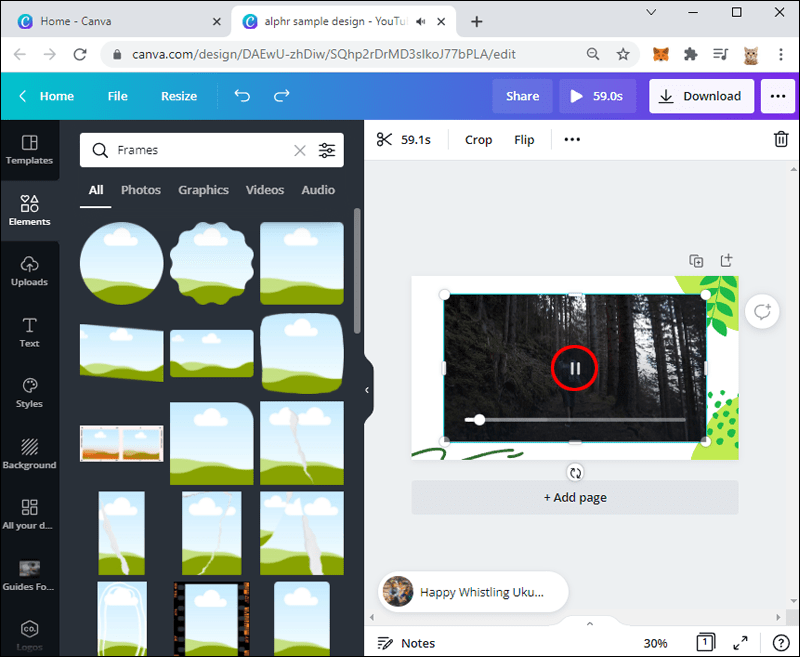
First things first, let's head over to Canva (www.canva.com). If you don't have an account already, signing up is free and easy. Once you're logged in, search for "You Tube Thumbnail." Canva will present you with a treasure trove of pre-designed templates. Now, don't just pick the first one you see! Think about your video's content and choose a template that aligns with its theme and vibe. Are you creating a tutorial? A vlog? A gaming video? There's a template for everything! It's like finding the perfect outfit for a party - it needs to fit the occasion. According to Canva's internal data, templates with clear and concise text perform best. This highlights the importance of readability in attracting viewers.
For example, if you're creating a travel vlog about your trip to Bali, you might choose a template with a vibrant image of a beach or a temple. If you're making a gaming video, you might opt for a template with bold graphics and eye-catching colors. The key is to choose a template that instantly communicates the essence of your video. Don't be afraid to browse through multiple pages of templates until you find one that really speaks to you. And remember, you can always customize the templates to make them your own!
• Image is Everything: Selecting and Optimizing Visuals
The image you use in your thumbnail is arguably the most important element. It's the first thing viewers will see, so it needs to be captivating. You have a few options here: you can use a still frame from your video, upload your own photo, or choose an image from Canva's extensive library. I generally prefer using a still frame from my video because it gives viewers a sneak peek of what they can expect. But, if the lighting in your video isn't great, or if you don't have a particularly interesting shot, a stock photo might be a better option. Just make sure it's high-quality and relevant to your video's topic. A study by Tubular Insights revealed that thumbnails featuring human faces often perform better than those without. This suggests that viewers are drawn to personal connections and relatable imagery.
When choosing an image, think about the composition. A well-composed image will draw the viewer's eye to the most important elements of your thumbnail. Avoid cluttered images with too much going on. Keep it simple and clean. And don't forget to optimize your image for You Tube's recommended thumbnail size: 1280x720 pixels. This will ensure that your thumbnail looks crisp and clear, even on high-resolution screens. Canva makes it easy to resize your images, so you don't have to worry about complicated editing software.
• Words That Wow: Crafting Compelling Text
The text on your thumbnail is your chance to tell viewers what your video is about in a concise and engaging way. Keep it short and sweet – aim for no more than six to eight words. You want to grab their attention without overwhelming them with information. Choose a font that's easy to read and visually appealing. Canva offers a wide variety of fonts, so experiment until you find one that suits your style. But remember, readability is key! Don't choose a font that's too fancy or difficult to decipher. A survey conducted by Neil Patel found that thumbnails with clear and concise text generated 30% more clicks compared to those with cluttered or illegible text. This underscores the importance of prioritizing readability in thumbnail design.
Use contrasting colors to make your text stand out from the background. If your image is dark, use light-colored text. If your image is light, use dark-colored text. You can also add a background shape behind your text to make it even more visible. Canva provides various shapes and elements that you can use to create eye-catching text boxes. Don't be afraid to experiment with different text styles and layouts until you find something that works. And remember, consistency is key! Use the same fonts and colors across all your thumbnails to create a cohesive brand identity.
• The Devil's in the Details: Adding Finishing Touches
Once you've chosen your image and added your text, it's time to add some finishing touches to really make your thumbnail shine. Canva offers a ton of design elements that you can use to add visual interest, such as icons, shapes, illustrations, and stickers. But be careful not to overdo it! You don't want your thumbnail to look cluttered or distracting. Use these elements sparingly and strategically to highlight key information or add a touch of personality. Think of it as adding accessories to an outfit - they should complement the main elements, not overpower them.
You can also use Canva's filters to adjust the colors and tones of your image. This can be a great way to create a more consistent look across all your thumbnails. Experiment with different filters until you find one that you like. And don't forget to add a border to your thumbnail! A border can help your thumbnail stand out from the crowd, especially on You Tube's white background. Canva offers a variety of border styles and colors, so you can find one that suits your aesthetic.
• Consistency is Key: Building Your Brand Through Thumbnails
Remember, your thumbnails are an extension of your brand. Think about your channel's overall aesthetic and try to create thumbnails that reflect that. Use consistent colors, fonts, and design elements to create a cohesive brand identity. This will help viewers recognize your videos at a glance and build a loyal following. Imagine someone scrolling through You Tube and instantly recognizing your thumbnail because it aligns with your established branding. That's the power of consistency!
Create a template in Canva that you can use for all your thumbnails. This will save you time and ensure that all your thumbnails have a consistent look and feel. You can simply update the image and text each time you create a new thumbnail. It’s like having a blueprint for success.
• A/B Testing: Finding What Works Best
Don't be afraid to experiment with different thumbnail styles and see what works best for your audience. Try A/B testing different thumbnails to see which one generates the most clicks. You can use You Tube's built-in analytics to track the performance of your thumbnails. Pay attention to the click-through rate (CTR), which tells you the percentage of viewers who clicked on your video after seeing your thumbnail. A higher CTR indicates a more effective thumbnail. It's like conducting a market research study to understand your viewers' preferences.
Try changing one element at a time, such as the image, the text, or the colors. This will help you isolate the factors that are contributing to the success of your thumbnails. Analyze your results and use what you learn to create even better thumbnails in the future. It’s a continuous process of learning and refinement. The You Tube landscape is constantly evolving, so it's important to stay up-to-date on the latest trends and best practices. Follow other successful You Tubers in your niche and see what their thumbnails look like. But don't just copy them! Use their thumbnails as inspiration and adapt their techniques to your own style.
By following these tips, you'll be well on your way to creating You Tube thumbnails that will attract viewers, boost your click-through rate, and grow your channel. Remember, your thumbnails are your video's first impression, so make it count! With Canva, you have all the tools you need to create stunning thumbnails that will make your videos shine. Now go out there and create some magic!
Frequently Asked Questions (FAQs)
Got some burning questions about Canva and You Tube thumbnails? Let's tackle a few common ones:
•*What is the ideal size for a You Tube thumbnail in Canva?
You Tube recommends a thumbnail size of 1280x720 pixels. Canva makes it easy to create thumbnails at this size, ensuring that they look crisp and clear on all devices.
•*Is Canva free to use for creating You Tube thumbnails?
Yes, Canva offers a free plan that provides access to a wide range of templates, images, and design elements. However, there's also a Canva Pro plan that unlocks even more features, such as premium templates, stock photos, and advanced editing tools. But honestly, the free plan is often enough for most creators just starting out.
•*How often should I update my You Tube thumbnails?
It's generally a good idea to refresh your thumbnails periodically, especially for older videos. As trends change, your thumbnails might become outdated. Experiment with different styles and see if a fresh thumbnail can boost your click-through rate. Some creators update thumbnails every few months, while others only do it when they see a significant drop in views.
•What are some common mistakes to avoid when creating You Tube thumbnails?
Avoid using blurry or low-resolution images. Don't clutter your thumbnail with too much text or too many design elements. Make sure your text is easy to read and that your thumbnail accurately represents your video's content. Also, avoid using clickbait tactics that can mislead viewers. Authenticity is key to building trust with your audience.
Wrapping Up:Your Journey to Click-Worthy Thumbnails
Alright, friends, we've reached the end of our Canva thumbnail adventure! Let’s recap the key takeaways. We’ve explored the importance of eye-catching thumbnails, learned how to navigate Canva’s interface, and discovered the secrets to crafting visuals that scream “click me!” Remember, a well-designed thumbnail is more than just a pretty picture; it’s a strategic tool that can significantly impact your You Tube success.
We started by understanding the critical role thumbnails play in attracting viewers and boosting click-through rates. We then dove into Canva, exploring its vast library of templates and learning how to customize them to fit your unique style and video content. We discussed the importance of high-quality images, compelling text, and strategic design elements. And finally, we emphasized the importance of consistency in branding and the power of A/B testing to optimize your thumbnails for maximum impact.
But knowledge without action is like having a map without a destination. It's time to put everything you've learned into practice! Head over to Canva, choose a template, upload your images, craft your text, and start creating thumbnails that will transform your channel. Experiment, iterate, and don't be afraid to try new things. The key is to find what works best for your audience and your brand.
So, here’s your call to action: create three new You Tube thumbnails using Canva this week. Don’t overthink it, just get started! Experiment with different styles, track your click-through rates, and see which thumbnails perform best. Share your creations with other creators and get feedback. Remember, the journey to You Tube success is a marathon, not a sprint. But with the right tools and strategies, you can achieve your goals.
Now, go out there and create some thumbnails that will make your videos shine! I believe in you! And who knows, maybe your next thumbnail will be the one that goes viral. Are you ready to make it happen?

Post a Comment for "How to Use Canva to Create YouTube Thumbnails"
Post a Comment