How to Use Google Drive for Team Collaboration
Unlock Seamless Teamwork: Mastering Google Drive for Collaboration.
Hey there, fellow collaborators! Ever feel like wrangling cats when trying to get your team on the same page? You know, the back-and-forth emails, the endless attachments, the version control nightmares... it's enough to make you want to chuck your laptop out the window. We’ve all been there, haven’t we? I remember this one time, back when I was working on a marketing campaign, we had five different versions of the same presentation floating around. Five! It was a total disaster, and I’m pretty sure someone accidentally presented the draft with the “crazy cat lady” meme on slide three to the CEO. Yeah… not my finest hour.
But what if I told you there was a better way? A way to ditch the chaos, embrace collaboration, and actually enjoy working with your team? Enter Google Drive, your new best friend for seamless teamwork. Now, I know what you might be thinking: "Google Drive? Isn't that just for storing files?" And while it's true that Google Drive is a fantastic cloud storage solution, it's so much more than that. It's a powerful collaboration hub that can transform the way your team works.
Think of it this way: imagine a world where everyone can access the same documents, spreadsheets, and presentations in real-time. Where you can leave comments and feedback directly on the files, eliminating those confusing email threads. Where version control is automatic, so you never have to worry about accidentally overwriting someone else's work (or presenting the aforementioned crazy cat lady meme to the CEO). Sounds pretty good, right?
The truth is, in today's fast-paced work environment, effective collaboration is more critical than ever. Teams need to be able to work together seamlessly, regardless of location or time zone. And Google Drive provides the tools and features to make that happen. According to recent statistics, teams that collaborate effectively are up to 5 times more likely to be high-performing. That's a huge difference! And with Google Drive's intuitive interface and robust feature set, it's easier than ever to unlock the power of collaborative teamwork.
But here's the thing: simply having Google Drive isn't enough. You need to know how to use it effectively to maximize its potential. And that's where this guide comes in. We're going to dive deep into the world of Google Drive collaboration, exploring its features, uncovering hidden gems, and providing practical tips and tricks to help you and your team work smarter, not harder. So, are you ready to ditch the chaos and embrace seamless teamwork? Let's get started!
How to Unleash the Power of Google Drive for Team Collaboration
Let's get straight to the good stuff, shall we? We're not just going to tell you Google Drive is great; we're going to show you exactly how to use it to transform your team's collaboration game.
Setting Up Your Collaborative Workspace
First things first, we need to create a shared space where everyone can work together. Think of it as your team's virtual office.
• Create Shared Folders: Start by creating folders specifically for team projects. It's like organizing your physical office – a place for everything and everything in its place. Right-click in your Google Drive, select "New folder," and give it a descriptive name like "Project Phoenix Documents" or "Marketing Campaign Q3."
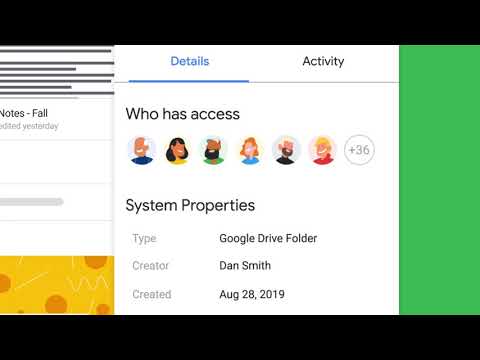
• Set Access Permissions: This is crucial! Decide who needs access to each folder and what level of access they should have. You can choose between "Viewer" (can only view the files), "Commenter" (can view and add comments), and "Editor" (can view, comment, and edit). Click on the folder, select "Share," and then enter the email addresses of your team members. Make sure to select the appropriate permission level for each person. Remember, too much access can lead to accidental deletions or unwanted changes, while too little access can hinder collaboration.
• Establish a Clear Folder Structure: A well-organized folder structure is key to keeping things tidy and easy to find. Consider using a hierarchical structure with subfolders for different aspects of the project, such as "Research," "Drafts," "Final Versions," and Assets.This makes it much easier to navigate and find what you need quickly.
Real-Time Collaboration on Documents
This is where the magic happens! Google Docs, Sheets, and Slides allow multiple people to work on the same file simultaneously.
• Co-Authoring: Open a Google Doc, Sheet, or Slide, share it with your team members as Editors, and watch the collaboration unfold in real-time. You'll see everyone's cursors moving around the document, making edits, adding comments, and contributing ideas. It's like being in the same room, brainstorming together, even if you're miles apart.
• Commenting and Suggesting: Use the commenting feature to provide feedback, ask questions, or suggest improvements. Select the text you want to comment on, click the "Add comment" icon, and type your message. You can even tag specific team members by using the "@" symbol followed by their name. This ensures that they receive a notification and can respond to your comment promptly. The suggesting feature in Google Docs is particularly useful for making direct edits to the document without overwriting the original text. When you turn on suggesting mode, your changes appear as suggestions that the document owner can then accept or reject.
• Version History: Don't worry about accidental changes or deletions! Google Drive automatically saves every version of your documents. You can easily revert to a previous version if needed. Go to "File" > "Version history" > "See version history" to browse through the different versions and restore the one you want. This is a lifesaver when someone accidentally deletes a crucial paragraph or makes unwanted changes.
Streamlining Communication with Google Drive
Collaboration isn't just about editing documents; it's also about communication.
• Shared Calendars: Integrate Google Calendar with Google Drive to schedule meetings, set deadlines, and track progress. Create a shared calendar for your team and invite all members. This makes it easy to see everyone's availability and schedule meetings that work for everyone. You can also attach relevant documents from Google Drive to calendar events, so everyone has access to the materials they need for the meeting.
• Google Meet Integration: Seamlessly launch Google Meet video conferences directly from Google Drive. This is perfect for quick check-ins, brainstorming sessions, or virtual meetings. Simply open a Google Doc, Sheet, or Slide, click on the "Meet" icon, and start a new meeting. You can also share your screen to present documents or walk your team through a presentation.
• Activity Notifications: Stay informed about important changes and updates with activity notifications. Google Drive can send you email notifications when files are added, edited, or commented on. You can customize these notifications to only receive alerts for specific folders or files. This ensures that you stay on top of things without being overwhelmed by unnecessary emails.
Advanced Tips and Tricks for Google Drive Collaboration
Ready to take your Google Drive game to the next level? Here are some advanced tips and tricks to help you become a Google Drive power user.
• Offline Access: Work on your documents even when you're offline. Enable offline access in Google Drive settings to download your files to your computer. You can then edit them offline, and your changes will automatically sync when you reconnect to the internet. This is incredibly useful when you're traveling or working in areas with unreliable internet connectivity.
• Third-Party Integrations: Connect Google Drive with other productivity tools, such as Slack, Trello, and Asana. This allows you to streamline your workflow and manage your projects more efficiently. For example, you can integrate Google Drive with Slack to share files and collaborate on documents directly within your Slack channels.
• Google Drive File Stream: For larger teams and organizations, Google Drive File Stream is a game-changer. It allows you to access all your Google Drive files directly from your computer without taking up local storage space. This is particularly useful for working with large files or when you have limited storage space on your computer.
• Using Templates: Save time and effort by using pre-designed templates for common documents, spreadsheets, and presentations. Google Drive offers a wide variety of templates to choose from, or you can create your own custom templates. This ensures consistency and saves you from having to start from scratch every time you create a new document.
• Keyboard Shortcuts: Learn the keyboard shortcuts for Google Drive to navigate and perform tasks more quickly. For example, Ctrl+C and Ctrl+V for copy and paste, Ctrl+Z for undo, and Ctrl+S for save. Mastering these shortcuts can significantly speed up your workflow and make you a more efficient Google Drive user.
By implementing these strategies, you can transform Google Drive into a powerful collaboration hub for your team. Remember, the key is to establish clear guidelines, communicate effectively, and embrace the collaborative spirit. With Google Drive, you can work together seamlessly, regardless of location or time zone, and achieve your goals more efficiently.
Frequently Asked Questions About Google Drive for Team Collaboration
Here are some common questions we get asked about using Google Drive for team collaboration:
Q: How do I prevent team members from accidentally deleting important files?
A: Set appropriate access permissions! Give team members only the level of access they need. For example, if someone only needs to view a file, grant them "Viewer" access instead of "Editor" access. Also, regularly back up your important files to a separate location.
Q: What's the best way to manage version control in Google Drive?
A: Google Drive automatically saves every version of your documents, so you can easily revert to a previous version if needed. Encourage your team members to use the commenting and suggesting features to provide feedback and make changes without overwriting the original text. Also, consider using a clear naming convention for your files to make it easier to identify the latest version.
Q: How can I make sure everyone on my team is using Google Drive effectively?
A: Provide training and resources! Create a guide or video tutorial on how to use Google Drive for collaboration. Encourage your team members to explore the different features and experiment with different workflows. Also, regularly check in with your team to see if they have any questions or need any assistance.
Q: Can I use Google Drive to collaborate with people outside of my organization?
A: Yes! You can share files and folders with anyone, even if they don't have a Google account. Simply enter their email address when sharing the file or folder, and they'll receive a link to access it. However, keep in mind that external collaborators may have limited access to certain features, such as commenting and suggesting.
Conclusion: Embrace Collaboration, Achieve More
So, there you have it – a comprehensive guide to mastering Google Drive for team collaboration. We've covered everything from setting up your collaborative workspace to advanced tips and tricks for maximizing efficiency. Remember, Google Drive is more than just a storage solution; it's a powerful platform for fostering teamwork, streamlining communication, and achieving your goals together.
By implementing the strategies we've discussed, you can transform your team's collaboration game and unlock a whole new level of productivity. Ditch the email chaos, embrace real-time co-authoring, and streamline your communication with shared calendars and Google Meet integration. The possibilities are endless!
Now, it's time to put these tips into action. Take a moment to review your current Google Drive setup and identify areas where you can improve. Are your folders well-organized? Are your access permissions properly configured? Are you using the commenting and suggesting features effectively?
Here's your call to action: Schedule a team meeting to discuss how you can better utilize Google Drive for collaboration. Brainstorm ideas, share best practices, and create a plan for implementing the strategies we've covered in this guide. Together, you can transform Google Drive into a powerful collaboration hub that empowers your team to achieve more.
Remember, collaboration is the key to success in today's fast-paced work environment. By embracing teamwork and leveraging the power of Google Drive, you can unlock your team's full potential and achieve remarkable results. So go forth, collaborate effectively, and conquer the world! What collaborative projects are you excited to tackle using Google Drive?

Post a Comment for "How to Use Google Drive for Team Collaboration"
Post a Comment