How to Use Google Calendar to Organize Your Day
Unlock Your Day: A Simple Guide to Mastering Google Calendar
Tired of Chaos? Let Google Calendar Be Your Superhero!
Hey there, fellow time-travelers! Or should I say, aspiring time-managers? Let’s be honest, most of us feel like we're perpetually chasing our tails, juggling a million things, and somehow still managing to drop a few (or many!) along the way. Does that sound familiar? I know the feeling – the panic when you realize you've double-booked yourself, the frustration of missing deadlines, and the sheer exhaustion of just trying to keep it all together. We live in a world of constant notifications, endless to-do lists, and the persistent feeling that we're never quite caught up. It’s like trying to drink from a firehose, isn’t it?
The struggle is real. We're bombarded with information and commitments from all sides. Work deadlines loom, social events beckon, family obligations call, and then there's that ever-growing list of personal goals we swear we'll get to someday.And let’s not forget the unexpected interruptions – the surprise meetings, the last-minute requests, and the occasional existential crisis that throws everything off schedule. The human brain, wonderful as it is, simply wasn't designed to handle this constant barrage of information without a little help. Trying to keep everything in your head is like trying to herd cats – chaotic, frustrating, and ultimately, unproductive.
So, what's the solution? Well, it's not about suddenly acquiring superhuman powers (although that would be pretty cool!). It's about leveraging the tools that are already at your fingertips. And that's where Google Calendar comes in. Think of it as your personal time-management sidekick, ready to swoop in and rescue you from the clutches of chaos. It’s not just a digital calendar; it’s a powerful organizational hub that can transform the way you manage your time, boost your productivity, and even reduce your stress levels. Imagine a world where you know exactly what you need to do, when you need to do it, and have plenty of time to actually enjoy your life in between. Sounds too good to be true? It's not! With a little bit of know-how, you can harness the power of Google Calendar to create a schedule that works for you, not against you.
Now, I know what you might be thinking: "I've tried using calendars before, and they just end up being another thing I have to manage." And I get it. The key is to approach Google Calendar not as a chore, but as an investment in your own well-being. It’s about creating a system that simplifies your life, rather than complicating it. We're not talking about rigid schedules that leave no room for spontaneity. We're talking about a flexible framework that allows you to prioritize what matters most, stay on track with your goals, and still have time for the things you love. Think of it as building a solid foundation for your day, so you can navigate whatever comes your way with confidence and ease. In today's fast-paced world, effective time management is no longer a luxury; it's a necessity. It's the key to achieving your goals, maintaining a healthy work-life balance, and simply feeling more in control of your life. And Google Calendar is the tool that can help you get there.
The reality is, we are all in the same boat. Juggling work, family, hobbies, and the occasional Netflix binge can feel like a circus act gone wrong. But what if I told you there's a way to bring some order to the chaos? A way to reclaim your time and finally feel like you're in the driver's seat of your own life? That's where Google Calendar comes in. It's not just a digital calendar; it's a powerful tool that can transform the way you manage your time and boost your productivity. But here’s the thing: simply having a calendar isn’t enough. You need to know how to use it effectively. You need to understand its features, customize it to your needs, and integrate it into your daily routine. And that's exactly what we're going to explore in this article. Ready to ditch the overwhelm and start mastering your schedule? Let’s dive in and discover how Google Calendar can become your ultimate time-management weapon!
Unlocking Google Calendar's Potential: Your Step-by-Step Guide
Okay, friends, let’s get down to brass tacks! We're going to walk through how to use Google Calendar like a pro, turning it from a simple date tracker into your personal productivity powerhouse. No more missed appointments, no more forgotten birthdays, and definitely no more that feeling of being completely overwhelmed by your schedule. Here's how to make Google Calendar your best friend:
•Set Up Multiple Calendars for Different Areas of Your Life:Don't just lump everything into one calendar! Create separate calendars for work, personal appointments, family events, hobbies, and anything else that's important to you. This keeps things organized and allows you to easily see how your time is being allocated. Think of it like having different folders on your computer – you wouldn't throw all your files into one folder, would you? For example, I have one calendar specifically for client meetings, another for personal errands, and even one dedicated to my workout schedule. This makes it super easy to see at a glance where my time is going and identify any potential conflicts. To create a new calendar, go to "Other calendars" on the left-hand side of your screen, click the "+" button, and select "Create new calendar." Give it a descriptive name and a color that resonates with you!
•Master the Art of Event Creation:Don't just add vague entries like Meeting.Be specific! Include the title, location (physical or virtual), attendees, and a detailed description of what the event is about. This will save you time and prevent confusion later on. And don't forget to set reminders! Google Calendar allows you to set multiple reminders via email or pop-up notifications, ensuring you never miss an important event. I like to set a reminder a day before and then another an hour before, just to be extra sure. To create an event, simply click on the date and time you want to schedule it, or click the "Create" button. Fill in all the details, set your reminders, and you're good to go!
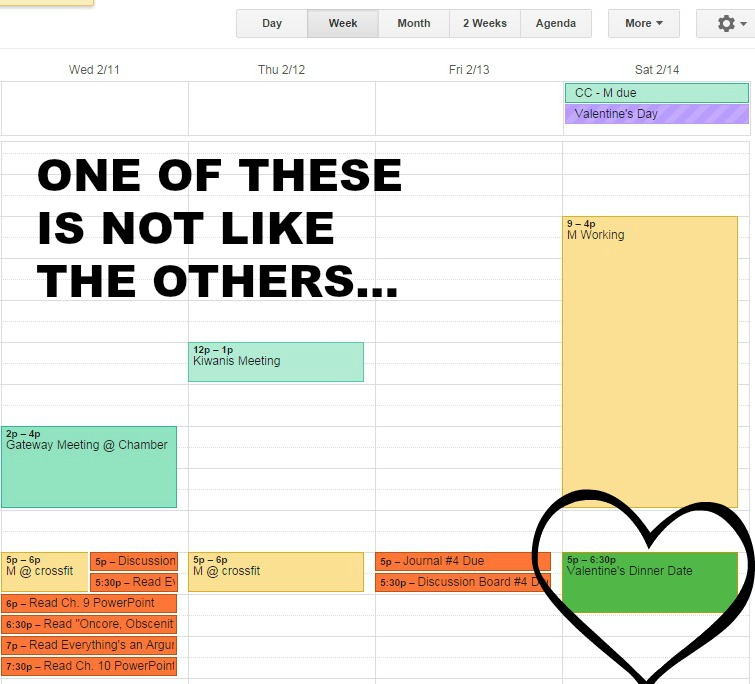
•Color-Code Your Events for Visual Clarity:This is a game-changer! Assign different colors to different types of events. For example, use blue for work appointments, green for personal errands, and red for important deadlines. This makes it incredibly easy to see at a glance what your day looks like and prioritize accordingly. Think of it as creating a visual roadmap for your day. To change the color of an event, simply click on it, select the "Edit" icon, and then choose your desired color from the color palette. Experiment with different color combinations to find what works best for you.
•Leverage Google Calendar's Integrations:Google Calendar plays well with other apps and services! Connect it to your email, task management apps, and other productivity tools to streamline your workflow. For example, you can automatically add events from your Gmail inbox to your calendar, or sync your Google Calendar with your favorite task management app to keep track of your to-dos. This integration saves you time and eliminates the need to switch between multiple apps. To explore Google Calendar's integrations, go to "Settings" and then Integrations.You'll find a list of apps and services that you can connect to your calendar.
•Utilize the "Find a Time" Feature for Easy Scheduling:Tired of endless email chains trying to find a time that works for everyone? Google Calendar's "Find a Time" feature is your savior! Simply add the attendees to your event, and Google Calendar will show you their availability, making it easy to find a time that works for everyone. This is a huge time-saver, especially when scheduling meetings with multiple people. To use the "Find a Time" feature, create an event, add the attendees, and then click on the "Find a Time" tab. Google Calendar will show you a visual representation of everyone's availability, allowing you to easily identify the best time to schedule your meeting.
•Set Recurring Events for Regular Tasks and Appointments:Don't waste time manually adding the same event every week! Use Google Calendar's recurring event feature to automatically schedule repeating tasks and appointments. This is perfect for things like weekly meetings, gym sessions, or even just blocking out time for focused work. To set a recurring event, create an event, click on the "Does not repeat" dropdown menu, and then choose your desired frequency (e.g., daily, weekly, monthly, or yearly). You can also customize the recurrence pattern to fit your specific needs.
•Take Advantage of Google Calendar's Mobile App:Stay organized on the go! Download the Google Calendar mobile app for i OS or Android and access your schedule from anywhere. The app allows you to view your calendar, add events, set reminders, and even receive notifications, ensuring you never miss a beat. I use the mobile app constantly to check my schedule, add events on the fly, and stay on top of my reminders. It's like having your personal assistant in your pocket!
•Use the "Goals" Feature to Prioritize Your Personal Development:Google Calendar's "Goals" feature helps you prioritize your personal development by scheduling time for activities like exercise, learning, or spending time with loved ones. Simply tell Google Calendar what you want to achieve, and it will automatically find the best times to schedule those activities based on your existing schedule. This is a great way to make sure you're making time for the things that matter most to you. To use the "Goals" feature, click on the "+" button on the left-hand side of your screen and select Goal.Choose your desired goal category, specify the frequency and duration of the activity, and Google Calendar will take care of the rest!
•Share Your Calendar with Others for Collaboration:Need to coordinate schedules with family members, colleagues, or friends? Google Calendar allows you to share your calendar with others, making it easy to see each other's availability and avoid scheduling conflicts. You can choose to share your entire calendar or just specific events, and you can also control the level of access that others have. To share your calendar, go to "Settings" and then "Share with specific people or groups." Enter the email addresses of the people you want to share your calendar with and choose their level of access.
•Regularly Review and Adjust Your Schedule:Your schedule is not set in stone! Take some time each week to review your calendar, assess your priorities, and make any necessary adjustments. This ensures that your schedule is always aligned with your goals and that you're making the most of your time. I like to spend about 30 minutes each Sunday evening reviewing my calendar for the upcoming week, making sure I'm prepared for any upcoming events and that I'm allocating my time effectively. This helps me start the week feeling organized and in control.
So there you have it! These are just a few of the ways you can use Google Calendar to organize your day and boost your productivity. Remember, the key is to experiment and find what works best for you. Don't be afraid to try new features, customize your settings, and adapt your schedule as needed. With a little bit of effort, you can transform Google Calendar into your ultimate time-management tool.
FAQs: Google Calendar Mastery
Still have a few burning questions about using Google Calendar? Don't worry, we've got you covered! Here are some frequently asked questions and their answers to help you become a true Google Calendar guru:
•Question:How do I create a shared calendar with my family?
Answer: Creating a shared calendar is super easy! On the left-hand side of your Google Calendar screen, under "Other calendars," click the "+" button and select "Create new calendar." Give it a name like "Family Calendar" and then click "Create calendar." Once the calendar is created, go to its settings and click "Share with specific people or groups." Enter the email addresses of your family members and choose their permission settings (e.g., "See only free/busy," "See all event details," or "Make changes to events"). Now everyone can add, edit, and view events on the shared calendar!
•Question:Can I sync my Google Calendar with other calendar apps?
Answer: Absolutely! Google Calendar is designed to play nicely with other calendar apps. You can sync it with apps like Outlook, Apple Calendar, and more. To do this, you'll need to generate a private i Cal URL for your Google Calendar. Go to your calendar settings, click on the calendar you want to sync, and then scroll down to the "Private address" section. Copy the i Cal URL and then paste it into the settings of your other calendar app. This will allow you to view and manage your Google Calendar events from your other calendar app.
•Question:How do I set up different time zones in Google Calendar?
Answer: If you frequently travel or work with people in different time zones, setting up multiple time zones in Google Calendar is a must. Go to your Google Calendar settings and scroll down to the "Time zone" section. Click on "Display secondary time zone" and then choose the time zone you want to display. You can even add a third time zone if needed. This will allow you to see the time in different locations simultaneously, making it easier to schedule events and avoid confusion.
•Question:How do I use Google Calendar offline?
Answer: While Google Calendar primarily works online, you can enable offline access to view your events even when you don't have an internet connection. To do this, go to your Google Calendar settings and click on the "Offline" tab. Check the box that says "Turn on offline calendar." This will download your calendar data to your device, allowing you to view your events and make changes even when you're offline. Keep in mind that any changes you make offline will be synced to your Google Calendar account when you reconnect to the internet.
Take Control of Your Time, Starting Today!
Alright, friends, we've reached the end of our Google Calendar journey! We've covered everything from the basics of setting up your calendar to advanced tips and tricks for maximizing your productivity. The key takeaway here is that Google Calendar is more than just a digital calendar; it's a powerful tool that can transform the way you manage your time and achieve your goals.
Remember, the most important thing is to take action. Don't just read this article and then forget about it. Start implementing these strategies today! Create multiple calendars for different areas of your life, master the art of event creation, color-code your events for visual clarity, and leverage Google Calendar's integrations to streamline your workflow. The more you use Google Calendar, the more you'll discover its potential and the more organized and productive you'll become.
So, what are you waiting for? Open up Google Calendar right now and start experimenting! Schedule a few appointments, set some reminders, and explore the various features we've discussed. The more you play around with it, the more comfortable you'll become and the more effectively you'll be able to use it to manage your time. And don't forget to share this article with your friends and family who could also benefit from learning how to use Google Calendar effectively.
Now is the time to take control of your time, reclaim your schedule, and start living a more organized and fulfilling life. So, go forth and conquer your calendar! And remember, even the most organized people have moments of chaos. The key is to have a system in place to help you get back on track. With Google Calendar as your trusty sidekick, you'll be well-equipped to handle whatever comes your way. Ready to unlock your full potential and achieve your goals? Let Google Calendar be your guide!
Now go ahead and open your Google Calendar. What's the first thing you're going to schedule?

Post a Comment for "How to Use Google Calendar to Organize Your Day"
Post a Comment