How to Use Facebook Pixel for Website Tracking
Unlocking Your Website's Potential: A Guide to Mastering the Facebook Pixel
Hey there, friends! Ever feel like your website is a ship sailing in the dark, desperately hoping to find treasure but with no map to guide you? You're pouring your heart and soul into creating amazing content, crafting stellar products, and running killer ad campaigns, but the results are… well, less than stellar. It's like throwing a party and not knowing who showed up, what they liked, or if they even had a good time. That's where the Facebook Pixel swoops in like a digital superhero!
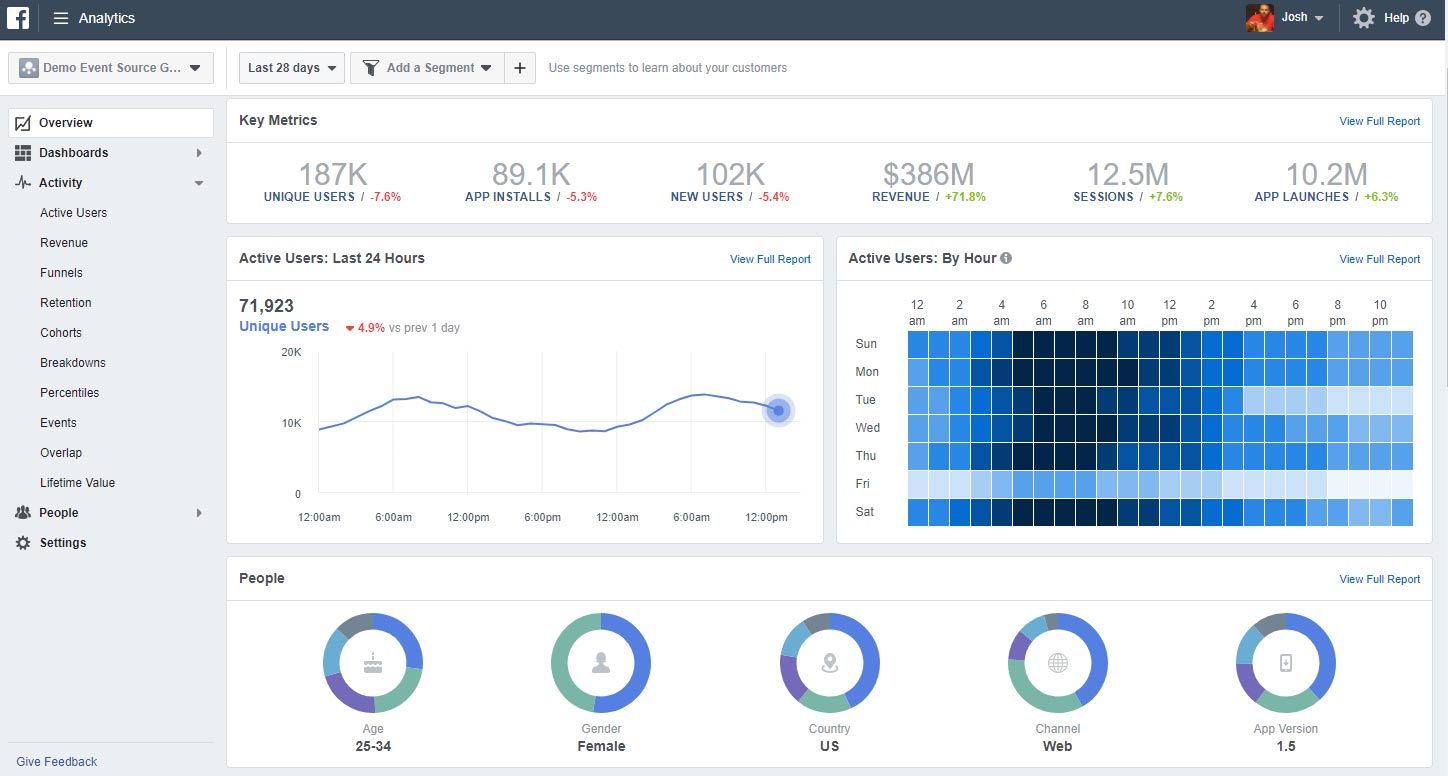
Think of the Pixel as your website's own personal detective, diligently tracking every visitor, every click, and every conversion. It's a tiny snippet of code that you place on your website, and it silently observes all the action, feeding valuable data back to Facebook. Sounds a little Big Brother-ish? Maybe. But in the world of online marketing, this data is pure gold. It's the key to understanding your audience, optimizing your ad campaigns, and ultimately, boosting your ROI.
We've all been there, right? Spending money on Facebook ads that feel like shouting into the void. You target what you think is your ideal customer, but the results are underwhelming. You scratch your head, wondering where you went wrong. The Pixel answers that question! It tells you exactly who is visiting your site, what actions they're taking, and whether those actions are leading to conversions (like purchases, sign-ups, or lead generation).
But here's the thing: the Facebook Pixel isn't just for the marketing gurus and tech wizards. It's for everyone! It’s a surprisingly powerful tool that, once understood, can be a game-changer for businesses of all sizes. Imagine knowing exactly which ads are driving the most sales, which pages are captivating your audience, and which products are flying off the virtual shelves. Sounds pretty sweet, doesn't it?
The problem? So many people are intimidated by the Pixel. They hear "code" and "tracking" and immediately run for the hills. But fear not! This guide is here to demystify the Pixel, break it down into bite-sized pieces, and show you just how easy it is to harness its power. We're going to walk through everything step-by-step, from setting up your Pixel to using its data to create targeted ad campaigns that actually work.
So, are you ready to turn your website into a data-driven powerhouse? Are you ready to stop guessing and start knowing? Let's dive in and unlock the secrets of the Facebook Pixel!
How to Use Facebook Pixel for Website Tracking
Ready to get your hands dirty and actually implement the Facebook Pixel? Excellent! We're going to break this down into easy-to-follow steps. Remember, this isn't rocket science. We'll walk through everything together.
Setting Up Your Facebook Pixel
First things first, you need to create a Pixel in your Facebook Ads Manager. Don't worry; it's easier than it sounds.
• Head over to Facebook Ads Manager: Log in to your Facebook account and navigate to the Ads Manager. You can usually find it by clicking on the little downward-facing arrow in the top right corner of your Facebook page and selecting "Manage Ads."
• Navigate to Events Manager: In the Ads Manager menu, look for "Events Manager." It might be hidden under the "All Tools" section. Click on it.
• Create a New Pixel: If you don't already have a Pixel, you'll see an option to "Connect Data Sources." Choose "Web" and then "Facebook Pixel." Give your Pixel a descriptive name (like "My Website Pixel") and click Continue.• Choose Your Setup Method: You'll be presented with three options: "Automatically install the pixel with a partner integration," "Manually install pixel code on website," or "Email instructions to a developer." If you're using a platform like Shopify, Word Press (with a plugin), or Squarespace, the partner integration option is usually the easiest. We'll cover manual installation next.
Installing the Pixel Code on Your Website
This is where things might seem a little daunting, but trust me, it's manageable.
• Get the Pixel Code: If you chose manual installation, Facebook will provide you with a snippet of code. This is your Pixel's unique identifier, and it's crucial that you place it correctly.
• Find Your Website's Header: You need to paste this code into the `
` section of your website's HTML. This is where the code lives that tells your website how to behave and display. How you access this section depends on your website platform.• Word Press: If you're using Word Press, you can either edit your theme's header.php file directly (Appearance > Theme Editor > header.php) or use a plugin like "Insert Headers and Footers." The plugin is often the safer and easier option, especially if you're not comfortable editing code.
• Shopify: In Shopify, go to Online Store > Themes > Actions > Edit Code. Then, find the `theme.liquid` file and paste the Pixel code just before the closing `` tag.
• Squarespace: In Squarespace, go to Settings > Advanced > Code Injection. Paste the Pixel code into the "Header" section.
• Other Platforms: If you're using a different platform, consult its documentation or support resources to find out how to access and edit the `
` section of your website.• Verify Your Installation: Once you've pasted the code, go back to Facebook Events Manager and enter your website URL. Facebook will check to see if the Pixel is installed correctly. It might take a few minutes to activate, so be patient. Facebook has a "Test Events" tab you can use to see events being fired in real-time as you navigate your website.
Setting Up Standard Events
The Pixel is now installed, but it's only passively observing. To get the most out of it, you need to tell it what to look for. This is where standard events come in.
• What are Standard Events?: Standard events are predefined actions that Facebook recognizes, such as "View Content" (when someone views a product page), "Add To Cart" (when someone adds an item to their cart), "Initiate Checkout" (when someone starts the checkout process), and "Purchase" (when someone completes a purchase).
• Implementing Standard Events: You can add these events to specific pages on your website. For example, you'd add the "View Content" event to all of your product pages, the "Add To Cart" event to the button people click to add items to their cart, and the "Purchase" event to the thank-you page that appears after someone completes a purchase.
• Manual Implementation: This involves adding extra code to your website. Facebook provides the code snippets for each standard event. You'll need to place these snippets on the appropriate pages or trigger them when specific actions occur.
• Using Partner Integrations: Many platforms offer built-in integrations that automatically track standard events. For example, Shopify and Woo Commerce have integrations that can automatically track events like "Add To Cart" and Purchase.• The Facebook Event Setup Tool: Facebook also offers an Event Setup Tool that allows you to visually select buttons and URLs on your website to track as events, all without touching any code. It's a user-friendly way to set up basic event tracking.
Creating Custom Conversions
Sometimes, standard events aren't enough. You might want to track actions that are specific to your business, like visiting a particular landing page or downloading a whitepaper. That's where custom conversions come in.
• Defining Custom Conversions: A custom conversion is a rule you create within Facebook that defines a specific action as a conversion. For example, you could define a custom conversion for anyone who visits your "Thank You" page after filling out a lead generation form.
• Setting Up Custom Conversions: In Facebook Events Manager, click on "Custom Conversions" and then "Create Custom Conversion." You'll be able to define the rule based on URL keywords or events. For example, you could say that anyone who visits a URL containing "/thank-you" is considered a conversion.
• Naming and Categorizing Custom Conversions: Give your custom conversion a descriptive name (like "Lead Generation Form Submission") and choose a category that best describes the type of conversion (like "Lead").
Using Pixel Data for Ad Optimization
Okay, your Pixel is set up, you're tracking events, and you're collecting data. Now what? Now comes the fun part: using that data to optimize your ad campaigns and drive better results.
• Create Custom Audiences: The Pixel allows you to create custom audiences based on the actions people take on your website. For example, you can create an audience of people who visited your product pages but didn't add anything to their cart (these are potential customers who are showing interest but haven't quite made a decision). You can then target these people with ads that remind them of your products or offer them a discount.
• Build Lookalike Audiences: One of the most powerful features of the Pixel is the ability to create lookalike audiences. These are audiences that Facebook identifies as having similar characteristics to your existing customers or website visitors. For example, you can create a lookalike audience based on your customers who have made a purchase. Facebook will then find other users who share similar demographics, interests, and behaviors.
• Optimize for Conversions: When setting up your ad campaigns, make sure to choose "Conversions" as your optimization goal. This tells Facebook to show your ads to people who are most likely to take the desired action (like making a purchase or filling out a form).
• Track Your Results: Keep a close eye on your ad campaign performance. Monitor metrics like conversion rate, cost per conversion, and return on ad spend (ROAS). Use this data to make adjustments to your targeting, ad creative, and bidding strategies.
Troubleshooting Common Pixel Issues
Sometimes, things don't go according to plan. Here are a few common Pixel issues and how to fix them.
• Pixel Not Firing: If the Pixel isn't firing, double-check that you've installed the code correctly and that it's placed in the `
` section of your website. You can use the Facebook Pixel Helper Chrome extension to verify that the Pixel is installed and firing properly.• Event Tracking Issues: If your events aren't being tracked correctly, make sure you've implemented the event code correctly and that it's being triggered when the appropriate action occurs. Double-check the event parameters to ensure they're sending the correct data.
• Data Delays: Sometimes, there can be a delay in the data being reported in Facebook Events Manager. Be patient and allow some time for the data to populate.
• Browser Extensions Blocking the Pixel: Some browser extensions, like ad blockers, can prevent the Pixel from firing. Ask your customers to disable these extensions when visiting your website.
Remember, the Facebook Pixel is a powerful tool, but it's not a magic bullet. It takes time and effort to set up, track, and optimize. But with a little patience and persistence, you can unlock its potential and drive significant results for your business.
Frequently Asked Questions About the Facebook Pixel
Let's tackle some of those burning questions you might have about the Facebook Pixel.
• Q:Is the Facebook Pixel GDPR compliant?
A: Yes, but with a caveat. You need to obtain consent from your users before tracking them with the Pixel. Make sure you have a clear and prominent cookie consent banner on your website that allows users to opt in or out of tracking.
• Q:Can I use the Facebook Pixel on multiple websites?
A: Yes, you can use the same Pixel on multiple websites, but it's generally recommended to create separate Pixels for each website to keep your data organized and accurate.
• Q:How long does it take for the Pixel to start collecting data?
A: The Pixel starts collecting data as soon as it's installed on your website. However, it may take some time for enough data to accumulate to create custom audiences and optimize your ad campaigns.
• Q:What if I don't have a website? Can I still use the Facebook Pixel?
A: While the Pixel is designed for website tracking, you can use it in conjunction with Facebook Lead Ads or Instant Experiences to track conversions and create audiences even if you don't have a traditional website.
So, there you have it! A comprehensive guide to mastering the Facebook Pixel. Now it's time to put this knowledge into action and start tracking your website's performance like a pro!
We've journeyed through the landscape of the Facebook Pixel, from its initial setup and code installation to the intricate dance of standard events, custom conversions, and data-driven ad optimization. We've equipped you with the knowledge to transform your website from a ship lost at sea into a finely tuned vessel, guided by the stars of data and insights.
Now, my friends, take this newfound knowledge and set sail! Install that Pixel, track those events, and create those targeted ad campaigns. The world of data-driven marketing awaits! Don't be afraid to experiment, test different strategies, and continuously refine your approach. The Facebook Pixel is a powerful tool, but it's only as effective as the person wielding it.
Ready to take the plunge and unlock your website's full potential? Head over to your Facebook Ads Manager, create your Pixel, and start tracking! The sooner you start, the sooner you'll be able to make data-driven decisions that drive real results for your business.
Go forth and conquer the world of online marketing! And remember, every click, every visit, and every conversion is a valuable piece of data that can help you build a stronger, more successful business. Are you ready to turn that data into gold?

Post a Comment for "How to Use Facebook Pixel for Website Tracking"
Post a Comment