Beginner’s Guide to Video Editing with DaVinci Resolve
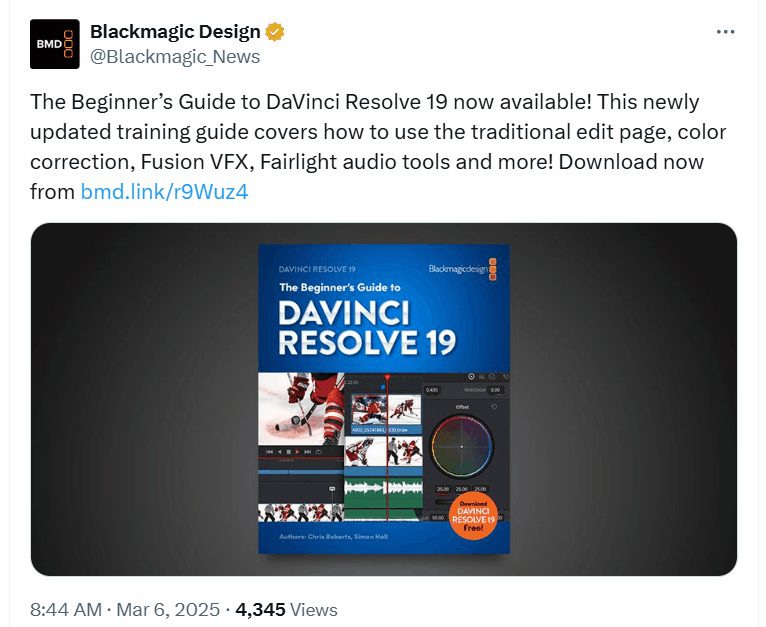
Unlock Your Inner Spielberg: A Beginner's Guide to Mastering Da Vinci Resolve
Hey there, future filmmakers! Ever watch a movie and think, "I could do that… maybe?" Or perhaps you've got some amazing footage sitting on your phone, begging to be transformed into something shareable, something… epic? Let's be real, most of us have. The problem? Video editing software can seem like rocket science. We're talking interfaces crammed with buttons, timelines that look like hieroglyphics, and enough jargon to make your head spin. You're probably imagining spending hours watching tutorials only to end up with a video that looks… well, less than professional. You might even be considering throwing in the towel and sticking to posting unedited clips directly to social media (we've all been there!). But hold on just a minute!
What if I told you there's a powerful, professional-grade video editing software that’s actually accessible to beginners? I'm talking about Da Vinci Resolve. Yes,that Da Vinci Resolve, the one used to edit Hollywood blockbusters, music videos, and countless professional projects. Sounds intimidating, right? Wrong! While it's true that Da Vinci Resolve has a ton of advanced features, it's also surprisingly user-friendly, especially if you know where to start. Think of it like this: you don't need to know how to build a car to drive one. Similarly, you don't need to understand every intricate detail of Da Vinci Resolve to create amazing videos. The truth is, Da Vinci Resolve is constantly evolving, and the latest versions are designed with the user in mind. In fact, according to a recent survey by the Motion Picture Editors Guild, Da Vinci Resolve is rapidly gaining popularity among professional editors, not just for its color grading capabilities, but for its entire editing workflow. This means more and more resources and tutorials are becoming available to help you learn the ropes.
And here's the best part: the basic version of Da Vinci Resolve is completely free! That's right, you can access a powerhouse of editing tools without spending a dime. It's like getting the keys to a Ferrari without the hefty price tag. Now, are you ready to ditch the frustration and unlock your creative potential? Are you ready to turn those raw video clips into polished masterpieces that will wow your friends, family, or even the entire internet? This guide is your passport to becoming a Da Vinci Resolve ninja. We'll break down the basics, walk you through the essential tools, and show you how to create stunning videos, even if you've never edited a single frame before. So, buckle up, grab your favorite beverage, and let's dive into the exciting world of video editing with Da Vinci Resolve! Trust me, you'll be amazed at what you can create.
Beginner's Guide to Video Editing with Da Vinci Resolve
Getting Started with Da Vinci Resolve: Your First Steps
Alright, let's get our hands dirty! The first step is, of course, downloading and installing Da Vinci Resolve. Head over to the Blackmagic Design website and download the free version. Don't worry about the Studio version just yet; the free version has more than enough features for beginners (and even many professionals!). The installation process is pretty straightforward, just follow the on-screen instructions. Once you've got it installed, fire it up! Don't be intimidated by the interface; we'll break it down bit by bit.
Understanding the Da Vinci Resolve Interface
Da Vinci Resolve is divided into different "pages," each designed for a specific part of the video editing process. Think of them as different workshops in a film studio. Let's take a quick tour:
• The Media Page: This is where you import your video clips, audio files, and other assets. It's like your digital filing cabinet for all your raw materials.
• The Cut Page: Designed for quick and easy editing, perfect for shorter projects or assembling a rough cut. Think of it as the "express lane" for video editing.
• The Edit Page: This is the main editing workspace where you'll spend most of your time. It offers a more traditional timeline-based editing experience.
• The Fusion Page: This is where the magic happens! Fusion is a powerful compositing and visual effects tool that allows you to create stunning visual effects.
• The Color Page: Da Vinci Resolve is famous for its color grading capabilities. This page gives you precise control over the colors in your video, allowing you to create a specific mood and atmosphere.
• The Fairlight Page: This is your audio workstation. You can use it to mix, edit, and enhance the audio in your video.
• The Deliver Page: This is where you export your finished video in various formats and resolutions.
Don't feel like you need to master all of these pages right away. We'll focus on the Edit Page for this beginner's guide. As you become more comfortable, you can explore the other pages and unlock even more creative possibilities.
Importing Your Footage and Creating a Project
• Launch Da Vinci Resolve and click on "New Project." Give your project a descriptive name (e.g., "My Vacation Video").
• In the Project Settings, you can adjust the resolution and frame rate of your video. For most projects, 1080p at 24 or 30 frames per second is a good starting point.
• Go to the Media Page and import your video clips by dragging and dropping them into the Media Pool (the area where your imported files are stored).
• Organize your clips by creating Bins (folders) in the Media Pool. This will help you keep your project organized, especially when you have a lot of footage.
Basic Video Editing Techniques: Making the Cut
Now that you've got your footage imported, let's start editing! The Edit Page is your main workspace for assembling your video.
Understanding the Timeline
• The Timeline is where you arrange your video clips, audio files, and other elements in the order you want them to appear in your video.
• Video tracks are stacked on top of each other. Clips on higher tracks will appear on top of clips on lower tracks.
• Audio tracks work similarly.
• The Playhead is the vertical line that indicates your current position in the timeline.
Essential Editing Tools
• The Selection Tool (A): This is your main tool for selecting and moving clips in the timeline.
• The Blade Tool (B): This tool allows you to cut clips into smaller segments.
• The Trim Edit Mode (T): This allows you to adjust the start and end points of clips.
• The Slip and Slide Tools: These tools allow you to adjust the content of a clip without changing its overall duration or position in the timeline.
• The Zoom Tool: Allows you to zoom in and out of the timeline for more precise editing.
Making Your First Edits
• Drag and drop your clips from the Media Pool onto the timeline.
• Use the Blade Tool to cut out unwanted sections of your clips.
• Use the Selection Tool to move clips around and rearrange them in the order you want.
• Use the Trim Edit Mode to adjust the start and end points of your clips to create smooth transitions.
• Delete unwanted clips by selecting them and pressing the Delete key.
Adding Transitions and Effects: Polishing Your Video
Transitions and effects can add polish and visual interest to your videos. Da Vinci Resolve has a wide range of built-in transitions and effects that you can use.
Adding Transitions
• Go to the Effects Library and navigate to the Transitions section.
• Drag and drop a transition (e.g., a cross dissolve) onto the beginning or end of a clip, or between two clips.
• Adjust the duration of the transition in the Inspector panel.
Adding Effects
• Go to the Effects Library and navigate to the Effects section.
• Drag and drop an effect (e.g., a blur or a color effect) onto a clip.
• Adjust the settings of the effect in the Inspector panel.
Basic Color Correction
• Switch to the Color Page.
• Use the Lift, Gamma, and Gain controls to adjust the overall brightness and contrast of your video.
• Use the Saturation control to adjust the intensity of the colors.
• Use the Scopes to monitor the color levels in your video and ensure that they are within acceptable ranges. (Don't worry if this sounds complicated; there are plenty of tutorials online that can help you learn the basics of color correction!)
Adding Text and Titles: Getting Your Message Across
Text and titles are essential for conveying information and adding visual flair to your videos.
Creating Titles
• Go to the Effects Library and navigate to the Titles section.
• Drag and drop a title template onto the timeline.
• Double-click on the title in the timeline to edit the text.
• Adjust the font, size, color, and position of the text in the Inspector panel.
Adding Lower Thirds
• Lower thirds are text overlays that appear in the bottom third of the screen, typically used to identify speakers or provide additional information.
• You can create your own lower thirds using the text tools, or you can download pre-made lower third templates.
Exporting Your Video: Sharing Your Masterpiece
Once you've finished editing your video, it's time to export it so you can share it with the world!
• Go to the Deliver Page.
• Choose a preset based on where you plan to share your video (e.g., You Tube, Vimeo, or a specific device).
• Adjust the export settings as needed (e.g., resolution, frame rate, and codec).
• Choose a destination folder for your exported video.
• Click on "Add to Render Queue" and then "Start Render."
Understanding Export Settings
• Codec: The codec determines how your video is compressed. H.264 is a common codec for online video.
• Resolution: The resolution determines the size of your video (e.g., 1080p, 4K).
• Frame Rate: The frame rate determines the number of frames per second in your video (e.g., 24fps, 30fps, 60fps).
• Bitrate: The bitrate determines the amount of data used to encode your video. A higher bitrate will result in a higher quality video, but also a larger file size.
Tips and Tricks for Beginners
• Watch tutorials! There are tons of free Da Vinci Resolve tutorials available on You Tube and other online platforms.
• Practice! The more you use Da Vinci Resolve, the more comfortable you'll become with the interface and the tools.
• Don't be afraid to experiment! Try out different transitions, effects, and color grading techniques to see what you can create.
• Join online communities! There are many online forums and communities where you can ask questions, share your work, and get feedback from other Da Vinci Resolve users.
• Start with simple projects! Don't try to create a Hollywood blockbuster right away. Start with smaller, simpler projects and gradually work your way up to more complex ones.
• Back up your work! Save your project frequently and create backups of your footage to avoid losing your work.
• Use keyboard shortcuts! Learning keyboard shortcuts can significantly speed up your editing workflow. You can customize keyboard shortcuts in the Da Vinci Resolve preferences.
Advanced Techniques to Elevate Your Video Editing Game
Keyframing for Dynamic Effects
• Unlock movement and animation by using keyframes to control parameters over time.
• Keyframe positions, sizes, rotations, and more to craft eye-catching visuals and transitions.
Motion Graphics Integration
• Import and animate graphics from software like Adobe After Effects to add professional-grade motion graphics to your videos.
• Elevate your intros, lower thirds, and transitions with dynamic visuals that capture attention.
Advanced Color Grading
• Delve deeper into Da Vinci Resolve's color tools to achieve cinematic looks and moods.
• Utilize curves, qualifiers, and power windows to precisely adjust colors and tones for stunning visuals.
Audio Mixing and Mastering
• Fine-tune your audio tracks to ensure clear and immersive sound quality.
• Adjust levels, apply equalization, and add effects to create a professional-sounding audio mix that complements your visuals.
Collaboration Workflows
• Collaborate with other editors and artists using Da Vinci Resolve's collaboration features.
• Share projects, timelines, and media assets seamlessly to streamline your workflow and enhance productivity.
VFX Integration
• Integrate visual effects into your projects using Da Vinci Resolve's Fusion page.
• Create stunning visual effects, compositing, and motion graphics directly within Da Vinci Resolve for seamless integration.
Multicam Editing
• Streamline editing of multi-camera shoots by using Da Vinci Resolve's multicam editing tools.
• Synchronize and switch between multiple camera angles to create dynamic and engaging videos.
Da Vinci Resolve for Different Types of Video Projects
• Short Films: Da Vinci Resolve's comprehensive features make it ideal for editing short films, from narrative storytelling to experimental projects.
• Documentaries: Organize and edit extensive footage, apply color correction, and create compelling narratives with Da Vinci Resolve's versatile tools.
• Music Videos: Sync music tracks, create stylized visuals, and add dynamic effects to produce professional-quality music videos.
• Corporate Videos: Craft polished corporate videos for marketing, training, or internal communications with Da Vinci Resolve's editing, color grading, and audio mixing capabilities.
• Social Media Content: Create engaging social media content with Da Vinci Resolve's quick editing tools, text overlays, and visual effects for platforms like You Tube, Instagram, and Tik Tok.
• Wedding Videos: Capture the magic of weddings with Da Vinci Resolve's editing, color grading, and audio mixing tools to create timeless memories.
• Tutorials and Educational Videos: Enhance tutorials and educational videos with clear visuals, text overlays, and engaging effects to improve comprehension and engagement.
Troubleshooting Common Da Vinci Resolve Issues
• Performance Issues: Optimize Da Vinci Resolve's performance by adjusting playback settings, upgrading hardware, and clearing cache files.
• Media Compatibility Issues: Ensure media compatibility by transcoding footage, updating codecs, and checking file formats.
• Project Corruption Issues: Prevent project corruption by regularly saving backups, cleaning up media files, and optimizing project settings.
• Rendering Issues: Resolve rendering issues by checking export settings, optimizing timelines, and updating graphics drivers.
• Audio Sync Issues: Fix audio sync issues by adjusting audio offsets, checking frame rates, and synchronizing audio with video tracks.
• Crashing Issues: Troubleshoot crashing issues by updating Da Vinci Resolve, checking system requirements, and resolving conflicts with other software.
• Color Grading Issues: Troubleshoot color grading issues by calibrating monitors, adjusting color management settings, and experimenting with different color grading techniques.
• Fusion Composition Issues: Resolve Fusion composition issues by simplifying compositions, optimizing effects, and checking node connections.
Frequently Asked Questions About Da Vinci Resolve
Let's tackle some common questions that often pop up when you're starting your Da Vinci Resolve journey:
• Is Da Vinci Resolve really free, or is there a catch?
Da Vinci Resolve has a free version and a Studio (paid) version. The free version is incredibly powerful and includes most of the features that beginners (and even many professionals) need. The Studio version unlocks advanced features like collaboration tools, more Resolve FX, and support for higher resolutions and frame rates. For learning and most personal projects, the free version is perfect.
• What kind of computer do I need to run Da Vinci Resolve?
Da Vinci Resolve can be resource-intensive, especially when working with high-resolution footage. A decent computer with a dedicated graphics card (GPU) is highly recommended. Aim for at least 16GB of RAM, a fast processor (like an Intel Core i5 or AMD Ryzen 5 or better), and a dedicated GPU with at least 4GB of VRAM. An SSD (Solid State Drive) for your operating system and project files will also significantly improve performance.
• I'm overwhelmed by all the features! Where should I start?
Start with the basics! Focus on learning the Edit Page, how to import footage, make cuts, add transitions, and export your video. Once you're comfortable with those fundamentals, you can gradually explore other features like color correction, audio mixing, and visual effects. Don't try to learn everything at once. Baby steps!
• Can I use Da Vinci Resolve to edit videos for You Tube?
Absolutely! Da Vinci Resolve is an excellent choice for editing You Tube videos. It allows you to create professional-looking videos with high-quality visuals and audio. You can also export your videos in the optimal format and settings for You Tube.
Conclusion: Your Journey to Video Editing Mastery Begins Now
We've covered a lot of ground in this beginner's guide, from understanding the Da Vinci Resolve interface to mastering essential editing techniques, adding transitions and effects, working with text and titles, and exporting your finished masterpiece. Remember, the key to mastering any skill is practice, practice, practice! Don't be afraid to experiment, make mistakes, and learn from them. The more you use Da Vinci Resolve, the more comfortable and confident you'll become. So, what are you waiting for? Download Da Vinci Resolve, grab your footage, and start creating! The world is waiting to see your stories. Take the plunge and create something amazing.
Now that you're armed with the knowledge and tools to start your video editing journey, I encourage you to take the next step: start a project! Whether it's a simple family video, a short film, or a promotional video for your business, the best way to learn is by doing. And who knows, maybe you'll be the next Spielberg, or at least the next big thing on You Tube! Are you ready to unleash your inner filmmaker?

Post a Comment for "Beginner’s Guide to Video Editing with DaVinci Resolve"
Post a Comment