Beginner’s Guide to Google Workspace Productivity
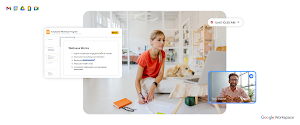
Unlock Your Potential: A Beginner's Guide to Google Workspace Productivity
Hey there, future productivity ninja!
Ever feel like you're drowning in emails, struggling to keep track of deadlines, and generally just wishing there were more hours in the day? You're not alone! We've all been there. Juggling multiple projects, trying to collaborate effectively, and attempting to maintain some semblance of work-life balance can feel like an impossible feat. It's like trying to herd cats, each with its own agenda and a penchant for chaos. You know, that feeling when your inbox is overflowing, your calendar is a colorful explosion of conflicting appointments, and you're pretty sure you just promised to do something you have absolutely no recollection of agreeing to? Yep, we've all been there.
And let's be honest, sometimes it feels like technology is conspiring against us. We're promised seamless collaboration and instant communication, but instead, we get endless email chains, version control nightmares, and the dreaded "reply all" fiasco. It's enough to make you want to throw your computer out the window and retreat to a deserted island with nothing but a hammock and a good book. But fear not, my friend! There's a better way. A way to tame the chaos, reclaim your time, and actually get things done without losing your sanity.
That way is Google Workspace. Now, I know what you might be thinking: "Another productivity tool? Ugh." But trust me, Google Workspace is different. It's not just a collection of apps; it's an ecosystem designed to streamline your workflow and boost your productivity. Think of it as your digital command center, where you can manage your emails, create documents, collaborate with colleagues, and stay organized – all in one place. And the best part? It's incredibly user-friendly, even for beginners.
In fact, you’re probably already familiar with some of the individual apps, like Gmail, Google Docs, and Google Calendar. But the real magic happens when you start using them together, seamlessly integrated, to create a powerful productivity powerhouse. It's like discovering that your favorite ingredients can be combined to make an even more delicious dish. Suddenly, everything just works better together.
Imagine this: you're working on a project proposal with your team. Instead of emailing drafts back and forth, you can all collaborate on the same Google Doc in real-time, leaving comments and suggestions as you go. Your schedule changes? No problem. Just update your Google Calendar, and everyone on your team will be automatically notified. Need to have a quick meeting? Hop on a Google Meet call, share your screen, and get everyone on the same page in minutes. See? No more endless email threads, no more version control headaches, just smooth, efficient collaboration.
Think about it: how much time do you currently waste searching for files, trying to schedule meetings, or dealing with communication breakdowns? All that wasted time adds up. It's like throwing money down the drain. But with Google Workspace, you can reclaim those precious minutes and put them towards things that actually matter, like completing your projects, spending time with loved ones, or simply relaxing and recharging.
This isn't just about being more productive at work, although that's a definite perk. It's about creating a more balanced and fulfilling life. When you're in control of your time and your workflow, you feel less stressed, more focused, and more empowered. You have the energy to pursue your passions, connect with loved ones, and live life to the fullest.
So, are you ready to ditch the chaos and unlock your productivity potential? In this guide, we'll walk you through the basics of Google Workspace, showing you how to use its key features to streamline your workflow, boost your collaboration, and reclaim your time. We'll start with the fundamentals and gradually build your skills, so you can become a Google Workspace master in no time. By the end of this guide, you'll be amazed at how much you can accomplish with this powerful suite of tools. Ready to dive in and transform the way you work and live?
Mastering Google Workspace: Your Path to Peak Productivity
Alright, friends, let's get down to business! We're going to explore the core components of Google Workspace and how you can use them to revolutionize your productivity. Think of this as your personal Google Workspace boot camp, where you'll learn the skills and strategies you need to conquer your to-do list and achieve your goals.
Gmail: Taming the Email Beast
Let's face it, email can be a monster. It can devour your time, clutter your mind, and leave you feeling overwhelmed and stressed. But with Gmail, you can tame the email beast and transform it from a source of anxiety into a powerful communication tool. Here's how:
•Mastering the Inbox:Learn to use filters, labels, and multiple inboxes to organize your emails and prioritize what's important. Think of filters as your personal email sorters, automatically routing messages to the right place. Labels are like virtual sticky notes, helping you categorize and find emails quickly. And multiple inboxes allow you to create separate sections for different types of emails, such as urgent tasks, social updates, or project updates. This is your first line of defense against the email deluge!
•Smart Compose and Smart Reply:These AI-powered features can save you tons of time by suggesting phrases and responses as you type. Smart Compose anticipates what you're going to say next, while Smart Reply offers quick, pre-written responses to common emails. It's like having a personal assistant who's always ready to help you craft the perfect message. Imagine how much time you'll save not having to type "Thank you for your email" for the millionth time!
•Scheduling Emails:Need to send an email at a specific time? No problem! Gmail allows you to schedule emails to be sent later, so you can write them now and send them when they're most likely to be seen. This is especially useful if you're working across different time zones or want to avoid sending emails during off-hours. You can write that email at 2 AM and schedule it to send at 9 AM so you look like you have your life together.
•Unsubscribe with Ease:Tired of receiving unwanted emails? Gmail makes it easy to unsubscribe from mailing lists with just a few clicks. Simply click the "Unsubscribe" link at the top of the email, and you're done. This is a great way to declutter your inbox and reduce the amount of spam you receive. Keep your inbox clean and your mind clear!
Google Docs: Collaborative Document Creation
Say goodbye to version control nightmares and endless email chains! Google Docs makes it easy to create, edit, and collaborate on documents in real-time with anyone, anywhere. Here's how to unlock its full potential:
•Real-Time Collaboration:Multiple people can work on the same document simultaneously, seeing each other's changes as they happen. This is a game-changer for team projects, brainstorming sessions, and collaborative writing. No more emailing drafts back and forth!
•Commenting and Suggesting:Leave comments and suggestions directly in the document, providing feedback and guidance to your collaborators. This makes it easy to track changes and ensure everyone is on the same page. It's like having a virtual editor who's always available to help you improve your writing.
•Version History:Track every change made to the document and revert to previous versions if needed. This is a lifesaver if you accidentally delete something or want to go back to an earlier draft. No more fearing accidental changes!
•Templates Galore:Get a head start on your documents with a wide variety of pre-designed templates, from resumes and cover letters to reports and presentations. This can save you tons of time and effort, especially if you're not a design expert. Let Google do the design work for you!
Google Sheets: Data Analysis and Organization
Google Sheets is a powerful spreadsheet program that can help you organize your data, analyze trends, and create insightful visualizations. Here's how to master its key features:
•Formulas and Functions:Use formulas and functions to perform calculations, analyze data, and automate tasks. Google Sheets offers a wide range of built-in formulas, from simple arithmetic to complex statistical analysis. This is where you can really unleash the power of spreadsheets!
•Charts and Graphs:Create charts and graphs to visualize your data and communicate your findings effectively. Google Sheets offers a variety of chart types, from bar charts and pie charts to line graphs and scatter plots. Turn boring data into engaging visuals.
•Data Validation:Ensure the accuracy and consistency of your data by using data validation rules. This can prevent errors and make your spreadsheets more reliable. It's like having a built-in data quality control system.
•Collaborative Spreadsheets:Just like Google Docs, Google Sheets allows you to collaborate with others in real-time, sharing data and insights with your team. This is a great way to work together on budgets, project plans, and other data-driven projects. Teamwork makes the dream work, even with spreadsheets!
Google Slides: Engaging Presentations
Create stunning presentations that captivate your audience with Google Slides. Here's how to make your presentations stand out:
•Templates and Themes:Choose from a variety of pre-designed templates and themes to create visually appealing presentations. Google Slides offers a wide range of options to suit different styles and topics. Don't start from scratch, let Google help you with the design.
•Animations and Transitions:Add animations and transitions to make your presentations more dynamic and engaging. Use them sparingly, though, to avoid distracting your audience. A little bit of animation can go a long way!
•Collaboration and Sharing:Collaborate with others on your presentations in real-time, sharing ideas and feedback. This is a great way to ensure your presentations are polished and effective. Two heads are better than one, especially when it comes to presentations.
•Present to Google Meet:Present your Google Slides directly to a Google Meet call. Perfect for remote and hybrid presentations.
Google Calendar: Time Management Mastery
Take control of your schedule and stay organized with Google Calendar. Here's how to use it effectively:
•Scheduling Events:Schedule events, appointments, and reminders in your calendar, making sure you never miss an important deadline. Set reminders to ensure you stay on track. No more double-booking or forgetting important meetings!
•Sharing Calendars:Share your calendar with others, allowing them to see your availability and schedule meetings with you easily. This is a great way to coordinate schedules with your team, family, or friends.
•Multiple Calendars:Create multiple calendars for different aspects of your life, such as work, personal, and family. This allows you to keep your schedule organized and avoid conflicts. Keep work and life separate, but easily viewable.
•Integrate with Other Apps:Integrate Google Calendar with other apps, such as Gmail, Google Meet, and other productivity tools. This allows you to seamlessly manage your schedule and stay on top of your tasks.
Google Meet: Seamless Video Conferencing
Connect with your colleagues, clients, and friends from anywhere in the world with Google Meet. Here's how to make the most of your video conferences:
•Joining Meetings:Join meetings easily with just a click of a link. No more fumbling with complicated dial-in numbers or meeting codes.
•Screen Sharing:Share your screen with others, allowing them to see what you're working on. This is great for presentations, demonstrations, and collaborative problem-solving.
•Chat and Q&A:Use the chat and Q&A features to communicate with other participants during the meeting. This is a great way to ask questions, share links, and provide feedback.
•Record Meetings:Record meetings to review later or share with those who couldn't attend. This is a great way to capture important information and ensure everyone is on the same page.
By mastering these key features of Google Workspace, you can transform the way you work and live. You'll be more organized, more efficient, and more productive, allowing you to achieve your goals and live a more fulfilling life.
Unlocking Efficiency: Pro Tips and Tricks
Now that you've got the basics down, let's dive into some pro tips and tricks that will take your Google Workspace skills to the next level. These are the secrets that seasoned users swear by, and they can save you even more time and effort.
•Keyboard Shortcuts:Learn the keyboard shortcuts for your favorite Google Workspace apps. This can save you countless clicks and dramatically speed up your workflow. For example, in Gmail, you can use "c" to compose a new email, "r" to reply, and "f" to forward. Mastering these shortcuts is like unlocking a secret superpower!
•Offline Access:Access your Google Docs, Sheets, and Slides even when you're offline. This is a lifesaver when you're traveling or working in areas with poor internet connectivity. Simply enable offline access in your Google Drive settings, and you're good to go.
•Explore Add-ons and Extensions:Enhance your Google Workspace experience with a wide variety of add-ons and extensions. These tools can add extra functionality to your apps, such as grammar checking, project management, and social media integration. The Google Workspace Marketplace is a treasure trove of productivity-boosting tools.
•Voice Typing:Use voice typing to dictate your documents and emails. This can be a great way to save time and effort, especially if you're a fast talker. Simply click the microphone icon in Google Docs or Gmail and start speaking.
•Integrate with Third-Party Apps:Connect Google Workspace with your other favorite apps, such as Slack, Trello, and Asana. This allows you to streamline your workflow and keep all your information in one place. The more integrated your tools are, the more productive you'll be.
•Custom Notifications:Configure custom notifications in Gmail and Google Calendar to stay informed about important events and emails. This can help you avoid missing deadlines or overlooking critical information. Tailor your notifications to your specific needs and priorities.
•Use Google Keep for Quick Notes: Capture ideas, to-do lists, and reminders with Google Keep. This is a great way to stay organized and keep track of your thoughts. Think of it as your digital notepad, always at your fingertips.
•Take Advantage of Smart Features:Make use of the smart features in Google Workspace, such as Smart Fill in Google Sheets and Explore in Google Docs. These features can help you automate tasks, analyze data, and discover new insights. Let Google's AI do some of the work for you!
•Create Reusable Templates:Design your own custom templates for frequently used documents and spreadsheets. This can save you tons of time and effort in the long run. Why reinvent the wheel every time you need to create a report or proposal?
•Practice and Experiment:The best way to master Google Workspace is to practice and experiment. Don't be afraid to try new things and explore different features. The more you use it, the more comfortable and confident you'll become.
Common Questions about Google Workspace
Alright, let's tackle some common questions that often pop up when people are getting started with Google Workspace.
•Question:Is Google Workspace really worth the cost? I'm already using free tools.
•Answer:That's a fair question! While there are free alternatives, Google Workspace offers a level of integration, collaboration, and security that's hard to match. The time savings and productivity gains often outweigh the cost, especially for businesses and teams. Think of it as an investment in your efficiency and peace of mind.
•Question:Is Google Workspace difficult to learn? I'm not very tech-savvy.
•Answer:Not at all! Google Workspace is designed to be user-friendly, even for beginners. The interface is intuitive, and there are tons of online resources available to help you get started. Plus, we've covered a lot of the basics in this guide! Just take it one step at a time, and you'll be surprised at how quickly you pick it up.
•Question:Can I use Google Workspace on my phone or tablet?
•Answer:Absolutely! Google Workspace has mobile apps for all its core services, allowing you to access your emails, documents, and calendar from anywhere. This is a great way to stay productive on the go.
•Question:How secure is Google Workspace? I'm concerned about my data.
•Answer:Google takes security very seriously. Google Workspace includes a range of security features, such as two-factor authentication, data encryption, and advanced threat protection. You can also control who has access to your data and set granular permissions.
Final Thoughts: Embrace the Power of Google Workspace
Wow, we've covered a lot of ground! You've learned the fundamentals of Google Workspace, discovered pro tips and tricks, and even tackled some common questions. You're well on your way to becoming a Google Workspace productivity master!
Remember, Google Workspace is more than just a collection of apps; it's a powerful ecosystem that can transform the way you work and live. By embracing its features and integrating it into your daily routine, you can streamline your workflow, boost your collaboration, and reclaim your time.
But knowledge is only half the battle. The real magic happens when you put what you've learned into practice. So, I encourage you to take action today! Start by implementing just one or two of the strategies we've discussed in this guide. Maybe it's setting up filters in Gmail, creating a shared Google Doc with your team, or scheduling your meetings in Google Calendar. Whatever you choose, take that first step and start experiencing the power of Google Workspace for yourself.
And don't be afraid to experiment and explore. Google Workspace is a vast and versatile tool, and there's always something new to discover. So, dive in, play around, and find what works best for you. The more you use it, the more comfortable and confident you'll become.
Ultimately, Google Workspace is about more than just productivity; it's about empowering you to achieve your goals and live a more fulfilling life. When you're in control of your time and your workflow, you're free to focus on what truly matters: your passions, your relationships, and your overall well-being.
So, go forth and conquer your to-do list! Embrace the power of Google Workspace and unlock your full potential. The world is waiting for you to share your talents and make a difference. And remember, even the smallest step forward is a step in the right direction. Are you ready to take that step?

Post a Comment for "Beginner’s Guide to Google Workspace Productivity"
Post a Comment