Step-by-Step Guide to Creating Facebook Pixel Events
Unlock Your Facebook Ad Potential: A Step-by-Step Guide to Creating Pixel Events
Hey there, marketing friend! Ever feel like your Facebook ads are shouting into the void? Like you're tossing money into a wishing well and hoping something,anything, comes back? We've all been there. It's like throwing a party and not knowing if anyone actually showed up, or if they just ate all the snacks and left without saying goodbye. Annoying, right?
The truth is, running successful Facebook ads isn't just about having a pretty picture and clever copy (although those definitely help!). It's about understanding what your audience is actually doing. Are they clicking on your ads? Are they adding products to their cart? Are they abandoning those carts like they're full of last week's leftovers? Knowing this stuff is crucial. Without it, you're basically flying blind. You’re guessing instead of knowing, and in the world of online advertising, guessing is a quick way to burn through your budget faster than you can say "return on investment."
Think of it this way: imagine you own a bakery. You put up a sign outside, hoping people will come in and buy your delicious pastries. But what if you could actually see who walks through the door, what they look at, and what they ultimately purchase? That's the power of the Facebook Pixel and, more specifically, the events you set up within it.
Now, some of you might be thinking, "Pixel events? Sounds complicated!" And I get it. The world of digital marketing can feel like navigating a labyrinth built by a committee of robots. But trust me, setting up pixel events is easier than you think. It's like following a recipe – just follow the steps, and you'll be baking up some seriously insightful data in no time. Data that will transform your advertising from a shot in the dark to a laser-focused campaign that delivers results. Imagine knowing exactly which ad is driving the most sales, which landing page is converting the best, and which audience segment is most likely to become a loyal customer. That's the power you unlock with pixel events.
So, what if I told you that you could track all this valuable information and use it to optimize your campaigns for maximum impact? What if you could retarget those cart abandoners with a special offer, reminding them of that irresistible item they almost bought? What if you could create lookalike audiences based on your best customers, finding even more people who are likely to convert? Sounds pretty good, doesn't it? That's exactly what we're going to dive into. Forget the confusion and overwhelm; we're breaking down the process into simple, actionable steps. Get ready to transform your Facebook ads and watch your ROI soar. Are you ready to finally understand what's happening with your Facebook ads and start seeing real results? Let’s get started!
Step-by-Step Guide to Creating Facebook Pixel Events
Alright, friends, let’s ditch the guesswork and get down to the nitty-gritty of creating Facebook Pixel events. Think of this as your personal roadmap to Facebook ad success. We're going to take it one step at a time, so even if you're a complete beginner, you'll be able to follow along. Ready to turn your pixel into a powerful tracking machine? Let’s dive in!
• First you need to install the Facebook Pixel on your website.
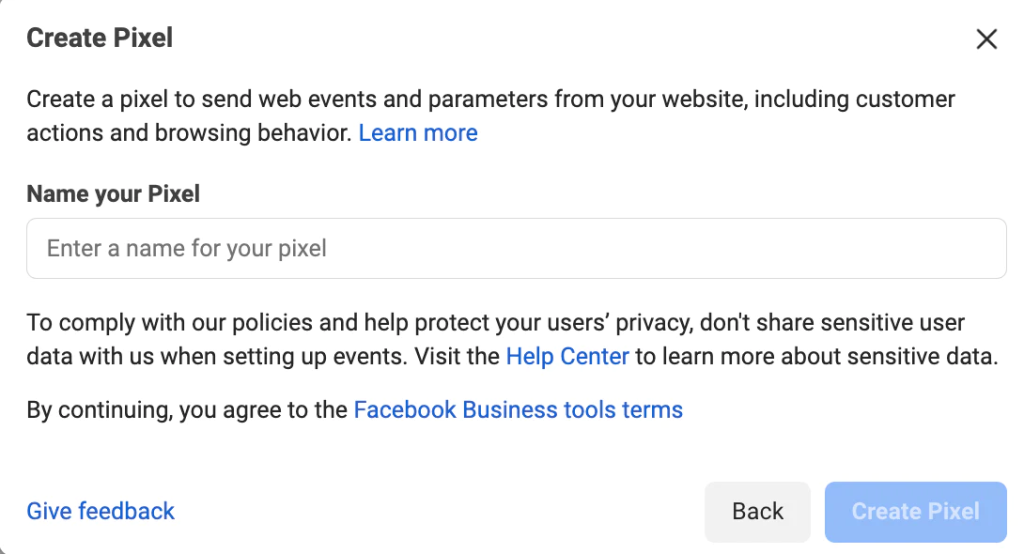
Before you can track anything, you need to make sure the Facebook Pixel is actually installed on your website. Think of it as planting the seed before you can harvest the crop. If you haven't done this yet, don't worry – it's easier than you might think. This involves grabbing the pixel code from your Facebook Ads Manager and adding it to the header section of your website. Most website platforms like Word Press, Shopify, and Squarespace have plugins or built-in integrations that make this process super simple. If you're using a different platform, you might need to manually add the code. Facebook provides detailed instructions for each platform, so just follow their guide. Make sure the pixel is firing correctly before you move on to the next step. You can use the Facebook Pixel Helper Chrome extension to verify this – it’s a lifesaver!
• Plan Your Events
Before diving into the technical stuff, let’s do some planning! What actions are most important to track on your website? These are the events you'll want to create. Common events include things like:
Adding a product to the shopping cart.
Initiating checkout.
Making a purchase.
Viewing a specific content page.
Subscribing to a newsletter.
Downloading a resource (like an ebook or guide).
Think about your business goals and identify the key actions that lead to those goals. This will help you prioritize which events to set up first. For example, if your goal is to increase sales, you'll definitely want to track "Add to Cart," "Initiate Checkout," and "Purchase" events. This will provide invaluable data on your customer journey and help you identify any bottlenecks in your sales funnel.
• Access Facebook Events Manager
Now that you've got your pixel installed and you know what events you want to track, it’s time to head over to Facebook Events Manager. This is where the magic happens. To get there, go to your Facebook Ads Manager and look for the "Events Manager" option in the menu. It might be hidden under the "All Tools" section. Once you're in Events Manager, you should see your pixel listed. Click on it to access the pixel's dashboard.
• Choose Your Event Creation Method
Facebook offers a few different ways to create events, each with its own pros and cons. Here’s a quick rundown:
Facebook's Event Setup Tool: This is a visual tool that allows you to create events by clicking on elements on your website. It's super user-friendly and doesn't require any coding knowledge. Perfect for beginners!
Manual Code Implementation: This method involves adding custom code snippets to your website to trigger specific events. It offers more flexibility and control but requires some coding skills.
Using Partner Integrations: If you're using a platform like Shopify or Woo Commerce, you can often use their built-in Facebook integrations to automatically track events. This is the easiest option for those platforms.
The best method for you will depend on your technical skills and the platform you're using. For beginners, the Event Setup Tool is usually the best place to start.
• Using the Event Setup Tool (No Code Required!)
Let’s walk through how to use the Event Setup Tool. This is probably the easiest way to create events if you're not comfortable with code.
Open the Event Setup Tool: In Events Manager, click on "Set Up Events" and then select "Using the Event Setup Tool."
Enter Your Website URL: Enter the URL of your website and click "Open Website." This will open your website in a new window with the Event Setup Tool overlay.
Track New Button: Click on the "Track New Button" if you want to track an event that is triggered by a button click.
Select the Button: Find the button on your website that you want to track (e.g., "Add to Cart," "Sign Up," "Download"). Click on it.
Choose an Event: Facebook will prompt you to choose an event category that best describes the action. Select the appropriate event (e.g., "Add to Cart," "Lead," "Purchase").
Confirm: Confirm your event selection and you're done!
Track URL: Click on the "Track URL" button if you want to track the page visit event.
Enter Your URL: Enter the URL of your page.
Choose an Event: Facebook will prompt you to choose an event category that best describes the action. Select the appropriate event (e.g., "View Content," "Landing Page Views").
Confirm: Confirm your event selection and you're done!
That’s it! The Event Setup Tool will automatically track clicks on that button and record them as the event you selected. It's super simple and doesn't require any coding knowledge.
• Manual Code Implementation (For the Tech-Savvy)
If you're comfortable with code, you can use manual code implementation to create more custom and complex events. This gives you more control over how events are tracked and allows you to pass additional data along with the event (like the product ID or the value of the purchase).
Add the Code Snippet: You'll need to add a small code snippet to your website's HTML code. This snippet will trigger the event when a specific action occurs. Here's an example of a code snippet for tracking a purchase event:
```html
fbq('track', 'Purchase', {
value: 10.00,
currency: 'USD'
});
```
This code tells Facebook to track a "Purchase" event with a value of $10.00 USD.
Customize the Code: You'll need to customize the code snippet to match the specific event you want to track and the data you want to pass along. Refer to Facebook's documentation for a list of available events and parameters.
Implement the Code: Add the code snippet to the appropriate place in your website's code. This might require editing your website's template files or using a plugin.
Testing the Event: After you've implemented the code, it's crucial to test the event to make sure it's firing correctly. You can use the Facebook Pixel Helper Chrome extension to verify that the event is being tracked.
Manual code implementation requires some technical skills, but it offers a lot more flexibility and control over your event tracking. If you're not comfortable with code, stick to the Event Setup Tool or consider hiring a developer to help you out.
• Verify and Test Your Events
Alright, you've created your events – awesome! But don't celebrate just yet. It's crucial to verify that your events are actually working correctly. Nothing’s worse than thinking you’re tracking everything perfectly, only to find out later that your data is completely wrong.
Use the Facebook Pixel Helper: The Facebook Pixel Helper Chrome extension is your best friend for testing your events. Install it if you haven't already. Visit your website and trigger the events you've created (e.g., add a product to your cart, initiate checkout, make a purchase). The Pixel Helper will show you which events are firing and whether they're sending the correct data.
Check the Events Manager Dashboard: Go back to the Events Manager dashboard and look for the "Activity" graph. This graph should show you the number of times each event has fired. If you're not seeing any activity, double-check your code and make sure the pixel is installed correctly.
Test Different Browsers and Devices: It's a good idea to test your events on different browsers (Chrome, Firefox, Safari) and devices (desktop, mobile) to ensure they're working consistently across all platforms.
Troubleshooting: If you're having trouble with your events, don't panic! Start by double-checking your code for errors. Make sure you've followed Facebook's instructions correctly and that you're using the correct event names and parameters. If you're still stuck, try searching online for solutions or asking for help in a Facebook advertising forum.
Testing and verification are crucial steps in the event creation process. Don't skip them! By ensuring that your events are working correctly, you'll be able to collect accurate data and optimize your campaigns for maximum impact.
• Using Events for Optimization and Retargeting
Okay, you've got your pixel installed, your events are firing correctly, and you're collecting data. Now what? The real power of pixel events comes from how you use them to optimize your campaigns and retarget your audience.
Create Custom Audiences: One of the most powerful things you can do with pixel events is to create custom audiences based on specific actions people have taken on your website. For example, you can create an audience of people who have added a product to their cart but haven't completed the purchase. This is a prime audience for retargeting with a special offer or reminder.
Retargeting Ads: Once you've created your custom audiences, you can use them to target your retargeting ads. Show those cart abandoners an ad featuring the product they left behind, along with a discount code to sweeten the deal. You can also create ads that are tailored to specific actions, like showing people who viewed a particular product a different ad than people who viewed a different product.
Optimize for Conversions: Facebook allows you to optimize your campaigns for specific conversion events. This means that Facebook will show your ads to people who are most likely to take the desired action (e.g., make a purchase, fill out a form, download a resource). By optimizing for conversion events, you can significantly improve the performance of your campaigns.
Create Lookalike Audiences: Lookalike audiences are one of Facebook's most powerful targeting tools. They allow you to find new people who are similar to your existing customers. You can create a lookalike audience based on your best customers (e.g., people who have made multiple purchases or spent a significant amount of money on your website). Facebook will then find other people who share similar demographics, interests, and behaviors.
Pixel events are the key to unlocking the full potential of Facebook advertising. By tracking specific actions on your website and using that data to create custom audiences, retarget your audience, optimize for conversions, and create lookalike audiences, you can significantly improve the performance of your campaigns and drive more sales.
These aren't just abstract concepts, friend. This is about real results you can see in your bottom line. Think about it: showing ads to people who have already shown interest in your products or services is infinitely more effective than showing ads to a cold audience who has never heard of you before. Pixel events allow you to do just that. They give you the power to target the right people, with the right message, at the right time.
• Stay Compliant with Privacy Regulations
With great power comes great responsibility. As you start tracking events on your website, it's crucial to stay compliant with privacy regulations like GDPR and CCPA. These regulations give users more control over their data and require you to be transparent about how you're collecting and using it.
Obtain Consent: Make sure you have a clear and concise privacy policy that explains how you're using the Facebook Pixel and collecting data. You may also need to obtain explicit consent from users before tracking their activity, especially if you're targeting users in Europe.
Provide Transparency: Be transparent about how you're using the data you collect. Let users know that you're using the Facebook Pixel to track their activity and that you're using that data to personalize their experience and show them relevant ads.
Allow Users to Opt Out: Give users the option to opt out of tracking. You can do this by providing a link to Facebook's ad preferences page, where users can customize their ad settings.
Stay Up-to-Date: Privacy regulations are constantly evolving, so it's important to stay up-to-date on the latest changes and make sure your tracking practices are compliant.
Compliance with privacy regulations is not just a legal requirement, it's also a matter of building trust with your audience. By being transparent and respectful of users' privacy, you can build stronger relationships and create a more positive brand image.
FAQ: Facebook Pixel Events
Here are some frequently asked questions about Facebook Pixel events:
• What is the difference between standard events and custom events?
Standard events are predefined events that Facebook recognizes (e.g., Purchase, Lead, Add To Cart). Custom events are events that you define yourself to track specific actions that aren't covered by standard events. For example, you might create a custom event to track when someone clicks on a specific button or views a specific video. Standard events are easier to set up and use, while custom events offer more flexibility.
• How many pixel events should I create?
There's no magic number, but it's generally best to focus on tracking the events that are most important to your business goals. Start with the key events that lead to conversions (e.g., Add To Cart, Initiate Checkout, Purchase) and then add more events as needed. Avoid creating too many events, as this can make your data difficult to manage.
• Can I track events on multiple websites with the same pixel?
Yes, you can use the same pixel to track events on multiple websites. However, it's important to make sure that you're using the correct event names and parameters for each website. You can also use different pixel IDs for different websites if you want to keep your data separate.
• How long does it take for event data to show up in Facebook Ads Manager?
Event data typically shows up in Facebook Ads Manager within a few minutes. However, it can sometimes take longer, especially if you're tracking a large number of events. If you're not seeing any data after a few hours, double-check your code and make sure the pixel is installed correctly.
Conclusion
So, there you have it, friends! A comprehensive step-by-step guide to creating Facebook Pixel events. We've covered everything from installing the pixel to creating custom audiences and optimizing your campaigns. Hopefully, this has demystified the process and shown you just how powerful pixel events can be for your Facebook advertising efforts.
Remember, the key to success with Facebook ads is to understand your audience and track their behavior on your website. Pixel events give you the insights you need to do just that. By using this data to optimize your campaigns and retarget your audience, you can significantly improve your ROI and drive more sales.
Now it’s your turn. Don't just read this guide and forget about it. Take action! Go to your Facebook Ads Manager, install the pixel (if you haven't already), and start creating events. Experiment with different events, audiences, and ad creatives. Track your results and make adjustments as needed. The more you experiment, the better you'll become at using pixel events to achieve your business goals.
Ready to unlock the full potential of your Facebook ads? Start creating pixel events today and watch your ROI soar. What are you waiting for? Go out there and make some magic happen!

Post a Comment for "Step-by-Step Guide to Creating Facebook Pixel Events"
Post a Comment