Step-by-Step Guide to Using WordPress Gutenberg Editor
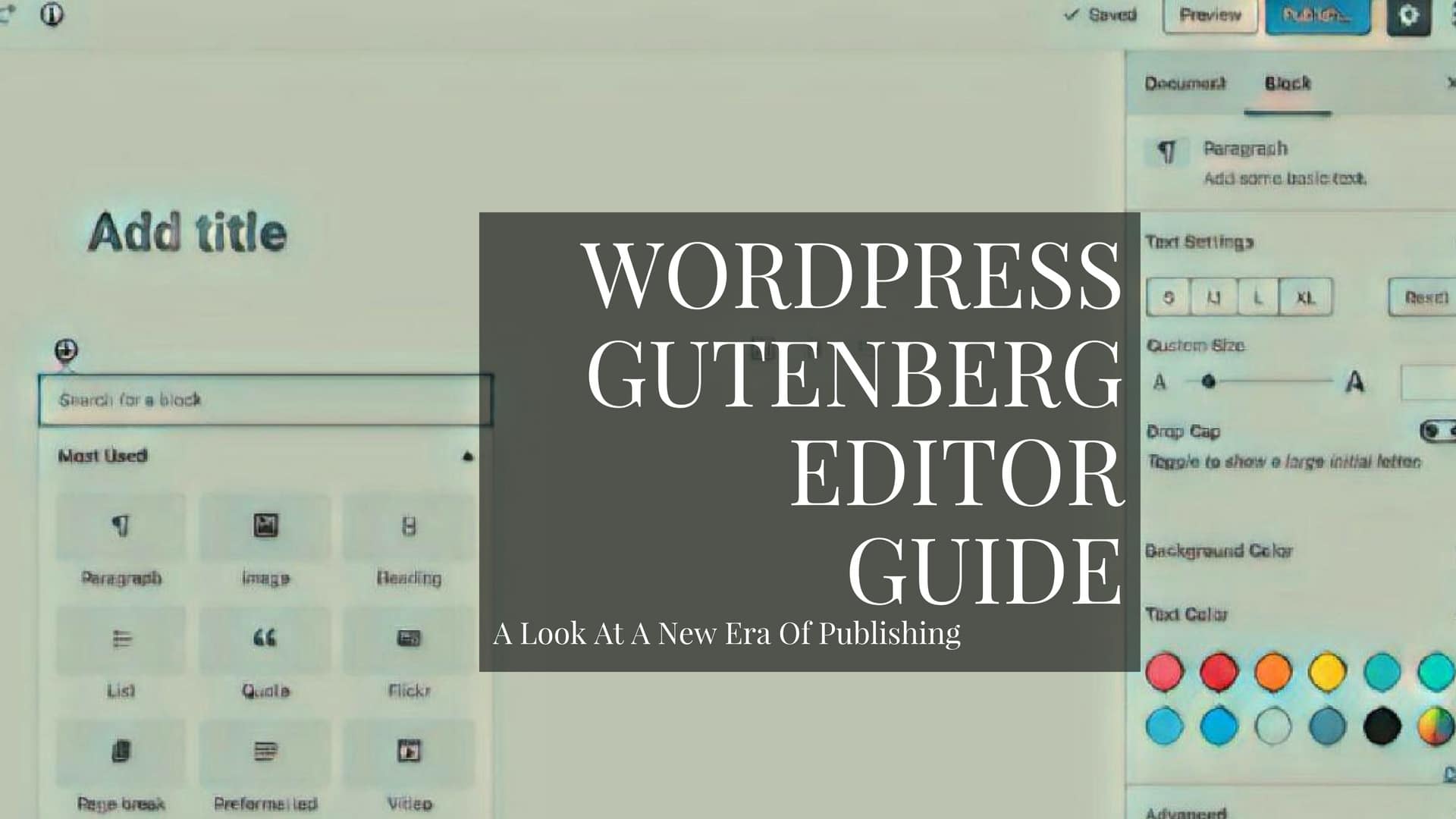
Unlocking Word Press Magic: A Step-by-Step Guide to Mastering the Gutenberg Editor.
Hey there, fellow Word Press enthusiasts! Ever feel like wrestling a digital octopus when trying to make your blog post lookjust right? We've all been there. You’ve got this brilliant idea, this masterpiece of internet prose brewing in your mind, but then… BAM! The editor fights you every step of the way. Margins are off, images refuse to align, and suddenly your perfectly crafted words look like they’ve been thrown into a digital blender. Ugh.
Is Word Press Gutenberg Editor Really That Hard?
Let's be honest, for years, Word Press was the cool kid on the block. Everyone wanted to hang out, building websites with its relatively simple classic editor. Then, along came Gutenberg, promising a revolutionary block-based experience. Suddenly, the friendly, familiar interface morphed into something…different. Some welcomed the change with open arms, praising the flexibility and control it offered. Others? Well, let's just say there were a few (okay, a LOT) of grumbles about the learning curve. We feel you!
The problem wasn't that Gutenberg was inherently bad. In fact, it’s incredibly powerful! It's just that it requires a different way of thinking about content creation. No longer were we bound by the rigid constraints of the old editor. Instead, we were presented with a blank canvas and a toolbox full of…blocks. Each block representing a different element of your page:paragraphs, images, headings, videos, you name it.
For some, this was liberating. For others, it felt like being handed a set of LEGO bricks with no instructions. (And who actually reads instructions anyway, right?). The result? Frustration, confusion, and a desperate longing for the simplicity of the classic editor. But here’s the thing: Gutenberg doesn't have to be scary. It doesn’t have to be a source of late-night website-induced stress. In fact, once you get the hang of it, it can actually be…dare we say…fun?
Imagine being able to create stunning, visually engaging pages with ease. Picture yourself effortlessly arranging content, adding multimedia elements, and crafting a website that truly reflects your brand. That’s the promise of Gutenberg. And trust us, it's a promise worth exploring. Think of it like upgrading from a bicycle to a sports car. Sure, there are a few more buttons and gadgets to learn, but once you master them, you’ll be cruising in style.
Why Mastering Gutenberg is Essential for Modern Word Press Users
In today's digital landscape, a visually appealing and engaging website is no longer a luxury—it's a necessity. Users have shorter attention spans than ever before, and they expect a seamless and intuitive browsing experience. If your website looks outdated or clunky, you're likely to lose potential customers or readers in a matter of seconds.
Gutenberg empowers you to create that engaging experience. With its drag-and-drop interface and vast library of blocks, you can easily build beautiful, responsive pages that capture your audience's attention. No more struggling with complex code or relying on expensive developers. You have the power to create a professional-looking website, all by yourself.
And it's not just about aesthetics. Gutenberg also improves your website's SEO (Search Engine Optimization). The block-based structure makes it easier for search engines to understand your content, which can boost your rankings in search results. Plus, with the right plugins, you can optimize each block for specific keywords, further enhancing your SEO efforts.
So, how do you conquer this beast? How do you go from Gutenberg newbie to Word Press wizard? That's where we come in. We've created this step-by-step guide to demystify the Gutenberg editor and help you unlock its full potential. We'll walk you through everything from the basics of blocks to advanced layout techniques, providing practical tips and tricks along the way. Are you ready to transform your Word Press experience and build the website of your dreams?
Step-by-Step Guide to Mastering the Gutenberg Editor
Alright, friends, let’s dive into the wonderful world of Gutenberg! Forget the intimidation factor; we're going to break this down into easy-to-digest steps. Think of this as your personal Gutenberg guru, guiding you from newbie to pro.
•Understanding the Gutenberg Interface:First things first, let's get acquainted with the layout. When you open a new post or page, you'll see a clean, uncluttered screen. At the top, you have your standard Word Press toolbar with options like "Add Block," "Undo," "Redo," and "Save Draft." On the right, you'll find the settings sidebar, where you can customize various aspects of your content. The main area is your canvas, where you'll be adding and arranging your blocks. Get comfortable with this view; it's going to be your new creative playground!
•Adding Your First Block:This is where the magic begins! Click the "+" button (either at the top or within the content area) to open the block library. You'll see a wide array of options, from simple paragraphs and headings to more complex elements like images, videos, and galleries. Let's start with a paragraph. Click on the "Paragraph" block, and a text area will appear on your canvas. Start typing! You can format your text using the toolbar that appears above the block, adjusting things like bolding, italics, and alignment.
•Exploring Essential Blocks: Gutenberg comes with a plethora of blocks to suit virtually any content need. Here are a few must-knows: Heading: Use this to create titles and subheadings, structuring your content for readability. Remember to use appropriate heading levels (H1, H2, H3, etc.) for SEO purposes.
Image: Add visuals to your posts and pages to break up text and engage your audience. You can upload images directly from your computer or choose from your media library.
Gallery: Showcase multiple images in an organized layout. Gutenberg offers various gallery styles, allowing you to customize the appearance to your liking.
List: Create bulleted or numbered lists to present information in a clear and concise manner.
Quote: Highlight important statements or testimonials with a visually appealing quote block.
Video: Embed videos from You Tube, Vimeo, or other platforms to add dynamic content to your website.
•Customizing Blocks:Each block comes with its own set of customization options, accessible in the settings sidebar on the right. For example, with the "Paragraph" block, you can adjust the font size, text color, and background color. With the "Image" block, you can add alt text, adjust the image size, and link the image to a specific URL. Play around with these settings to achieve the desired look and feel for each block.
•Arranging and Moving Blocks:One of the great things about Gutenberg is the drag-and-drop functionality. You can easily rearrange blocks by clicking and dragging them to different positions on the page. You can also use the arrow icons that appear above each block to move it up or down. Experiment with different layouts to find what works best for your content.
•Utilizing Columns for Layout:Want to create a more dynamic layout? Use the "Columns" block! This allows you to divide your content into multiple columns, creating a visually appealing and organized structure. You can choose from various column layouts, and you can easily adjust the width of each column to suit your needs.
•Leveraging Reusable Blocks:This is a game-changer! If you find yourself using the same block or set of blocks repeatedly, you can save it as a reusable block. This allows you to quickly add the same content to multiple posts and pages, saving you time and effort. To create a reusable block, select the block you want to save, click the three dots in the toolbar, and choose "Add to Reusable Blocks."
•Mastering Block Patterns:Block patterns are pre-designed collections of blocks that you can insert into your content with a single click. They offer a quick and easy way to create visually appealing layouts without having to build everything from scratch. Gutenberg comes with a variety of built-in block patterns, and you can also find many more online.
•Exploring Third-Party Block Plugins: The Gutenberg ecosystem is constantly evolving, with new block plugins being released regularly. These plugins extend the functionality of the editor, adding new blocks and features that can enhance your content creation experience. Some popular block plugins include: Advanced Gutenberg: Adds a wide range of advanced blocks, including tabs, accordions, and progress bars.
Ultimate Addons for Gutenberg: Offers a collection of stylish and customizable blocks, including buttons, headings, and info boxes.
Kadence Blocks: Provides a suite of powerful blocks designed to help you create beautiful and engaging websites.
•Optimizing for Mobile:In today's mobile-first world, it's crucial to ensure that your website looks great on all devices. Gutenberg makes it easy to create responsive layouts that adapt to different screen sizes. When designing your pages, be sure to preview them on mobile devices to ensure that everything looks and functions as expected.
•Understanding the Document Settings:Located on the right-hand side of the editor, the document settings allow you to control various aspects of your post or page, such as the permalink, featured image, categories, and tags. Take the time to configure these settings properly to optimize your content for search engines and improve the user experience.
•Previewing and Publishing:Before you hit that "Publish" button, always preview your post or page to see how it will look to your visitors. Gutenberg allows you to preview your content on desktop, tablet, and mobile devices. Once you're satisfied with the results, go ahead and publish it!
Frequently Asked Questions About Gutenberg
Still have some lingering questions? Don't worry, we've got you covered. Here are some of the most frequently asked questions about Gutenberg, along with clear and concise answers.
Q: Is Gutenberg compatible with all Word Press themes?
A: While Gutenberg is designed to work with most Word Press themes, some older themes may not be fully compatible. If you encounter any issues, try updating your theme or switching to a Gutenberg-ready theme.
Q: Can I switch back to the classic editor?
A: Yes, you can! If you're not a fan of Gutenberg, you can install the "Classic Editor" plugin to revert to the old editor. However, we encourage you to give Gutenberg a try; you might be surprised at how much you like it!
Q: How do I add custom CSS to Gutenberg blocks?
A: You can add custom CSS to individual Gutenberg blocks using the "Advanced" tab in the settings sidebar. This allows you to fine-tune the appearance of your blocks and create unique designs.
Q: Where can I find more Gutenberg tutorials and resources?
A: The Word Press website has a wealth of information about Gutenberg, including tutorials, documentation, and FAQs. You can also find many helpful resources on You Tube and other online platforms.
Conclusion
So, there you have it! A step-by-step guide to mastering the Gutenberg editor. We know it might seem daunting at first, but with a little practice and patience, you'll be creating stunning Word Press content in no time. The key is to embrace the block-based approach, experiment with different blocks and layouts, and don't be afraid to make mistakes. Remember, every website creator starts somewhere, and even the pros were once Gutenberg newbies.
We've covered everything from understanding the interface to leveraging reusable blocks and optimizing for mobile. We've answered some of the most common questions and provided you with a wealth of resources to continue your learning journey. Now it's time to put your newfound knowledge into practice!
The world of Word Press is constantly evolving, but one thing remains constant: the need for engaging, visually appealing content. Gutenberg empowers you to create that content, to tell your story in a way that captures your audience's attention and leaves a lasting impression. Don't let the initial learning curve discourage you. Embrace the challenge, explore the possibilities, and unlock the full potential of the Gutenberg editor.
So, what are you waiting for? Go forth and create! Start building that website you've always dreamed of, craft those blog posts that will inspire and inform, and share your unique voice with the world. The internet is waiting, and we can't wait to see what you create.
Now, go ahead and try creating a simple blog post using the techniques we've discussed. Share your experience in the comments below! What did you find challenging? What surprised you? Let's learn from each other and build a community of Gutenberg masters. And remember, every click, every block, every experiment brings you one step closer to Word Press mastery. You got this!

Post a Comment for "Step-by-Step Guide to Using WordPress Gutenberg Editor"
Post a Comment