How to Use Canva for Designing YouTube Channel Art
Crafting the Perfect You Tube Channel Art with Canva: A Beginner's Guide
Level Up Your You Tube Game: Designing Killer Channel Art with Canva
Hey there, future You Tube superstar! Ever feel like your channel is missing that certainsomething? Like a delicious cake without the frosting? Or a superhero without their snazzy cape? Chances are, my friend, it’s your channel art. Think of your channel art as your You Tube storefront – it’s the first thing people see, and it's what makes a lasting impression. In the crowded digital landscape of You Tube, you only have a few seconds to grab someone's attention. And believe me, a blurry, generic banner isn't going to cut it.
But fear not! You don't need to be a graphic design guru or spend a fortune on fancy software to create eye-catching channel art. Enter Canva, your friendly neighborhood design platform. Canva is like the Swiss Army knife of design tools – it's easy to use, packed with features, and completely free (with some awesome paid upgrades, of course, but more on that later).
Now, you might be thinking, "Okay, Canva sounds great, but is itreallythat easy? I'm no artist!" And to that, I say, trust me! If I, a person who once accidentally set the office printer on fire trying to print a simple flyer, can create stunning channel art with Canva, then you absolutely can too.
We're not talking about Van Gogh-level masterpieces here. We're talking about creating a visually appealing banner that clearly communicates your channel's brand and entices viewers to click that subscribe button. We're talking about turning your channel from a digital ghost town into a bustling online community.
Seriously, think about some of your favorite You Tubers. What’s the first thing that strikes you about their channel? Beyond their captivating content, it’s often the polished, professional look of their channel art. It's a subtle signal that says, "Hey, I'm serious about this. I put effort into my channel, and you should check it out."
And in a world where everyone and their grandma is uploading videos to You Tube, standing out from the crowd is more important than ever. So, ditch the default banner, say goodbye to pixelated images, and get ready to unleash your inner designer. Because today, we're diving headfirst into the wonderful world of Canva and learning how to create channel art that's so good, it'll make your competitors weep with envy.
Ready to transform your You Tube channel from drab to fab? Keep reading, because I’m about to spill all the secrets. Let’s get designing!
Unlocking the Power of Canva:A Step-by-Step Guide to Designing You Tube Channel Art
Alright, friends, let's get down to business. We're going to walk through the entire process of creating stunning You Tube channel art using Canva, step-by-step. Grab your favorite beverage, fire up your laptop, and prepare to unleash your creative genius! I promise it will be easier than you think.
• Step 1: Setting Up Your Canva Account (If You Haven't Already)
Okay, I know this seems super obvious, but we need to cover all the bases! If you're already a Canva pro, feel free to skip ahead. But for those of you who are new to the platform, here’s the deal: head over to Canva.com and sign up for a free account. You can use your Google account, Facebook account, or create a new account with your email address. The free version of Canva is incredibly powerful and will be more than enough for creating amazing channel art. There is a paid version with lots of premium features that might interest you later.
• Step 2: Finding the Perfect You Tube Banner Template
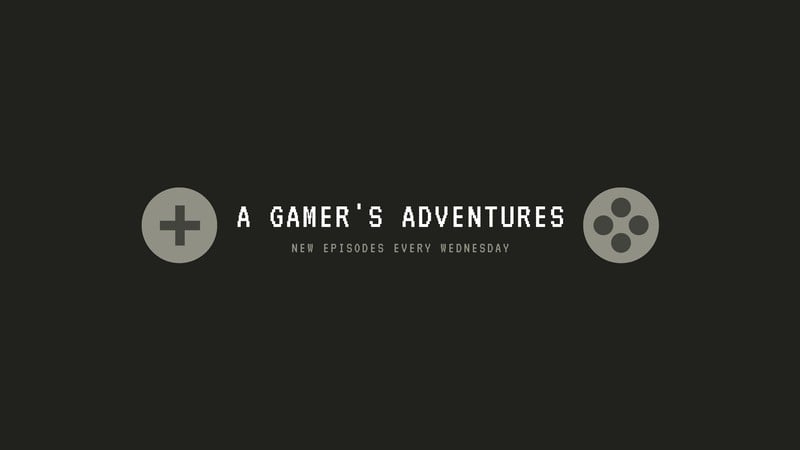
Now for the fun part! Once you're logged in, type "You Tube Channel Art" into the search bar. Canva will present you with a glorious array of pre-designed templates. Think of these as starting points – you don't have to use them exactly as they are, but they can give you a fantastic foundation. Scroll through the options until you find one that resonates with your channel's vibe. Consider your niche, your target audience, and the overall aesthetic you're going for. Are you a gaming channel? Look for something bold and energetic. A cooking channel? Something warm and inviting. A vlogging channel? Maybe something clean and modern.
• Step 3: Understanding the You Tube Channel Art Safe Area
This iscrucial, so listen up! You Tube channel art is displayed differently on different devices (desktops, tablets, and mobile phones). To ensure your important elements (like your channel name and logo) are always visible, you need to design within the "safe area." Canva actually makes this super easy. Many templates will have guides that indicate this safe area.
Think of it like this: the safe area is the sweet spot where your design will look great onalldevices. Anything outside of the safe area might get cropped off on smaller screens. Don't worry if this sounds complicated, Canva has it covered.
To find safe area templates, after searching for "You Tube Channel Art," filter by "Free" and look for templates specifically mentioning "safe area" or "desktop minimum." These templates include guidelines to help you keep important elements within the visible area across all devices.
• Step 4: Customizing Your Template: Unleash Your Inner Designer
Okay, you've chosen a template, you understand the safe area – now it's time to get creative! This is where you truly make the channel art your own. Start by changing the background image. You can upload your own photos, use Canva's vast library of free stock images, or choose a solid color. If you're using a photo, make sure it's high-resolution and relevant to your channel's content. Nobody wants to see a blurry, pixelated image on your banner.
Next, customize the text. Change the font, size, color, and placement of the text to reflect your channel's name and tagline. Use clear, legible fonts that are easy to read, even on smaller screens. Consider adding a call to action, like "Subscribe Now!" or "New Videos Every Week!" to encourage viewers to engage with your channel.
Finally, add your logo or branding elements. If you have a logo, upload it to Canva and place it prominently within the safe area. Use your brand colors throughout the design to create a cohesive and recognizable look. Remember, consistency is key! Your channel art should align with the overall branding of your channel.
• Step 5: Mastering Canva's Design Elements
Canva is packed with design elements that can take your channel art to the next level. Explore the "Elements" tab to find icons, illustrations, shapes, and other graphics that you can add to your design. Use these elements to add visual interest and reinforce your channel's message. For example, if you're a gaming channel, you might add controller icons or character illustrations. If you're a beauty channel, you might add lipstick icons or makeup brushes.
Don't go overboard, though! A cluttered design can be overwhelming and distracting. Aim for a clean, balanced look that is visually appealing without being too busy. Think of it as decorating your home – you want to add personality, but you don't want to cram every single thing you own into one room.
• Step 6: Adding Your Channel Name and Tagline
This is a no-brainer, but it's worth emphasizing. Your channel name should be prominently displayed on your channel art, ideally within the safe area. Choose a font that is easy to read and reflects your channel's personality. Consider adding a tagline that clearly communicates what your channel is all about. For example, "The Best Gaming Tutorials on You Tube" or "Delicious Recipes for the Home Cook." A clear and concise tagline helps viewers understand what to expect from your channel and encourages them to subscribe.
• Step 7: Optimizing Your Design for Different Devices
As we discussed earlier, You Tube channel art is displayed differently on different devices. To ensure your design looks great on all screens, it's a good idea to preview it on a variety of devices. You can use Canva's preview tool to see how your design will look on desktops, tablets, and mobile phones. If you notice any issues (like text being cut off or elements being misplaced), adjust your design accordingly. Remember, the goal is to create a channel art that is visually appealing and informative, regardless of how it's being viewed.
• Step 8: Downloading Your Finished Channel Art
Congratulations, you've created a masterpiece! Now it's time to download your finished channel art. Click the "Download" button in the top right corner of Canva. Choose the "PNG" file format for the best quality. Canva may also suggest JPEG as a smaller size but using PNG ensures your text and graphics remain crisp and clear. Select the correct size – You Tube recommends 2560 x 1440 pixels. This will ensure your channel art looks sharp and professional on all devices. Don't be tempted to shrink the file size too much, as this can result in a loss of quality.
• Step 9: Uploading Your Channel Art to You Tube
The final step! Head over to your You Tube channel and click on "Customize Channel." Then, click on Branding.You'll see an option to upload your channel art. Select the file you downloaded from Canva and upload it to You Tube. You Tube will give you a preview of how your channel art will look on different devices. Adjust the crop if necessary to ensure your important elements are visible. Once you're happy with the preview, click "Publish" to save your changes. And voila! You now have a stunning new You Tube channel art that will impress your viewers and help you grow your channel.
• Step 10: Regularly Update Your Channel Art
Your channel art isn't set in stone. It's important to keep it fresh and relevant to your content. Consider updating your channel art regularly to reflect new themes, promotions, or milestones. For example, you might create special channel art for holidays, anniversaries, or new product launches. Keeping your channel art updated shows your viewers that you're active and engaged with your channel.
Remember, practice makes perfect. The more you use Canva, the more comfortable you'll become with its features and the more creative you'll get with your designs. Don't be afraid to experiment with different templates, colors, fonts, and elements until you find a style that truly represents your channel. And most importantly, have fun! Designing your You Tube channel art should be an enjoyable and rewarding process. So, go forth and create something amazing!
Frequently Asked Questions About Canva and You Tube Channel Art
Got questions? I've got answers! Here are some frequently asked questions about using Canva for designing You Tube channel art.
Q: What are the ideal dimensions for You Tube channel art?
A: The ideal dimensions for You Tube channel art are 2560 x 1440 pixels. This ensures that your banner looks sharp and professional on all devices, from desktops to mobile phones.
Q: What is the "safe area" for You Tube channel art?
A: The "safe area" is the area of your channel art that will be visible on all devices. This area is typically 1546 x 423 pixels and is located in the center of the banner. Make sure to keep your important elements, like your channel name and logo, within this safe area.
Q: Can I use Canva for free to create You Tube channel art?
A: Absolutely! Canva offers a free plan that includes access to thousands of templates, images, and design elements. While there is a paid version with additional features, the free plan is more than enough for creating stunning channel art.
Q: How often should I update my You Tube channel art?
A: It's a good idea to update your channel art regularly to keep it fresh and relevant to your content. Consider updating it for holidays, anniversaries, or new product launches. Aim to update it at least a few times a year to keep your channel looking its best.
Wrapping Up: Your Journey to You Tube Channel Art Mastery Begins Now!
And there you have it, folks! A comprehensive guide to creating killer You Tube channel art with Canva. We've covered everything from setting up your account to optimizing your design for different devices. By now, you should feel confident and empowered to create channel art that truly represents your brand and attracts viewers to your channel.
Remember, your channel art is more than just a pretty picture – it's a crucial element of your overall branding strategy. It's the first impression you make on potential subscribers, and it's a powerful tool for communicating your channel's message.
So, what are you waiting for? It's time to take action! Head over to Canva, choose a template, and start designing your dream channel art today. Don't be afraid to experiment, get creative, and have fun. The possibilities are endless!
I encourage you to share your creations with me. Drop a link to your You Tube channel in the comments below so I can check out your awesome new channel art. Let's support each other and build a community of creative You Tubers!
And remember, building a successful You Tube channel takes time and effort. Don't get discouraged if you don't see results overnight. Keep creating great content, engaging with your audience, and optimizing your channel art. With a little perseverance, you'll be well on your way to You Tube stardom.
So go out there and create something amazing! Your audience is waiting. Now, tell me, what are you most excited to create with Canva for your You Tube channel?

Post a Comment for "How to Use Canva for Designing YouTube Channel Art"
Post a Comment