How to Use Adobe Photoshop to Remove Backgrounds
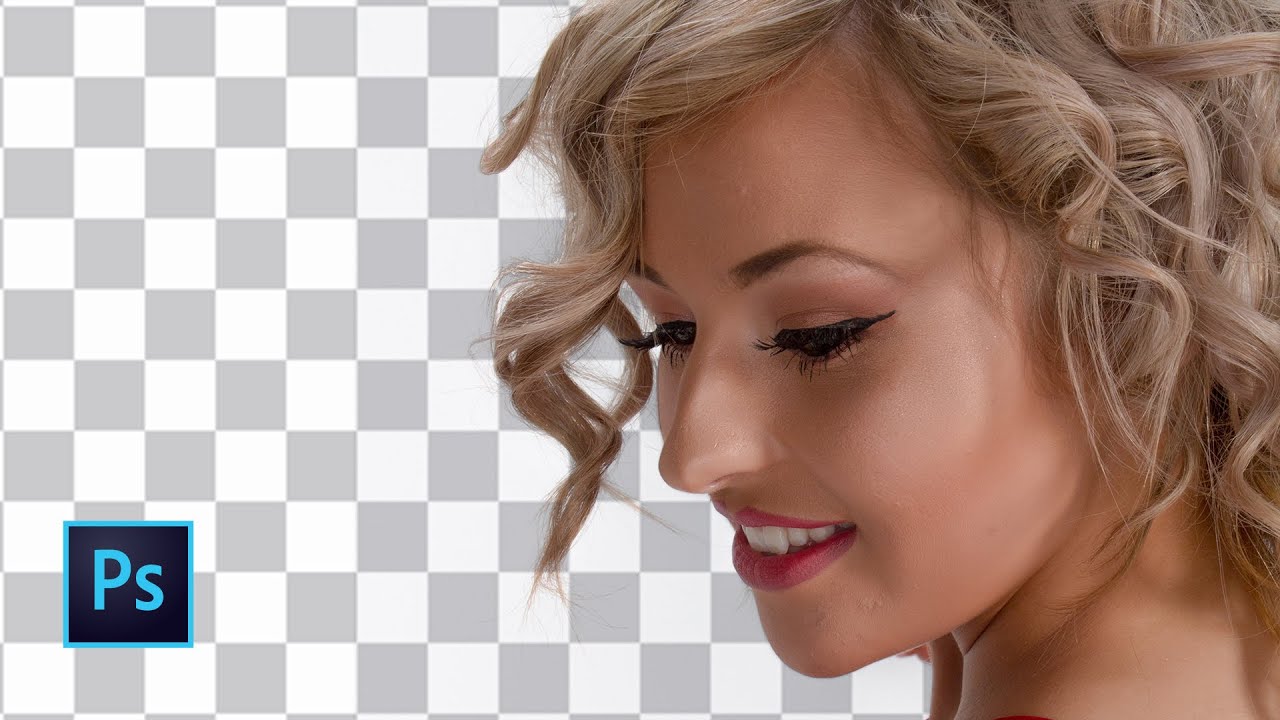
Effortlessly Erase Backgrounds: Mastering Photoshop's Background Removal Tools.
Hey there, friends!
Ever feel like your amazing photo is being held hostage by a boring or distracting background? We've all been there. You've got the perfect pose, the lighting ischef's kiss, but then BAM! The cluttered living room, the photobombing stranger, or just a plain, uninspired wall ruins the whole thing. It’s like ordering a gourmet pizza and getting it delivered in a dumpster – the potential is there, but the presentation is all wrong!
And let's be honest, sometimes you need to remove a background for more than just aesthetic reasons. Maybe you're creating product photos for your online store and need a clean, white backdrop. Or perhaps you're designing marketing materials and need to isolate an image for a flyer. The possibilities are endless!
Now, you might be thinking, "Photoshop? Isn't that for thepros? I'll just stick to cropping and filters on my phone." But hold on a second! While Photoshop can seem intimidating at first, removing backgrounds is actually a skill you can learn relatively quickly – even if you're a complete beginner. Think of it like learning to ride a bike; wobbly at first, but before you know it, you're cruising down the street with the wind in your hair (or pixels, in this case!).
The good news is that Photoshop offers a bunch of different tools for background removal, each with its strengths and weaknesses. Some are super quick and easy for simple images, while others give you more precision and control for trickier scenarios. It's like having a whole toolbox of background-busting gadgets at your disposal!
Imagine transforming your snapshots into professional-looking images, creating stunning visual content for your business, or simply having the power to rescue a perfectly good photo from a bad background. It’s empowering, creative, and surprisingly fun! So, are you ready to unlock the secrets of Photoshop's background removal tools and take your photo editing skills to the next level? Let’s dive in!
Mastering Background Removal in Photoshop
Removing backgrounds in Photoshop is a fundamental skill that opens up a world of creative possibilities. Whether you're a seasoned designer or just starting, understanding the different tools and techniques is crucial for achieving professional-looking results. Let's explore the methods for background removal in Photoshop.
The Magic Wand Tool:Quick and Easy (For Simple Images)
The Magic Wand tool is your go-to for removing backgrounds from images with clearly defined subjects and backgrounds with solid colors or consistent textures. Think of it as a "select and delete" superpower for straightforward photos.
- How it works: The Magic Wand selects pixels based on color similarity. You click on the background, and Photoshop intelligently selects all adjacent pixels that are within a specified tolerance range of the color you clicked on.
- When to use it: Ideal for images with a single-colored background and a sharply defined subject. For example, a product shot on a white background or a portrait against a plain wall.
- Pros: Fast and simple to use for basic background removal. A great option for beginners.
- Cons: Struggles with complex backgrounds, gradients, or subjects with similar colors to the background. May leave jagged edges or unwanted artifacts.
- Real-world Example: Imagine you're selling a coffee mug online. You take a photo of the mug against a white sheet of paper. The Magic Wand tool can quickly select the white background, allowing you to replace it with a transparent background or a different color.
The Quick Selection Tool: Intuitive and Versatile
The Quick Selection Tool is like a smart paintbrush that automatically selects objects as you paint over them. It’s more sophisticated than the Magic Wand and works well for a wider range of images.
- How it works: This tool detects edges and boundaries as you drag it across the subject you want to select. Photoshop's algorithm analyzes the colors and textures under the brush and automatically expands the selection to include the entire object.
- When to use it: Best for images where the subject has relatively well-defined edges, even if the background is somewhat complex. Think of portraits with busy backgrounds or products with intricate shapes.
- Pros: More accurate than the Magic Wand, especially with complex edges. Easier to control and refine the selection.
- Cons: Can still struggle with very fine details or subjects that blend into the background. Requires some practice to master.
- Real-world Example: Let's say you have a photo of a dog playing in a park. The Quick Selection Tool can help you select the dog, even with trees and grass in the background, allowing you to place it on a different background or use it in a design project.
The Pen Tool: Precise and Professional (For Complex Shapes)
The Pen Tool is the champion of precision. While it requires more patience and skill, it offers unparalleled control over your selections, making it perfect for intricate shapes and complex backgrounds.
- How it works: The Pen Tool allows you to create precise paths and anchor points around the object you want to isolate. You manually trace the outline of the subject, creating a vector path that can then be converted into a selection.
- When to use it: Ideal for images with intricate shapes, fine details, or when you need the highest level of accuracy. Think of cutting out hair, jewelry, or objects with complex curves.
- Pros: Provides the most accurate and clean selections. Creates smooth, crisp edges, ideal for professional use.
- Cons: Requires practice and patience to master. Can be time-consuming for complex images.
- Real-world Example: Imagine you're designing a magazine cover and need to isolate a model from a complex background. The Pen Tool allows you to meticulously trace the outline of the model, capturing every strand of hair and curve of their clothing, ensuring a flawless cut-out.
Select and Mask: The Refine Edge Powerhouse
Select and Mask is a dedicated workspace within Photoshop specifically designed for refining selections, especially around complex areas like hair and fur. It combines the power of multiple tools and techniques to create realistic and seamless background removals.
- How it works: When you enter the Select and Mask workspace, you can use tools like the Refine Edge Brush to fine-tune the selection around challenging areas. Photoshop analyzes the edges and intelligently separates the subject from the background.
- When to use it: Essential for images with hair, fur, or other fine details that are difficult to select with other tools. Also great for refining selections made with the Quick Selection Tool or other methods.
- Pros: Excellent for creating realistic and natural-looking selections around complex edges. Offers advanced controls for adjusting the selection and removing color fringing.
- Cons: Can be overwhelming for beginners due to the number of options and settings. Requires some experimentation to achieve the best results.
- Real-world Example: If you're creating a composite image of a lion in a jungle, Select and Mask can help you seamlessly isolate the lion's mane from the background foliage, ensuring a realistic and believable result.
The Background Eraser Tool: Removing by Painting
The Background Eraser Tool acts like a smart eraser, removing pixels based on color similarity while protecting the foreground subject. It's a destructive tool, so use it with caution (and on a duplicate layer!).
- How it works: As you paint with the Background Eraser, Photoshop samples the color at the center of the brush and erases pixels that are similar in color. It also attempts to protect areas that are dissimilar to the sampled color.
- When to use it: Best for images where the subject and background have distinct color differences. Can be useful for removing halos or fringing around objects after using other selection methods.
- Pros: Can be effective for quickly removing backgrounds from images with good contrast between subject and background.
- Cons: Can be destructive if not used carefully. May create unwanted artifacts or damage the subject if the color sampling is not precise.
- Real-world Example: Imagine you're restoring an old photo where the background has faded or become discolored. The Background Eraser Tool can help you remove the discoloration while preserving the details of the subject.
Color Range: Selecting Based on Color
The Color Range command allows you to select pixels based on a specific color or range of colors. It’s a powerful tool for isolating elements with consistent colors in an image.
- How it works: You sample a color in the image, and Photoshop selects all pixels that fall within a specified tolerance range of that color. You can adjust the fuzziness setting to control the range of colors selected.
- When to use it: Ideal for selecting objects with a specific color, such as a blue sky or a red car. Can also be used to remove backgrounds with a consistent color cast.
- Pros: Effective for selecting or removing elements based on color. Offers precise control over the color range selection.
- Cons: May struggle with gradients or images where the color you're trying to select is not uniform.
- Real-world Example: If you're creating a graphic design with a specific color scheme, Color Range can help you quickly select all the elements in an image that match your desired color palette.
Removing Backgrounds Nondestructively with Layer Masks
This is a more advanced and highly recommended technique. Layer masks allow you to hide portions of a layer without permanently deleting them. This gives you the flexibility to make adjustments and refine your background removal at any time.
- How it works: You add a layer mask to the layer containing the image. The mask is a grayscale image where white areas are visible, black areas are hidden, and shades of gray represent varying degrees of transparency. You can paint on the mask with black to hide parts of the image or with white to reveal them.
- When to use it: This technique is suitable for all types of images and is particularly useful when you need to make frequent adjustments or want to preserve the original image.
- Pros: Nondestructive editing allows for flexibility and refinement. Easy to undo mistakes and make changes later.
- Cons: Requires a good understanding of layer masks and how they work. Can be slightly more time-consuming than destructive methods.
- Real-world Example: If you're creating a complex photo manipulation with multiple layers, using layer masks allows you to seamlessly blend the different elements together and make adjustments to the composition without permanently altering the original images.
By mastering these different techniques, you'll be able to remove backgrounds from any image with confidence and achieve professional-looking results. Remember to practice and experiment with each tool to find the methods that work best for your specific needs.
Frequently Asked Questions (FAQs)
Let's address some common questions about removing backgrounds in Photoshop:
- Q: Which tool is the best for removing backgrounds?
A: It depends on the image! The Magic Wand is great for simple images with solid backgrounds. The Quick Selection Tool is more versatile. The Pen Tool offers the most precision for complex shapes. Select and Mask is essential for refining edges, especially around hair and fur.
- Q: How do I remove a background from an image with hair?
A: The Select and Mask workspace is your best friend! Use the Refine Edge Brush to carefully paint around the hair, allowing Photoshop to intelligently separate the hair from the background.
- Q: How do I make a background transparent after removing it?
A: After removing the background, delete the background layer (if it exists) or add a layer mask to the image layer. The checkerboard pattern indicates transparency. Save the image as a PNG file to preserve the transparency.
- Q: Can I undo a mistake if I accidentally delete part of my subject?
A: Absolutely! If you're using a nondestructive technique like layer masks, simply paint on the mask with white to reveal the accidentally hidden area. If you're using a destructive tool like the Eraser Tool, press Ctrl+Z (or Cmd+Z on a Mac) to undo your last action. It's always a good idea to work on a duplicate layer to avoid permanently damaging the original image.
Conclusion
So, there you have it, friends! We've explored various methods for removing backgrounds in Adobe Photoshop, from the quick and easy Magic Wand to the precise Pen Tool and the refined Select and Mask workspace. Each tool has its strengths and weaknesses, and the best choice depends on the complexity of your image and the level of precision you need.
Remember, practice makes perfect. Don't be afraid to experiment with different techniques and find the ones that work best for you. Start with simple images and gradually work your way up to more complex ones. The more you practice, the more confident and skilled you'll become.
Now it's your turn to put your newfound knowledge into action! Open up Photoshop, choose an image, and start removing that background! Whether you're creating stunning product photos, designing eye-catching marketing materials, or simply rescuing a perfectly good photo from a bad background, the possibilities are endless. What are you waiting for? Get creative and unleash your inner Photoshop wizard!
Ready to take your photo editing skills to the next level? Try removing the background from a few of your favorite photos and share your creations online! Who knows, you might just inspire someone else to start their own Photoshop journey. Are you ready to transform your photos and unlock your creative potential?

Post a Comment for "How to Use Adobe Photoshop to Remove Backgrounds"
Post a Comment