Step-by-Step Guide to Using WordPress Gutenberg Editor
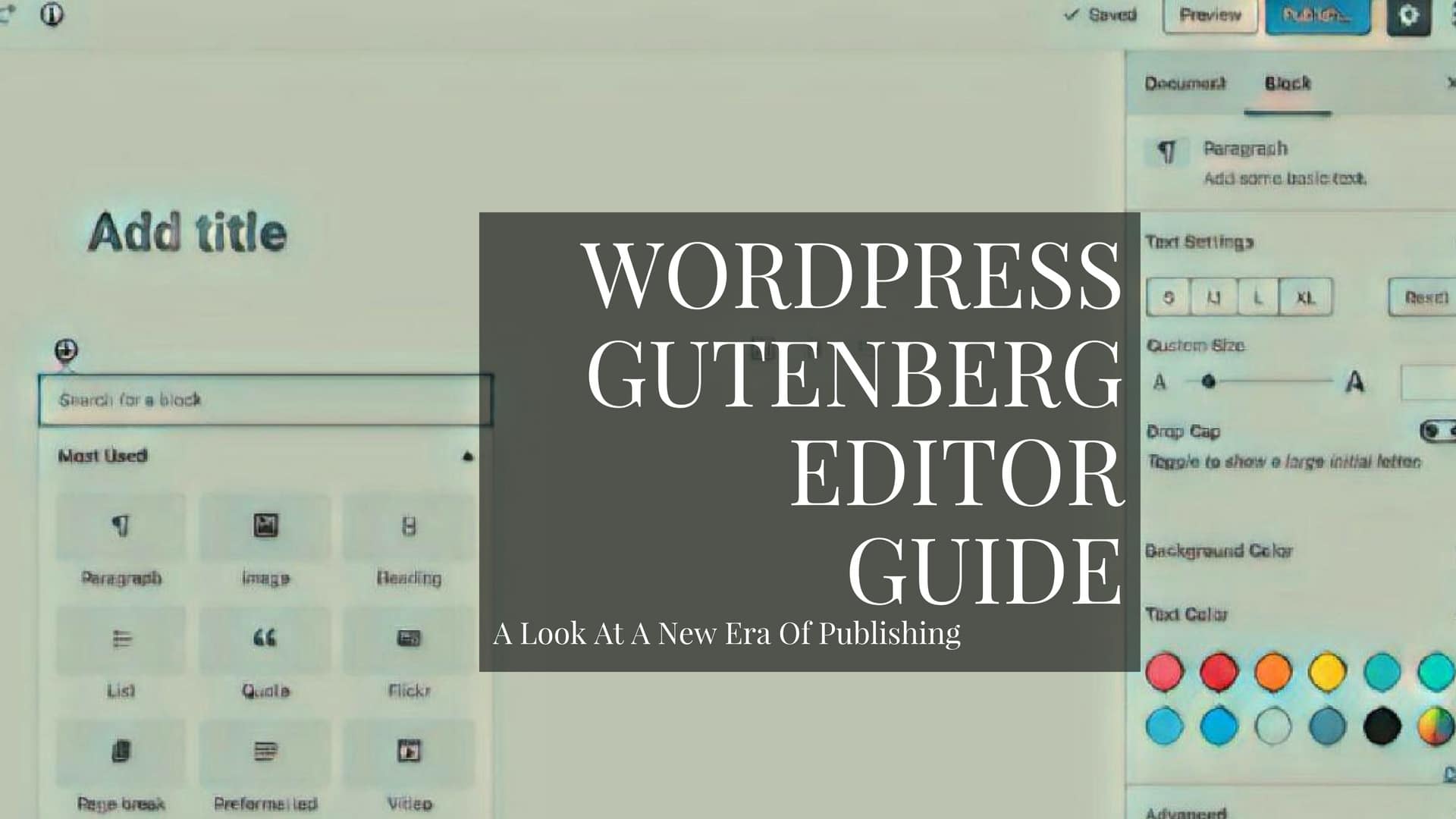
Crafting Captivating Content: Your Step-by-Step Guide to Mastering the Word Press Gutenberg Editor
Hey there, content creators and website aficionados! Ever feel like wrangling your Word Press website is like trying to herd cats? You’re not alone! We’ve all been there, staring blankly at a screen, wrestling with formatting that justwon’tcooperate. Remember the days of clunky shortcodes and endless plugin installations just to get a decent-looking page? Shudder. But fear not, my friends, because there's a light at the end of the tunnel, and its name is Gutenberg!
The Word Press Gutenberg editor – officially known as the Block Editor – arrived on the scene and, let's be honest, initially caused a bit of a stir. Change is scary, right? We were all so used to the classic editor, with its familiar toolbar and WYSIWYG interface. Gutenberg, with its block-based approach, felt… different. Maybe even a little intimidating. But before you run screaming back to your trusty old plugins, hear me out. Gutenberg is not just different; it's potentiallybetter. It's a game-changer that puts you in the driver's seat, allowing you to create visually stunning and engaging content with unprecedented ease. Think of it as LEGOs for your website – you can build anything you imagine, one block at a time.
Now, I know what you might be thinking: “Easier said than done! I’ve tried Gutenberg, and it just feels… confusing.” Or maybe you've heard horror stories about compatibility issues and broken layouts. I get it. The learning curve can seem steep at first. But trust me, once you understand the fundamentals, Gutenberg becomes an incredibly powerful tool. It's like learning a new language – initially, it feels overwhelming, but once you grasp the basic grammar and vocabulary, you can start expressing yourself fluently.
The truth is, Gutenberg is the future of Word Press. It's actively being developed and improved, and more and more themes and plugins are being designed with Gutenberg compatibility in mind. So, learning to master Gutenberg is not just a nice-to-have skill; it's becoming an essential one for anyone who wants to create a professional and effective website. Imagine effortlessly building beautiful landing pages, crafting engaging blog posts, and creating visually appealing layouts without ever touching a single line of code. That's the power of Gutenberg.
And the best part? It’s all about empoweringyou, the content creator. No more relying on developers for every minor change or fiddling with complicated page builders. Gutenberg puts the control back in your hands, allowing you to unleash your creativity and build the website of your dreams. No more clunky, outdated interfaces or limitations on design. We are in an era of design freedom. The key to unlocking this potential lies in understanding how Gutenberg works. And that's where this guide comes in.
Think of this guide as your friendly companion on your Gutenberg journey. We’ll walk you through the basics, from understanding the interface to mastering advanced techniques. We'll demystify the block system, explore the various block types, and show you how to customize them to your heart's content. We'll also cover best practices for creating visually appealing and engaging content. Because let's face it, a beautiful website is only as good as the content it contains.
So, are you ready to ditch the frustration and embrace the power of Gutenberg? Are you ready to take control of your website and unleash your inner designer? Let's dive in, and together, we'll transform you from a Gutenberg newbie to a Word Press wizard! Stick with me, and you’ll discover the secrets to crafting captivating content with ease. Get ready to say goodbye to website woes and hello to a world of creative possibilities!
Step-by-Step Guide to Using Word Press Gutenberg Editor
Understanding the Gutenberg Interface
Before we start building amazing content, let's get familiar with the Gutenberg workspace. It's like learning the layout of a new kitchen before you start cooking – knowing where everything is makes the whole process much smoother.
• The Top Toolbar: This is your command center. You'll find options for adding new blocks, undoing and redoing actions, saving your draft, previewing your post, and accessing the settings panel. Think of it as your central control panel for all things Gutenberg.
• The Block Editor: This is where the magic happens! This is the main area where you’ll add, arrange, and customize your content blocks. Each paragraph, image, heading, or video you add will be contained within its own individual block.
• The Sidebar: Located on the right side of the screen, the sidebar houses two important tabs: "Document" and Block.The "Document" tab contains settings that apply to the entire post or page, such as categories, tags, featured image, and permalink. The "Block" tab provides settings specific to the currently selected block. This changes depending on the type of block you’re working with, and is where you will tailor your chosen content.
Adding and Manipulating Blocks
Gutenberg revolves around blocks. Think of them as the building blocks (pun intended!) of your content. Let's learn how to add, move, and customize them.
• Adding Blocks: There are several ways to add a block. You can click the "+" icon in the top toolbar, the "+" icon within an existing block, or type "/" followed by the block name to quickly insert it. Explore the different block categories (common blocks, formatting blocks, layout elements, widgets, etc.) to discover the wide range of options available. The search bar here is your friend.
• Moving Blocks: To reposition a block, you can use the up and down arrows that appear when you hover over it. Alternatively, you can drag and drop blocks to rearrange them. This is especially useful for complex layouts where precise positioning is crucial.
• Deleting Blocks: To remove a block, select it and click the three vertical dots ("Options") icon in the block's toolbar. Then, choose "Remove Block." Don’t be afraid to experiment; you can always undo your actions.
• Block Specific Customization: Each block type offers unique customization options in the sidebar. For example, a paragraph block allows you to adjust the font size, color, and alignment, while an image block lets you add alt text, captions, and links. Take some time to explore the settings for different block types to understand the full range of possibilities.
Essential Blocks You Need to Know
While Gutenberg offers a plethora of blocks, some are more essential than others. These are the blocks you'll likely use most frequently, so mastering them is key to efficient content creation.
• Paragraph Block: The workhorse of any text-based content. Use it for writing your main body text. Explore the formatting options in the toolbar and sidebar to customize the appearance of your paragraphs.
• Heading Block: Used to structure your content and improve readability. Use headings (H2, H3, H4, etc.) to break up large blocks of text and create a clear hierarchy.
• Image Block: Adds images to your content. You can upload images from your computer, select them from your media library, or insert them from a URL. Remember to optimize your images for web to improve page load speed.
• List Block: Perfect for creating bulleted or numbered lists. Use lists to present information in a clear and concise manner.
• Quote Block: Highlights important statements or excerpts. Use it to draw attention to key takeaways from your content.
• Cover Block: Creates visually appealing headers or section dividers with an image and text overlay. Use it to make a strong first impression or to separate different sections of your content.
• Button Block: Adds call-to-action buttons to your content. Use it to encourage users to take a specific action, such as visiting a link, subscribing to a newsletter, or making a purchase.
• Columns Block: Enables you to create multi-column layouts. Use it to display content side-by-side or to create visually interesting designs.
Advanced Gutenberg Techniques
Once you've mastered the basics, you can start exploring more advanced techniques to take your Gutenberg skills to the next level.
• Reusable Blocks: Save frequently used blocks or block combinations as reusable blocks. This saves you time and ensures consistency across your website. Imagine having pre-designed call-to-action sections or contact forms ready to go at a moment’s notice.
• Block Patterns: These are pre-designed layouts that combine multiple blocks into a cohesive design. Use them as a starting point for creating complex layouts or as inspiration for your own designs. Word Press is constantly updating these, so it’s worth checking back regularly to see what’s new.
• Custom CSS: For more advanced customization, you can add custom CSS to individual blocks or to the entire post or page. This gives you complete control over the appearance of your content. Be warned, this is where things get a little tricky if you don’t know CSS, but there are plenty of online resources to help.
• Embedding Content: Gutenberg makes it easy to embed content from other websites, such as You Tube videos, social media posts, and Spotify playlists. Simply paste the URL into the editor, and Gutenberg will automatically embed the content.
• Keyboard Shortcuts: Learn the keyboard shortcuts for common Gutenberg actions to speed up your workflow. For example, use "Ctrl+Z" (or "Cmd+Z" on Mac) to undo an action, "Ctrl+Shift+Z" (or "Cmd+Shift+Z" on Mac) to redo an action, and "/" to quickly insert a block.
Best Practices for Gutenberg Content Creation
Creating effective content with Gutenberg is not just about mastering the technical aspects; it's also about following best practices for content creation.
• Plan Your Content: Before you start building your page, take some time to plan your content and outline the structure. This will help you stay organized and ensure that your content is clear and concise.
• Use Headings Effectively: Use headings to break up large blocks of text and create a clear hierarchy. This makes your content more readable and easier to scan.
• Optimize Images: Optimize your images for web to improve page load speed. Use appropriate file formats (JPEG for photographs, PNG for graphics) and compress your images to reduce their file size.
• Write Clear and Concise Content: Use clear and concise language that is easy to understand. Avoid jargon and technical terms that your audience may not be familiar with.
• Proofread Your Content: Before you publish your page, always proofread your content for grammar and spelling errors. This will help you maintain a professional image and build trust with your audience.
• Consider Accessibility: Ensure that your content is accessible to users with disabilities. Use alt text for images, provide captions for videos, and use semantic HTML elements to structure your content.
• Test Your Content: Before you publish your page, test it on different devices and browsers to ensure that it looks and functions correctly.
Troubleshooting Common Gutenberg Issues
Even with the best preparation, you may encounter some common issues while using Gutenberg. Here are some tips for troubleshooting these issues:
• Compatibility Issues: Some themes and plugins may not be fully compatible with Gutenberg. If you experience issues such as broken layouts or missing features, try deactivating your plugins one by one to identify the culprit. Contact the theme or plugin developer for assistance.
• Block Not Displaying Correctly: If a block is not displaying correctly, try refreshing the page or clearing your browser cache. You can also try deactivating and reactivating the block.
• Gutenberg Editor Not Loading: If the Gutenberg editor is not loading, try deactivating all of your plugins and switching to a default Word Press theme. If this resolves the issue, reactivate your plugins and theme one by one to identify the source of the problem.
• Difficulty Moving Blocks: If you're having difficulty moving blocks, try using the list view to drag and drop them. The list view provides a hierarchical representation of your content, making it easier to select and move blocks.
• Stuck in Code Editor: Accidentally switched to the code editor view? No problem! Simply click the three vertical dots ("Options") icon in the top right corner of the screen and select "Visual Editor."
Gutenberg and SEO: A Powerful Combination
Gutenberg, when used correctly, can significantly enhance your website's SEO. Its structured approach to content creation makes it easier for search engines to understand and index your pages.
• Semantic HTML: Gutenberg encourages the use of semantic HTML elements, such as headings, paragraphs, and lists. This helps search engines understand the structure and meaning of your content.
• Optimized Images: Gutenberg makes it easy to add alt text to images, which is crucial for SEO. Alt text provides search engines with a description of the image, helping them understand its relevance to your content.
• Internal Linking: Gutenberg allows you to easily link to other pages on your website, which is important for internal linking. Internal linking helps search engines discover and index your content.
• Mobile-Friendly Design: Gutenberg is designed to create mobile-friendly websites. This is crucial for SEO, as Google prioritizes mobile-friendly websites in its search results.
• Faster Loading Speeds: By optimizing images and using efficient code, Gutenberg can help improve your website's loading speed. Faster loading speeds are a ranking factor for Google.
Frequently Asked Questions About Gutenberg
• What are the advantages of using the Gutenberg editor over the classic editor?
Gutenberg offers a more visual and intuitive way to create content, allows for more flexible layouts, and promotes a more modular approach to website design. It's also the future of Word Press, with ongoing development and improvements.
• Is Gutenberg difficult to learn?
While there is a learning curve, Gutenberg is generally considered easy to learn, especially with resources like this guide. The block-based system is intuitive, and the interface is relatively straightforward.
• Can I use Gutenberg with my existing theme?
Most modern Word Press themes are designed to be compatible with Gutenberg. However, some older themes may require updates or modifications to work seamlessly with the editor.
• What if I don't like Gutenberg? Can I still use the classic editor?
Yes, you can still use the classic editor by installing the Classic Editor plugin. However, it's worth investing the time to learn Gutenberg, as it's the direction Word Press is heading in.
So there you have it, friends! A comprehensive step-by-step guide to mastering the Word Press Gutenberg editor. We've covered everything from understanding the interface to exploring advanced techniques and troubleshooting common issues. Now it's time to put your newfound knowledge into practice!
Remember, the key to success with Gutenberg is experimentation. Don't be afraid to try new things, explore different block types, and customize them to your heart's content. The more you practice, the more comfortable and confident you'll become. And the more amazing content you'll be able to create.
Before we part ways, let's recap the core of what we've discussed: Gutenberg isn't just another editor; it's a gateway to streamlined content creation and design flexibility within Word Press. By embracing its block-based system, you're unlocking a world where building visually captivating and engaging websites becomes not just possible, but genuinely enjoyable. From mastering the essentials like paragraphs and headings to delving into advanced techniques like reusable blocks and custom CSS, each step is designed to empower you, the content creator, to bring your unique vision to life. Let's not forget the importance of SEO optimization and accessibility considerations, ensuring your creations reach and resonate with a wider audience.
Now, here's your call to action: Go forth and create! Take what you've learned here and start building something amazing. Whether it's a blog post, a landing page, or a complete website, put your Gutenberg skills to the test and see what you can achieve. Share your creations with the world, and don't be afraid to experiment and push the boundaries of what's possible. Remember, the only limit is your imagination.
So, what are you waiting for? Embrace the power of Gutenberg and unlock your website's full potential. Believe in yourself, trust your creativity, and never stop learning. The world of Word Press is constantly evolving, and Gutenberg is at the forefront of that evolution. By mastering this powerful editor, you're not just building websites; you're building the future of online content.
Now, tell me, what are you most excited to create with Gutenberg?

Post a Comment for "Step-by-Step Guide to Using WordPress Gutenberg Editor"
Post a Comment