Step-by-Step Guide to Using Google Search Console for SEO
Unlock Your Website's Potential: A Step-by-Step Guide to Mastering Google Search Console for SEO Domination
Hey there, friends! Ever feel like your website is shouting into a void? Like you’ve poured your heart and soul into creating amazing content, but it's just…not getting seen? You’re not alone! It’s a problem countless website owners face. Imagine baking the most delicious cake in the world, but no one knows it exists. All that effort, just sitting there, uneaten!
Now, what if I told you there’s a (mostly) free tool that’s like having a direct line to Google, a tool that can help you understand why your website isn't ranking as high as it should, and what you can do about it? That tool, my friends, is Google Search Console (GSC).
Think of GSC as your website's personal health monitor. It provides invaluable insights into how Google sees your site, what keywords it's ranking for, any errors that are preventing it from performing well, and a whole lot more. It’s like having a secret decoder ring for the Google algorithm!
Many people think SEO is some dark art, a complex web of technical jargon and mysterious incantations. And sure, some aspects of SEO can be tricky. But Google Search Console? It's surprisingly user-friendly, even for those who aren’t tech wizards. It's designed to empower you, the website owner, to take control of your online visibility.
Without Google Search Console, you're essentially flying blind. You’re making guesses about what's working and what's not, relying on hunches and maybe a little bit of wishful thinking. But with GSC, you have real, hard data to guide your decisions.
Imagine this: you've written a blog post about the best hiking trails in your area. You think it's fantastic, packed with useful information and stunning photos. But weeks go by, and you see barely any traffic. What's going on? Is Google even aware that your post exists? Are people searching for those trails using different keywords than you thought? Are there technical issues preventing Google from indexing your page? Google Search Console can help you answer all of these questions.
Or consider this: You're running an e-commerce store selling handmade jewelry. You've noticed a recent drop in sales, and you suspect it might be related to your website's search rankings. Are your product pages ranking for the right keywords? Are there any mobile usability issues that are driving customers away? Are there any security issues that are scaring potential buyers? Again, Google Search Console can provide the insights you need to diagnose the problem and take corrective action.
This isn't just about getting more traffic; it's about getting therighttraffic. It’s about attracting visitors who are genuinely interested in what you have to offer, who are more likely to become customers or loyal readers.
But here's the thing: simply having access to Google Search Console isn't enough. You need to know how to use it effectively. You need to understand the data it's providing and translate that data into actionable strategies. It’s like having a fancy sports car – impressive, but useless if you don’t know how to drive.
That's where this guide comes in. We're going to walk you through, step-by-step, everything you need to know to master Google Search Console and unlock your website's full SEO potential. We're going to demystify the jargon, break down the complex concepts, and show you how to use GSC to drive more traffic, improve your rankings, and achieve your online goals.
Ready to stop guessing and start knowing? Let's dive in! You’ll be amazed at how much you can learn about your website and how much you can improve its performance just by understanding the power of Google Search Console. Stick with me, and by the end of this guide, you'll be wielding GSC like a seasoned SEO pro. But before we get started, let's get one thing clear: Just how exactly can we use this magic Google box to actuallydo SEO? Let’s uncover the secrets!
Here’s how to harness the power of Google Search Console:
Verification and Setup
Before you can start exploring all the cool features GSC has to offer, you need to prove to Google that you actually own (or at least have permission to manage) the website you're trying to analyze. Think of it like showing your ID at a bar – you can’t order a drink without proving you’re of age, right?
• First up,add your website to Google Search Console. This might sound obvious, but it’s the crucial first step. Head over to the Google Search Console website and sign in with your Google account (the same one you use for Gmail or Google Analytics, perhaps?). From there, you'll be prompted to add a property. Choose the appropriate option (either a domain property or a URL prefix property) based on your website setup. The domain property covers all versions of your domain (http/https, www/non-www), while the URL prefix property only covers the specific URL you enter.
• Next,verify your website ownership. This is where things get a little technical, but don't worry, it's not rocket science. Google provides several methods for verifying ownership, including uploading an HTML file to your website, adding a meta tag to your website's HTML code, using your Google Analytics account, or using your Google Tag Manager account. The easiest method for most people is usually the HTML file upload or the meta tag method. Just follow the instructions provided by Google, and you'll be verified in no time. If you're using Word Press, there are also plugins that can help simplify the verification process.
Sitemap Submission
A sitemap is essentially a roadmap of your website. It tells Google which pages are important and how they're organized. Submitting a sitemap to GSC is like handing Google a cheat sheet, making it easier for them to crawl and index your website.
• Generate your sitemap: If you don't already have a sitemap, you'll need to create one. Most content management systems (CMS) like Word Press have plugins that can automatically generate a sitemap for you. Just search for a "sitemap generator" plugin in your CMS plugin directory. The sitemap file is usually named "sitemap.xml."
• Submit your sitemap to GSC: Once you have your sitemap, go to the "Sitemaps" section in Google Search Console and enter the URL of your sitemap file. Then, click Submit.Google will then process your sitemap and use it to improve its crawling of your website.
URL Inspection
The URL Inspection tool is your go-to resource for checking whether a specific page on your website is indexed by Google and for troubleshooting any indexing issues. It's like a detective tool that helps you uncover the mysteries of Google's index.
• Use the URL Inspection tool to request indexing: If you've just published a new page or made significant changes to an existing page, you can use the URL Inspection tool to request that Google crawl and index the page. Simply enter the URL of the page in the search bar at the top of GSC and click "Request Indexing." This will tell Google that the page is ready to be indexed.
• Diagnose indexing issues: The URL Inspection tool can also help you diagnose why a page isn't being indexed. It will show you whether Google has encountered any errors while crawling the page, such as a "noindex" tag or a robots.txt rule blocking access. It will also show you how Google renders the page, which can help you identify any rendering issues that might be affecting its SEO.
Performance Analysis
The Performance report in GSC provides valuable insights into how your website is performing in Google Search. It shows you which keywords your website is ranking for, how many impressions and clicks you're getting, your average click-through rate (CTR), and your average ranking position. It's like a report card for your website's SEO performance.
• Analyze your keyword rankings: The Performance report allows you to see which keywords are driving the most traffic to your website. Pay close attention to the keywords that are ranking on the first page of Google, as these are the ones that are most likely to generate clicks. Also, identify keywords that are ranking on the second or third page, as these represent opportunities for improvement.
• Identify high-potential keywords: Look for keywords that have a high number of impressions but a low CTR. This indicates that your website is ranking for those keywords, but people aren't clicking on your search results. This could be due to a number of factors, such as a poor title tag or meta description. Experiment with different title tags and meta descriptions to see if you can improve your CTR.
• Track your ranking trends: The Performance report also allows you to track your ranking trends over time. This can help you identify whether your SEO efforts are paying off and whether your website is gaining or losing ground in the search results. Keep an eye on your overall traffic and keyword rankings, and look for any significant changes that might indicate a problem.
Mobile Usability
In today's mobile-first world, it's essential that your website is mobile-friendly. Google prioritizes mobile-friendly websites in its search rankings, so if your website isn't optimized for mobile devices, you're missing out on a lot of traffic.
• Check your website's mobile usability: The Mobile Usability report in GSC shows you whether Google has found any mobile usability issues on your website, such as text that's too small to read, touch elements that are too close together, or content that's wider than the screen.
• Fix any mobile usability issues: If GSC identifies any mobile usability issues on your website, it's important to fix them as soon as possible. Use Google's Mobile-Friendly Test tool to get more detailed information about the issues and how to fix them. Make sure your website is responsive, meaning that it adapts to different screen sizes and devices.
Core Web Vitals
Core Web Vitals are a set of metrics that Google uses to measure the user experience of your website. They include metrics such as Largest Contentful Paint (LCP), First Input Delay (FID), and Cumulative Layout Shift (CLS). Websites with good Core Web Vitals scores tend to rank higher in Google Search.
• Monitor your Core Web Vitals: The Core Web Vitals report in GSC shows you how your website is performing on these metrics. It will tell you whether your website is considered to be providing a good, needs improvement, or poor user experience.
• Optimize your website for Core Web Vitals: If your website's Core Web Vitals scores are not up to par, you'll need to optimize your website to improve them. This might involve optimizing your images, reducing the size of your Java Script files, and improving your server response time.
Security Issues
Security is a top priority for Google, and websites with security issues are often penalized in the search rankings. It's important to regularly check your website for security issues and take steps to fix them as soon as possible.
• Check for security issues: The Security Issues report in GSC will alert you to any security issues that Google has detected on your website, such as malware infections or phishing attacks.
• Fix any security issues: If GSC identifies any security issues on your website, it's crucial to address them immediately. Work with your web hosting provider or a security expert to remove any malware, fix any vulnerabilities, and secure your website.
Links Analysis
Links are an important ranking factor in Google Search. Websites with a strong backlink profile tend to rank higher than websites with few or no backlinks. Analyzing your website's links can give you valuable insights into your website's authority and popularity.
• Analyze your backlinks: The Links report in GSC shows you who is linking to your website. Pay attention to the websites that are linking to you, as well as the anchor text they're using. This can help you identify potential link building opportunities and understand how Google perceives your website's relevance.
• Identify toxic backlinks: It's also important to identify and disavow any toxic backlinks that might be hurting your website's rankings. Toxic backlinks are links from low-quality or spammy websites. You can use the Disavow Links tool in GSC to tell Google to ignore these backlinks.
By following these steps and regularly monitoring your website's performance in Google Search Console, you can gain valuable insights into your website's SEO and take steps to improve its rankings and traffic. Remember, SEO is an ongoing process, so it's important to stay informed and adapt your strategies as needed.
Is Google Search Console Free?
Absolutely! Google Search Console is a completely free tool offered by Google to help website owners monitor and maintain their site's presence in Google Search results. There are no hidden costs or subscription fees associated with using GSC.
How Often Should I Check Google Search Console?
Ideally, you should check Google Search Console at least once a week. Regularly monitoring GSC allows you to stay on top of any issues that might be affecting your website's SEO, such as indexing errors, security problems, or mobile usability issues. It also allows you to track your website's performance over time and identify any trends or patterns that might be worth investigating.
Can Google Search Console Help Me Find Keyword Opportunities?
Yes, Google Search Console can be a valuable tool for finding keyword opportunities. By analyzing the Performance report in GSC, you can identify keywords that your website is already ranking for but that have a low click-through rate. This indicates that there's an opportunity to improve your title tags and meta descriptions to attract more clicks. You can also use GSC to identify keywords that your competitors are ranking for but that you're not. This can give you ideas for new content or optimization strategies.
What Should I Do If I See a Sudden Drop in Traffic in Google Search Console?
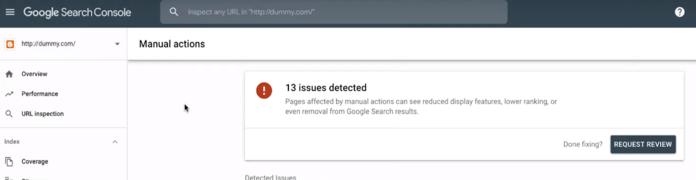
A sudden drop in traffic can be alarming, but it's important to stay calm and investigate the issue. The first thing you should do is check the Security Issues and Manual Actions reports in GSC to see if there are any penalties or security problems affecting your website. If not, you should check your keyword rankings in the Performance report to see if you've lost rankings for any important keywords. You should also check your website's indexing status to see if any pages have been deindexed. If you can't identify the cause of the traffic drop, you might want to consult with an SEO expert.
So, there you have it! A comprehensive guide to using Google Search Console for SEO. We've covered everything from setting up your account to analyzing your website's performance and identifying areas for improvement. Now it’s your turn to take the reins and start digging into your data!
Your mission, should you choose to accept it (and I highly recommend you do!), is to log into your Google Search Console account (or create one if you haven't already) and start exploring. Familiarize yourself with the different reports, analyze your website's data, and identify at least one action you can take to improve your SEO.
Whether it's fixing a mobile usability issue, optimizing a title tag, or disavowing a toxic backlink, every little bit helps. Remember, SEO is a marathon, not a sprint. But with the right tools and knowledge, you can achieve your online goals and unlock your website's full potential. Now go forth and conquer the search results! Are you ready to transform your website from hidden gem to search engine superstar?

Post a Comment for "Step-by-Step Guide to Using Google Search Console for SEO"
Post a Comment