Why Your AirPods Pause and How to Fix It
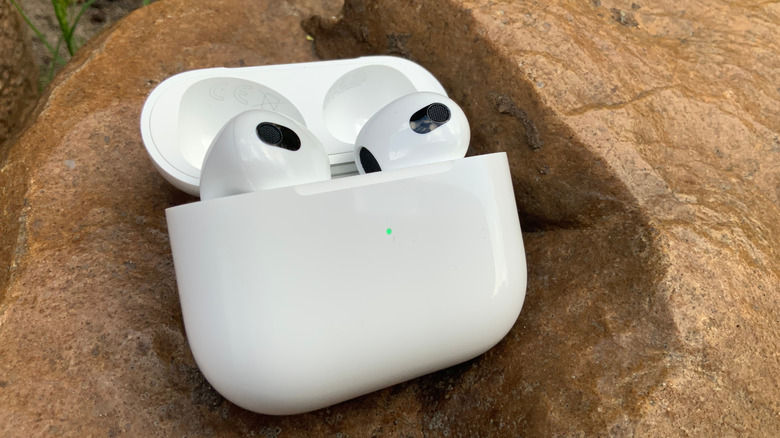
Understanding Why Your AirPods Might Be Pausing Unexpectedly
Apple AirPods have become one of the most popular wireless earbuds on the market, offering a seamless and high-quality listening experience. However, like any technology, they can sometimes encounter issues that disrupt your audio flow. One common problem users face is their AirPods pausing unexpectedly, even when they are still in their ears. This can be frustrating, especially if you're in the middle of a favorite playlist or an important call.
Automatic Ear Detection: A Double-Edged Sword
Most AirPods come with a feature called Automatic Ear Detection enabled by default. This function pauses media playback when the earbuds are removed from your ears. While this can be useful for conserving battery life, it might also lead to unexpected pauses if you frequently take the earbuds out and put them back in.
To disable this feature, open the Settings app on your iPhone, select the "i" icon next to your AirPods, and toggle off the Automatic Ear Detection option. This can help prevent unwanted pauses caused by accidental removal.
Checking for Firmware Updates
One of the first steps in troubleshooting any AirPods issue is ensuring that your earbuds are running the latest firmware version. Apple regularly releases updates to fix bugs and improve performance. To check for updates, go to Settings > Bluetooth, tap the "i" icon next to your AirPods, and look for the firmware version. If it's outdated, place your AirPods in the charging case, close the lid, and plug the case into a power source. Keep your iPhone near the case for about 10–15 minutes to allow the update to install.
Internet Connectivity Issues
If you're using a streaming service like Spotify or Apple Music, your AirPods will need a stable internet connection to play content. If your device loses access to Wi-Fi or cellular data, it could result in sudden audio dropouts or pauses.
Check your device’s status bar for the Wi-Fi or mobile data icons. If either is missing, enable the connection through Settings > Wi-Fi or Settings > Cellular. This simple step can often resolve connectivity-related pauses.
Battery Life and Signal Strength
Low battery levels can cause Bluetooth signal instability, leading to pauses or disconnections. Make sure your AirPods are sufficiently charged before use. Even if one bud is low, placing both in the charging case for 5–10 minutes can provide several hours of additional playback time, provided the case itself has enough charge.
Cleaning Proximity Sensors
The proximity sensors in your AirPods are responsible for detecting whether the earbuds are in your ears. If these sensors become dirty, they may misinterpret the presence of the earbuds, causing unexpected pauses. Refer to Apple’s official resources for detailed instructions on cleaning your specific AirPods model.
Touch Sensor Sensitivity
For users of the original AirPods or AirPods 2, overactive touch sensors can also cause random pauses. These models use a double-tap control system for functions like track skipping and call management. An accidental double-tap might unintentionally pause your music.
To adjust this setting, go to Settings > Bluetooth > [your AirPods name], and select either the left or right bud. Ensure that neither bud is set to Play/Pause. You can also customize the double-tap settings to suit your preferences, such as using them for track skipping or accessing Siri.
By addressing these potential causes, you can significantly reduce the chances of your AirPods pausing unexpectedly and enjoy a smoother listening experience.

Post a Comment for "Why Your AirPods Pause and How to Fix It"
Post a Comment