What Is The Green Dot On Your Android Screen (And How To Remove It)
Understanding the Green Dot on Android
Both Android and iOS have evolved significantly over the years, offering a wide array of features that were once only available through third-party apps or tweaks. Android, in particular, is known for its extensive customization options and settings, which can be both a blessing and a challenge for users. While this level of flexibility allows for a highly personalized experience, it can also lead to an overwhelming number of icons and symbols on the screen.
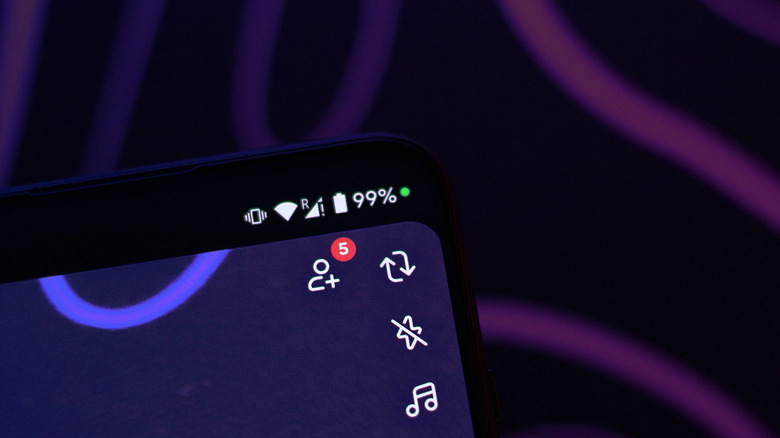
One such symbol that often catches users off guard is the green dot appearing on the status bar. This feature isn't a glitch or a notification error—it's a privacy indicator introduced in Android 12. The green dot appears when an app or background service is actively using your phone's camera or microphone. It serves as a visual reminder that your device’s sensors are in use, much like the red recording light on a DSLR camera.
How the Green Dot Works
The green dot is a useful tool for maintaining awareness of your device’s privacy. You can test this feature by opening an app that requires access to your camera or microphone, such as Snapchat, Instagram, or the built-in camera app. When the app accesses these sensors, the green dot will appear at the top of your screen. While it might seem like a minor annoyance, the benefits of this feature far outweigh any temporary distraction.
The Google Play Store hosts hundreds of thousands of apps, and while malware is rare, not all apps are designed with the highest standards of privacy in mind. If an app—intentionally or unintentionally—tries to access your camera or microphone, the green dot immediately alerts you. This is especially important for identifying malicious actors that may run in the background and attempt to capture audio or video without your knowledge.
Managing the Green Dot on Your Device
The appearance and behavior of the green dot can vary depending on your Android device. On stock Android devices, such as those from Google or Motorola, you can quickly see which physical sensors are being used. This includes the microphone, camera, and location. By swiping down to access the notification panel, you can tap on the green dot to find out exactly which app is triggering it.
While you cannot disable the green dot entirely since it's part of the operating system’s privacy framework, there are ways to manage it on a per-app basis. If you're willing to forgo certain functionalities, you can revoke permissions for specific apps. Here's how:
- Open the Settings app on your Android device.
- Navigate to Apps > See all apps.
- Select the app you want to modify.
- Tap on "Permissions" and individually revoke the following: Camera, Location, and Microphone.
For example, if you disable these permissions for Snapchat, the green dot will no longer appear when you open the app—but you won’t be able to take snaps either. This trade-off could be beneficial if you don’t frequently use an app’s camera, location, or microphone services.
Enhancing Your Privacy and Security
Managing your privacy options is one of the best ways to boost your Android phone’s security. By carefully controlling which apps have access to your device’s sensors, you can significantly reduce the risk of unauthorized data collection. This proactive approach helps ensure that your personal information remains protected.
Understanding and utilizing features like the green dot is essential in today’s digital landscape. As more apps rely on sensitive data, staying informed about how your device operates can help you make smarter decisions about your privacy. Whether you’re using a high-end smartphone or a budget model, taking control of your device’s settings is a powerful step toward greater security and peace of mind.
)
Post a Comment for "What Is The Green Dot On Your Android Screen (And How To Remove It)"
Post a Comment