What If You Shut Down Your Computer During an Update?
Understanding the Importance of System Updates
Updating your computer is one of the most crucial aspects of maintaining its performance and security. These updates help improve system efficiency, fix bugs, and enhance protection against potential threats. However, the process of installing updates can sometimes be frustrating, especially when it takes a long time or appears to freeze on the loading screen. This uncertainty can lead to various situations where updates might be interrupted.
If you've been waiting for an extended period on the loading screen, it's easy to feel tempted to force a shutdown out of frustration, hoping that it will resolve the issue. Similarly, unexpected power outages or a laptop battery dying during an update can also cause interruptions. Other times, you might accidentally close the laptop lid or unplug the desktop while the update is still in progress. When these events occur and the device is turned off midway through the update, many users assume that the computer will boot up normally and the update will resume automatically. Unfortunately, this isn't always the case.
Risks of Interrupting the Update Process
When the installation process is interrupted, there is a risk that the computer may not function properly upon the next startup. For Windows computers, this could result in endless restart loops or persistent pop-ups with messages like "Windows couldn't complete the updates." On the other hand, modern macOS devices (Big Sur and later) are more resilient to such issues because their updates are applied to a separate system snapshot rather than the active system volume. This allows them to revert to the previous version of the software at startup. However, even these devices aren't completely immune to problems caused by failed updates.
The Two Phases of a System Update
A system update typically consists of two phases: download and installation. During the download phase, the computer retrieves all the files and data required for the update from an online source. There is minimal risk if you accidentally turn off your PC during this phase. In most cases, the download will either resume from where it left off or start a new download if the previous files were corrupted. Either way, your device should remain unaffected by the interruption.
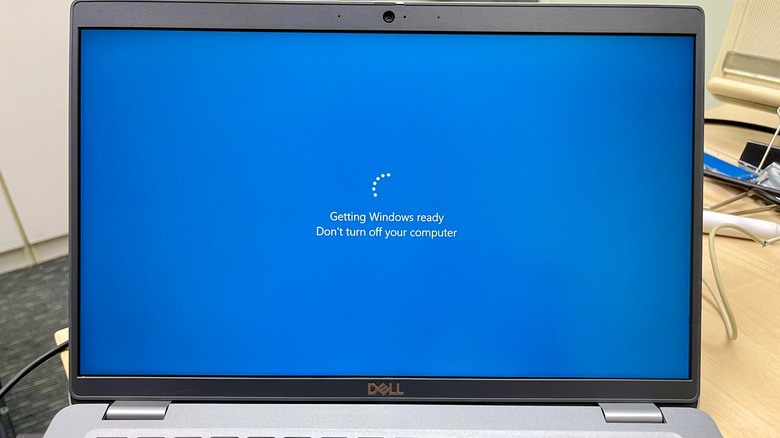
However, if you turn off your computer during the installation phase, there is a higher chance of experiencing issues when you power it on again. This is why computers often display the warning, "Don't turn off your PC," during this stage. If the update involves critical system files, interrupting the process can have serious consequences, such as the inability to restore the previous version of the system, leading to errors like the Blue Screen of Death (BSOD), forced restarts, or even an unbootable system.
Preventing Issues with System Updates
To avoid these complications, it's essential to allocate sufficient time for system updates. If you can't perform an update immediately, you can pause updates on your Windows computer or schedule them on your macOS device. This ensures that the process completes without interruption.
Fixing Your Computer After a Failed Update
If you unintentionally interrupted a system update and your device malfunctions upon startup, don't panic. The first step is to let the computer run its automatic recovery feature. If this doesn't work, you'll need to manually perform the repair.
For Windows devices, boot into the Windows Recovery Environment and run Startup Repair. Windows 11 computers automatically enter Windows RE after several failed startup attempts. Alternatively, you can force a shutdown twice while Windows is loading at startup. Once the system boots correctly after the repair, uninstall the corrupted update from Settings and reinstall the latest update properly. If the repair fails, consider performing a clean reinstall of the operating system via a USB drive.
For Mac computers, restart the device while pressing Command (⌘) + R until you see the Apple logo or a spinning globe to enter macOS Recovery. From there, use Disk Utility's First Aid to fix drive errors, then select Reinstall macOS to reinstall the OS without deleting your files. If Recovery won't load, enter Internet Recovery by pressing Option + Command + R at startup. This will allow you to reinstall the OS directly from Apple's servers.
Final Tips for a Smooth Update Experience
To avoid the hassle of dealing with failed updates, never interrupt a software update. If the process gets stuck mid-update, take the appropriate steps to resolve the issue instead of simply turning it off and hoping for the best. By following these guidelines, you can ensure a smoother and more reliable experience with your computer's updates.

Post a Comment for "What If You Shut Down Your Computer During an Update?"
Post a Comment