PS5 Doesn't Support Bluetooth Headphones? Here's How to Connect Them
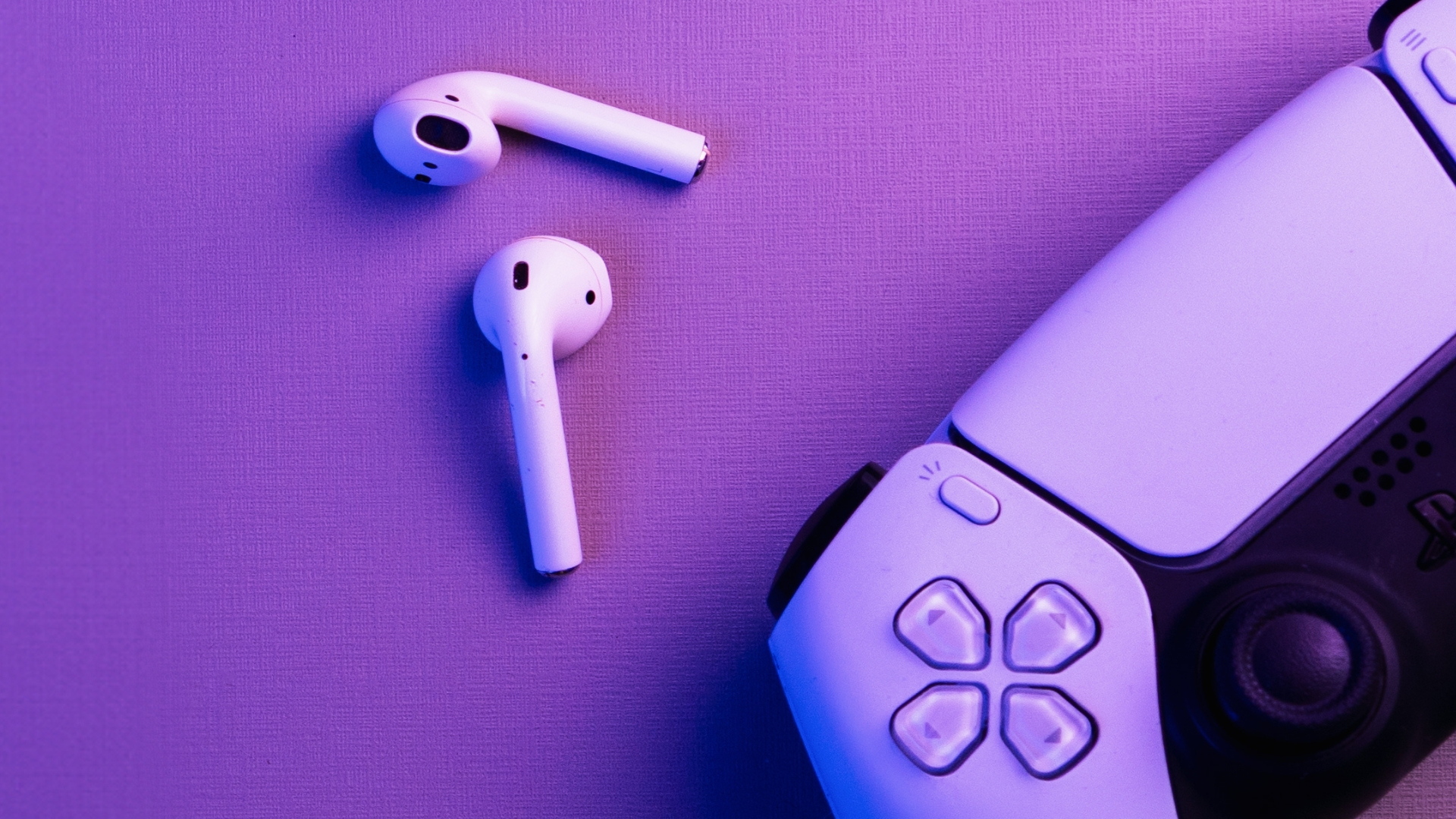
The Surprising Limitation of PS5 and Bluetooth Headphones
In today's world, most technology that produces audio can seamlessly connect with Bluetooth headphones like AirPods. Whether it's a computer, a phone, or even a Nintendo Switch, the process is usually straightforward. You take out your headphones, pair them, and start listening. However, there's one device that doesn't seem to play nicely with AirPods or any wireless headphones: the PlayStation 5.
A Frustrating Experience
I discovered this limitation late one night while trying to play Astro Bot. I love the game, but it can be quite loud. To avoid disturbing others in my home, I decided to use my AirPods. I put them in pairing mode, turned on my PS5, and navigated to Settings > Accessories > General > Bluetooth Accessories. My AirPods appeared on the list, but when I tried to connect them, I received an unexpected message: "The PS5 doesn't support Bluetooth audio accessories."
This was baffling. The PS5, which launched in 2020, is a modern console. Bluetooth headphones have been standard for years. It seemed odd that such a basic feature wasn't included. Sony does sell its own line of wired and wireless headphones, which might explain the lack of support. However, other companies also offer headphones designed for the PS5, making the restriction feel unnecessary.
A Simple Solution
Despite my frustration, there is a solution that doesn't involve buying proprietary Sony headphones. The trick involves connecting your Bluetooth headphones directly to your TV.
Connect Your Headphones to Your TV
After some research, I found a Reddit thread where users discussed the same issue. One user suggested pairing the headphones with the TV instead of the PS5. This made sense because many TVs are equipped with Bluetooth capabilities. I had a 2017 TV that supported Bluetooth, so I gave it a try.
To make this work, you need a TV that supports Bluetooth audio accessories. If yours doesn't, this method won't work. However, many TVs purchased in the past five years likely do. Once you confirm your TV has this feature, follow these steps:
- Check Your Settings: Ensure the PS5's audio source is set to your TV. On the PS5, go to Settings > Sound > Audio Output. On your TV, navigate to the audio settings and make sure the output is set to its internal speakers, not another device.
- Connect Your Headphones: Place your Bluetooth headphones in pairing mode and look for them in your TV's Bluetooth settings. Select them, wait for the connection, and you're all set.
Alternative: Use a Bluetooth Adapter
If your TV doesn't support Bluetooth, don't worry. You can still enjoy your headphones without purchasing Sony's products. A Bluetooth audio adapter is a cost-effective solution. These devices add Bluetooth capabilities to non-Bluetooth devices. You can plug one into your PS5 or TV, connect your headphones, and stream audio.
Options like the UGREEN USB-C Bluetooth adapter or the HomeSpot (designed for the Switch) work well. These adapters typically cost around $25, which is much better than buying a new headset just for gaming.
Conclusion
While the PS5's lack of Bluetooth audio support is inconvenient, there are practical solutions available. By using a TV or a Bluetooth adapter, you can enjoy your favorite games without disturbing others. It's a reminder that sometimes, the simplest fixes are the most effective.

Post a Comment for "PS5 Doesn't Support Bluetooth Headphones? Here's How to Connect Them"
Post a Comment