Fix 'Source Not Supported' Error on Chromecast Quickly
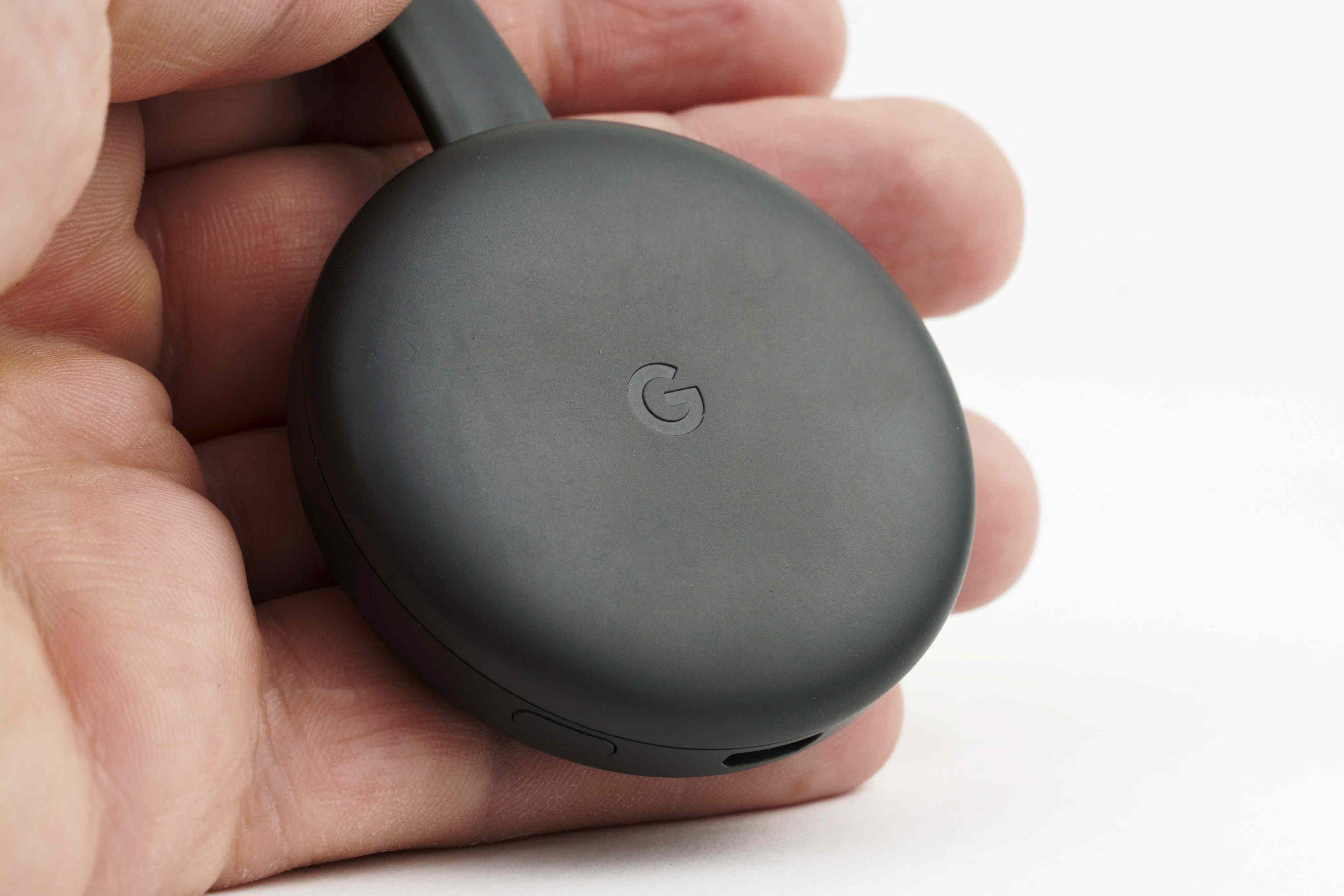
Understanding the Chromecast 'Source Not Supported' Error
The "source not supported" error on Chromecast can be frustrating, especially when you're trying to cast content from your device. This issue often arises when the Chromecast or the browser is unable to recognize the content you're attempting to cast. Fortunately, there are several steps you can take to resolve this problem.
Common Causes of the Error
This error can occur for a variety of reasons, including outdated software, network issues, incompatible settings, or even problems with the hardware itself. It's important to understand that the error isn't necessarily your fault—it could be due to a bug in the software or an incompatibility between devices.
Some TVs may appear to have built-in Chromecast capabilities, but they might only support specific platforms like YouTube or Netflix. Attempting to cast other content, such as your desktop or a browser tab, can trigger the "source not supported" error.
Steps to Fix the Chromecast 'Source Not Supported' Error
Here are some effective troubleshooting methods you can try:
- Restart the Chromecast: Unplug the device from the TV or projector for a few seconds and then plug it back in. This simple step can often resolve the issue.
- Update Chrome: Ensure that your browser is up-to-date. Updates often include bug fixes and improvements that can address compatibility issues.
- Update the Chromecast: Check for any available updates for your Chromecast. A restart might trigger the update, but if not, follow the provided instructions.
- Check for TV Updates: If you're using an Android TV, check for system updates. These updates can improve compatibility with Chromecast.
- Restart Your Computer and Router: Restarting both your computer and router can help resolve network-related issues.
- Adjust Chrome Flags: Navigate to
chrome://flags/and enable the following options: - Connect to Cast devices on all IP addresses
- Allow all sites to initiate mirroring
- Disable Interfering Software: Temporarily disable any software that might interfere with Chromecast, such as:
- VPN
- Ad-blocking extensions or software
- Firewall
- Antivirus software
- Consider uninstalling these if they don’t resolve the issue.
- Disable Chrome Extensions: Turn off all extensions and re-enable them one by one to identify any problematic ones.
- Reset the Chromecast: This will erase all settings and require you to set it up again. Make sure to back up any important data before proceeding.
- Reset Your Router: Similar to resetting the Chromecast, this will restore your router to its factory defaults, requiring you to reconfigure your Wi-Fi settings.
- Change Wi-Fi Network Settings: On Windows, switch your Wi-Fi network from public to private to make your computer discoverable on the network.
- Try a Different Browser: Some users have found success using browsers like Edge or Chrome Canary instead of the standard Chrome browser.
- Reinstall Your Operating System: As a last resort, consider reinstalling your operating system. This can fix underlying software issues that may be causing the error.
Additional Tips and Information
It's essential to distinguish between a reset and a restart. A reset erases customizations and returns the device to its factory settings, while a restart simply shuts down and starts the device again.
If you're using an Android TV, navigate to the settings, go to Apps under TV, and locate Google Cast Receiver under System apps. You can toggle the option off and then back on, or clear the cache if needed.
For more information on how to change the audio source or Wi-Fi network on your Chromecast, refer to the detailed instructions provided in the original article.
By following these steps, you should be able to resolve the "source not supported" error and enjoy seamless casting experiences.

Post a Comment for "Fix 'Source Not Supported' Error on Chromecast Quickly"
Post a Comment