Apple CarPlay Now Supports Custom Startup Sounds – Here's How
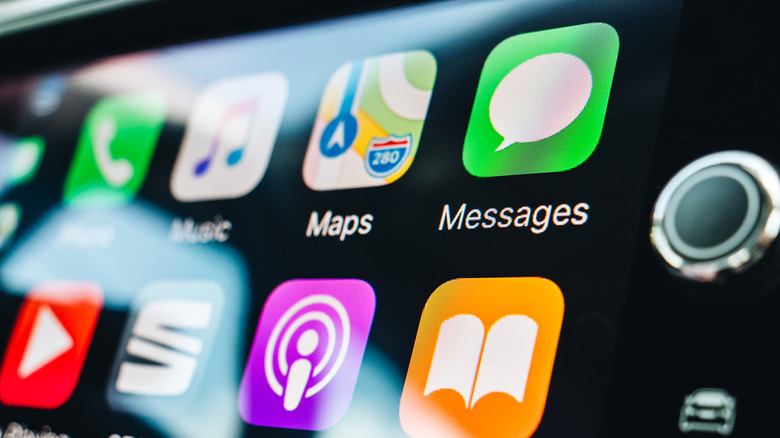
Understanding Apple CarPlay and Custom Startup Sounds
In today's world of advanced consumer technology, smartphones have become an essential part of our daily lives. These devices are not only used for communication but also for entertainment, navigation, and even integration with other smart systems like car infotainment. One such feature is Apple CarPlay, a powerful tool that allows users to access various functions from their iPhone through their vehicle’s dashboard.
Apple CarPlay offers a range of features, including hands-free calling, messaging, and music playback via Apple Music. While many of these functions are impressive, sometimes the simplest features can make the biggest impact. For instance, creating a custom startup sound for Apple CarPlay can add a personal touch to your driving experience. This guide will walk you through the process of making your own startup sound for Apple CarPlay.
The Process of Creating a Custom Startup Sound
Creating a custom startup sound for Apple CarPlay doesn’t require any complicated steps, but it does involve navigating some parts of your iPhone that you might not be familiar with. While Apple may eventually introduce a more straightforward way to create custom tones, for now, we need to work with the current capabilities of iOS and CarPlay.
To begin, you'll need two main tools: your iPhone and a computer. If you plan on using audio from a YouTube video, you’ll also need YouTube-ripping software. The first step is to decide on the audio file you want to use as your startup sound. The file should be in a universal format such as MP3 or MP4 to ensure compatibility with both your iPhone and CarPlay system.
Your audio clip can be anything from the first 10 seconds of a favorite song to a humorous announcement recorded in GarageBand. You can also use a YouTube MP3 converter to extract audio from videos. Once you’ve chosen your audio clip, upload it to your iPhone. You can do this through various methods, such as downloading it from iCloud or receiving it via email and then downloading it through the iOS Mail app.
Once the clip is on your iPhone, you can find it in the Files app. From there, open the Shortcuts app and tap on Automation. Select New Automation and then choose CarPlay. On the next screen, toggle on both the Connects and Run Immediately options, then tap Next. Choose New Blank Automation and select Files from the Actions list.
On the next screen, choose File and then tap File again (the word in the search field) to select your custom audio clip. After that, tap Done and take your iPhone to your car. Start your vehicle, and once iOS and CarPlay connect, your custom startup sound should play.
Exploring Other CarPlay Automations
When you selected the Files app from the list of CarPlay Actions, you may have noticed there are several other apps and services available. You can program your iPhone to perform various tasks when the infotainment system boots up, such as sending a text message or launching the Maps app. You can also filter these actions by tapping Scripting, Controls, Location, Media, etc., in the Actions menu.
iOS also allows you to create custom automations for when CarPlay powers down and disconnects from your iPhone. This can be useful for workflow tools you know you'll need as soon as you arrive at your destination, such as Notes or Google Drive.
While the process for creating CarPlay automation may not be entirely intuitive, the ability to personalize your infotainment experience is a significant advantage. It adds a layer of customization that enhances the overall user experience. Whether you're looking to create a unique startup sound or automate other functions, Apple CarPlay offers a versatile platform for personalization.

Post a Comment for "Apple CarPlay Now Supports Custom Startup Sounds – Here's How"
Post a Comment