iOS 18.6 Released: Update These 10 Key Settings Immediately
Enhance Your iPhone Experience with Key iOS 18 Settings
As Apple prepares for the upcoming release of iOS 26 this fall, the latest update, iOS 18.6, brings essential bug fixes and security improvements. Whether you've just updated or haven't explored your settings in a while, now is the perfect time to optimize your iPhone for smoother performance and enhanced functionality. These quick adjustments can make a significant difference in how you interact with your device.
Turn Off Categories in the Mail App
The new categories feature in the Mail app organizes emails into Primary, Transactions, Updates, and Promotions. If this doesn’t suit your preferences, consider these options:
- Swipe all the way to the right of the categories and tap All Mail for a chronological view.
- Tap the three-dot menu (…), then choose List View to disable categories entirely.
Change the Default Buttons on the Lock Screen
iOS 18 allows customization of the bottom corners of the lock screen. You can replace the flashlight and camera buttons with other functions such as Shazam, Dark Mode, or even Tap to Cash. Here’s how:
- Touch and hold the display until the Customize button appears. Unlock using Face ID, Touch ID, or your passcode.
- Tap Customize, then choose Lock Screen.
- Remove a button by tapping the – (minus) button on the icon.
- Replace it by tapping the + icon and selecting the desired function.
- Repeat for the second button if needed.
- Tap Done when finished.
Get Important Alerts Using Prioritize Notifications
For iPhones that support Apple Intelligence, the Prioritize Notifications feature helps identify important alerts. Go to Settings > Notifications, then under Apple Intelligence, tap Prioritize Notifications. You can enable or disable priority notifications for individual apps.
Set Up New Tasks on the Action Button
The Action button on the iPhone 15 Pro, iPhone 16, iPhone 16E, and iPhone 16 Pro offers customizable actions. By default, it toggles Silent Mode, but you can assign it to open the Camera app, perform multiple actions, or even order coffee. To configure it:
- Go to Settings > Action Button.
- Swipe sideways to select and activate an action.
- For Controls, Shortcut, and Accessibility options, tap Choose to pick a specific action.
Customize Your Home Screen
iOS 18 allows more flexibility in arranging apps. You can place icons nearly anywhere and enjoy a new Dark mode option for the home and lock screens. Here’s how:
- Touch and hold the home screen to enter "jiggle mode" and drag icons to new positions.
- Use the row of resize buttons to expand apps into widgets.
- Adjust the Dark mode by touching and holding the home screen, then tapping Edit and choosing Customize.
- Choose from Automatic, Dark, or Light modes.
- Use the Tinted option to apply a color tint to all icons.
Adjust the Control Center
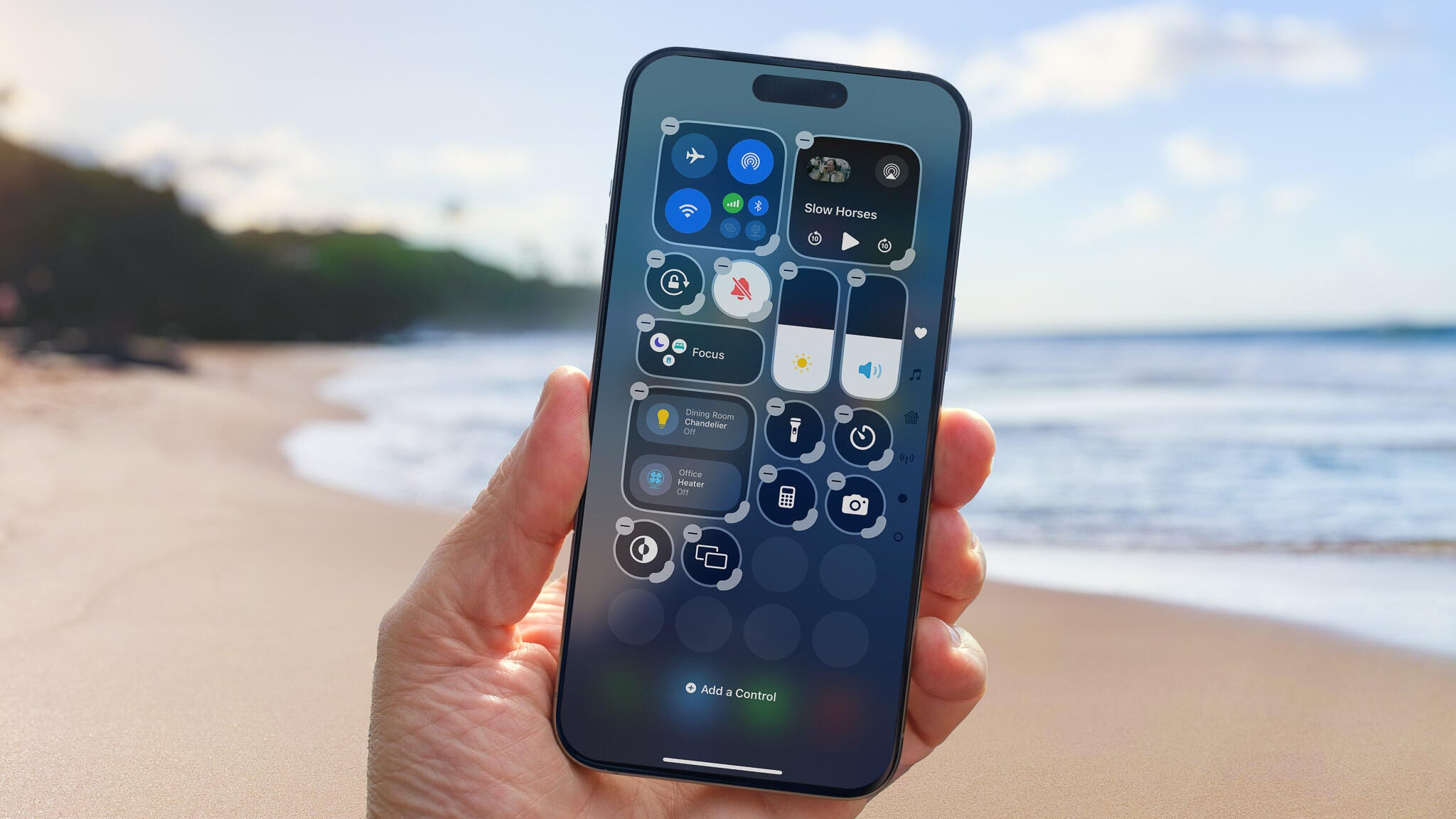
The Control Center in iOS 18 is now fully customizable. You can reposition controls, resize them, and add new ones. To edit:
- Swipe down from the top-right corner to reveal the Control Center.
- Touch and hold or press the + button at the top-left to enter edit mode.
- Drag controls to new positions or resize them using the handle in the bottom-right corner.
- Add new controls by tapping Add a Control and selecting from available options.
Lock or Hide Sensitive Apps
To protect sensitive data, iOS 18 allows locking and hiding apps. To lock an app:
- Touch and hold the app icon, then choose Require Face ID or Require Touch ID.
- Confirm your choice in the next dialog.
To hide an app:
- Touch and hold the app, then choose Require Face ID and tap Hide and Require Face ID.
- Confirm by tapping Hide App.
Disable Loop Videos in the Photos App
If you’re tired of videos looping automatically, go to Settings > Photos and turn off Loop Videos and Auto-Play Motion.
Adjust the Calendar View
In iOS 18, the Calendar app offers new viewing options. In Month view, pinch with two fingers to zoom in or out. The Day view now includes a Multi Day option to see two consecutive days.
Improve Movie and TV Show Dialogue
The TV app in iOS 18 includes Enhance Dialogue to make speech clearer. While watching a video, tap the More (…) button, then expand the Audio heading. Tap Enhance Dialogue and choose Enhance or Boost to reduce background noise and increase dialogue volume.
These features are just a few of the many enhancements in iOS 18. Explore more about Apple Intelligence, user experiences, and compatibility with the iPhone 16 models.

Post a Comment for "iOS 18.6 Released: Update These 10 Key Settings Immediately"
Post a Comment