Benchmarking Macs: 3DMark and Tools to Test Performance Easily
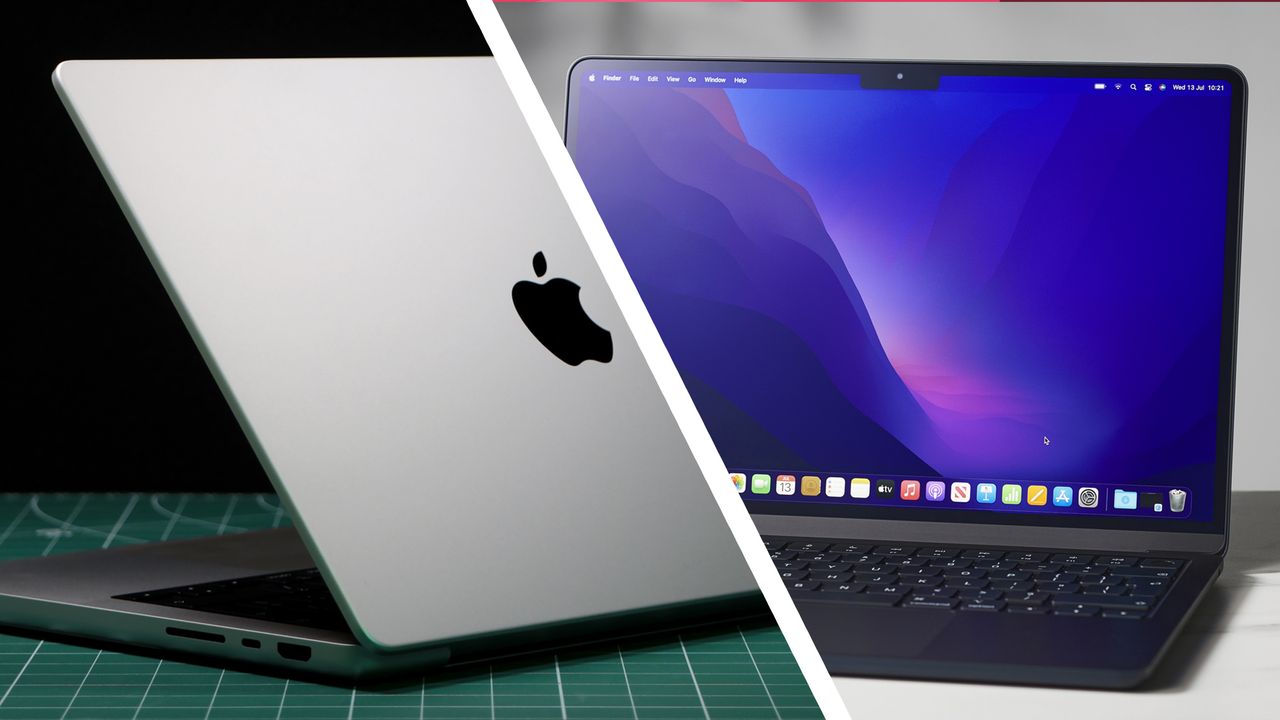
Introduction to Benchmarking for Mac Gamers
It’s been a few weeks since Apple's WWDC 2025 event, and while the company did announce a new Games app that will be included in the upcoming macOS Tahoe, there wasn’t much news on forthcoming titles that Mac gamers can look forward to. However, one important games-related announcement during the event might have gone under the radar: the launch of a new Mac version of UL Solutions’ 3DMark benchmarking app.
This development is significant for Mac gamers because 3DMark is one of the most popular tools used to test graphics performance on gaming PCs. Its arrival on the Mac reflects the growing recognition of Macs as a serious gaming platform. With that in mind, it’s worth exploring how you can go about benchmarking your MacBook or Mac to understand its capabilities better.
DIY Benchmarking for Mac Gamers
Some games, such as Assassin’s Creed: Shadows and Cyberpunk 2077, now available for Macs, come with their own built-in benchmarking tools. These allow you to test your Mac’s performance and see the frames-per-second (FPS) score it can achieve while running the game. These tools are useful for experimenting with different graphics settings to find the best balance between quality and performance for your specific Mac model.
However, these tools only work within individual games, so they don’t provide much insight into how your Mac will perform with other games or how it compares to other Macs or PCs. Additionally, you usually need to purchase the game to run the benchmark.
For PC gamers, Steam has an option to show framerates in-game. Unfortunately, the Mac version of Steam has been unreliable, and its FPS counter disappeared around 2023. But there was some positive news during WWDC: Valve announced it is testing a new version of Steam optimized for the latest Macs with Apple Silicon processors, which should improve reliability in the future.
Apple’s Metal HUD for Performance Testing
Apple also provides its own tool for testing gaming performance: the Metal HUD (heads-up display). This is part of the Metal software that Apple uses to render 3D graphics on Macs and other devices. Originally designed for developers, the Metal HUD can be used by anyone who isn’t afraid of using the Terminal app.
To activate the Metal HUD, open the Terminal app (found in Applications/Utilities) and enter the following command:
/bin/launchctl setenv MTL_HUD_ENABLED 1
After this, the Metal HUD will appear automatically the next time you launch a game with 3D graphics. It displays technical information, including screen resolution, refresh rate, and average FPS. You can adjust settings within the game to see how they affect performance.
To turn it off, use the following command:
/bin/launchctl setenv MTL_HUD_ENABLED 0
Testing with Geekbench 6
Geekbench is another popular tool for testing Mac performance. It runs on Windows, Linux, and Android, making it ideal for comparing your Mac’s performance with various devices. The website geekbench.com has a large database of test results you can explore.
Geekbench includes CPU and GPU benchmarks. While the GPU tests focus on 2D tasks like photo editing, it still offers a general overview of your Mac’s performance. There’s a free version available, and a Pro version costs $99.00 for regular users.
3DMark for Mac
Mac gamers may be excited to learn that the new version of 3DMark for Macs is now available on Steam. This version is specifically written for the latest Mac models with Apple Silicon processors and includes tests for modern graphics techniques like ray-tracing.
The previous Mac version of 3DMark, found on the Mac App Store, was designed for the iPad and not verified for Mac. It’s outdated and lacks support for newer features. The new Steam version includes a demo that allows you to run the main performance tests for free. The full version costs £29.50/$34.99 and includes additional features like adjustable screen resolution.
One of the key advantages of 3DMark is that it focuses on 3D graphics performance in games. The four tests currently available for macOS include Steel Nomad, Steel Nomad Light, WildLife Extreme, and Solar Bay. While two of these are similar, they offer a good overview of your Mac’s gaming capabilities. Scores from these tests are directly comparable to those from the PC version of 3DMark, making it easy to compare Mac and PC performance.
Solar Bay, in particular, is designed to test ray-tracing performance, which is crucial for modern games like Assassin’s Creed: Shadows. Ray-tracing requires powerful hardware, and Apple introduced it on Macs with the M3 processor, making Solar Bay suitable for the latest Macs and high-end iPad models.
Conclusion
Most of these benchmarking tools are free to use or offer a useful working demo at no cost. Whether you're a casual gamer or a tech enthusiast, these tools can help you understand your Mac’s capabilities and optimize your gaming experience.

Post a Comment for "Benchmarking Macs: 3DMark and Tools to Test Performance Easily"
Post a Comment